Description:
This article describes how to perform a cable test on a LANCOM switch.
For technical reasons, the cable test can only display an approximate value for the cable length.
Requirements:
- GS-23xx series:
- LCOS SX as of version 3.34 Rel (download latest version)
- GS-24xx / GS-3xxx / XS-3xxx series:
- LCOS SX as of version 4.00 Rel or as of version 4.20 Rel / 4.30 Rel (download latest version)
- GS-45xx / XS-45xx series:
- LCOS SX as of version 5.20 Rel (download latest version)
- SSH client for command-line access (e.g. PuTTY)
- Any browser for access via WEBconfig
Procedure:
GS-23xx series:
The cable must be at least 10 and no more than 100 meters long.
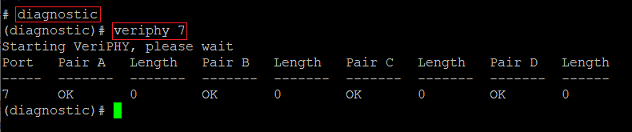
1) Connect to the switch from the command line and enter the command diagnostic.
2) Enter the command veriphy x where x stands for the port number (in this example veriphy 7).
Possible results of the cable test
- OK – The cable is OK and a device is connected. The length of the cable is not detected.
- Open – No device is connected to the cable .
- Abnormal – The cable is not OK or the Link Status is on Link Down.
GS-3xxx series:
LCOS SX 4.00:
Requirements for the cable test
- The cable must be at least 7 and no more than 120 meters
- The cable must be connected to a device. Otherwise the Link Status is displayed as Link Down and the Test Result shows the message detect error or check cable length is between 7 – 120 meters.
- Do not perform the test for the cable used to manage the web interface. Otherwise the Link Status will be displayed correctly (e.g. 1G) and the Test Result shows the message detect error or check cable length is between 7 – 120 meters.
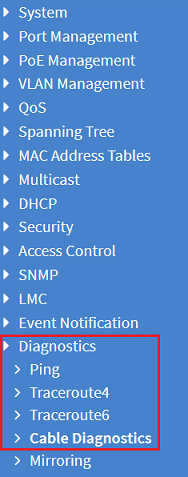
1) Connect to the web interface of the switch and navigate to the menu Diagnostics → Cable Diagnostics.
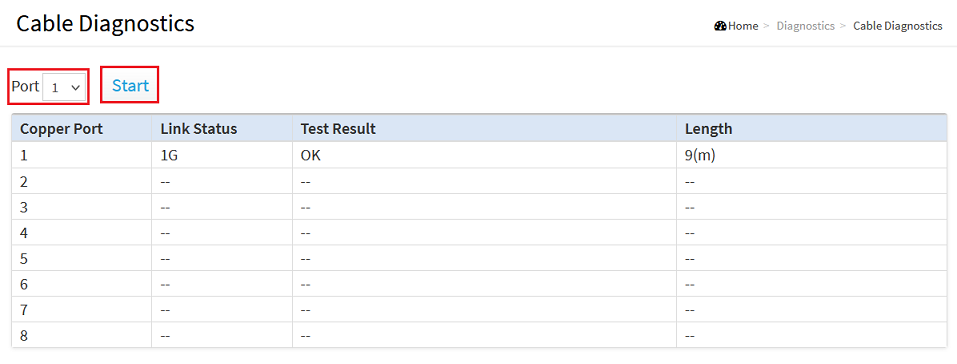
2) Select the Port that the cable is connected to and click Start.
Possible results of the cable test
- OK – The cable is OK and a device is connected.
- Abnormal – The cable is not OK or the Link Status is on Link Down.
GS-24xx / GS-3xxx / XS-3xxx series:
LCOS SX 4.20 / 4.30:
Requirements for the cable test
- The cable must be at least 7 and no more than 140 meters
- For technical reasons, the cable test is not supported on GS-3252(P).
1) Connect to the web interface of the switch and navigate to the menu Diagnostics → VeriPHY.
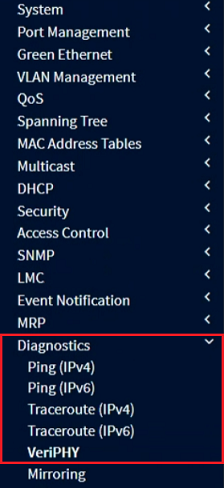
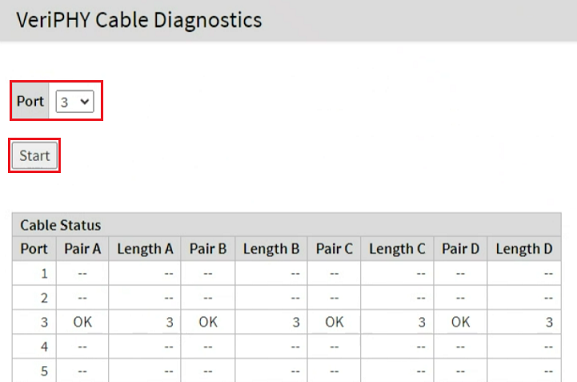
2) Select the Port that the cable is connected to and click Start.
Possible results of the cable test
- OK – The wire pair is OK. If the status of all wire pairs is OK, the cable is OK for use.
- Open – A pair of wires is open and therefore the cable is faulty.
- Short – There is a short circuit in the wire pair and therefore the cable is faulty.
- Cross – A wire is connected to a wire from another wire pair and the cable is therefore faulty.
GS-45xx / XS-45xx series:
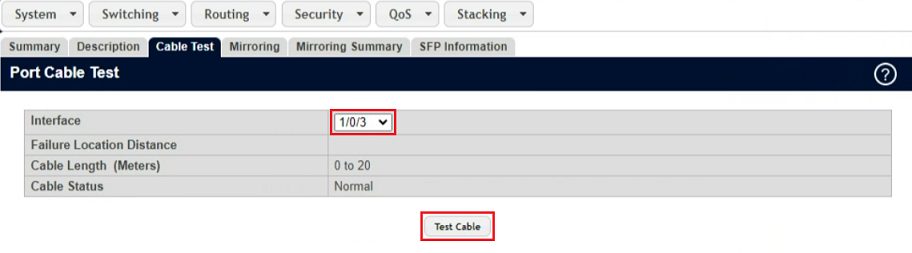
1) Connect to the web interface of the switch and navigate to the menu System → Port → Cable Test.
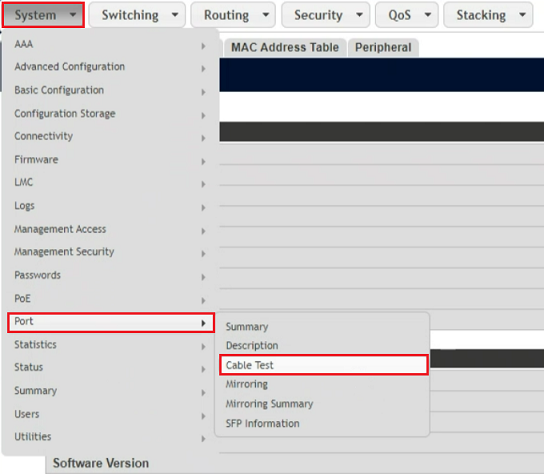
2) Select the Interface that the cable is connected to and click Test Cable.
Possible results of the cable test
- OK – The cable is OK and a device is connected.
- Open – No cable is connected or the connector is faulty. It is also possible that a wire pair is open and the cable is therefore faulty.
- Open and Short – There is a short circuit in the cable and the cable is therefore faulty.
- Cable status test failed – The cable test could not be executed.