
Description:
This document describes how to configure a Public Spot login, where users must accept the Terms of Use and submit their e-mail address.
Please observe applicable data protection regulations when collecting user data!
Requirements:
- LCOS as of version 9 (download latest version)
- LANtools as of version 9 (download latest version)
- LANCOM router or LANCOM access point with an activated LANCOM Public Spot option
- Public Spot template featuring a text field for entering the user's e-mail address:
 Login_via_agreement_with_email.htm
Note:
- The configuration of a simple Public Spot scenario with the LANCOM Setup Wizard is described in the following Knowledge Base article

- .
Procedure:
1) Upload the template to the LANCOM router:
1.1) In LANconfig, right-click on the LANCOM router or access point and select the menu item Configuration management -> Upload a certificate or file....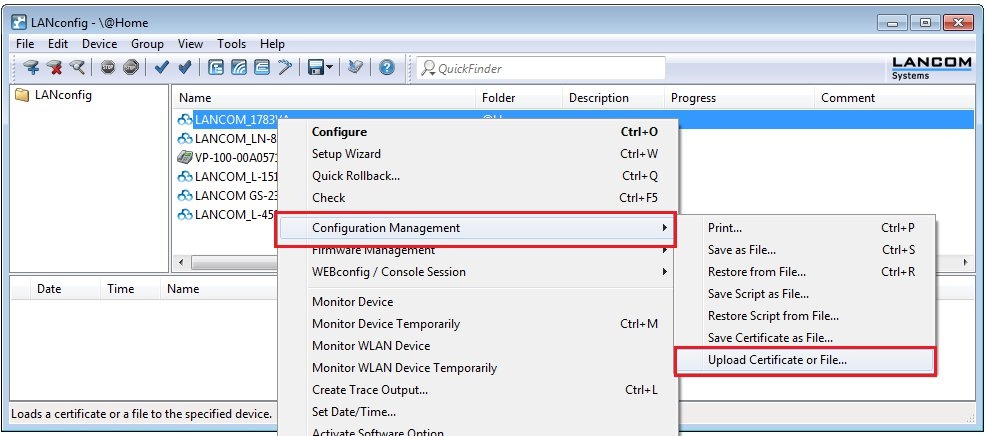
1.2) Set the File type to All files and set the Certificate type to Public Spot - Welcome Page.
1.3) Set the path to the template and then click Open.
1.4) The successful upload of the HTML file is displayed as a message in the LANconfig log window.
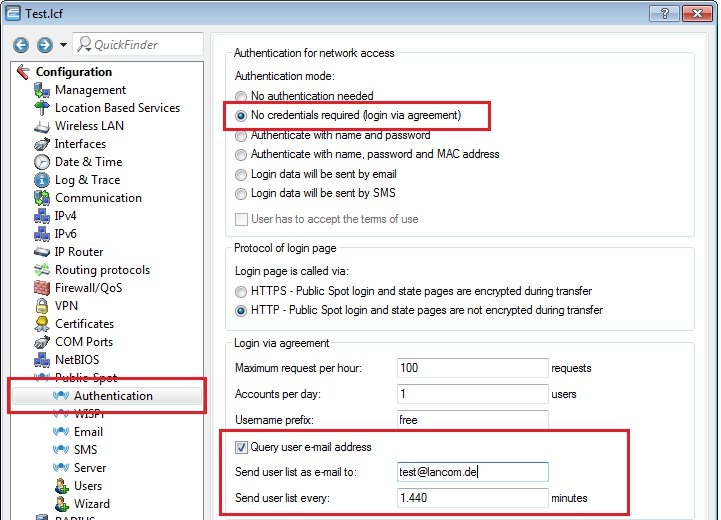
1.5) Open the configuration for the LANCOM router or access point and switch to the menu item Public Spot -> Authentication.
1.6) Select the No authentication needed option.
1.7) In the Login after agreement section, select the option Query user e-mail address and specify an e-mail address where the list of users' e-mail addresses is to be sent. By default, the list is sent once every 24 hours.
Note:
- The LANCOM router needs to be
configured to send e-mails
- (see

- ).
1.8) Navigate to the menu Public Spot -> Server -> Page table -> Welcome....
1.9) For the Page address (URL) enter the value file://pbspot_template_welcome.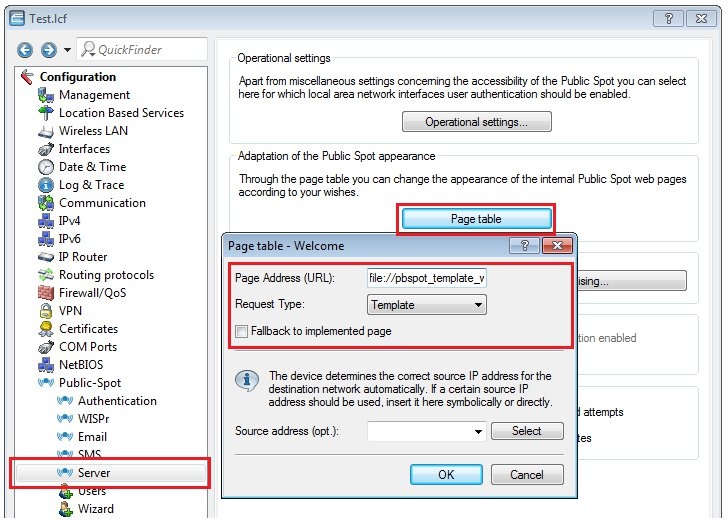
1.10) Close the configuration with OK and write the changes back to the LANCOM router or access point.
2) Function check:
2.1) Connect a WLAN client to the LANCOM Public Spot.
2.2) On the WLAN client, start a Web browser and enter any URL (e.g. https://www.lancom.com).
2.3) The modified Welcome page is displayed:
- Enter an e-mail address into the text field.
- Enable the option Accept the Terms of Use.
- Click on Accept and you will be connected to the Public Spot network.
Note:
As operator of the Public Spot you will receive an e-mail with all of the users who logged in to the Public Spot over the last 24 hours. The list is also attached to the e-mail as a *.csv file.
