
Description:
Access points or routers based on LCOS can be remotely managed by means of another LCOS device, which sets up an SSH session. If the SSH keys stored in the devices are of different lengths or if the encryption and signature algorithms differ, no SSH session can be established. In this case, a new SSH key must be created and imported to one of the two devices.
As of LCOS 10.20, the minimum key length (Min-Hostkey-Length) has been increased to 2048 bits and outdated encryption and signature algorithms are no longer available by default.
This document describes how to create a new SSH key, either in the device itself or with the tool PuTTYgen, and upload it to the device.
Requirements:
Procedure:
1) Check the encryption settings on both devices:
1.1) From the command line, connect to the first device (in this case a 1781VA) and check the encryption settings by entering the command ls /Setup/Config/SSH.
The encryption settings on this device are still at the level up until LCOS 10.12 and are thus no longer up to date.

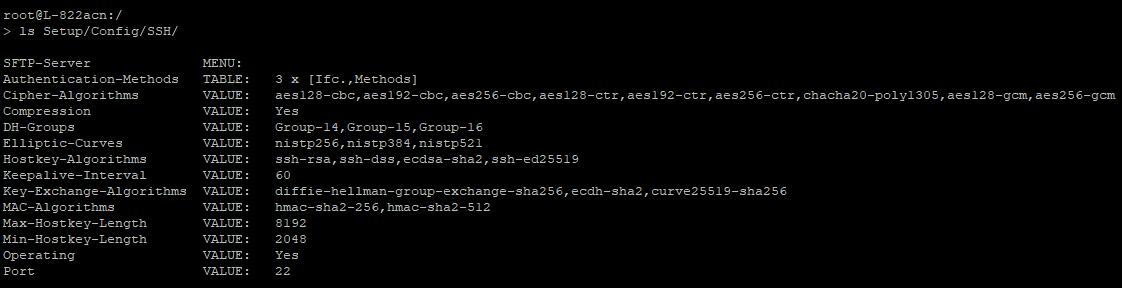
1.2) Connect to the second device (in this case an L-822acn) via the command line and check the encryption settings by entering the command ls /Setup/Config/SSH.
The encryption settings on this device are up to date as of LCOS 10.20.
2) Changing the encryption settings on one of the two devices:
The encryption settings should be changed on the device with the older settings (in this case the 1781VA). All you actually need to do is to set a matching minimum key length (Min-Hostkey-Length). If the encryption and signature algorithms added in LCOS 10.20 are supported, we recommended that you set these too.
2.1) If the device has firmware version 10.20 and higher:
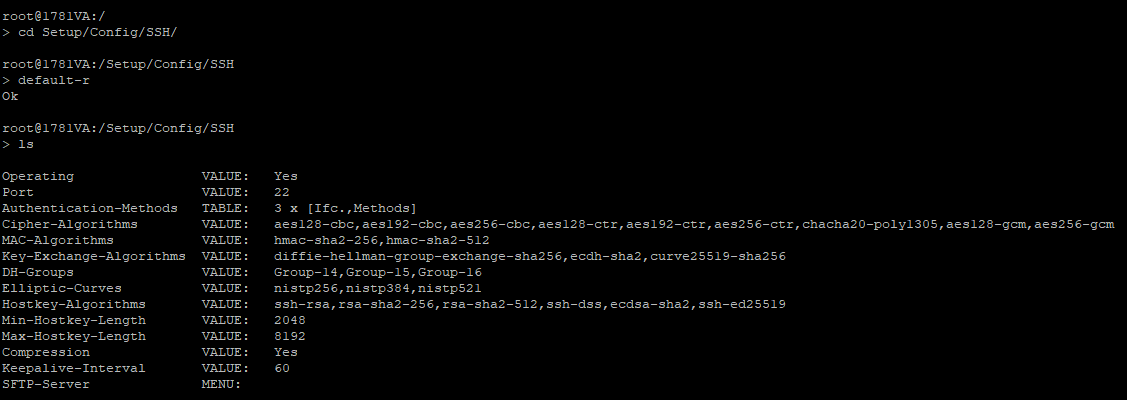
2.1.1) Enter the command cd Setup/Config/SSH/ to go to the menu path for configuring the SSH encryption settings.
2.1.2) Enter the command default-r to reset the directory and all of its subdirectories to their factory settings.
Important:
Make sure you are in the correct directory when you run the command default-r. If this command is executed in the root directory, the entire configuration is reset to the factory settings!
2.2) If the device has firmware version up to 10.12:
2.2.1) Set the minimum key length to 2048 bits by entering the command Set Setup/Config/SSH/Min-Hostkey-Length 2048.

3) Generating and importing a new SSH key:
3.1) Generating a new SSH key on the command line:
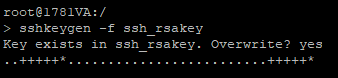
3.1.1) Enter the command sshkeygen -b 2048 to create a 2048-bit SSH key.
If a message appears indicating that a key already exists, confirm the message with yes.
Info:
Unless further parameters are specified, an RSA key will be generated by default.
Important:
Generating of a new SSH key causes a high CPU load.

3.1.2) Enter the command sshkeygen -f ssh_rsakey to import the SSH key created in step 3.1.1 into the RSA container.
3.2) Generating a new SSH key with the tool PuTTYgen:
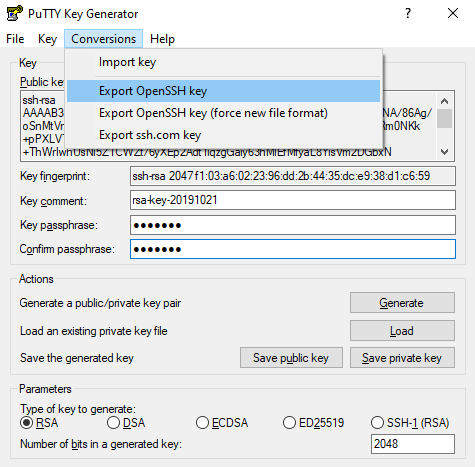
3.2.1) Start the tool PuTTYgen and set the type of key to generate and the key length (number of bits in a generated key).
Clicking on Generate then creates a new SSH key.
Info:
LCOS only supports the key types RSA, DSA and ECDSA, where RSA the most widespread.
Important:
The key length must match the Min-Hostkey-Length (see steps 2.1 and 2.2).

3.2.2) Enter a password under Key passphrase and Confirm passphrase to secure the SSH key.

3.2.3) Export the SSH key by clicking on Conversions -> Export OpenSSH key.
3.2.4) Open LANconfig and right-click on the device to which you want to upload the SSH key.
In the context menu, click on Configuration management -> Upload certificate or file.
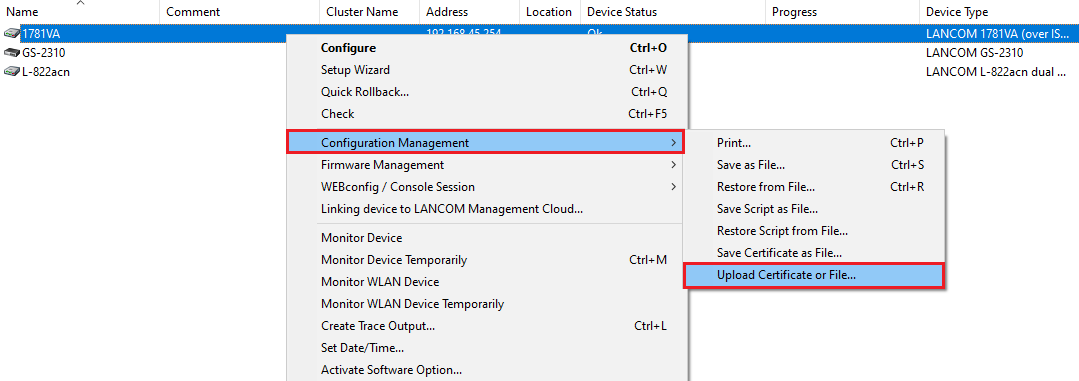
3.2.5) Enter the following parameters:
- File name: Select the SSH key exported in step 3.2.3.
- Certificate type: From the drop-down menu, select SSH - RSA key (*.key [BASE64 unencrypted]).
- password: Enter the password set in step 3.2.2.
Info:
If you set a different certificate type to RSA in step 3.2.1, you must now select the appropriate option for certificate type from the drop-down menu.

