
Description:
This article describes how to perform a firmware update for LANCOM devices that have a large difference between the versions of the old and new firmware (e.g. updating from LCOS 8.x to LCOS 10.x).
Newer LCOS versions contain converters that adapt configuration parameters that you have modified into parameters that are suitable for the newer LCOS version. For a direct LCOS update that jumps several versions (e.g. from LCOS 8.x to LCOS 10.x), these converters modify the configuration of the LANCOM device cumulatively.
It is not possible to use a converter to derive a firmware downgrade.
Converters do not modify default settings that have different parameters in newer LCOS versions. This ensures that common default parameters (e.g. default encryption algorithms used for a VPN connection) stay unchanged after an LCOS update, i.e. so that VPN connections will continue to function.
Following an LCOS update, the default settings of a new LCOS version only come into effect after the device is reset to its factory settings.
LANCOM Systems recommends that you save the existing configuration of the LANCOM device to a script file before performing the factory reset. After the factory reset, the file should be imported and then checked (see step 4).
This procedure is described below.
Requirements:
- LANtools (download latest version)
- Any browser for access using WEBconfig
- SSH Client, e.g. PuTTY
Procedure:
1) Creating a script backup:
A script backup can be performed with either LANconfig or WEBconfig. Both approaches are described here.
1.1) Creating a script backup with LANconfig:
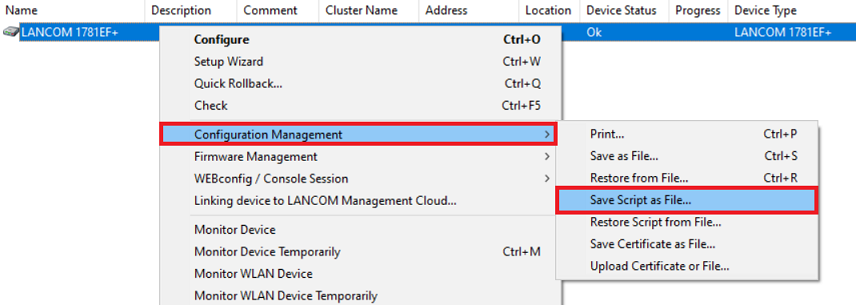
1.1.1) Select the router in LANconfig, right-click on it and, from the context menu, choose Configuration management → Save script as file.
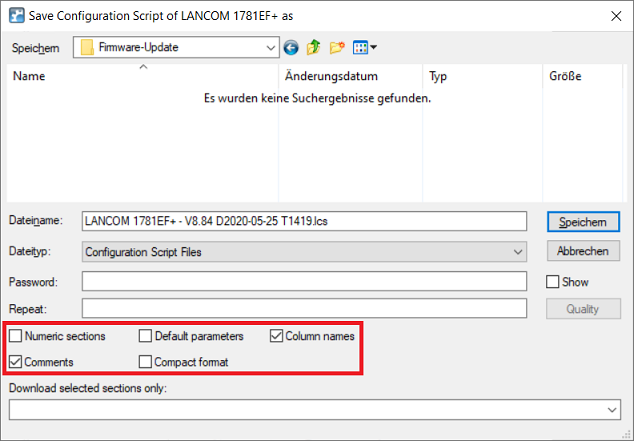
1.1.2) Retain the default values, i.e. only the Column names and Comments are selected.
Be sure not to select the Default parameters option! The option Column names must be set, otherwise there may be errors when transferring the configuration later.
Another reason not to select the Default parameters option is that, in the interests of improved security, many default settings have been changed in more recent firmware versions.
1.2) Creating a script backup by using WEBconfig:
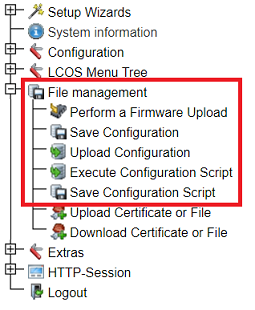
1.2.1) Connect to the router using WEBconfig and switch to the menu File management → Save configuration script.
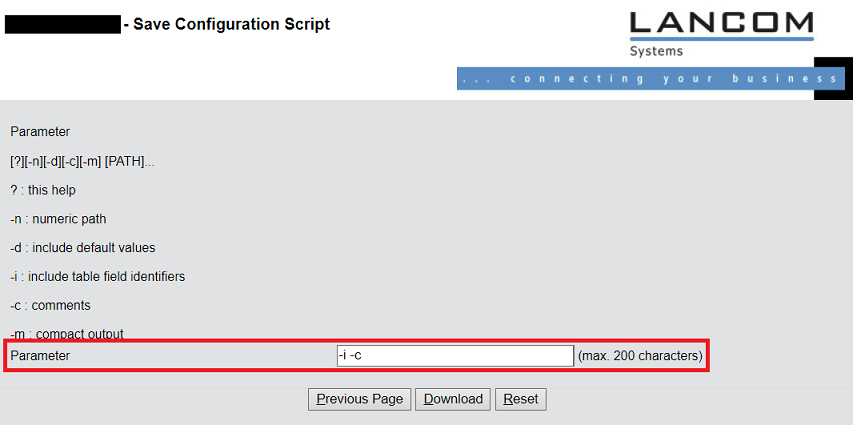
1.2.2) Use the arguments -i and -c for Parameter.
Be sure not to use the argument -d! The argument -i must be set, otherwise there may be errors when transferring the configuration later.
Another reason not to use the argument -d is that, in the interests of improved security, many default settings have been changed in more recent firmware versions.
2) Restoring the device factory settings:
Reset the device to its factory settings using the reset button, or from the CLI
3) Updating the firmware:
Download the latest firmware for your device from the download area and upload this to your device using either LANconfig or WEBconfig.
3.1) Firmware upload with LANconfig:
3.1.1) Select the device in LANconfig, right-click on it and, from the context menu, choose Firmware management → Upload new firmware.
You also have option to drag & drop the firmware file onto the device.
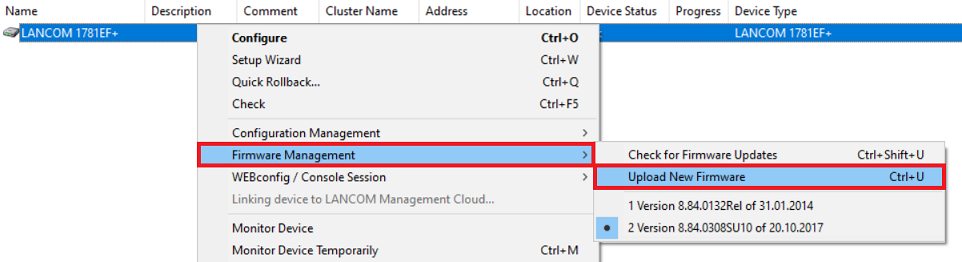
3.1.2) Select the firmware and upload it to the device.
3.2) Firmware upload with WEBconfig:
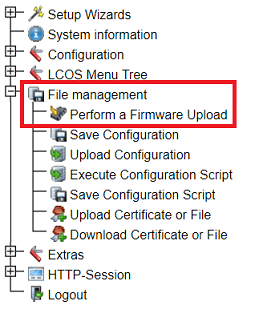
3.2.1) Connect to the router using WEBconfig and switch to the menu File management → Perform a firmware upload.
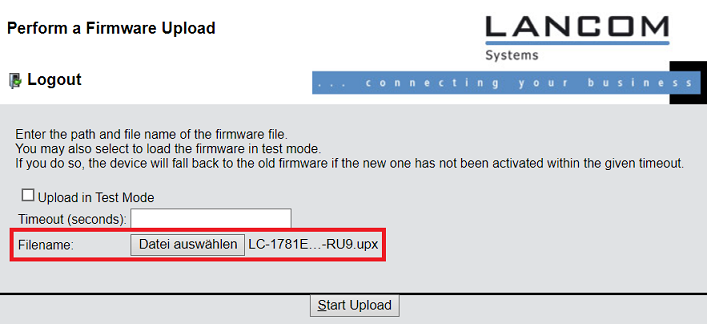
3.2.2) Select the firmware and upload it to the device.
4) Uploading the script backup and checking for script errors:
Connect to the device using an SSH client. The CLI session outputs any script errors that occur during the import.
Alternatively, after importing the script backup you can use the CLI command show script error.
4.1) Uploading the script backup by using LANconfig:
4.1.1) Select the device in LANconfig, right-click on it and, from the context menu, choose Configuration management → Restore script from file.
You also have the option in LANconfig to drag & drop the script backup onto the device.
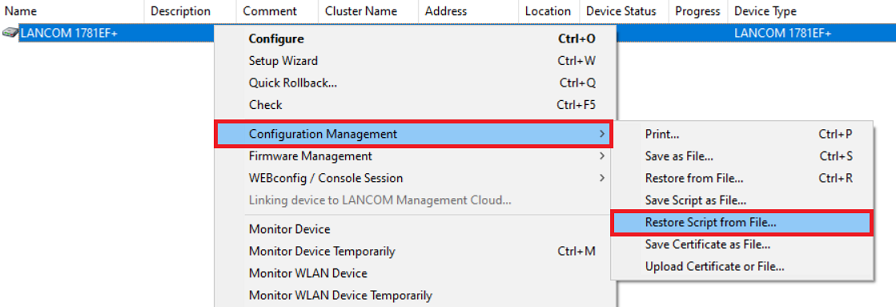
4.1.2) Select the script backup created in step 1 and upload it to the device.
4.2) Uploading the script backup with WEBconfig:
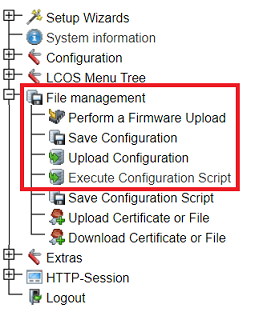
4.2.1) Connect to the router using WEBconfig and switch to the menu File management → Execute configuration script.
As of LCOS 10.40 you will find the menu in the path Extras → File management → Execute configuration script.
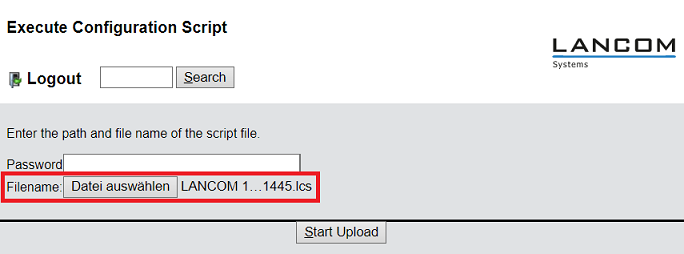
4.2.2) Select the script backup created in step 1 and upload it to the device.
5) Final steps:
5.1) Set a new password if this was not done already.
The main device password is not included in a script backup, so it has to be manually set afterwards.
5.2) Check that all of the required features are working as usual. Additional manual adjustments may be necessary in some cases.
5.3) If script errors are reported on the CLI (see step 4), please contact LANCOM Support. Please also attach the following information to the Support Case:
- Specify the device model (e.g. 1781EF+).
- Precise information about the original firmware version (e.g. 8.84 RU2) and the updated firmware version (e.g. 10.32 RU9).
- The script backup created in step 1.
- The output of the script errors as a text file (see step 4).
