Description:
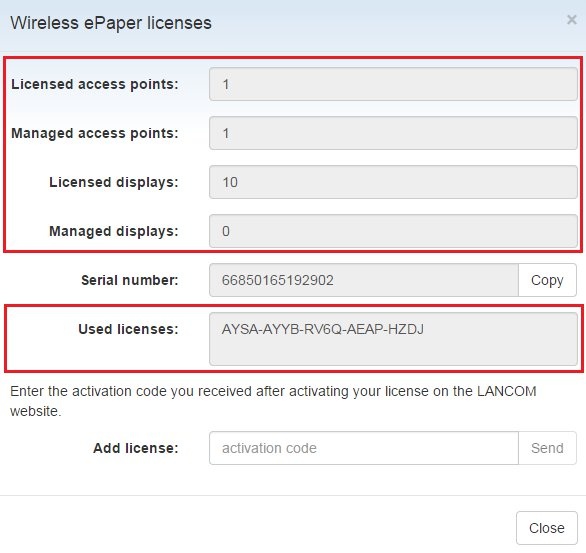
This document describes how you register a LANCOM Wireless ePaper license on the LANCOM website and then use the activation key returned to you to activate the LANCOM Wireless ePaper Server.
As of February 2026, the LANCOM Wireless ePaper Server product will reach end-of-life status. LANCOM Systems will then completely discontinue support for this product.
For service requests such as licence releases, registrations or unlock codes for displays, please contact our service team at service@lancom.de.
Thank you for your understanding.
Requirements:
- LANtools as of version 9 (download latest version)
- Installed LANCOM Wireless ePaper Server as of version 1.40 (download latest version)
Procedure:
1) Before you register your LANCOM Wireless ePaper license, you first determine the serial number of the your LANCOM Wireless ePaper Server.
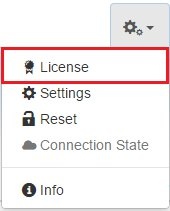
1.1) Open the management interface for the LANCOM Wireless ePaper Server and switch to the menu item Configuration → License.
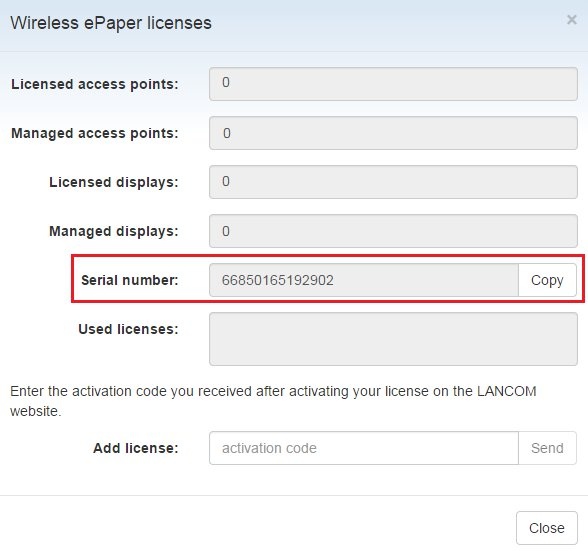
1.2) The field Serial number contains the serial number of your LANCOM Wireless ePaper Server. Use the Copy button to copy this number to the clipboard.
1.3) Start a web browser and call the LANCOM Website for registering Wireless ePaper licenses.
1.4) Copy the serial number of the LANCOM Wireless ePaper Server into the appropriate field. In the field below this, enter the license number of your LANCOM Wireless ePaper Server license.
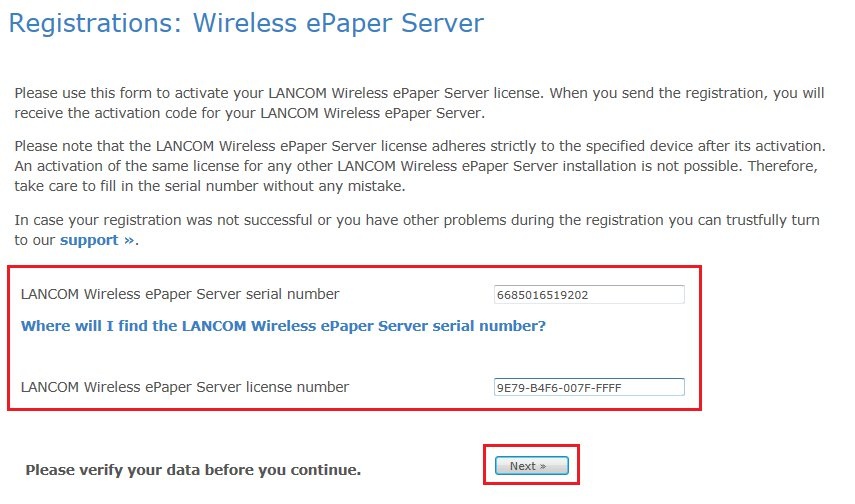
1.5) Click Next and fill out the registration form. Once you have entered all of the requested information, you will receive an activation key .
1.6) Navigate to the management interface for the LANCOM Wireless ePaper Server and go to the menu item Configuration → License once again.
1.7) Enter your new activation key into the field Add license and click the Send button.
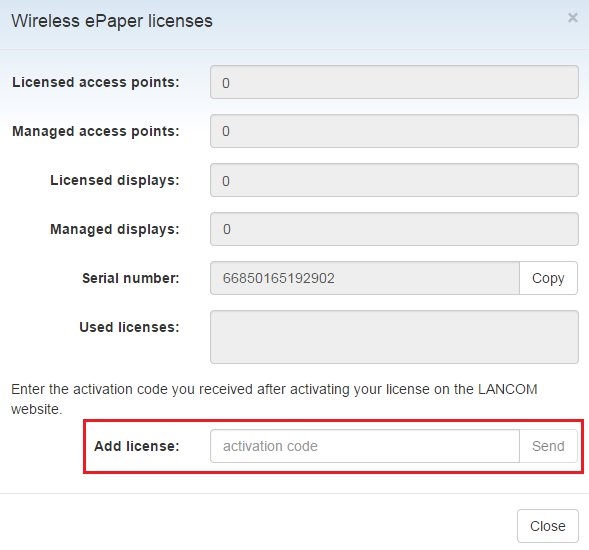
1.8) A message is displayed to indicate that the activation was successful . Finally, the licensing and activation data are displayed in the Licenses dialog .