
Description:
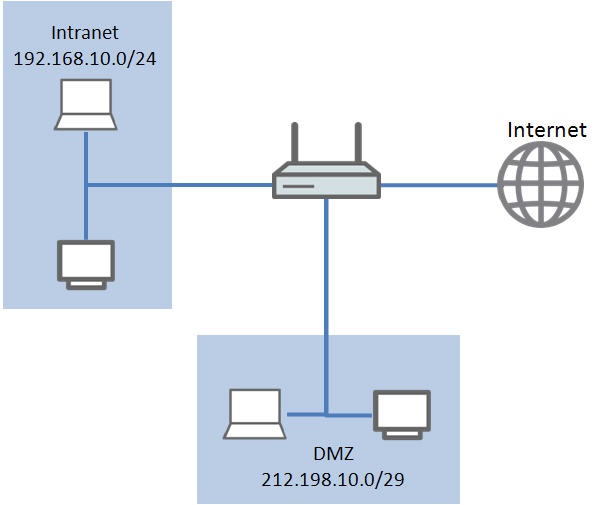
This document describes the configuration steps required to configure a DMZ with a public address range on a LANCOM router.
Requirements:
- LANtools as of version 7.80 (download latest version)
- LCOS as of version 7.80 (download latest version)
- The use of the LANCOM router as default gateway for the devices in the DMZ is mandatory!
Scenario:
- The example used here shows a CompanyConnect connection from Deutsche Telekom with a gateway router and 4 public IP addresses.
- The LANCOM router is already integrated into the local intranet network.
- An Internet connection will be set up in the initial configuration step.
- After this, the DMZ will then be set up with public IP addresses.
Procedure:
1. Setting up Internet access:
1.1) Internet access is set up using the Setup Wizard in LANconfig. Right-click on the device you wish to configure and select the option Setup Wizard.
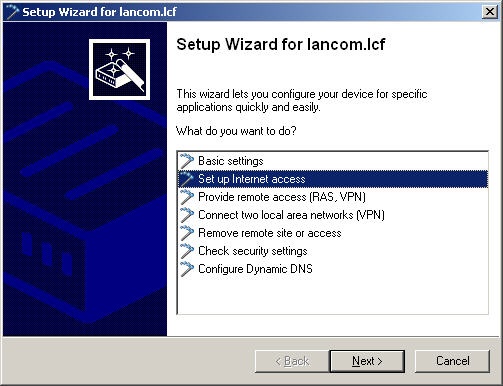
1.2) Select the option Set up Internet access.
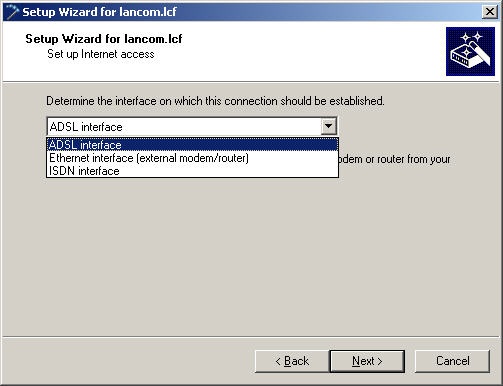
1.3) Select the Ethernet interface to use an external modem or router.
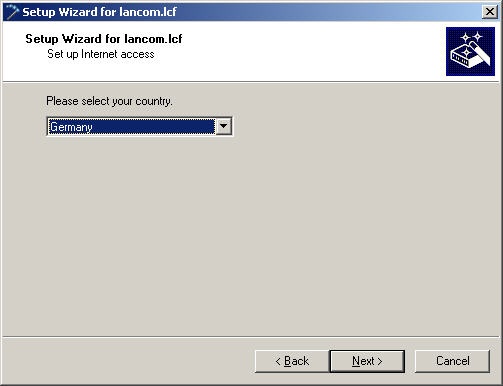
1.4) Select your country.
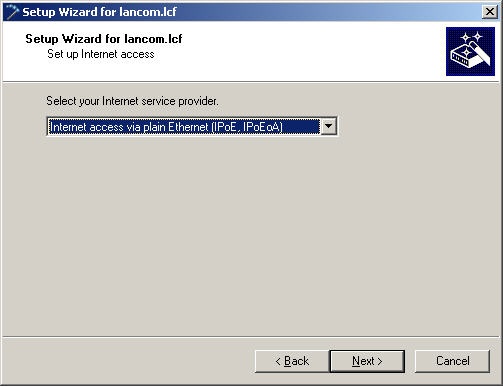
1.5) In the subsequent dialog, select option Internet via plain Ethernet (IPoE, IPoEoA).
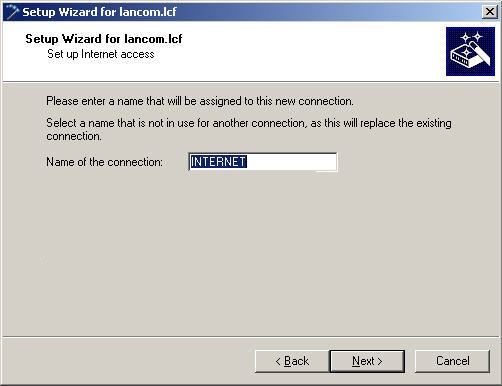
1.6) In the next screen, specify a Name for the Internet connection.
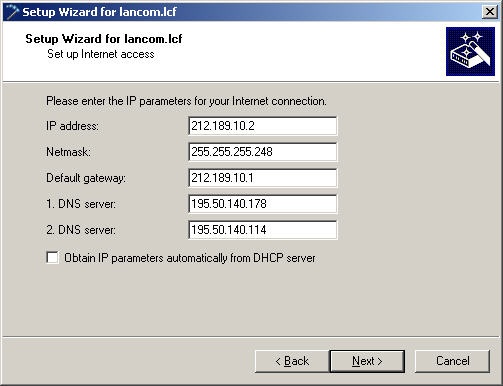
1.7) Uncheck the box Obtain IP parameters automatically from DHCP server and enter the IP parameters supplied by your provider.
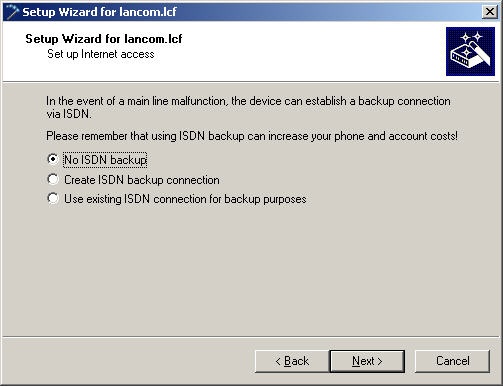
1.8) No backup connection is used in this example, so we can leave the default settings unchanged.
1.9. Exit the setup Internet connection wizard with the Finish button. The configured values are then written to the LANCOM router.
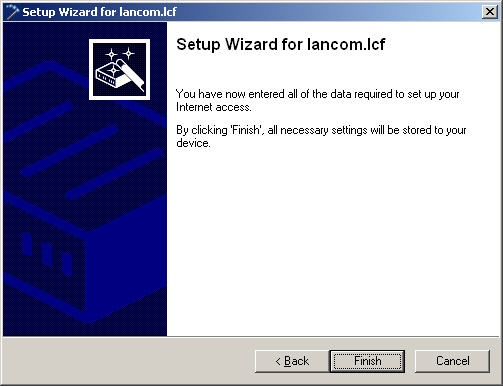
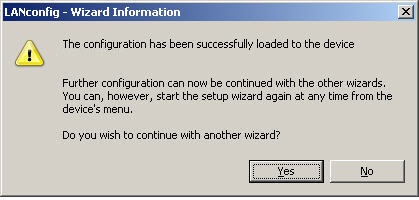
1.10) Once the configuration has been written back to the device the Setup Wizard will ask whether you wish to continue with other wizards.
Click on No in this screen since the configuration steps for setting up the Internet connection are now complete.
2. Setting up the DMZ:
2.1) Open the configuration dialog for the LANCOM router in LANconfig and switch to the menu IPv4 → General → IP networks.
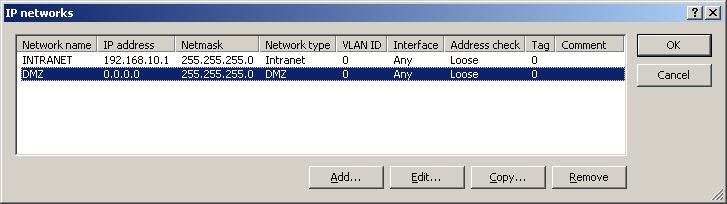
2.2) Highlight the DMZ entry and click on Edit.
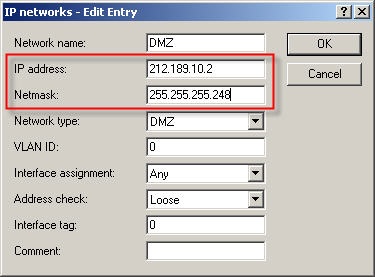
2.3) You must enter the public IP address of the LANCOM router as IP address (here: 212.189.10.2). The Netmask defines the size of the DMZ network. In this example 4 public IP addresses may be used. For this reason 255.255.255.248 must be entered as Netmask.
If an additional public DMZ should be used, whose IP address range is not configured on the router as an Internet connection (the Internet provider routes the second DMZ via the first DMZ), this address range must be entered as an additional DMZ in the IP networks table. It should be noted, that the same Interface tag as the first DMZ has to be used.
2.4) Close the dialog by clicking on the OK button and switch to the menu Configuration → IP Router → Routing → IPv4 Routing table.
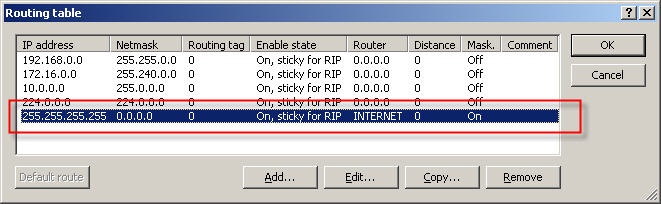
2.5) Since it is a public IP address range that needs to be reached, masking for this must be deactivated for the default route in the routing table.
2.6) Highlight the default route and click on Edit.
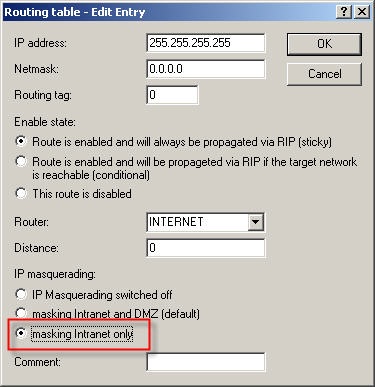
2.7) Select the option masking intranet only in the configuration dialog. Then close the dialog with OK.
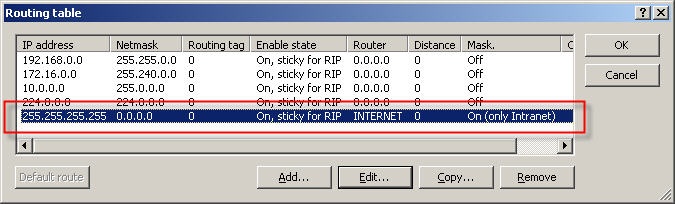
2.8) The default route should then look as follows in the routing table.
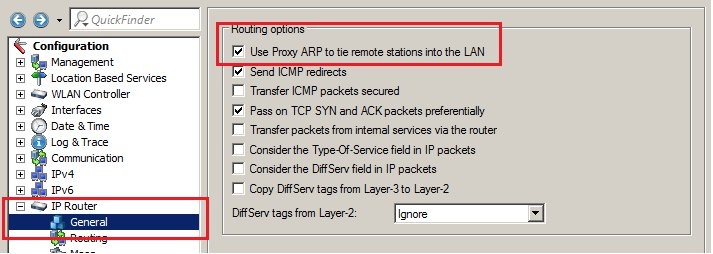
2.9) Open the menu IP-Router → General and make sure that the option Use Proxy ARP to tie remote stations into the LAN is activated.
2.10) Close the routing table with OK and then write the configuration back to the LANCOM router.
2.11) Disconnect the existing Internet connection to allow the changes to become effective.
2.12) This concludes the configuration process required to set up a DMZ with public IP addresses.
Please note that the public IP address range can now be reached completely transparently from the Internet and is thus also open to attacks from outside.
