
Description:
This article describes which steps can be conducted, when the Content Filter doesn't work correctly.
Requirements:
- LCOS as of version 9.24 (download latest version)
- LANtools as of version 9.24 (download latest version)
- The router with the Content Filter has to act as default gateway and DNS server
Procedure:
Generally a trace is needed to analyse Content Filter problems. Download the attached trace configuration and create a trace in the error state.

1) The communication with the Internet is not possible at all ("Forbidden") or not filtered ("Allowed"):
You can change the behaviour of the Content Filter in case of error in the menu Content Filter → General.
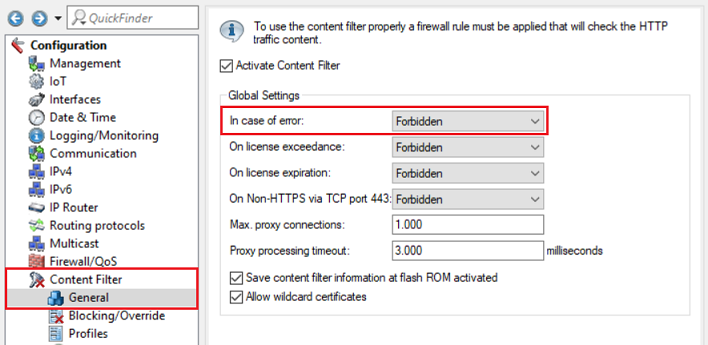
In a Content Filter trace the error messages Orange filter not yet ready and Contentfilter not yet ready are shown in the CF-Status trace. In this example the behaviour in case of error is set to Allowed (Passed).

This is usually caused by the router not being able to resolve the DNS names of the rating servers (this can also be verified in a DNS trace). Therefore check if a wrong DNS server is used in the router configuration and change it.
The DNS server can be changed in the following menus:
- IPv4 → Adresses → Name server addresses
- IPv4 → DNS → Forwarding
2) The Content Filter does not block forbidden websites after a firmware downgrade from 10.40 to 10.32 - No trace needed:
Due to new features completely new menus as well as new columns for existing menus are implemented in new firmware versions. The changes have been factored in and are converted during a firmware upgrade, so that the correct functionality is still given. If a firmware downgrade to an older LCOS version is conducted afterwards, the conversion isn't reversed and it may happen that some configuration components don't work correctly anymore.
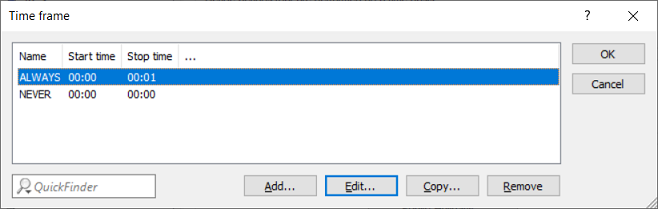
In this case the used Time frame ALWAYS in the menu Date & Time → General was only in effect from 00:00 to 00:01 o'clock. After changing the Stop time to 00:00, the Content Filter worked permanently.
Regarding the correct procedure for a firmware downgrade please refer to this Knowledge Base article.
3) Using an external DSL modem or upstream router can lead to performance issues - No trace needed:
When an external DSL modem or upstream router is used in combination with the Content Filter, performance issues can occur in rare cases. These issues can be fixed by entering the Downstream and Upstream rates in the DSL port used by the Internet connection.
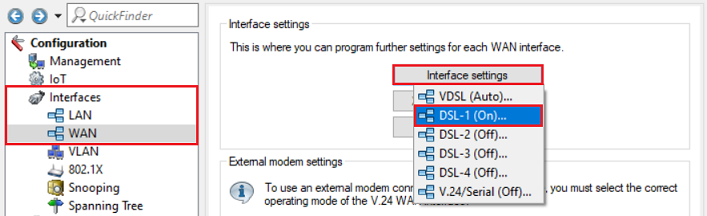
3.1) Open the configuration of the router in LANconfig and go to the menu Interfaces → WAN → Interface settings. Select the DSL interface used for the Internet connection (in this example DSL-1).
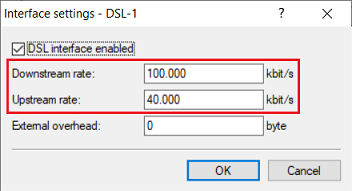
3.2) Enter the Downstream and Upstream rate for your Internet connection (in this example a VDSL connection with 100 MBit Download and 40 MBit Upload).
4) Sending the information to LANCOM Support:
If the problem should still persist after conducting the steps in this guide, please contact LANCOM Support and attach the following information:
- Detailed error descrption
- Trace in the error state created with the attached trace configuration (*.lct file)
- Up to date configuration file of the router (*.spf file)
