Description:
This document describes how to set up a VPN-SSL connection (site-to-site) between two LANCOM R&S®Unified Firewalls (referred to in the following as Unified Firewalls).
Requirements:
| Please ensure that the address ranges of the local networks being connected via VPN do not overlap with the default networks configured on the Unified Firewall ports (e.g. 192.168.2.0/24, 192.168.3.0/24)! |
Scenario:
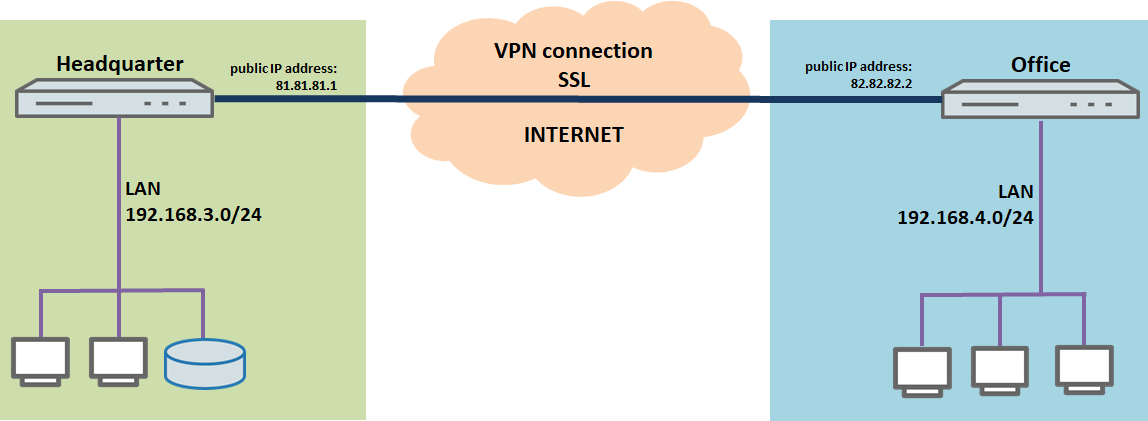
1) The Unified Firewall is connected directly to the Internet and has a public IPv4 address:
A company wants to use an SSL-VPN connection to connect their Unified Firewall at the headquarters to their Unified Firewall at the branch office.
Headquarter:
Branch office:
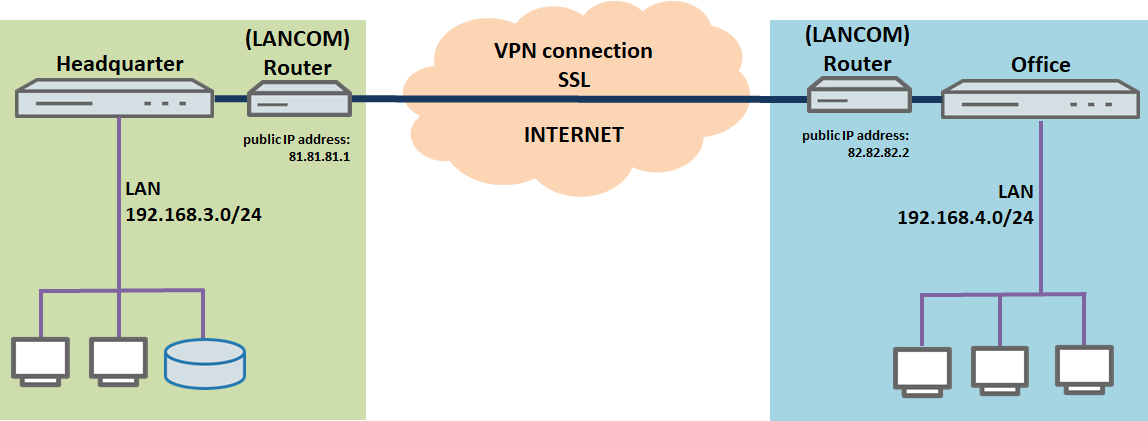
A company wants to use an SSL-VPN connection to connect their Unified Firewall at the headquarters to their Unified Firewall at the branch office.
Headquarter:
Branch office:
| This scenario also includes the “parallel” solution as described in this article. |
Procedure:
The setup for scenarios 1 and 2 are basically the same. Scenario 2 additionally requires port forwarding to be set up on the upstream router (see section 4).
Damit sowohl die Unified Firewall in der Zentrale als auch die Unified Firewall in der Filiale VPN-SSL Einwahl-Verbindungen annehmen können, muss auf beiden Unified Firewalls jeweils eine eigene CA sowie zwei VPN-SSL Zertifikate erstellt werden. Eines der VPN-SSL-Zertifikate wird dann in den VPN-SSL-Einstellungen hinterlegt und dient zum Entschlüsseln der Verbindungen. Anschließend wird das andere VPN-SSL Zertifikat mitsamt der Zertifikatskette exportiert und in der jeweils anderen Unified Firewall importiert. Dort wird das importierte Zertifikat in der VPN-SSL Verbindung hinterlegt und dient dort zum Verschlüsseln der Verbindung.
1) Creating certificates and modifying the VPN SSL settings:
1.1) Creating certificates and modifying the VPN SSL settings on the Unified Firewall in the headquarter:
1.1.1) Connect to the Unified Firewall in the headquarter, switch to the menu Certificate Management → Certificates and ckick on the "Plus" symbol to create a new certificate.

1.1.2) Modify the following parameters to create a CA and click Create:

1.1.3) Create another certificate by clicking on the "Plus" symbol. This is used in the VPN SSL settings in the headquarter (see step 1.1.8). For this purpose modify the following parameters and click Create:
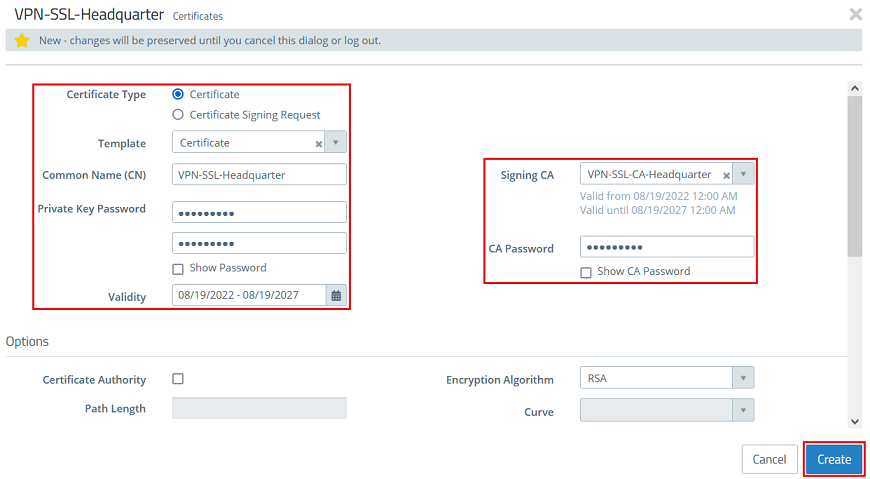
1.1.4) Create another certificate by clicking on the "Plus" symbol. This is used in the VPN SSL connection in the branch office. For this purpose modify the following parameters and click Create:
You can also modify the Validity of the certificate if needed. |
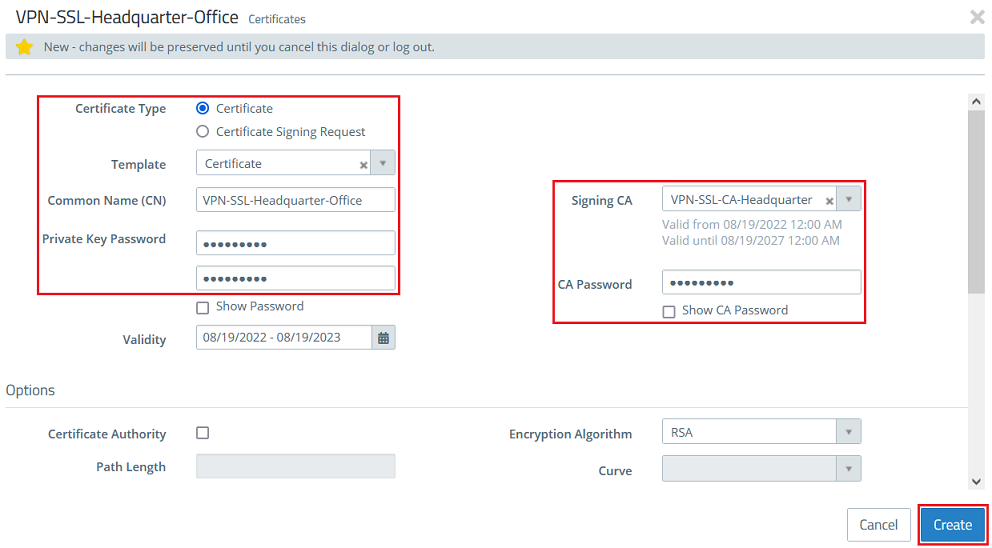
1.1.5) For the certificate created in step 1.1.4 click on the button for the certificate export.
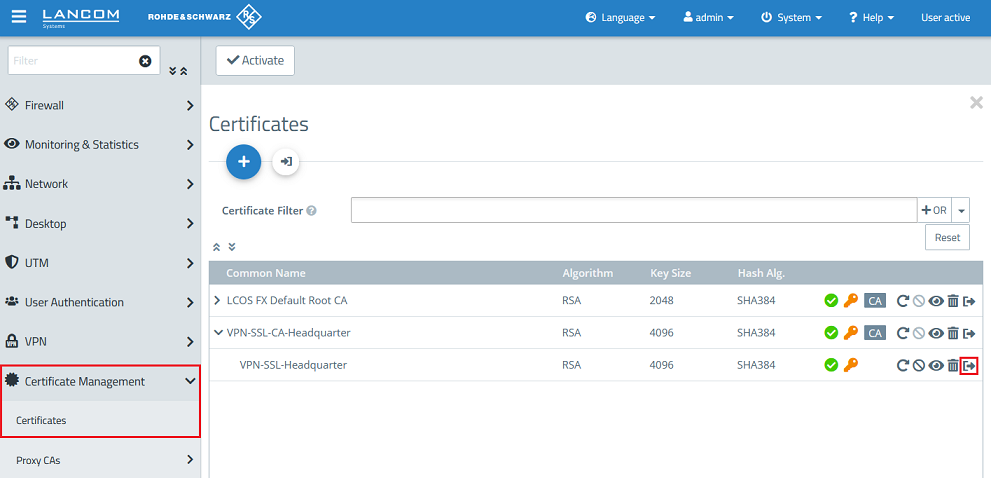
1.1.6) Select the format PEM / CRT, activate the option Export Certificate Chain and click Export.

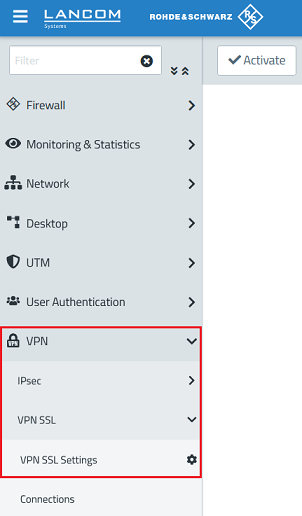
1.1.7) Switch to the menu VPN → VPN SSL → VPN SSL Settings.
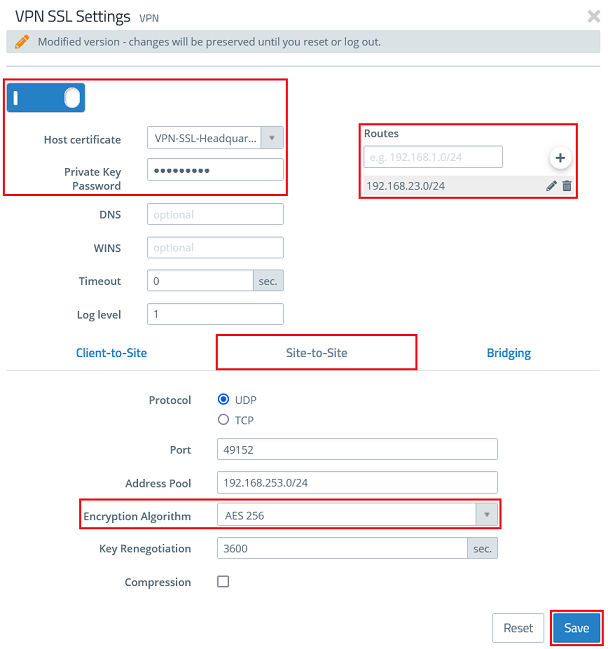
1.1.8) Activate the VPN SSL service via the slider, modify the following parameters and click Save:
If necessary, you can change the Protocol and the Port. The Adress Pool is the range of IP addresses that are assigned to the dial-in VPN SSL clients. This address range may not already be in use as an internal network in the Unified Firewall. |
1.2) Creating certificates and modifying the VPN SSL settings on the Unified Firewall in the branch office:
1.2.1) Connect to the Unified Firewall in the branch office, switch to the menu Certificate Management → Certificates and ckick on the "Plus" symbol to create a new certificate.
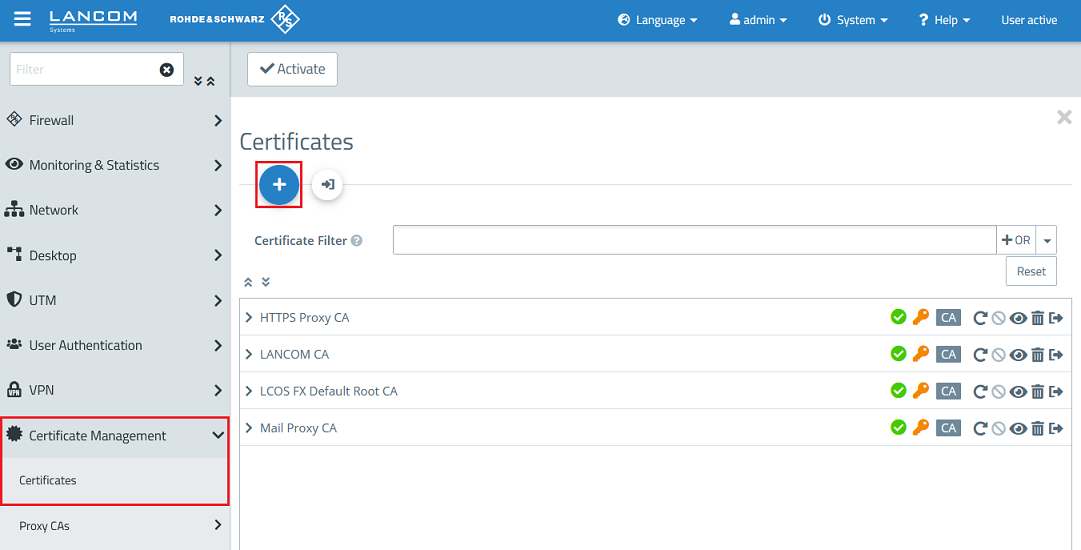
1.2.2) Modify the following parameters to create a CA and click Create:

1.2.3) Create another certificate by clicking on the "Plus" symbol. This is used in the VPN SSL settings in the branch office (see step 1.2.8). For this purpose modify the following parameters and click Create:
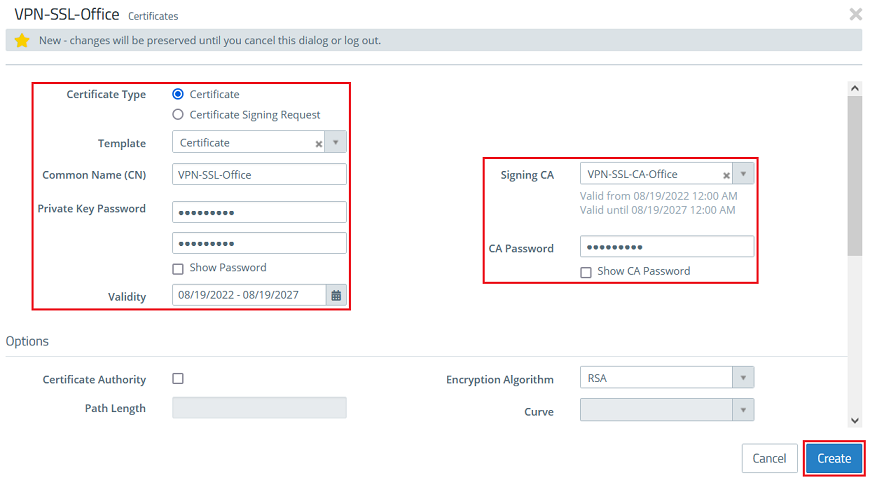
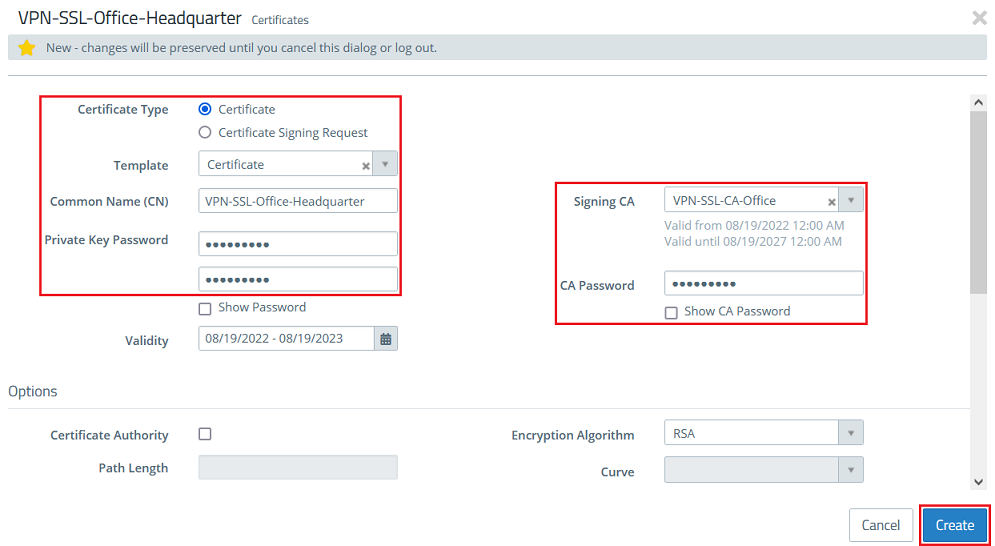
1.2.4 Create another certificate by clicking on the "Plus" symbol. This is used in the VPN SSL connection in the headquarter. For this purpose modify the following parameters and click Create:
You can also modify the Validity of the certificate if needed. |
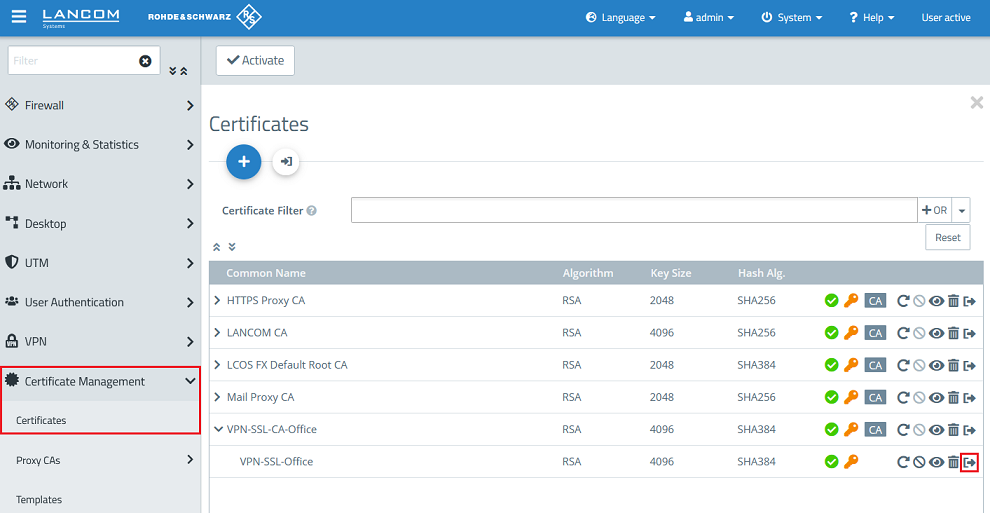
1.2.5 For the certificate created in step 1.2.4 click on the button for the certificate export.
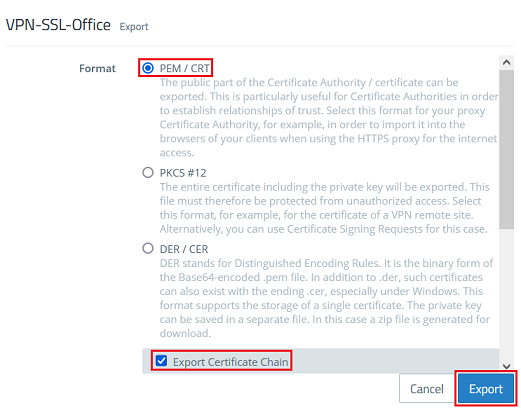
1.2.6 Select the format PEM / CRT, activate the option Export Certificate Chain and click Export.
1.2.7) Switch to the menu VPN → VPN SSL → VPN SSL Settings.
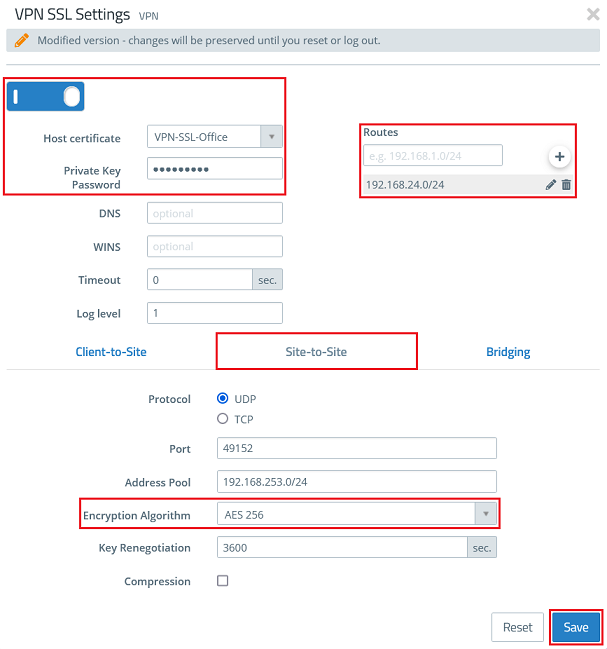
1.2.8) Activate the VPN SSL service via the slider, modify the following parameters and click Save:
| If necessary, you can change the Protocol and the Port. The Adress Pool is the range of IP addresses that are assigned to the dial-in VPN SSL clients. This address range may not already be in use as an internal network in the Unified Firewall. |
2) Importing the certificates:
2.1) Importing the VPN SSL certificate on the Unified Firewall in the headquarter:
2.1.1) On the Unified Firewall in the headquarter go to the menu Certificate Management → Certificates and click on the button for the certificate import.

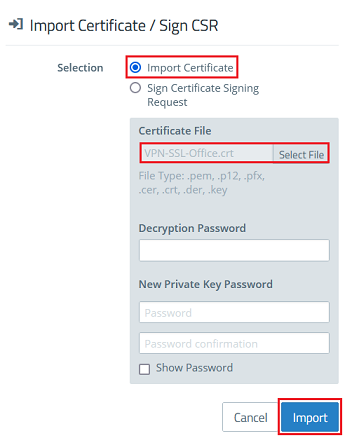
2.1.2) Leave the setting on Import Certificate, select the certificate file exported in the branch office in step 1.2.6) and click Import.
Since the Private Key has not been exported as well no passwords have to be entered. |
2.2) Importing the VPN SSL certificate on the Unified Firewall in the branch office:
2.2.1 On the Unified Firewall in the branch office go to the menu Certificate Management → Certificates and click on the button for the certificate import.
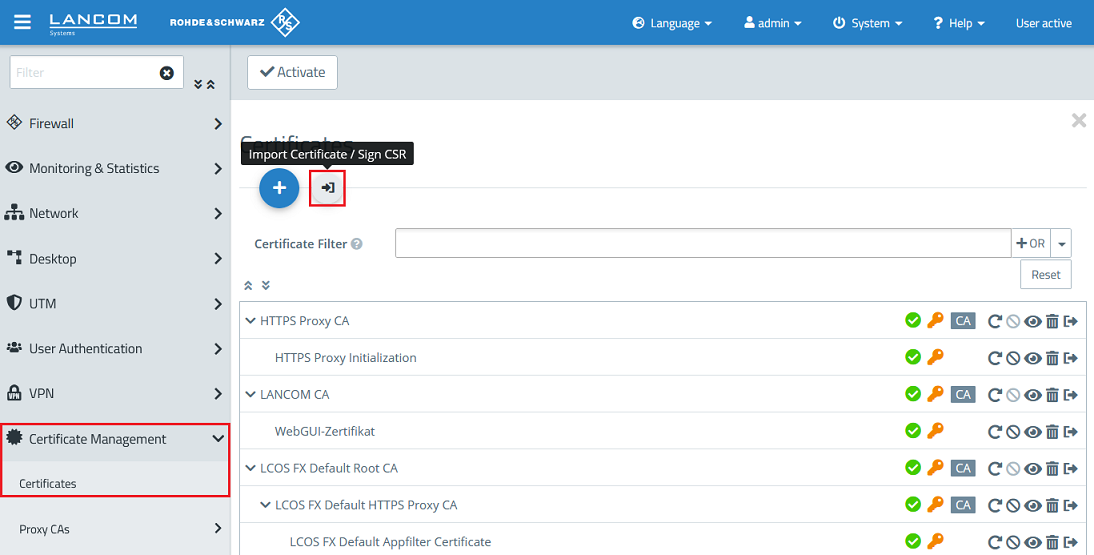
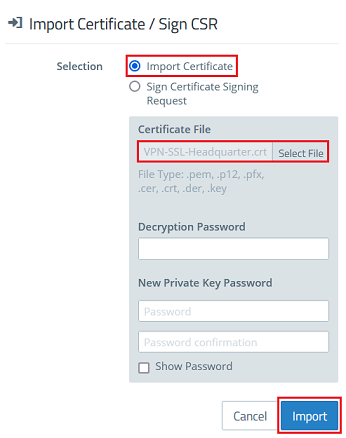
2.2.2 Leave the setting on Import Certificate, select the certificate file exported in the headquarter in step 1.1.6) and click Import.
Since the Private Key has not been exported as well no passwords have to be entered. |
3. Konfiguration der SSL-VPN-Verbindungen und Erstellen von Firewall-Regeln:
3.1 Konfiguration der SSL-VPN-Verbindungen und Erstellen von Firewall-Regeln auf der Unified Firewall in der Zentrale:
3.1.1 Wechseln Sie in der Zentrale in das Menü VPN → VPN-SSL → Verbindungen und klicken auf das "Plus-Zeichen", um eine neue VPN-SSL-Verbindung zu erstellen.
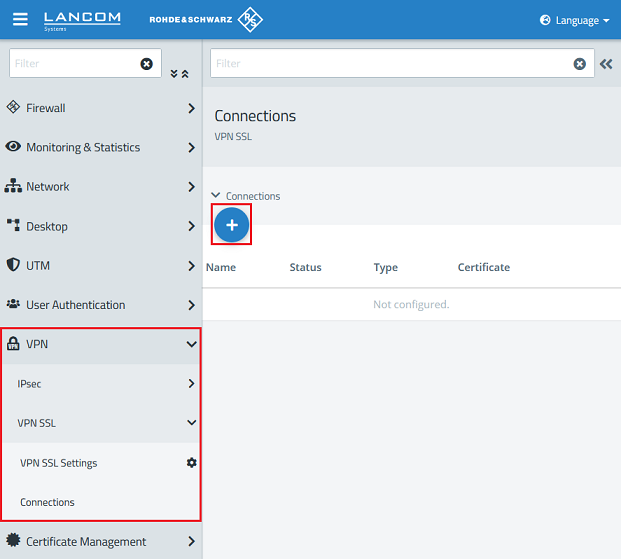
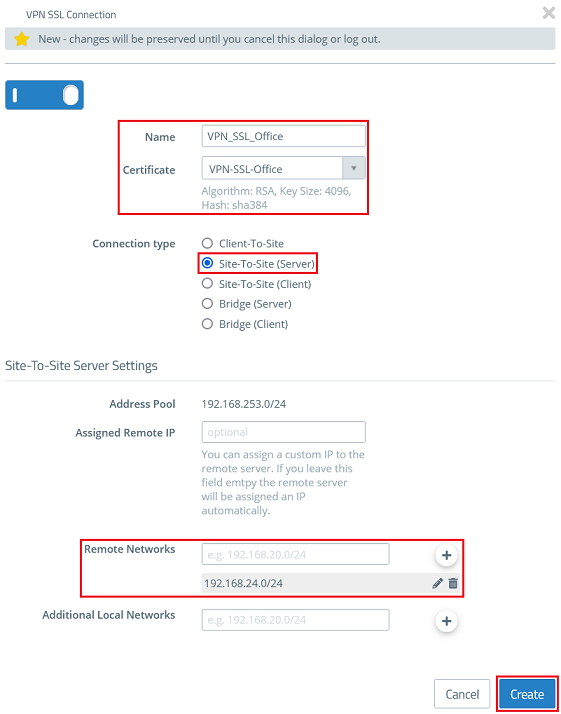
3.1.2 Passen Sie die folgenden Parameter an und klicken auf Erstellen:
| Sollen von der Filiale weitere Netzwerke angesprochen werden können, welche über die Zentrale erreichbar sind (etwa über eine weitere VPN-Verbindung), so müssen diese Netzwerke unter Zusätzliche lokale Netzwerke hinterlegt werden. Die Konfiguration wird von der Zentrale (Server) an die Filiale (Client) ausgerollt, welche Routing-Einträge für die übermittelten Netzwerke erstellt. |
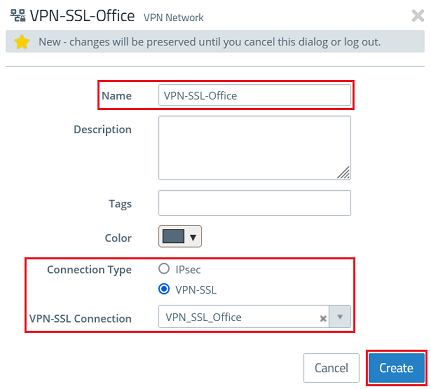
3.1.3 Klicken Sie auf das Symbol zum Erstellen eines VPN-Netzwerks.

3.1.4 Passen Sie die folgenden Parameter an und klicken auf Erstellen:
3.1.5 Klicken Sie auf das in Schritt 3.1.4 erstellte VPN-Netzwerk, wählen das "Verbindungswerkzeug" aus und klicken anschließend auf das Netzwerk-Objekt, auf welches die Site-to-Site VPN-Verbindung zugreifen können soll, damit die Firewall-Objekte geöffnet werden.

3.1.6 Weisen Sie über die "Plus-Zeichen" die erforderlichen Protokolle der Verbindung zu.
| Eine Unified Firewall verwendet eine Deny-All Strategie. Die Kommunikation muss also explizit erlaubt werden. |


3.1.7 Klicken Sie abschließend auf Aktivieren, damit die vorgenommenen Änderungen von der Unified Firewall umgesetzt werden. Die Konfigurationsschritte auf der Unified Firewall in der Zentrale sind damit abgeschlossen.

3.2 Konfiguration der SSL-VPN-Verbindungen und Erstellen von Firewall-Regeln auf der Unified Firewall in der Filiale:
3.2.1 Wechseln Sie in der Filiale in das Menü VPN → VPN-SSL → Verbindungen und klicken auf das "Plus-Zeichen", um eine neue VPN-SSL-Verbindung zu erstellen.
3.2.2 Passen Sie die folgenden Parameter an und klicken auf Erstellen:
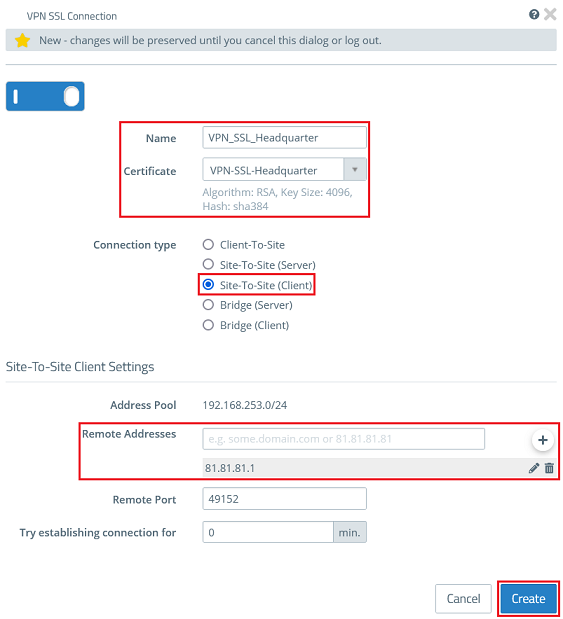
3.2.3 Klicken Sie auf das Symbol zum Erstellen eines VPN-Netzwerks.
3.2.4 Passen Sie die folgenden Parameter an und klicken auf Erstellen:
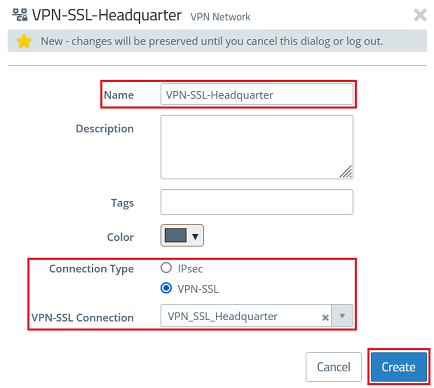
3.2.5 Klicken Sie auf das in Schritt 3.2.4 erstellte VPN-Netzwerk, wählen das "Verbindungswerkzeug" aus und klicken anschließend auf das Netzwerk-Objekt, auf welches die Site-to-Site VPN-Verbindung zugreifen können soll, damit die Firewall-Objekte geöffnet werden.

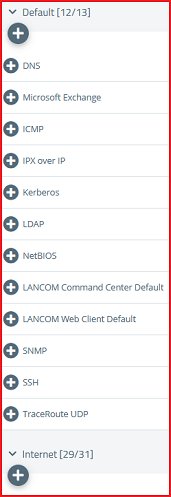
3.1.6 Weisen Sie über die "Plus-Zeichen" die erforderlichen Protokolle der Verbindung zu.
| Eine Unified Firewall verwendet eine Deny-All Strategie. Die Kommunikation muss also explizit erlaubt werden. |
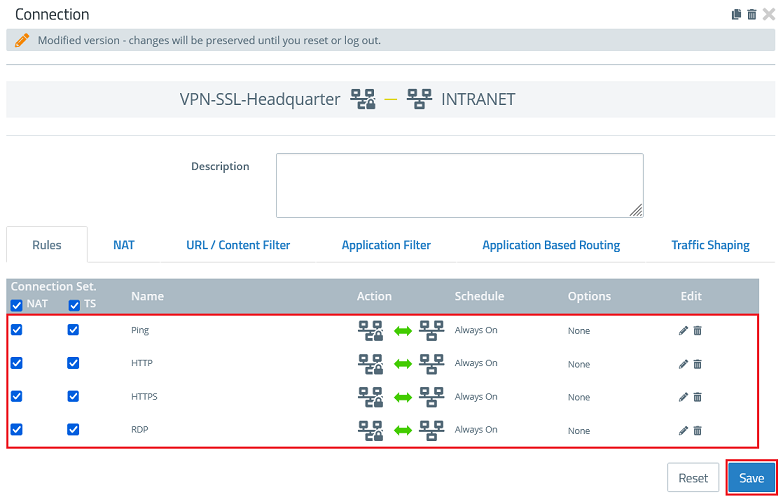
3.1.7 Klicken Sie abschließend auf Aktivieren, damit die vorgenommenen Änderungen von der Unified Firewall umgesetzt werden. Die Konfigurationsschritte auf der Unified Firewall in der Filiale sind damit abgeschlossen.
|
4.1 Öffnen Sie die Konfiguration des Routers in LANconfig und wechseln in das Menü IP-Router → Maskierung → Port-Forwarding-Tabelle.

