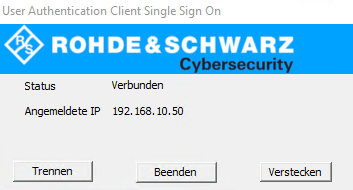
Description:
Some scenarios require the Unified Firewall to assign special permissions to certain users or user groups, for example to access a specific network. The Single Sign-On (SSO) feature allows users to use one set of credentials to log in to multiple applications (domain login and Unified Firewall login). The Active Directory server reports successful domain authentications to the Unified Firewall, whereupon the latter assigns the configured permissions to the users.
This article describes how the Single Sign-On feature is implemented via a Unified Firewall using the group policies of an Active Directory server.
Requirements:
Scenario:
Users log in to the domain with their end devices. The appropriate permissions are automatically assigned by the Unified Firewall.
Procedure:
1) Configuration steps on the Windows Server:
This scenario was tested with a Windows Server 2019 system on a Windows Server 2016 domain functional level. The instructions refer to this version accordingly. |
1.1) Setting up a user for the Unified Firewall on the Windows Server:
1.1.1) On the Windows Server, open the menu Active Directory Users and Computers and go to the submenu <domain-name> → Users → New → User to create a new user.
1.1.2) Modify the following parameters and then click Next:
Caution: Entries are case sensitive! |
If you have changed the hostname of the Unified Firewall in the menu Firewall → General Settings, this must be entered here accordingly. |

1.1.3) Adjust the following parameters so that the user is permanently valid and then click Next:
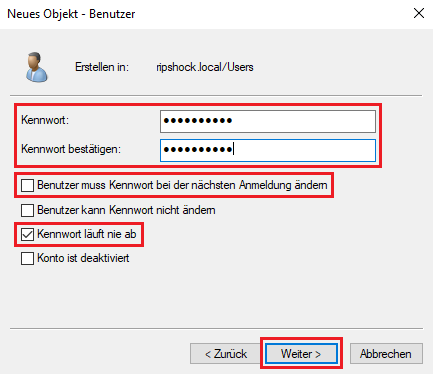
1.1.4) Click on Finish to close the wizard.
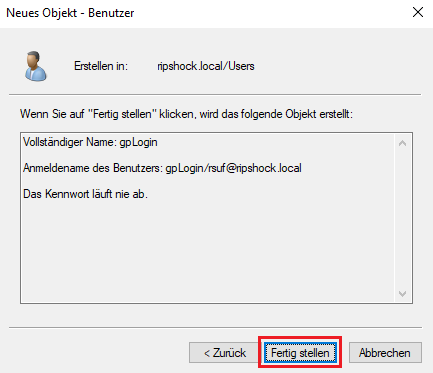
1.2) Associating the Service Principal Name to the Unified Firewall user:
The Service Principal Name (SPN) must be linked to the users for the Unified Firewall created in step 1.1.
On the Windows server, open the command line or Powershell with administrator rights and run the command setspn -A gpLogin/<firewall-hostname> gpLogin (in this example setspn -A gpLogin/rsuf gpLogin).

1.3) Provide the “UAClientSSO” file on the domain’s SYSVOL shared folder:
The application UAClientSSO is required for users to log in to the Unified Firewall via Single Sign-On.
Make the file UAClientSSO available in your domain’s shared folder. This is under the path \\<domain-name> \SYSVOL\<domain-name>\scripts (e.g \\ripshock.local\SYSVOL\ripshock.local\scripts).

1.4) Create the group policy for Single Sign-On authentication:
1.4.1) Open the Group Policy Management, right-click on the domain and create a New Group Policy Object with a descriptive name (in this example SSO).
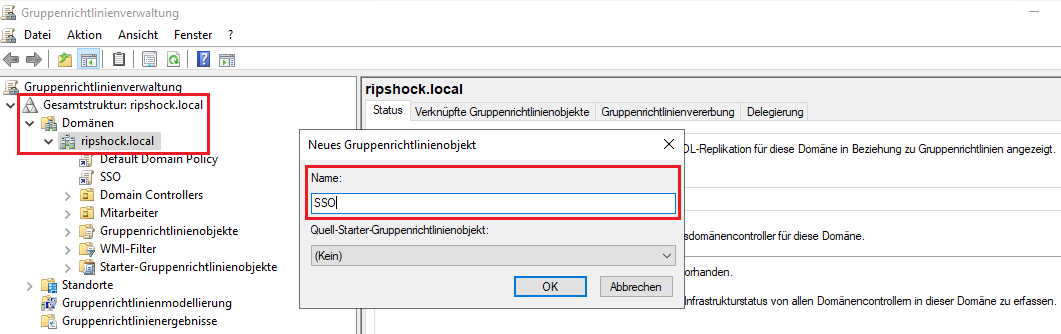
1.4.2) Right-click the Group Policy Object created in step 1.4.1 and select Edit from the context menu.

1.4.3) Go to the menu User Configuration → Policies → Windows Settings → Scripts (Logon/Logoff) and double-click Logon.
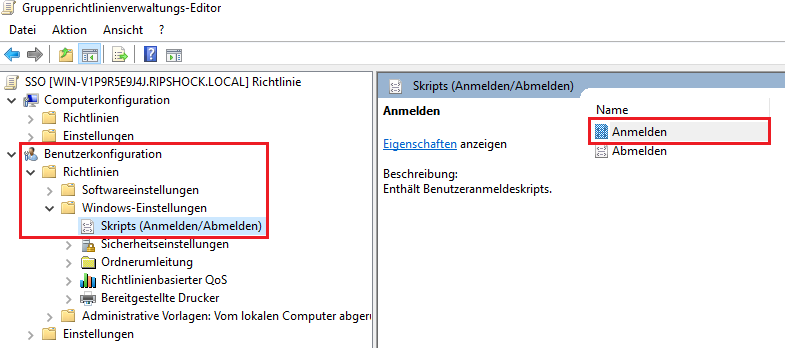
1.4.4) Click Add.
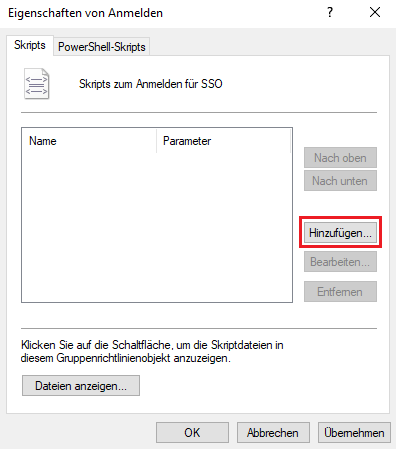
1.4.5) Modify the following parameters:

1.4.6) Go to the menu Computer Configuration → Policies → Windows Settings → Security Settings → Local Policies → Security Options → Network security: Configure encryption types allowed for Kerberos and enable the following encryption algorithms:

2) Configuring the Single Sign-On feature on the Unified Firewall:
2.1) In your browser, open the configuration interface for the United Firewall and switch to the menu item User Authentication → Internal Portal → Settings.
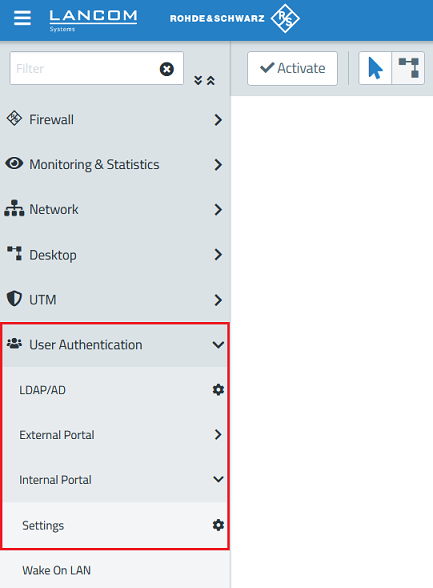
2.2) Activate the login function via the slider button and click Save.
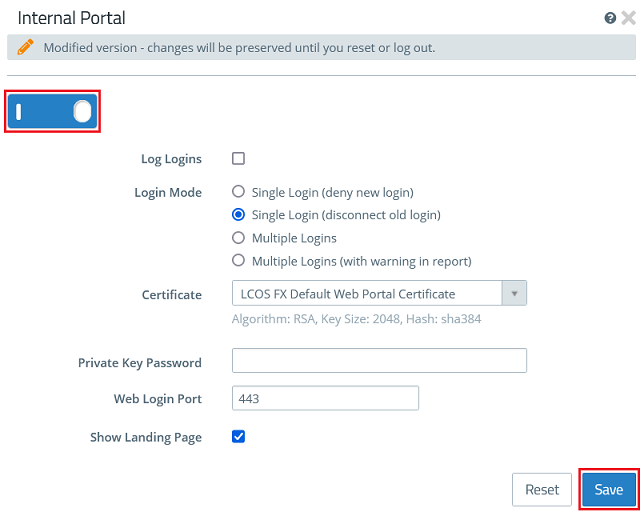
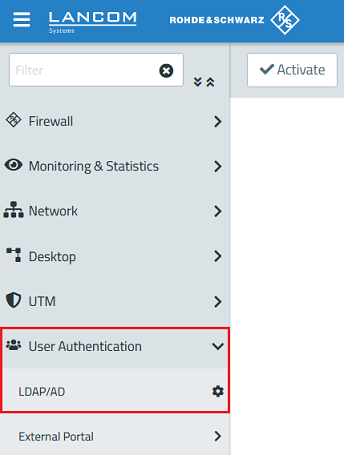
2.3) Go to the menu User Authentication → LDAP/AD.
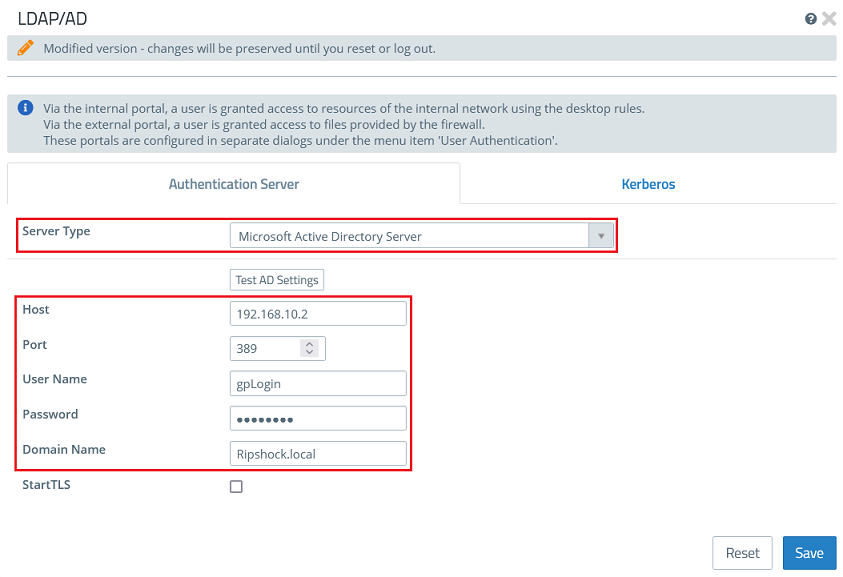
2.4) From the drop-down menu for Server Type, select the option Microsoft Active Directory Server and adjust the following parameters:
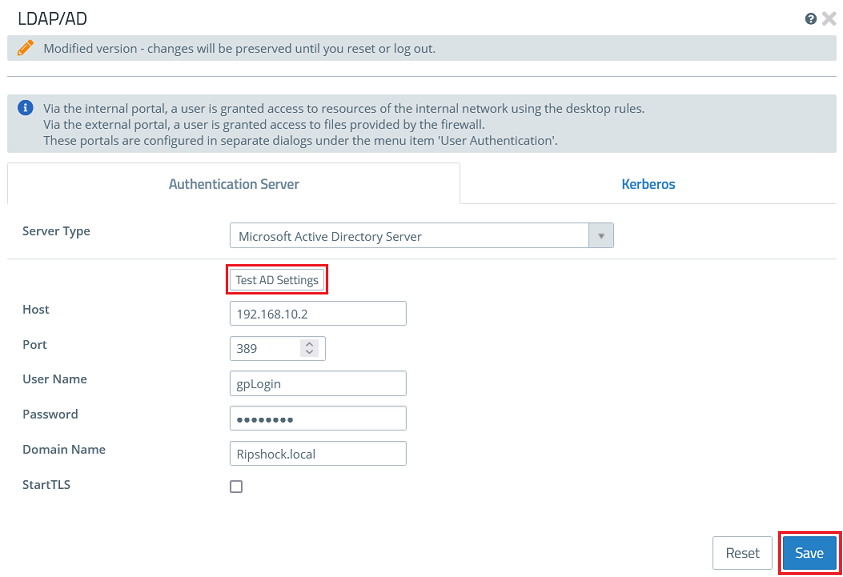
2.5) Click the button Test AD settings to ensure that the Active Directory login is working.
After testing successfully, click Save.
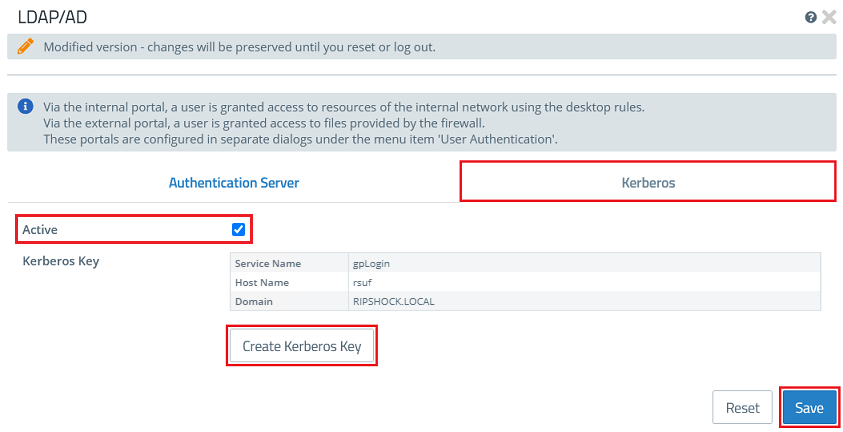
2.6) Open the menu LDAP/AD again and go to the Kerberos tab.
Here, click Create Kerberos Key and then Save.
3) Authenticating a device:
If a user logs in to the domain with his end device, the permissions are automatically assigned by the Unified Firewall and communication in the permitted networks is possible.