LANCOM Trusted Access (LTA) is the trusted network access security solution for enterprise networks. It enables secure and scalable network access for employees in the office, at home, or on the road, thus protecting modern hybrid working from anywhere at any time.
The LANCOM Trusted Access solution adapts to increasing security requirements in your organization. It supports not only classic full network access as a cloud-managed VPN client, but also the migration to a zero-trust security architecture with comprehensive network security. In the latter case, users receive granular access rights only to those applications that have been assigned to them (zero-trust principle). Existing systems for administering users and user groups (Active Directory) can be fully integrated into the LANCOM Management Cloud (LMC). For smaller networks, the LMC alternatively offers internal user administration.
This article describes how the LMC is used to configure the LTA client using internal user administration.
There are several default settings and profiles in VPN (e.g. encryption parameters). These are used to set up a VPN connection and allow for an easier configuration by means of prefabricated parameters. When using IKEv2 the remote site DEFAULT in the Connection list has a special role, as the initial connection establishment is carried out via this remote site. When the VPN connection is recognized (e.g. on the basis of the identities), a switch to the actual VPN remote site occurs. The default profiles must not be deleted or modified. Otherwise it is possible, that the VPN connection cannot be established anymore!
|
1) Configuration steps in the LMC:
1.1) Activate the VPN function:
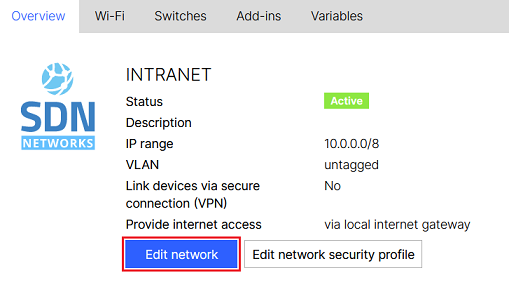
1.1.1) In the LMC, go to the Networks menu and click the network that the LTA client should log in to (in this example INTRANET).

1.1.2) In the Overview, click Edit network.
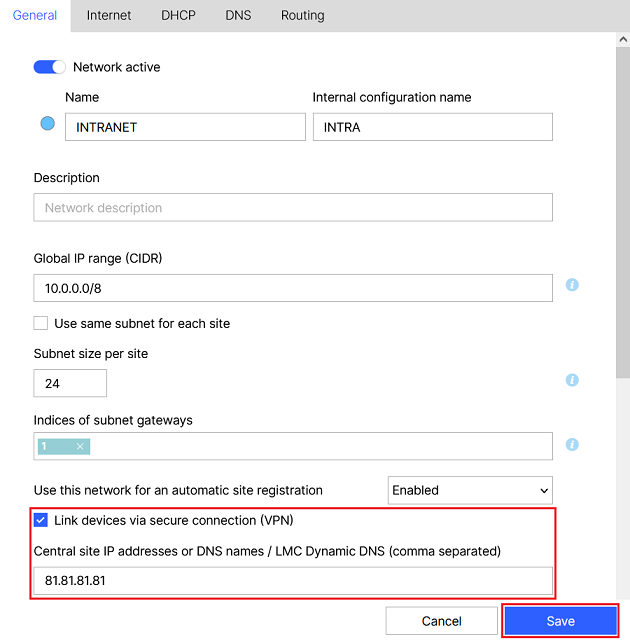
1.1.3) Modify the following parameters and then click Save:
1.2) Activate LTA:
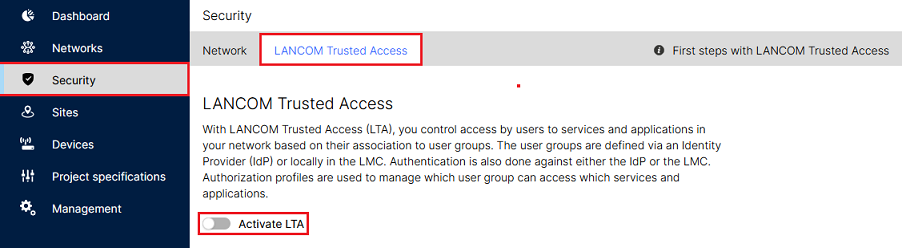
1.2.1) In the Security menu, go to the LANCOM Trusted Access tab and click the Activate LTA slider.
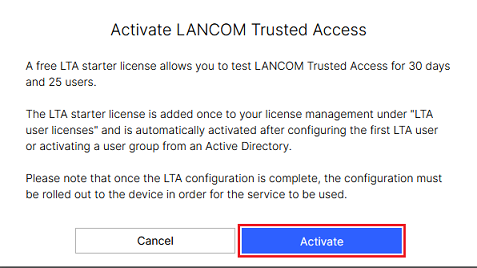
1.2.2) Click Activate.
1.3) Client configuration:
The Client configuration is used to store basic parameters such as the address of the LTA gateway. These settings apply globally and cannot be configured for individual users.
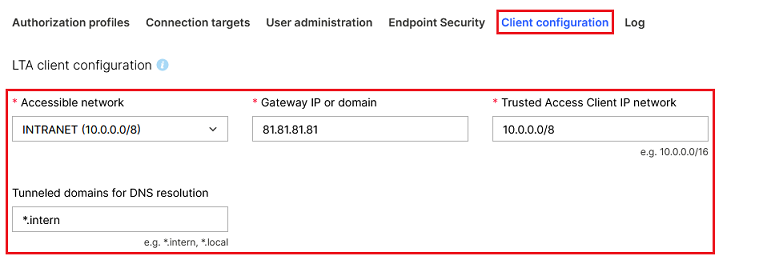
1.3.1) Go to the Client configuration tab and modify the following parameters:
The * wildcard can be used for the tunneled domains for DNS resolution. This represents any number of characters. Multiple entries can be separated by a comma. |
When using the mode Full Tunnel (see step 1.3.3) the wildcard * has to be entered in the field Tunneled domains for DNS resolution so that all DNS requests are sent via the tunnel (as an alternative the field can also be left empty). Otherwise the DNS resolution is not possible! |
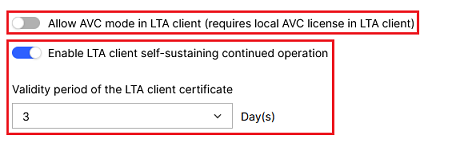
1.3.2) Modify the following parameters if required:
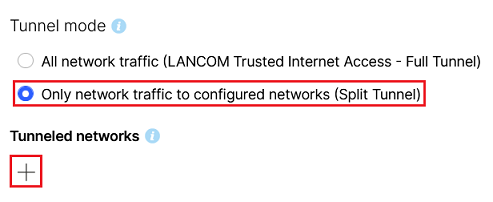
1.3.3) Under Split Tunnel, select the option Only network traffic to configured networks through tunnel (Split Tunnel) and click the “+” icon to specify the target networks.
If the option All network traffic (LANCOM Trusted Internet Access - Full Tunnel) is enabled, or if there is no target network configured for the option Only network traffic to configured networks through tunnel (Split Tunnel), then all data traffic is transmitted via the VPN tunnel. This means that local resources in the user's network cannot be reached while a VPN tunnel is established. It may also result in slower transmission of Internet data traffic, as this is all transmitted via the LTA gateway. In return the data traffic can be checked via Content Filter and Antivirus on the LTA gateway. |
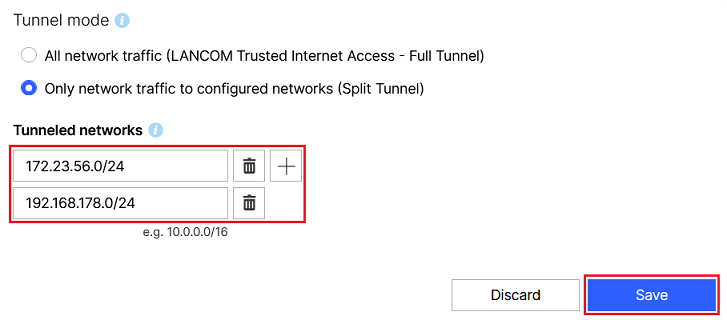
1.3.4) Enter the tunneled networks in CIDR notation and click Save.
1.4) Endpoint Security (optional):
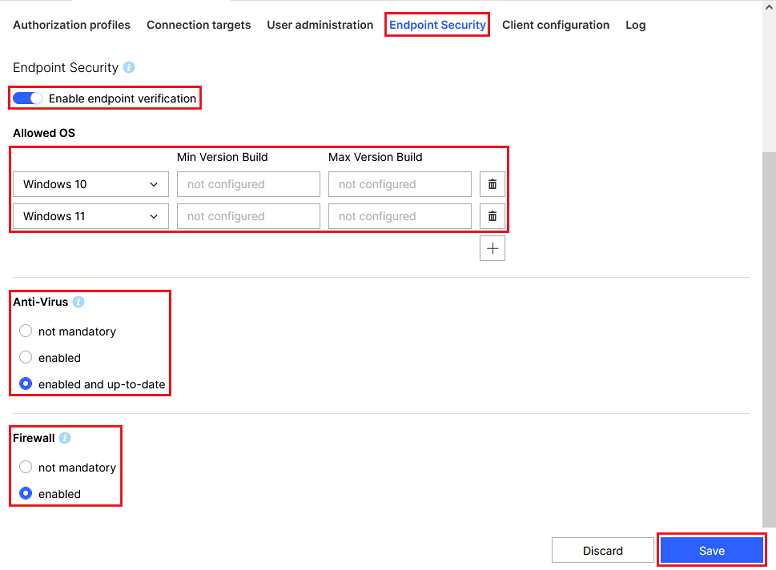
Endpoint Security can optionally be activated. The LTA client then checks whether the specified parameters are met and only then will the VPN connection be established. These settings apply globally and cannot be configured for individual users.
1.4.1) Go to the Endpoint Security tab, adjust the following parameters and click Save:
1.5) User administration:
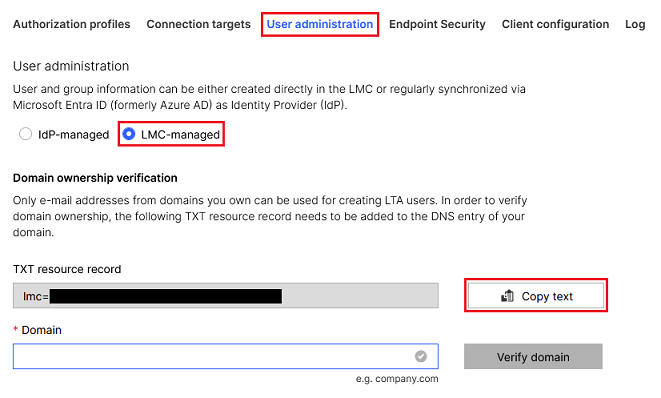
The User administration is where you enter your own domain. Users can be connected to an Active Directory, if available, or they can be configured in the LMC.
1.5.1) Go to the User administration tab and enable the option LMC-managed. Then click Copy text next to the TXT resource record field. Enter this as the TXT resource record in the account of your DynDNS provider for the domain.
When using the DynDNS service integrated in the LMC it is sufficient to enter the selected Dynamic DNS subdomain . |
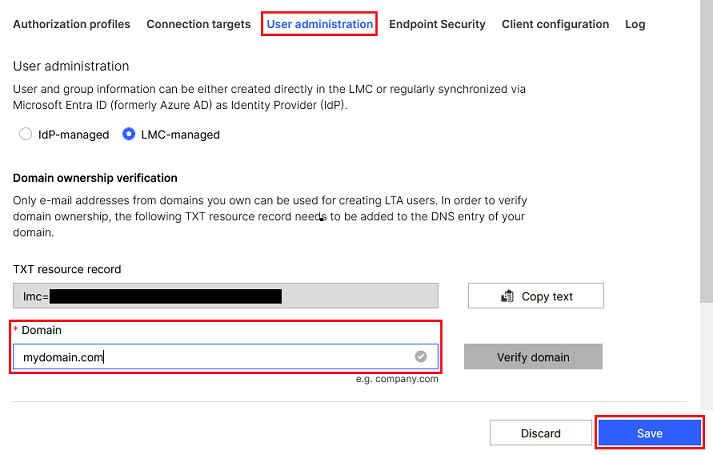
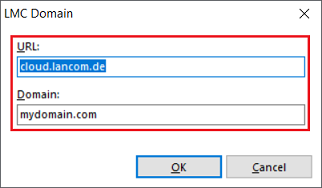
1.5.2) Use the Domain field to enter the domain you are using (in this example mydomain.com ) and click Save.
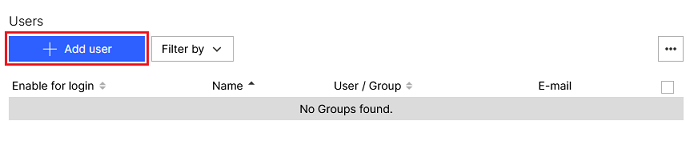
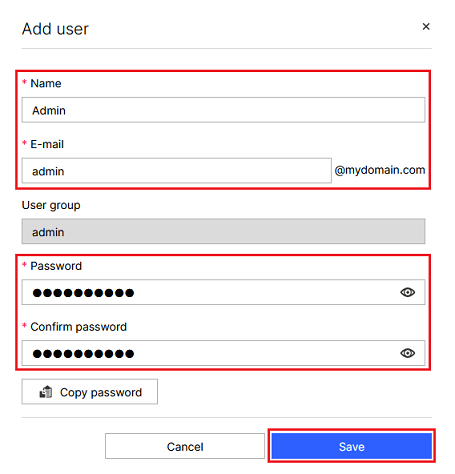
1.5.3) Click Add user.
1.5.4) Modify the following parameters and then click Save:
Make absolutely sure, that only lower case letters are used for the E-mail. Otherwise, this will prevent the LTA login from working! |
1.6) Connection targets:
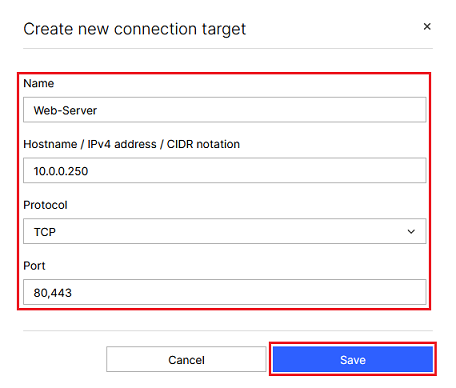
The Connection targets menu is used to create resources that can be assigned to the users (see step 1.7).
1.6.1) Go to the Connection targets tab and click Add connection target.

1.6.2) Modify the following parameters and then click Save:
1.7) Authorization profiles:
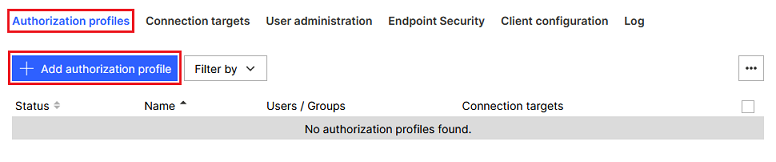
The Authorization profiles are used to link users to the connection targets. Different users can be assigned to individual connection targets. The LMC uses these settings as a basis to automatically create firewall rules that allow communication to the connection targets.
1.7.1) Go to the Authorization profiles tab and click Add authorization profile.
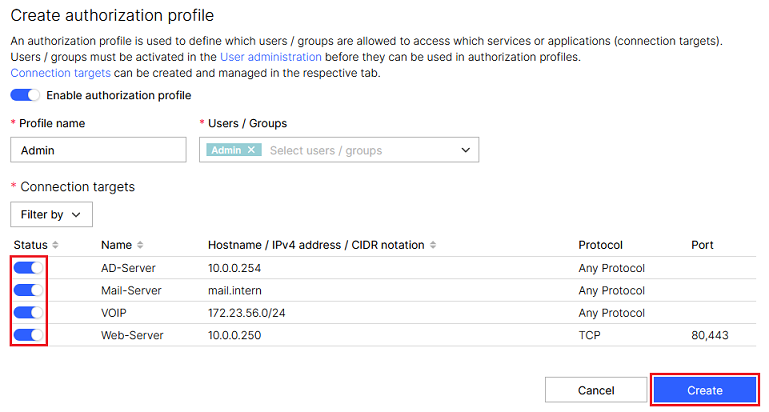
1.7.2) Modify the following parameters:
An LTA license is required for every active user. |
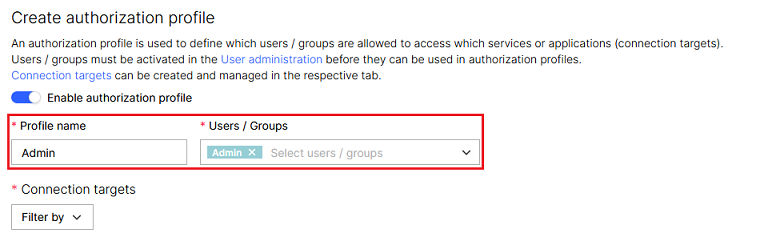
1.7.3) Under Status enable the necessary connection targets for the user (see step 1.6.2) and click Create.
2) Configuration steps in the LTA client:
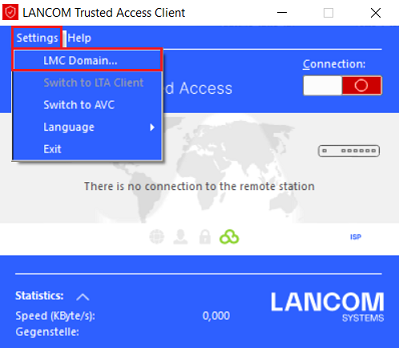
2.1) In the LTA client, click Settings and select the option LMC Domain.
2.2) Change the following parameters:
|