Unlike the 5-GHz band, the 6-GHz band has no radar detection. This means you can set a fixed channel in the 6-GHz band, which can be advantageous in certain situations.
The 6-GHz band offers four different channel bandwidths (20, 40, 80, and 160 MHz). The channel bandwidths from 40 MHz upwards, each of which has its own channel number, operate by combining different 20 MHz-wide channels. However, the only channel numbers that can be entered into the access point configuration are those of the 20-MHz channels. It is therefore not possible to force a specific channel with a specific channel bandwidth. The channel bandwidth is always selected automatically (depending on the Wi-Fi client, among other things).
This article describes the recommended method of channel selection in the 6-GHz band for access points with LCOS LX.
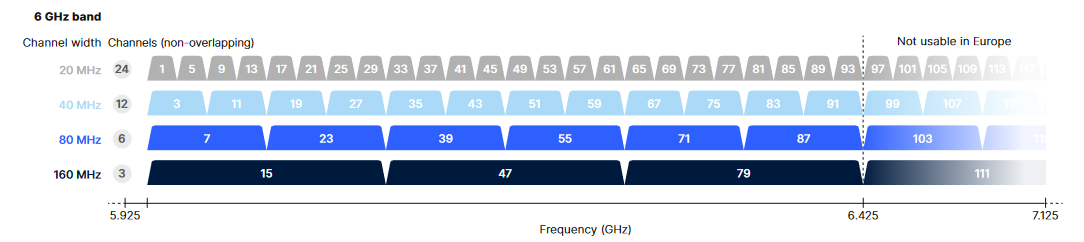
To ensure that the Wi-Fi scan works optimally, set up the configuration to use the second 20 MHz-wide channel within the desired channel (e.g. for channel 15 (160 MHz) → enter channel 5 (20 MHz) or for channel 55 (80 MHz) → enter channel 53 (20 MHz)).
LANconfig:
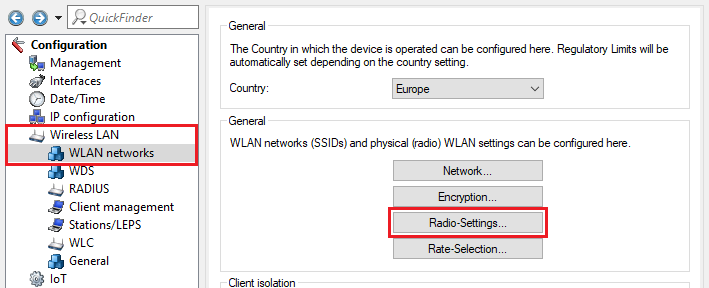
1) Open the menu Wireless LAN → WLAN networks → Radio Settings.
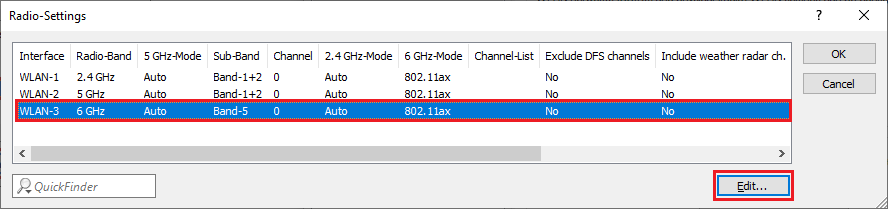
2) Select the interface WLAN-3 and then click Edit.
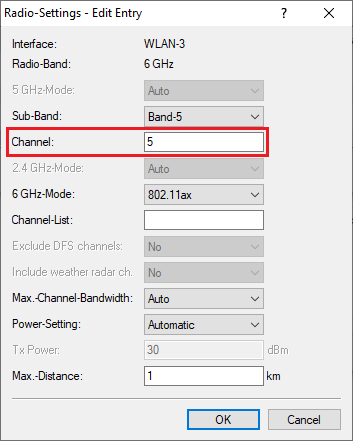
3) Under Channel, enter the desired 20-MHz channel (in this example channel 5).
Instead of a fixed channel, it is also possible to enter multiple channels in the field Channel-List. The channels are separated by a comma (e.g. 5,37,69). |
4) You can now write the configuration back to the device.
WEBconfig:
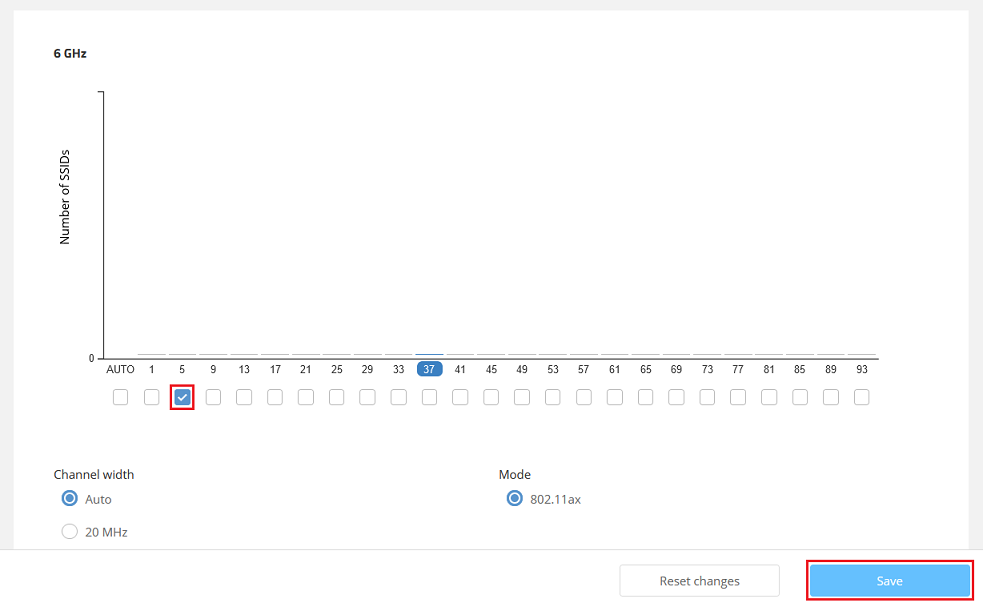
1) Open the configuration for the access point in WEBconfig and go to the menu item Wi-Fi configuration → Technology.

2) Scroll down to the 6-GHz band and select the desired 20-MHz channel (in this example channel 5). Then click Save.
Instead of a fixed channel, a number of channels can be selected (analogous to the Channel-List in LANconfig (e.g. 5,37,69). |
|