Description:

This article describes how to set up Config Sync for synchronizing the configurations across a WLC cluster.

A manual configuration of the Config Sync on a WLC cluster only makes sense if the WLC cluster is already configured. If you are carrying out a new configuration, LANCOM Systems recommends that you use the Setup Wizard, as it sets up both the WLC cluster and the Config Sync.

Setting up a WLC cluster with the Setup Wizard (WLC cluster and Config Sync)

Requirements:


Procedure:

1) Configuration steps on the first WLAN controller:

1.1) Create a certificate entry in the SCEP client on the first WLAN controller:

1.1.1) Open the configuration of the first WLAN controller in LANconfig and navigate to the menu Certificates → SCEP Client → Certificate table.
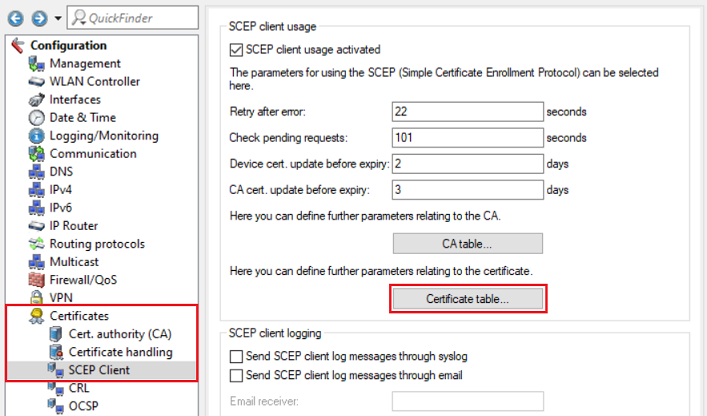
Screenshot of a technical configuration interface displaying options for SCEP client usage, certificate handling, logging monitoring, and router settings.

1.1.2) Click Add to create a new entry.
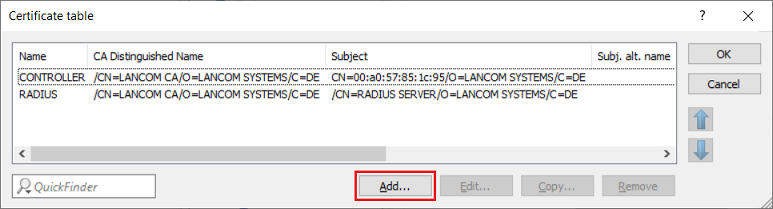
Image showing a blurred certificate table and partially visible technical configuration options related to RADIUS and LANCOM systems.

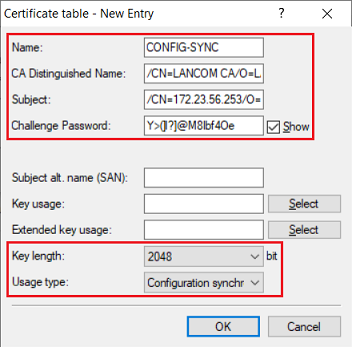
1.2.3) Modify the following parameters:
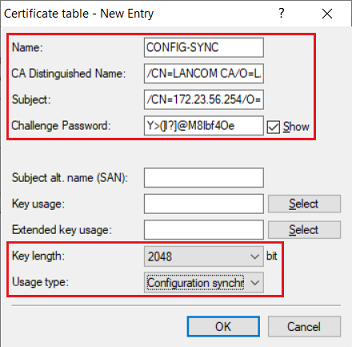
The image displays a complex, possibly technical user interface with various entries and configurations, including references to key length and certification tables.


1.2) Setting up configuration synchronization:

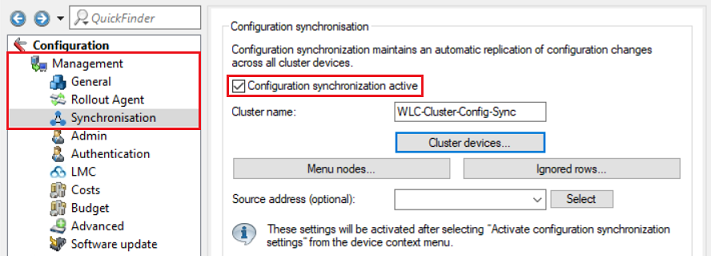
1.2.1) Go to the menu Management → Synchronization and set a checkmark for Configuration synchronization active.

If required, change the Cluster name. This example uses the name WLC-Cluster-Config-Sync.

Image of a complex technical configuration interface displaying various settings including synchronization, authentication, budget sources, and software updates, suggesting a menu for system administration or network management.

1.2.2) Go to the menu Cluster devices.
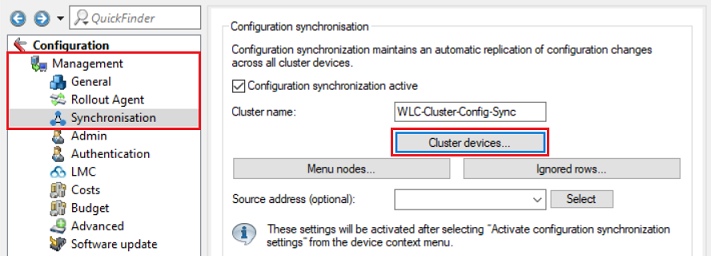
The image shows a technical configuration menu with various options for synchronization, updates, and settings activation displayed on a device interface.

1.2.3) Enter the IP addresses of the two WLAN controllers.
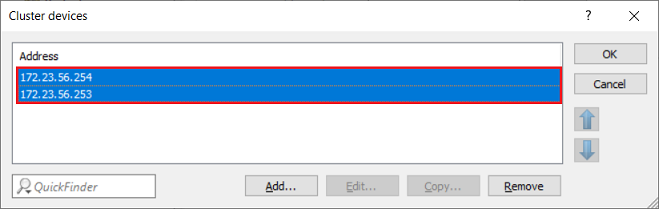
Image of a user interface displaying technical configuration settings with a status message indicating Address OK.

1.2.4) Navigate to the menu Management → Synchronization → Menu nodes.
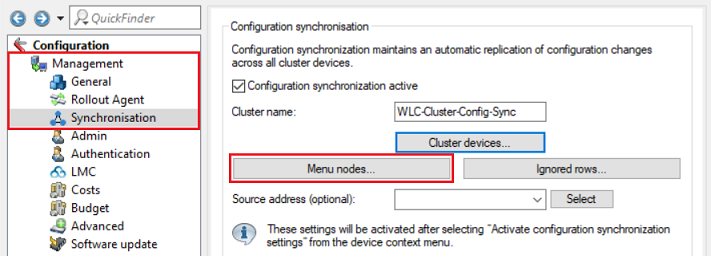
Screenshot of a technical configuration interface showing options for synchronization, rollout agents, admin authentication, and software updates on devices.

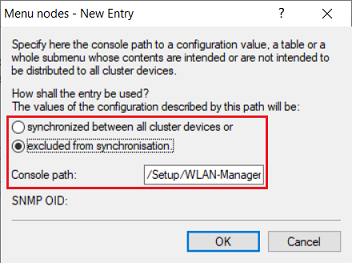
1.2.5) Create two new entries using the Add button.
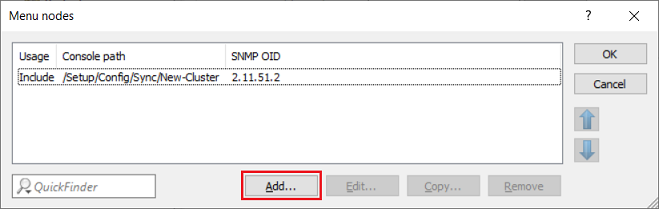
Image depicting a partial view of a technical user interface or configuration menu, possibly related to SNMP (Simple Network Management Protocol) settings.

Screenshot of a configuration menu for managing the distribution of settings across cluster devices, including options to synchronize or exclude certain values.

Image of a digital configuration menu interface displaying options for managing how entries are distributed across cluster devices.

1.2.6) The Menu nodes table should then look like this.

Image depicting a configuration menu with options to include and exclude WLAN management settings.

1.2.7) This concludes the configuration of the first WLAN controller. You can now write the configuration back to the device.


2) Configuration steps on the second WLAN controller:

1.1) Create a certificate entry in the SCEP client on the second WLAN controller:

2.1.1) Open the configuration of the second WLAN controller in LANconfig and navigate to the menu Certificates → SCEP Client → Certificate table.

2.1.2) Click Add to create a new entry.

The image shows a screen capture of a configuration menu for a network system, featuring options such as 'RADIUS JONLANCOMCAJOLANCOMSYSTEMSCDECNRADIUSSERVEROLANCOMSYSTEMSCDE'.

2.2.3) Modify the following parameters:

Image of a technical configuration interface with scattered text and labels, including key length specifications and usage type settings.


2.2) Setting up configuration synchronization:

2.2.1) Go to the menu Management → Synchronization and set a checkmark for Configuration synchronization active.

If required, change the Cluster name. This example uses the name WLC-Cluster-Config-Sync.

An image of a complex technical configuration menu featuring settings for synchronization, authentication, and software updates among various other options.

2.2.2) Go to the menu Cluster devices.

Image of a complex technical user interface displaying various configuration settings for synchronization and software updates, with sections labeled for budget costs and menu node settings.

2.2.3) Enter the IP addresses of the two WLAN controllers.

Image of a technical user interface with partially visible text including the phrase Clusterdevices x Address OK.

2.2.4) Navigate to the menu Management → Synchronization → Menu nodes.

The image displays a complex user interface for configuration synchronization and management, featuring sections for Rollout Agent, Synchronization, authentication settings, and software updates.

2.2.5) Create two new entries using the Add button.
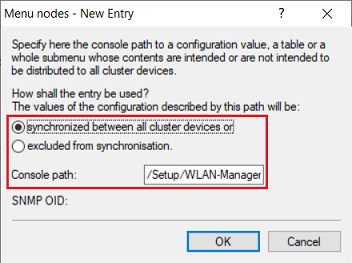
Image showing a partial view of a technical configuration interface with references to Menunodes and SNMP OID paths.

Image of a complex configuration menu in a software interface, detailing options for cluster device synchronization settings.

Image of a technical configuration menu interface displaying options for distributing settings across cluster devices.

2.2.6) The Menu nodes table should then look like this.
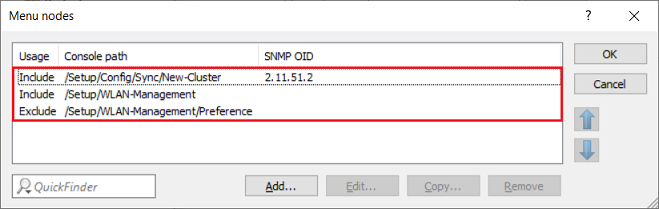
A screenshot of a technical configuration menu displaying options to include and exclude settings for WLAN management.

2.2.7) This concludes the configuration of the second WLAN controller. You can now write the configuration back to the device.


3) Enabling Config Sync:

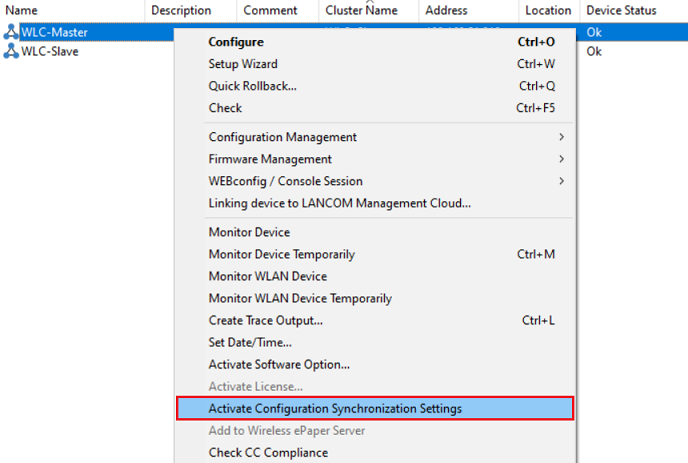
In LANconfig, select the WLAN controller with the configuration to be distributed to the other cluster members (in this example, the WLC-Master), right-click on the device and select the option Activate Configuration Synchronization Settings from the context menu.

Alternatively, you can start the synchronization from the command line with do /Status/Config/Sync/New-Cluster/Launch.

Image of a network device's management software interface displaying various configuration options such as Setup Wizard, Firmware Management, and Linking device to LANCOM Management Cloud, among others.


Thank you for your feedback! You can also send us constructive suggestions for improving our knowledge base or ideas for new articles by email to knowledgebase@lancom.de.