To further extend the use of Add-ins we have the possibility to use variables. These can be used as read-only values within Add-in scripts.
A variable consists of
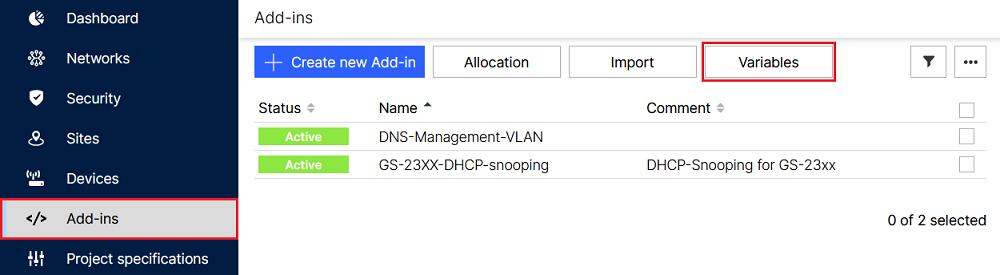
You can create and edit Add-ins in the menu Add-ins → Variables.
A variable can be set the following places and follows a hierarchy where the last one overrides the previous ones.
Global:
If a value is assigned to a variable, the variable is valid globally. The variable can then be used in an Add-in.
Networks:
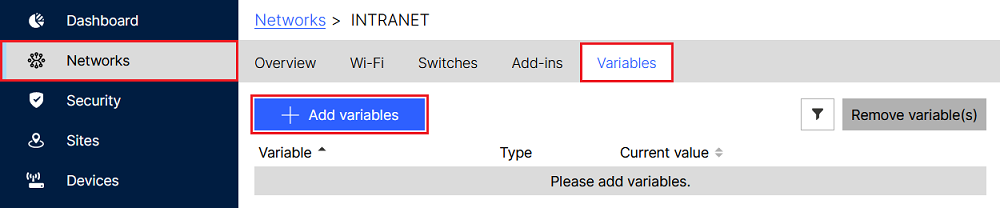
1) Go to the menu Networks, select a network and click on Variables → Add Variables.
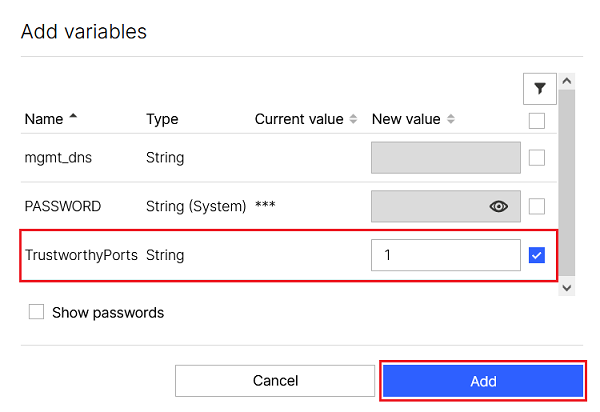
2) Select the desired variable and assign it a value or select an action. Click Add afterwards.
Sites:
1) Go to the menu Sites, select a site and click on Variables → Add variables.

2) Select the desired variable and assign it a value or select an action. Click Add afterwards.
Devices:
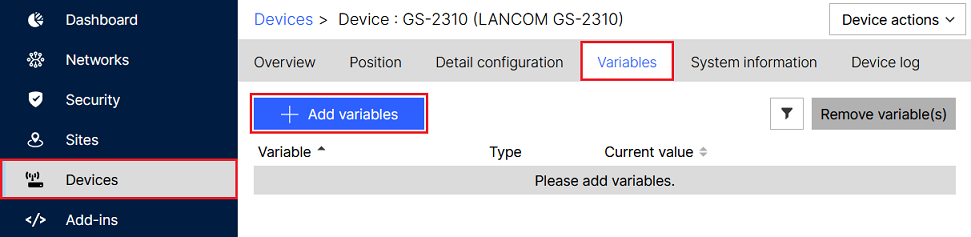
1) Go to the menu Devices, select a device and click on Variables → Add variables.
2) Select the desired variable and assign it a value or select an action. Click Add afterwards.
1) Go to the meu Add-ins and click on Variables.
2) Click on Variable types.

3) Click Add new type afterwards.

4) There are two possible variable types (String selection and Regular expression).
String selection:
Modify the follwing parameters and click Save:
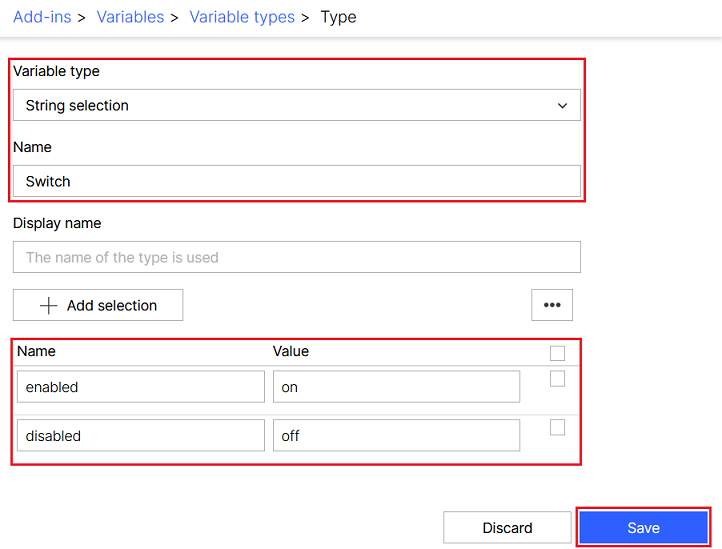
Regular expression:
To limit the input for variables, also regular expressions are supported (Regex).
The following options can be used for regular expressions:
| Regular expression | Description |
|---|---|
| IPv4 | Only a valid IP address is allowed for variables with that variable-type. |
| Subnet mask | Only a valid subnet mask is allowed for variables with that variable-type. |
| [A-Z a-z]* | Only ASCII characters in the range from A-Z and a-z are allowed for variables with that variable-type. |
| User defined | You are able to create your own regular expression to limit the input. |
Modify the follwing parameters and click Save:

1) Go to the menu Add-ins → Variables and click on New variable.
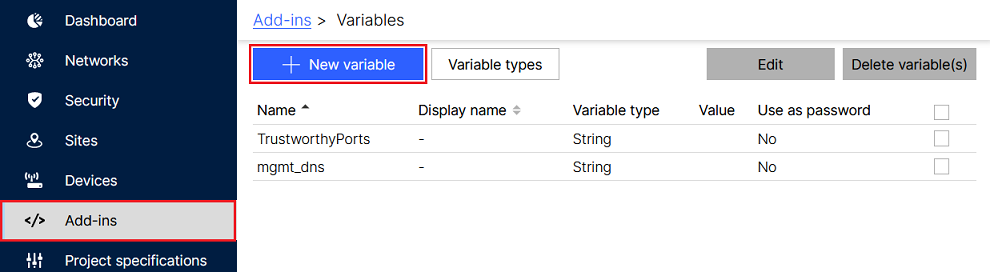
2) Modify the following parameters and click Save:
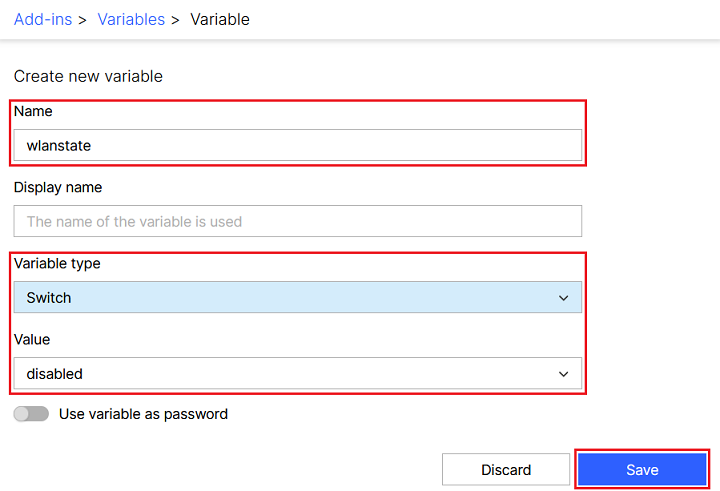
Variable values can be used using the object context.vars:
        /**
 * @param {Config} config

 * @param {Context} context

 * Do not edit this comment or parameter types. Required for code suggestions
*/
exports.main =
          function (config, context) {
    if (context.vars.deviceName) { // checks if the variable is set
        context.setScalarByOid("1.2.1" /* /Setup/Name */, config.vars.deviceName);
    }
};
System variables manage specific aspects of the smart configuration.
Example for a status query:
The following code snippet shows the general approach for a status query. Change the variables “Systemvariable” and “Value” according to your needs. Enter the actual Addin code under the commented line “Code will be executed, if variable is met.”.
        /**
 * @param {Config} config

 * @param {Context} context

 * Do not edit this comment or parameter types. Required for code suggestions
*/
 exports.main =
          function (config, context) {

     if Systemvariable == ("Value"){

            //Code will be executed, if variable is met.

     };

};
Available System variables:
INITIAL_TEST_MODE_ENABLED:
PASSWORD:
UF_CLEAR_DEFAULT_CFG:
UF_DEFAULT_IF:
LMC_DOMAIN:
UF_ETH0_NETWORKS ... UF_ETH10_NETWORKS:
VPN_IDENTITY_SEPARATOR:
To modify the configuration that is sent to a device you can use config.setScalarByOid:
        /**
 * @param {Config} config

 * @param {Context} context

 * Do not edit this comment or parameter types. Required for code suggestions
*/
exports.main =
          function (config, context) {
    config.setScalarByOid("1.2.9.11", "Comment 1");
    config.setScalarByOid("1.2.9.12", "Comment 2");
};
Changes made by config.setScalarByOid will be visible in the config preview, as they are applied to the configuration before it is sent to the device.
The same can be achieved by using config.addScriptLine:
        /**
 * @param {Config} config

 * @param {Context} context

 * Do not edit this comment or parameter types. Required for code suggestions
*/
exports.main =
          function (config, context) {
    // LCOS only:
    config.addScriptLine('set /Setup/SNMP/Comment-1 "Hello"');
    config.addScriptLine('set /Setup/SNMP/Comment-2 "World"');
};
Changes made by config.addScriptLine are NOT visible in the config preview, as they are only run on the device. This method only works on LCOS based devices.
        /**
 * @param {Config} config

 * @param {Context} context

 * Do not edit this comment or parameter types. Required for code suggestions
*/
exports.main =
          function (config, context) {
    var comment1 = config.getScalarByOid("1.2.9.11");
    var comment2 = config.getScalarByOid("1.2.9.12");
};
There is no equivalent config.addScriptLine to read data from the device.