Swagger UI is an interactive tool that allows developers to visualize and test APIs directly from the documentation. With Swagger UI, you can easily explore the endpoints of the LMC API, view detailed information about each operation, and even execute API calls in real-time.
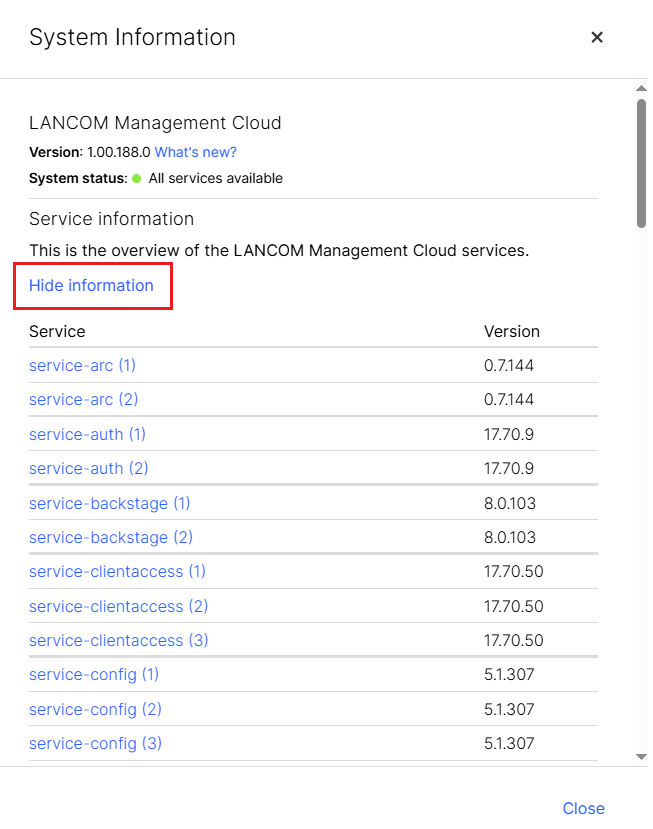
1. To get started, you first need to choose from the service which provides the necessary functions. A list of all microservices can be found in the LMC System Information:
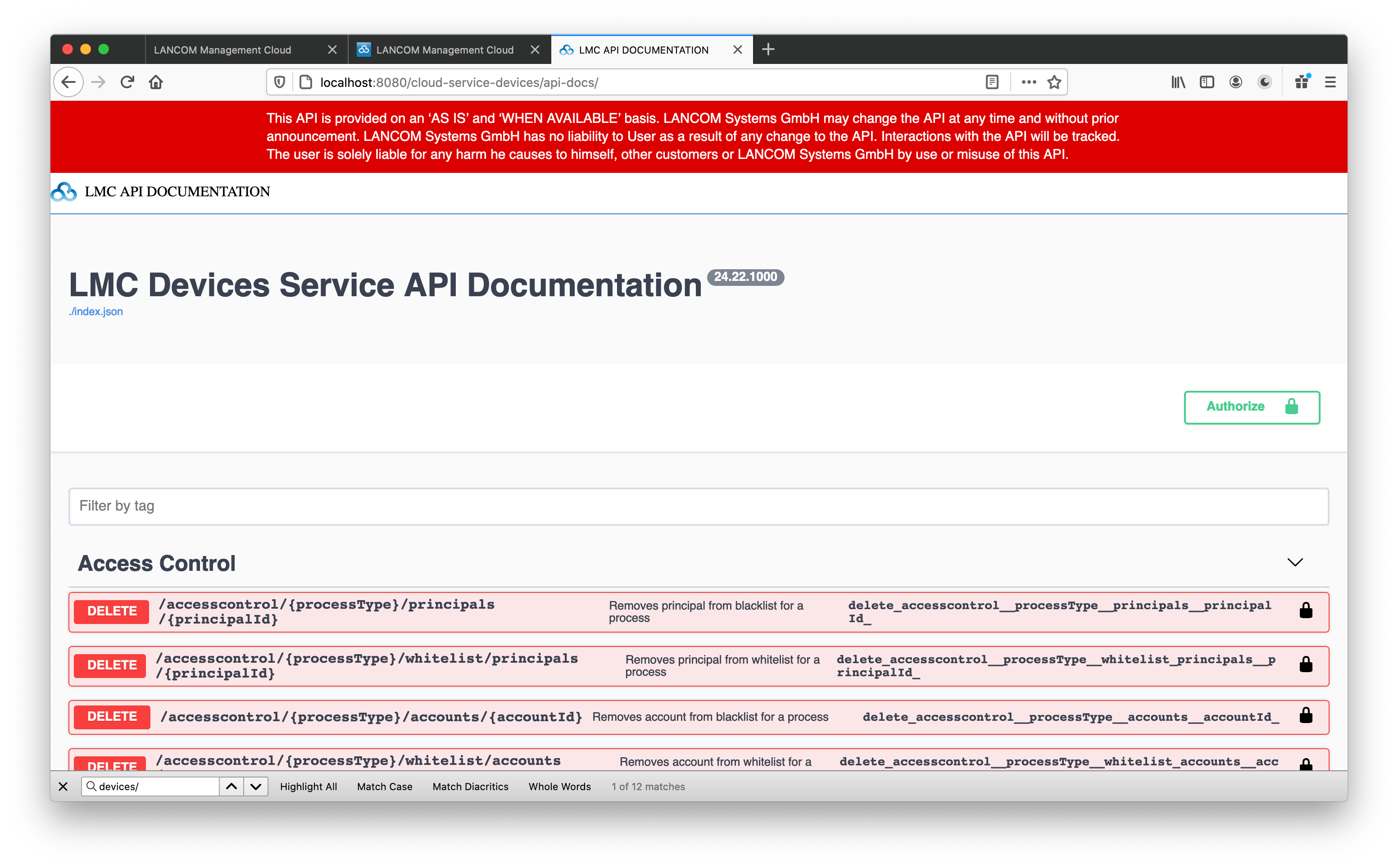
2. Navigate to the Swagger UI interface linked in the list of services. Here, you'll find a user-friendly layout that displays all available endpoints, along with their parameters, request methods, and response formats.
You can input your own data and see the responses immediately, making it an invaluable resource for testing and understanding API functionality.
3. Click on apiKey and enter your API Key credentials.
| See section "API Documentation - Getting Started Guide → Creating a User-Bound API Key in the LMC" for more information. |
4. Click on close.
5. Select an endpoint to test and click on Execute.
6. Followed, by providing required parameters (accountId), and click on try it out (prepare this step before using the token).
7. If successful, the results will be shown under section "200" (scroll down).