Description:

This document describes how to use the RPCap interface integrated in LCOS together with the packet analysis tool Wireshark to generate packet captures from any interface on a LANCOM router.

The advantage over the capture with LCOSCap is that the packets can be examined 'live' during the recording and capture filters can also be defined.

Please note that a running Wireshark instance consumes significantly more resources on the PC than an LCOSCap instance. For long-term data capture, we therefore recommended the use of LCOSCap.

Requirements:

Procedure:

1. Command line:

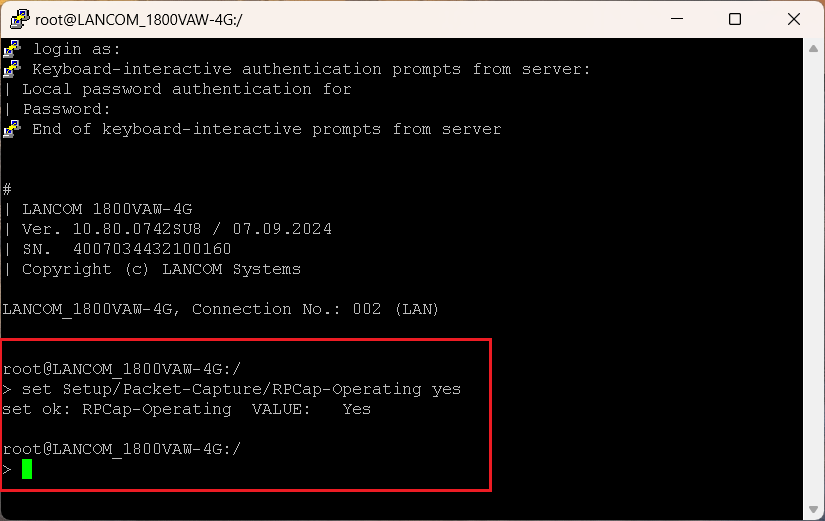
1.1 Open an SSH session on the LANCOM router and enter the following at the command prompt to activate packet capturing on the device:
set /Setup/Packet-Capture/RPCap-Operating yes

An image displaying a technical user interface with text for keyboard interactive authentication prompts, local password entry, and configuration commands on a LANCOM system.

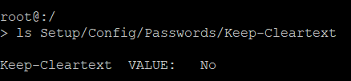
From LCOS 10.50, following a re-configuration of the router or a factory reset, the main device password is stored as a hash value only and not as cleartext (Setup/Config/Passwords/Keep-Cleartext No). Existing configurations are not affected.

A screenshot of a configuration menu displaying the option 'KeepCleartext' with the value set to 'No'.

The tool LCOSCap currently does not work without a cleartext password. In this case, a workaround is to delete the LCOSCap algorithm Simple. Enter the following command into the CLI:

 set Setup/Packet-Capture/LCOSCap-Algorithms 12

A screenshot of a technical configuration interface showing options to set up packet capture and algorithm values including 'SHASG' and 'SHASI'.

2. Perform live analysis in Wireshark:

2.1 Start the Windows version of the packet-analysis tool Wireshark.

Currently, the RPCap interface only works properly in combination with the Windows version of Wireshark. This is because PRCap is only supported by the WinPcap driver available for Windows and included with Wireshark.

2.2 From the Capture menu, select Options.
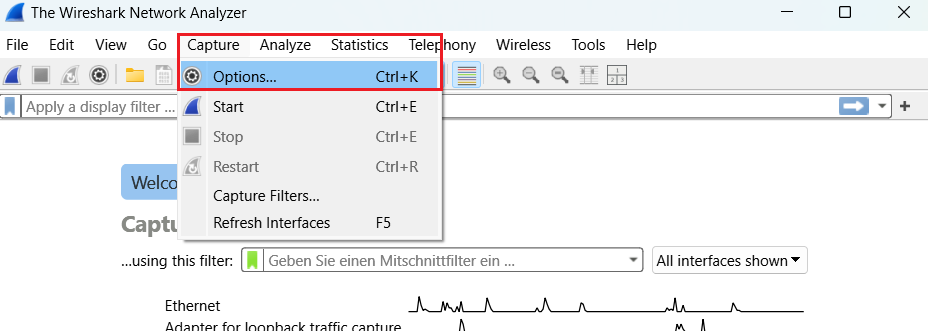
Screenshot of the Wireshark Network Analyzer user interface showing various menu options such as File, Edit, View, Capture, Analyze, and others, with controls for starting, stopping, and restarting network traffic capture.

2.3 In the window that follows, select Manage interfaces.
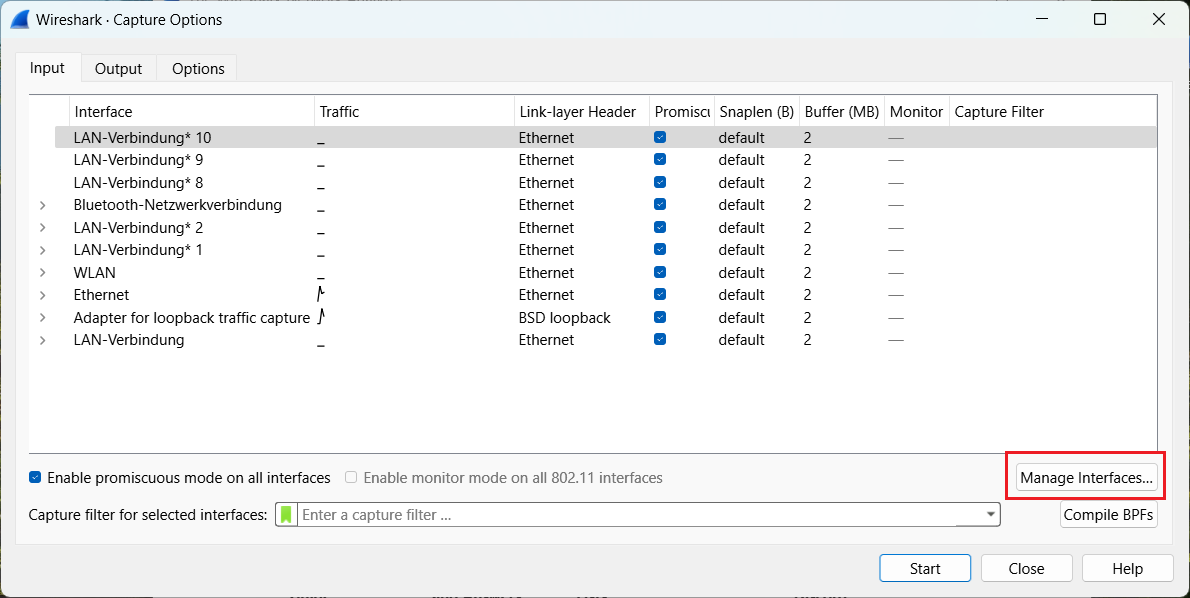
Image depicting the interface options for network diagnostics in Wireshark, including settings for different Ethernet connections, Bluetooth network connectivity, WLAN settings, and options for promiscuous and monitor modes across interfaces.

2.4 In the next window, select the tab Remote Interfaces and add the router.
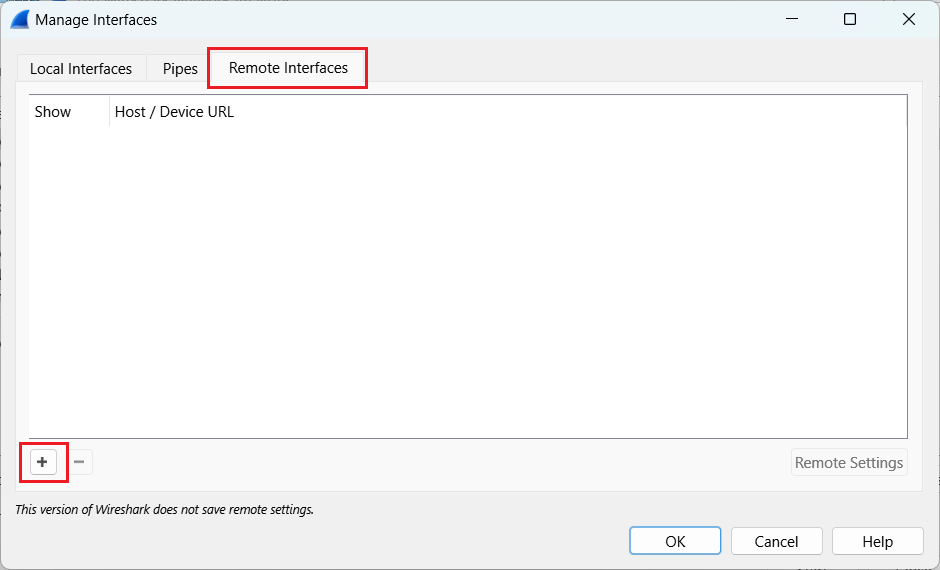
Screenshot of a technical user interface in Wireshark displaying options such as ManageInterfaces, ShowHostDeviceURL, and RemoteSettings with a notification that remote settings cannot be saved.

A screenshot of a user interface focusing on network settings including host configuration, port settings, and authentication options such as password authentication.

2.5 Now the router's interfaces that can be captured are displayed.

  • Logical network interfaces : LAN-x
  • LogicalDSL interfaces : DSL-x
  • Integrated VDSL modem
    • 17xx : LL-VDSL
    • 19x6 : LL-XDSL-1 and LL-XDSL-2
  • LACP: BUNDLE-x

Do not use the interfaces LL-VDSL-CTRL or LL-XDSL-x-CTRL, as they record the management packets of the DSL modem only.

2.6 Choose the required interface and click OK.

Screenshot of a technical configuration interface with options for managing local and remote interfaces, including settings for various network protocols and device URL display, noting that this version of Wireshark does not save remote settings.

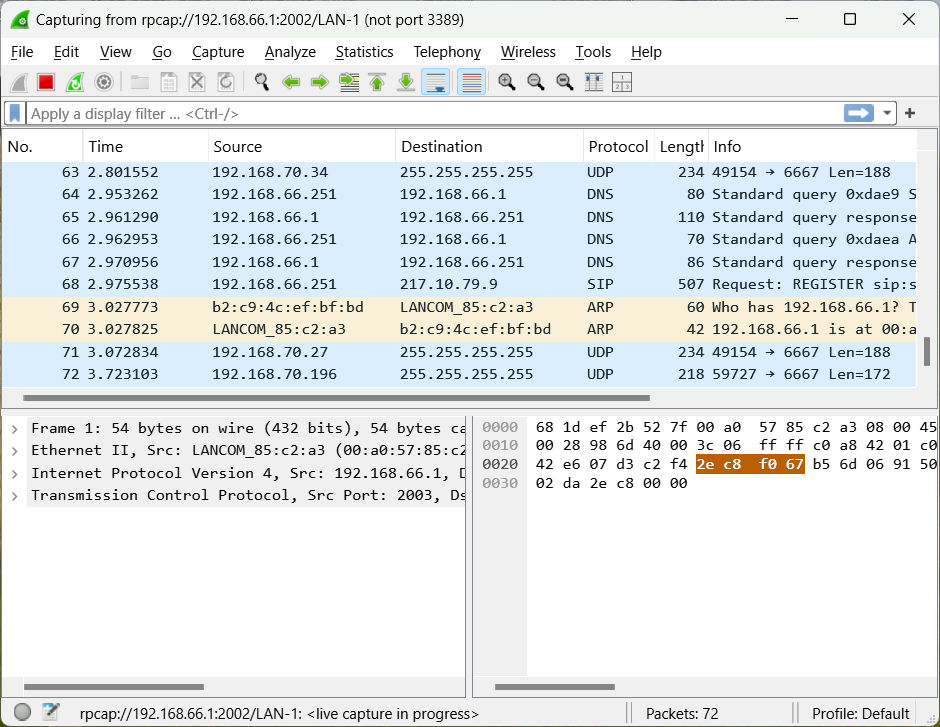
2.7 After clicking Start, the packets passing through the selected interface are captured as if the interface were located locally on the PC.
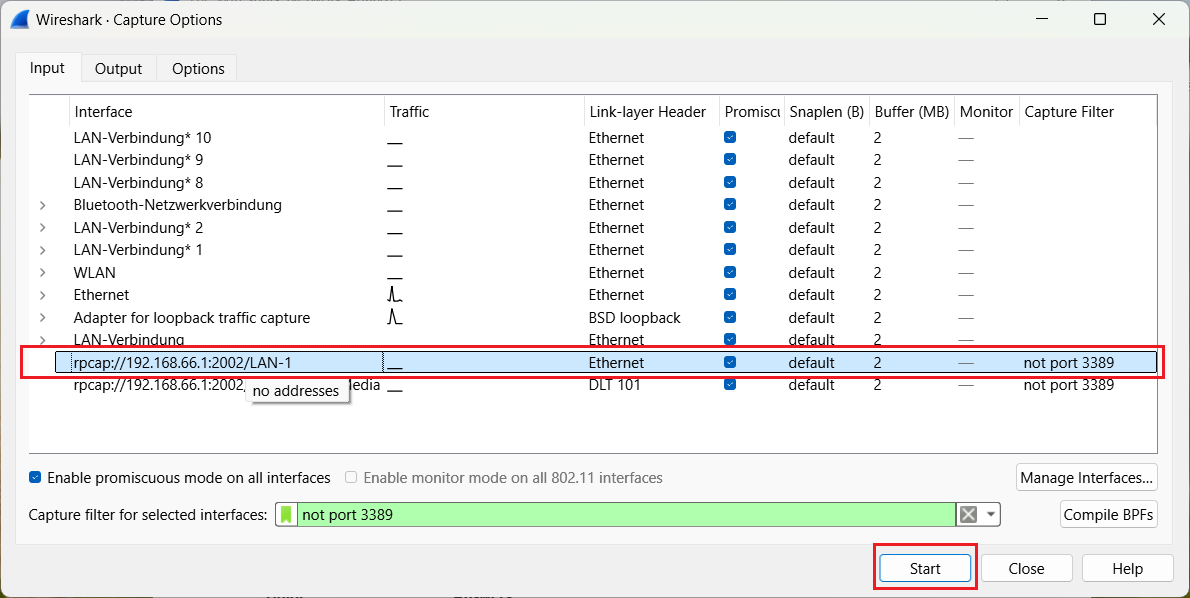
Screenshot of Wireshark's capture options interface showing various Ethernet and Bluetooth network connections settings including default interface traffic, link layer header, promiscuity, snap length, buffer size, monitor mode, and capture filter configurations.

A screenshot of a network analysis tool interface showing various protocol transactions such as DNS queries and responses, SIP registration requests, and ARP communication, with menu options and active display filters visible.


Thank you for your feedback! You can also send us constructive suggestions for improving our knowledge base or ideas for new articles by email to knowledgebase@lancom.de.