SPLA is available for vFirewalls running at least LCOS FX 11.1RU2 or LCOS FX-I 1.2RU1. This article provides guidance for picking the correct license and explains a few special scenarios that do not apply to hardware appliances.
To use SPLA you first need to enable SPLA on your LMC project. If that has not happened yet, please get in touch with your LANCOM sales representative. |
LANCOM vFirewalls are different from hardware appliances in that the user is able to assign as much or as little hardware resources to the appliance as he needs.
The license for a vFirewall needs to be chosen to fit the resources available to the underlying VM.
| If the underlying VM offers more resources than the license allows for, the license will be rejected. |
The following table shows how much resources a VM may offer for a given vFirewall size.
| The shown values are for clarification. Refer to current price list or LMC user interface for binding values. |
Ressource | vFirewall- S | vFirewall- M | vFirewall- L | vFirewall- XL |
max CPU Cores | 1 | 2 | 4 | 16 |
max RAM [GB] | 4 | 8 | 16 | 64 |
max Users | 20 | 100 | 200 | 500 |
max VLANs | 16 | 32 | 64 | 256 |
|
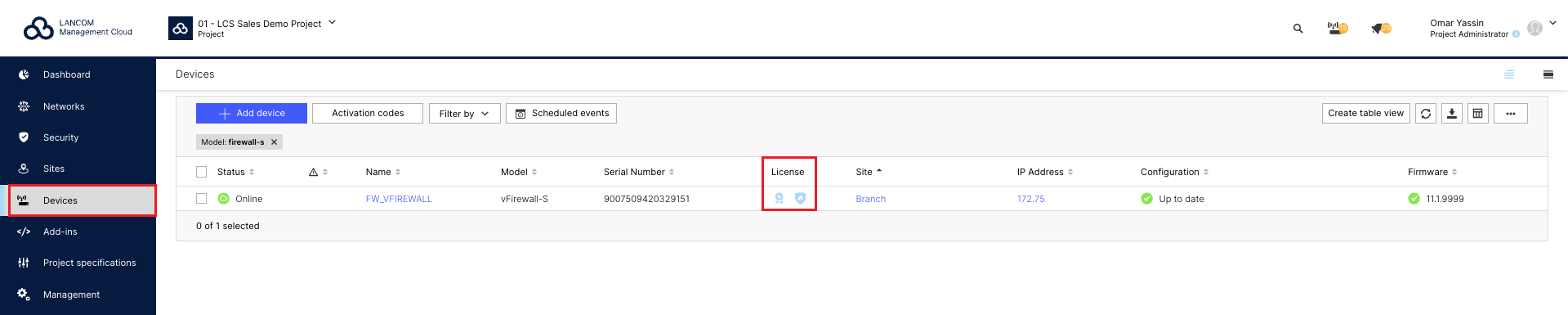
Click on one of the two icons in the Licence column to open the dialogue box with the licence information for the respective device (see next section).
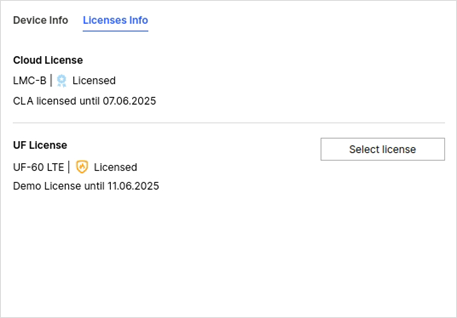
1. In the Licences Info tab, click the Select licence button.
2. You will now be prompted to select the desired vFirewall licence size.
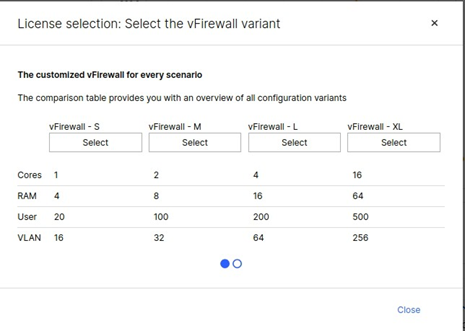
3. To select a licence size, click the Select button in the corresponding column.
In this positive example, the specifications of the VM are as follows:
Refer to the table above to find the right licence.
We start on the left with a vFirewall-S, the most affordable licence.


In this negative example, the specifications of the VM are as follows:
If you select the vFirewall-S licence, the licence will only allow the firewall to run on VMs that have no more than one CPU core and no more than 4 GB of RAM.
However, the VM offers more resources and the vFirewall will reject the licence (see the following figure). To use the additional VM performance, you must purchase a larger licence.
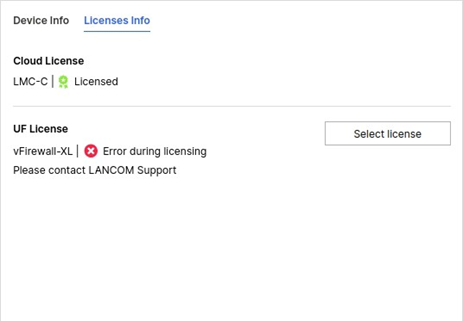
If licensing fails you can also check the system log of the vFirewall. You should find a log entry describing the problem, such as

or

If you have selected a licence that is not large enough, you can return to the licence selection window in the LMC at any time to select a suitable licence.
One advantage of using a VM as the host for your vFirewall is the ability to adjust your configuration to match your actual resource requirements. SPLA makes this even easier by offering flexible billing and quick and easy deployment of licence files.
However, if you change your VM's hardware, you must take special care to avoid interruptions due to the limitations mentioned above.
The procedure required depends on whether you want to upgrade (allocate more resources) or downgrade (allocate fewer resources) your VM.
Adding resources to your VM would invalidate the licence due to the size restrictions mentioned at the beginning of this article. After starting the vFirewall with the additional CPU cores or more RAM, the existing licence would be rejected.
Follow these steps to avoid such issues:
Removing additional resources is less problematic because your current licence always works with fewer resources than before.
Follow these steps to avoid problems:
The vFirewall is currently configured as follows
You want to add another 8 GB of RAM so that a total of 16 GB of RAM is available.
Proceed as follows:
1. On the licence selection screen in the LMC, find the smallest vFirewall variant that meets the requirements of the new resource layout.
2. Therefore, select the vFirewall-L licence.
3. Wait a moment until the selected licence has been applied and then shut down the vFirewall.
4. Now increase the RAM of the VM to 16 GB.
5. Then start the vFirewall.
The vFirewall is currently configured as follows:
It is summertime and employees are on holiday. The vFirewall therefore does not currently require 16 GB RAM. 8 GB RAM is sufficient for a few weeks.
The RAM should therefore be reduced by 8 GB. Proceed as follows:
1. Shut down the vFirewall.
2. Now reduce the RAM of the VM to 8 GB.
3. Then start the vFirewall.
4. Open the license selection screen in the LMC and find the smallest vFirewall variant that meets the requirements of the new resource layout.
In this case, this would be the vFirewall-M licence, as it allows 2 CPU cores and 8 GB RAM. Since only 2 CPU cores are used and the RAM memory has been reduced, the system properties are within the limits for a vFirewall-M.
5. Select the vFirewall-M licence.
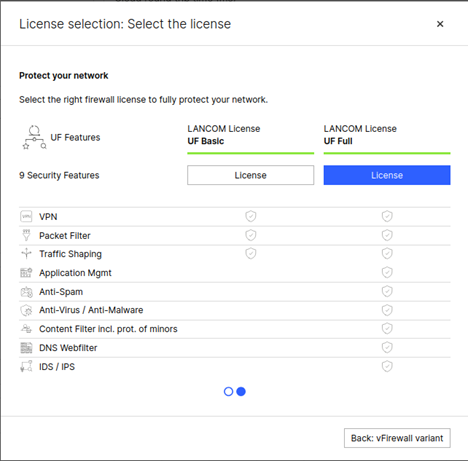
It may happen that the licence selection screen in the LMC already displays the values you want to apply (vFirewall size and licence variant) and clicking on these values again does not trigger a licence rollout to your device.
However, if you want to roll out the licence to your device immediately, you must temporarily select a different licence variant (e.g. ‘Basic’ instead of ‘Full’) and then switch back to the desired variant.
|