
Description:
Creating firewall rules in the LANCOM Management Cloud (LMC) is different to the methods available with LANconfig. This document describes the methodology and syntax required.
Requirements:
Procedure:
In order to avoid having to use the action IDs described below, we recommend that you create firewall objects before you create the actual rules. These object can then be used multiple times for the different rules.
Also, the menu Devices -> <Device name> -> Detail configuration -> Firewall/QoS -> IPv4 rules -> Firewall objects already contains ready-made objects for the most common actions, protocols, source and target addresses (ACCEPT, REJECT, DROP, ANYHOST, LOCALNET, etc.), which can considerably simplify the configuration of firewall rules.
We will demonstrate the process by creating example firewall rules in the LMC:
Example rule 1: Block data traffic from a certain source IP address:
1.1) Open the configuration of the LANCOM device in the LMC, navigate to the menu Devices -> <Device name> -> Detail configuration -> Firewall/QoS -> IPv4 rules -> Firewall objects -> Object table and click the button Add.
1.2) Assign a meaningful name to the object and enter as syntax %A followed by the IP address of the device (e.g. %A10.10.10.1). Then click OK to save the object.
Note:
Value
64 characters
more than 64 characters
use nested objects
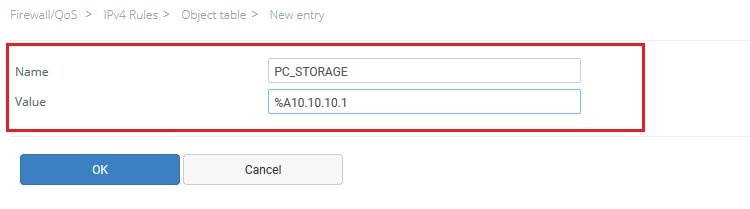
1.3) In the lower area of the Object table menu, click on Save to accept the change. If you want to roll-out the created object to the device immediately after saving it, click Save and roll out.
1.4) Open the menu Devices -> <Device name> -> Detail configuration -> Firewall/QoS -> IPv4 rules -> Rule table and Add a new rule.
Then click OK to save the rule.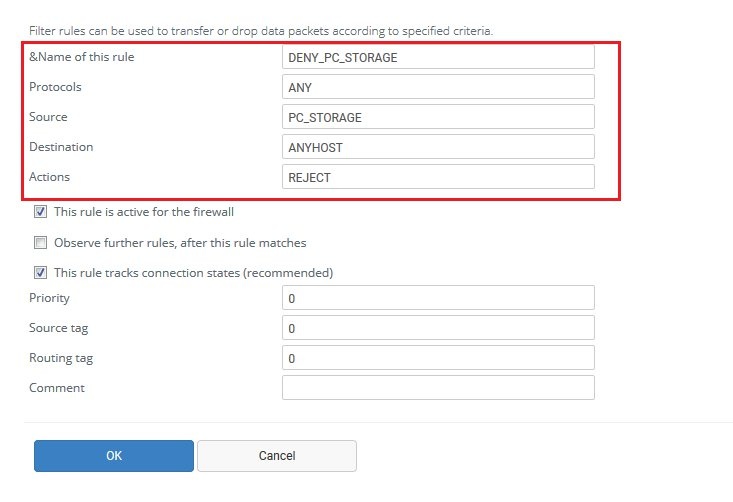
1.5) In the lower area of the Object table menu, click on Save or Save and roll out to accept the change.
Example rule 2: Globally allow HTTPS connections
2.1) Open the menu Devices -> <Device name> -> Detail configuration -> Firewall/QoS -> IPv4 rules -> Rule table and Add a new rule.
Then click OK to save the rule.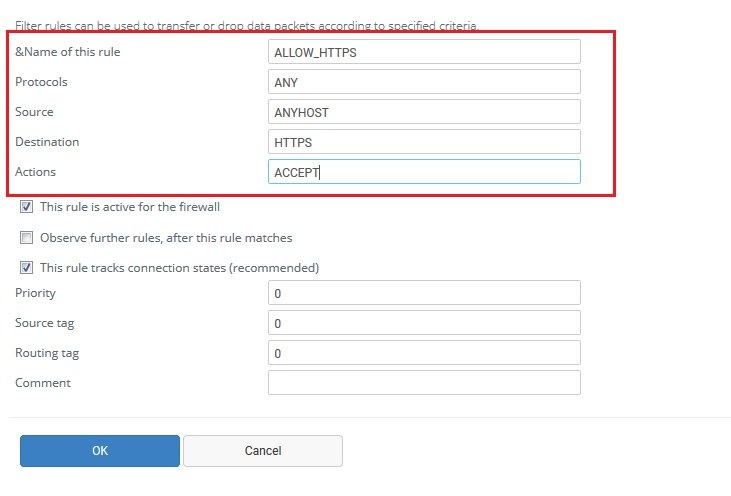
2.2) In the lower area of the Object table menu, click on Save or Save and roll out to accept the change.
Example rule 3: Guarantee a minimum bandwidth of 256 kbps
3.1) Open the configuration of the LANCOM device in the LMC, navigate to the menu Devices -> <Device name> -> Detail configuration -> Firewall/QoS -> IPv4 rules -> Firewall objects -> Action table and click the button Add.
3.2) Give the action a meaningful name and enter as syntax %Qgds256. Then click OK to save the object.
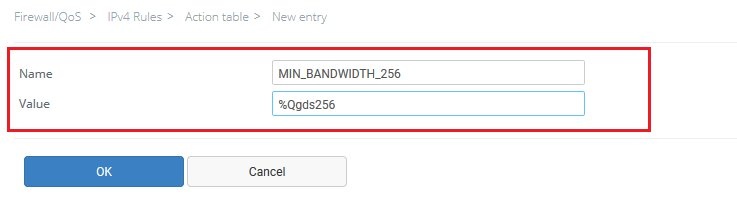
3.3) Open the menu Devices -> <Device name> -> Detail configuration -> Firewall/QoS -> IPv4 rules -> Rule table and Add a new rule.
Then click OK to save the rule.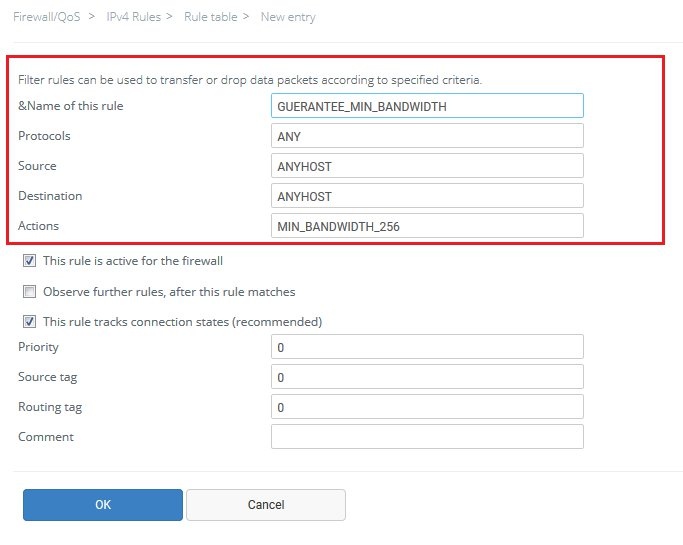
3.4) In the lower area of the Object table menu, click on Save or Save and roll out to accept the change.
Syntax for creating actions:
All actions can be combined with one another in any way. For actions that cancel each other out (e.g.: "Accept" + "Drop"), the system defaults to the more secure version (in this case "Drop").
Action | Description | Action ID |
| Accept | The packet is accepted. | %a |
| Reject | The packet is rejected with a corresponding error message. | %r |
| Drop | The packet is dropped silently. | %d |
| Connect filter | The filter is active if there is no physical connection to the destination of the packet | @c |
| Internet-Filter | This filter is active if the packet is received over the default route, or if it is to be sent | @i |
| Syslog | Provides a detailed message via Syslog. | %s |
| Sends an e-mail to the administrator | %m | |
| SNMP | Sends an SNMP trap | %n |
| Close port | Closes the packet's destination port for a specifiable time | %p |
| Deny host | Blocks the packet's sender address for a specifiable time | %h |
| Disconnect | Disconnects the physical connection to the remote site over which the packet was received or is to be sent. | %t |
| Zero-limit | Resets the limit counter (see below) to 0 when the trigger threshold is exceeded | %z |
Information about actions:
1) Close port
2) Deny host
3) Connect filter / Internet filter
Syntax for creating limits:
Each action can be operated with a limit. If a limit is exceeded, the action that follows it is triggered.
Limits are generally initiated with %l. Then the relation is specified (i.e. connection-related (c) or global (g)). Next is the type of the limit (i.e. data rate (d), number of packets (p), or the packet rate (b)).
Finally, additional parameters are specified such as the time period and size.
Example: %lcds8
This limit takes effect if more than 8 kilobytes/s are transmitted over the current connection.
Limit | Description | Action ID |
| Data (abs) | Absolute number of kilobytes over the connection, after which the action is performed | %lcd |
| Data (rel) | Number of kilobytes per second/minute/hour over the connection after which the action is performed | %lcds %lcdm %lcdh |
| Packet (abs) | Absolute number of packets over the connection, after which the action is performed | %lcp |
| Packet (rel) | Number of packets per second/minute/hour or in total over the connection, after which the action is performed | %lcps %lcpm %lcph |
| Global data (abs) | Absolute number of kilobytes sent to or received from the destination computer, after which the action is performed | %lgd |
| Global data (rel) | Number of kilobytes per second/minute/hour sent to or received by the destination computer, after which the action is performed | %lgds %lgdm %lgdh |
| Global packet (abs) | Absolute number of packets sent to or received by the destination computer, after which the action is performed | %lgp |
| Global packet (rel) | Number of packets per second/minute/hour sent to or received by the destination computer, after which the action is performed | %lgps %lgpm %lgph |
| Receive option | Limit applies to the receive direction only (in combination with the above limitations). Examples are given in the object ID column | %lgdsr %lcdsr |
| Transmit option | Limit applies to the transmit direction only (in combination with the above limitations). Examples are given in the object ID column | %lgdst %lcdst |
Information on the use of "Quality-of-Service"
|