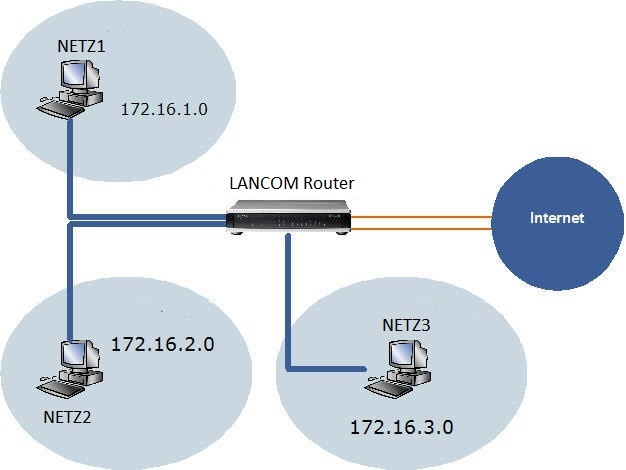
Communication between different networks of a router can either be restricted via firewall rules or via interface tags. For simple scenarios, interface tags are a good choice due to the low configuration effort required.
For more complex scenarios, where communication to another network is allowed or forbidden only for individual members, using the interface tags is not recommended, as in this case an additional firewall rule would be needed to remove the interface tag and set the correct tag.
This article describes, how communication between different local networks on a router without WLAN and with permanent Private Mode on the Ethernet interfaces can be restricted via interface tags.
Beachten Sie zur Netztrennung per ARF für weitere Geräte-Typen (Router ohne permanenten Private Mode sowie Router mit WLAN) die folgenden Knowledge Base Artikel: ARF: Abgrenzen lokaler Netze durch Nutzung des Schnittstellen-Tags bei Geräten mit WLAN |
Informationen zum Private Mode von Ethernet-Schnittstellen: Wird der Private Mode auf den Ethernet-Ports aktiviert, können diese nicht miteinander auf Layer 2 kommunizieren (auch, wenn diesen das gleiche logische LAN-Interface zugewiesen ist). Auf Routern mit permanent aktivem Private Mode ist somit erstmal keine Kommunikation zwischen den Ethernet-Ports möglich. Als Workaround kann die Kommunikation über die LAN-Bridge erfolgen, indem den zu den Ethernet-Ports zugehörigen logischen LAN-Interfaces die gleiche Bridge-Gruppe zugewiesen wird. Dies sollte aber nur als Notlösung betrachtet werden. |
The aim is to restrict access between the networks NETWORK1, NETWORK2 and NETWORK3 on the LAN side of the router.
|
1) Assigning the interfaces to the networks:
The Ethernet interfaces ETH 5 and higher are not used in this seencario and can therefore be left on the default settings.
1.1) Open the configuration of the router in LANconfig and make sure, that a different LAN interface is assigned to the Ethernet ports ETH 1 to ETH 4 in the menu Interfaces → LAN → Ethernet ports (ETH 1 → LAN-1, ETH 2 → LAN-2 and so on).

1.2) Go to the menu Interfaces → LAN → LAN bridge.

1.3) Open the menu Port table.

1.4) Make sure, that the bridge group BRG-1 is assigned to the logical interface LAN-1.
Instead of assigning the bridge group BRG-1 it is also possible to select the option none and assign the logical interface LAN-1 to the employee network. However, this is not recommended, as a bridge group is required in some scenarios (e.g. the same bridge group has to be assigned to an L2TP connection and a LAN interface, so that communication via L2TP is possible). |

1.5) Assign the bridge group BRG-2 to the logical interface LAN-2.
Instead of assigning the bridge group BRG-2 it is also possible to select the option none and assign the logical interface LAN-2 to the employee network. However, this is not recommended, as a bridge group is required in some scenarios (e.g. the same bridge group has to be assigned to an L2TP connection and a LAN interface, so that communication via L2TP is possible). |

1.6) Assign the bridge group BRG-3 to the logical interface LAN-3.

1.7 Assign the bridge group BRG-3 to the logical interface LAN-4.

2.) Assigning the logical interfaces and interface tags to the IP networks:
|
You can check the assignment of the IP addresses to the interfaces via the CLI command show ipv4-addresses. |
2.1) Go to the menu IPv4 → General → IP networks.

2.2) Click Add and subsequently create three new networks.
The entries INTRANET and DMZ should not be removed. As these are also referenced in other menus (e.g. in the DHCP networks) without additional configuration changes this would result in the configuration no longer being able to be written via LANconfig! |
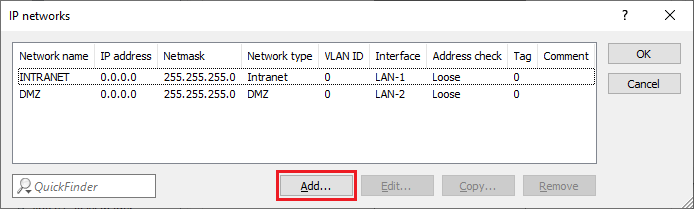
2.3) Modify the following parameters for the employee network:
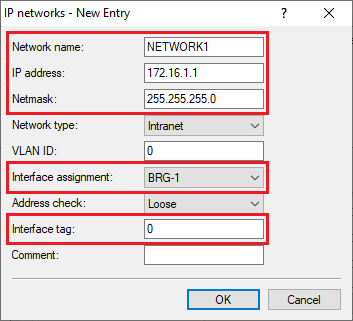
2.4) Modify the following parameters for the guest network:
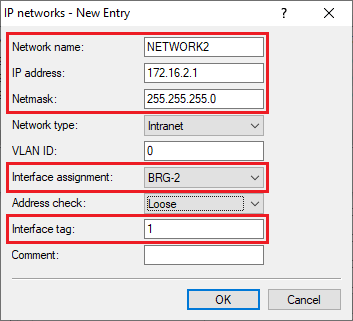
2.5) Modify the following parameters for the Server network:
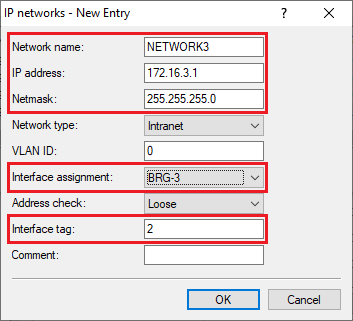
2.6) The list of the IP networks should now appear as follows.

3) Creating the routing entry:
As of LCOS 10.40 there is an own table in the FIB (Forwarding Information Base) for each routing tag.
Additional information regardíng the routing behavior can be found in the LCOS reference manual: |
3.1) Go to the menu IP Router → Routing → IPv4 routing table.
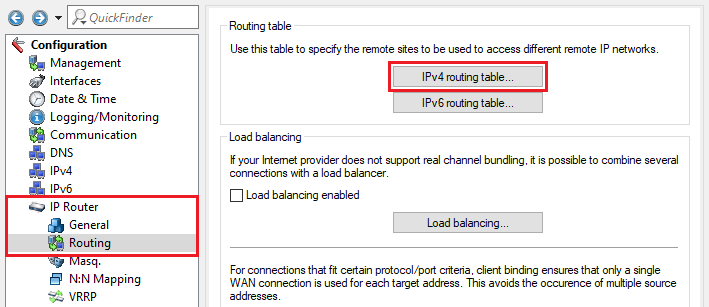
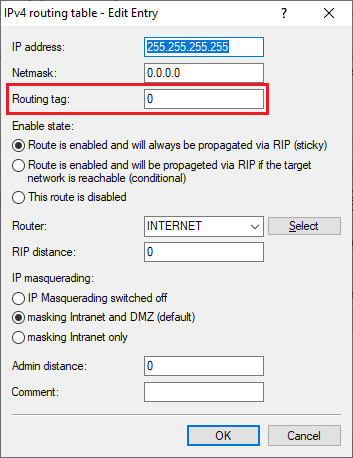
3.2) Adjust the routing tag of the default route to your needs. In this example the tag was left at 0, so that all networks can communicate with the Internet via this routing entry.
You can also copy the default route and enter a routing tag unequal to 0. In this case only a network with the same interface tag can communicate via this routing entry. |
|