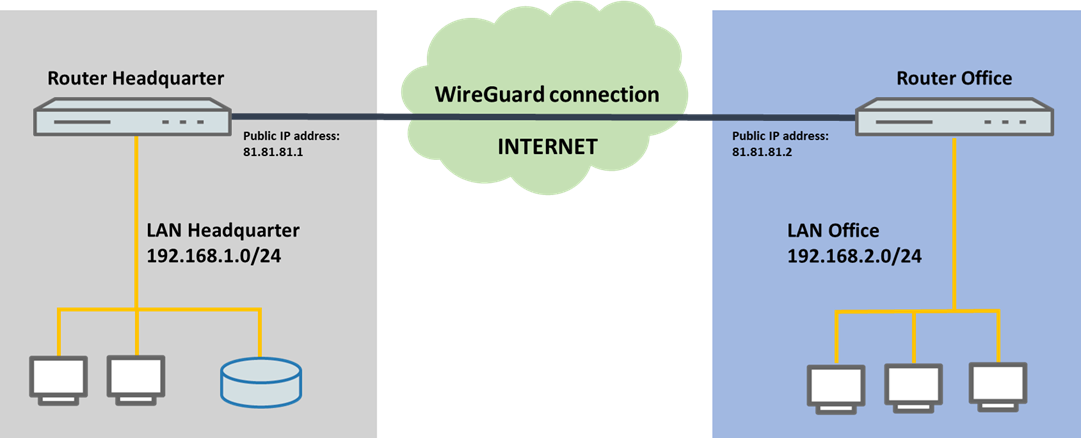
WireGuard is a simple and lean VPN protocol. Unlike IKEv2/IPSec, WireGuard focuses on simplicity, speed and ease of operation. IKEv2/IPSec, on the other hand, is an IETF-standardized protocol with many extensions and high flexibility, which is accompanied by high complexity. While IKEv2/IPSec has crypto agility (the encryption methods are exchangeable and can be negotiated between the endpoints), WireGuard has a fixed key exchange with Curve25519 and the ChaCha20-Poly1305 encryption protocol. In the case of WireGuard, only authentication via public/private key is possible, whereas authentication with IKEv2/IPSec is flexible, e.g. via preshared key, certificate or EAP. IKEv2/IPSec also supports various extensions such as RADIUS or two-factor authentication, which is not possible with WireGuard. In addition, WireGuard only supports transmission via UDP.
Due to the large number of configuration and deployment scenarios in LCOS, LANCOM Systems recommends continuing to use IKEv2/IPSec as the standard protocol for branch networking or SD-WAN. In addition, LANCOM router platforms do not have hardware acceleration for ChaCha20-Poly1305, so encryption for WireGuard connections must be performed in software. This results in lower data throughput compared to connections with IKEv2/IPSec. For scenarios with high VPN throughput, LANCOM Systems therefore recommends continuing to use IKEv2/IPSec.
WireGuard is an ideal addition for simple scenarios where only basic encrypted connections are needed. Another application purpose for WireGuard are scenarios where the VPN protocol is specified by a service provider or VPN provider.
This article describes, how a WireGuard connection between two LANCOM routers can be set up.
Example: |
Configuring the WireGuard connections on the two routers must be carried out in parallel (steps 1.3 - 1.6 as well as 2.3 - 2.6), since the Public Key must be stored on the opposite router in each case. Also the Preshared Key must be the same on both routers. For the sake of clarity, however, the setup is described separately. |
1) Configuration on the LANCOM router in the headquarter:
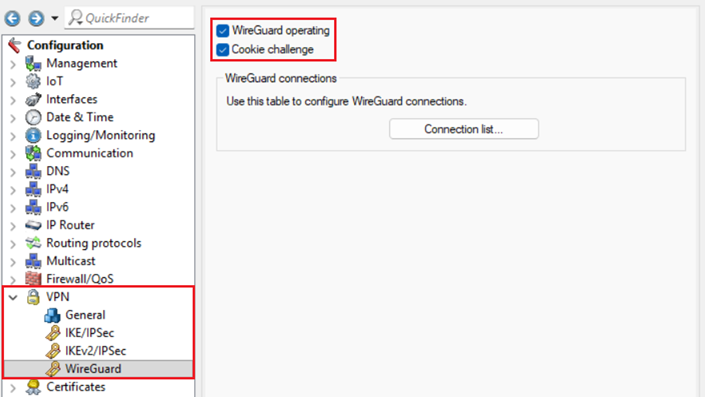
1.1) Connect to the router in the headquarter via LANconfig and go to the menu VPN → WireGuard. Activate WireGuard and the Cookie challenge.
The WireGuard handshake is very computationally intensive. Attackers could therefore try to overload the router by making many simultaneous handshake requests and thereby slow down or crash the router (so-called "CPU-exhaustion attack"). A protective measure for such attacks is the Cookie challenge. As a result, an attacker must perform an additional network round trip for each handshake request and respond to the cookie. This significantly increases the cost of the attack and makes it less effective. LANCOM Systems therefore recommends to always activate the Cookie challenge. |
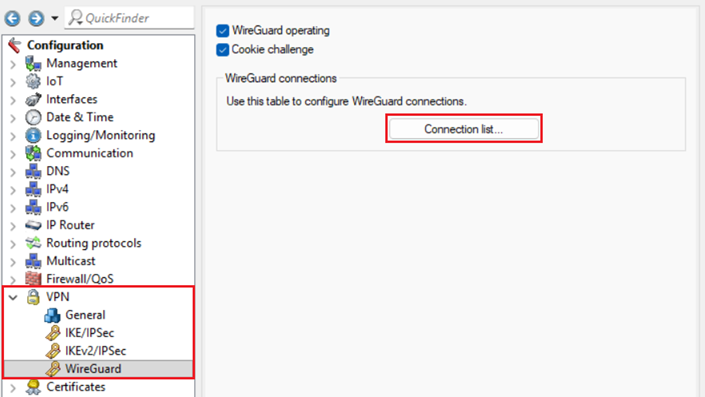
.1.2) Switch to the menu Connection list.
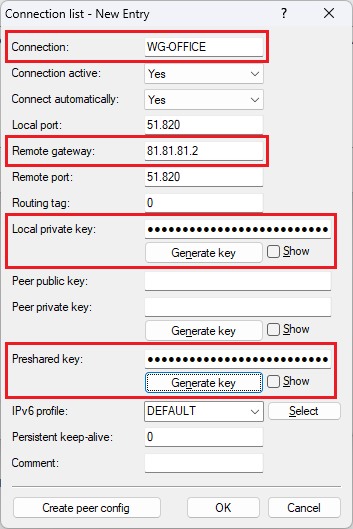
1.3 Erstellen Sie einen neuen Eintrag und passen die folgenden Parameter an:
The Peer private key only has to be created in the LANCOM router if the router should create a WireGuard profile for the peer and provide it as a configuration or as a QR code. It is not required for the function in LCOS and is only stored in the configuration so that the configuration for the other side can be displayed or generated again at a later time if necessary. A separate Local port must be used for each WireGuard connection, e.g. 51821 for the second connection, 51822 for the third and so on. |
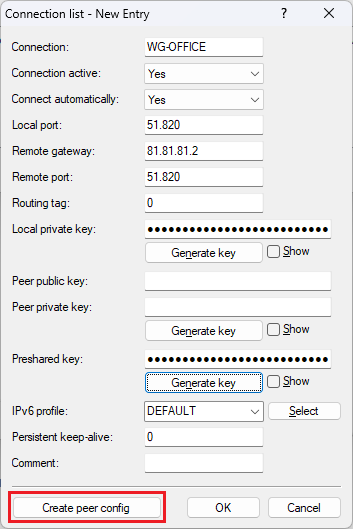
1.4 Klicken Sie auf Peer Konfig erzeugen, um den Public Key auszulesen.
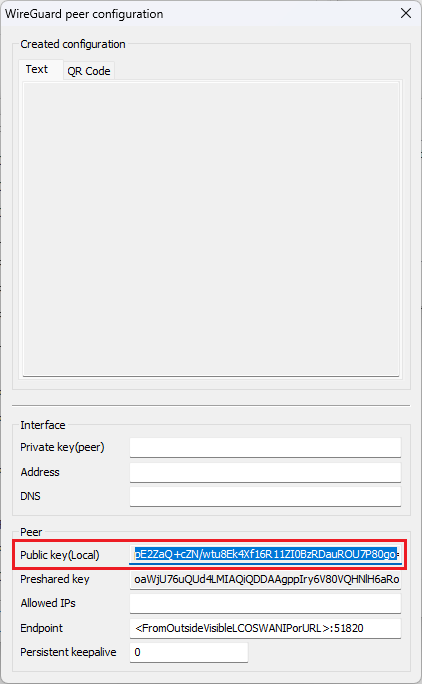
1.5 Kopieren Sie den Public Key (Local). Dieser muss auf dem Router in der Filiale in Schritt 2.6 angegeben werden.
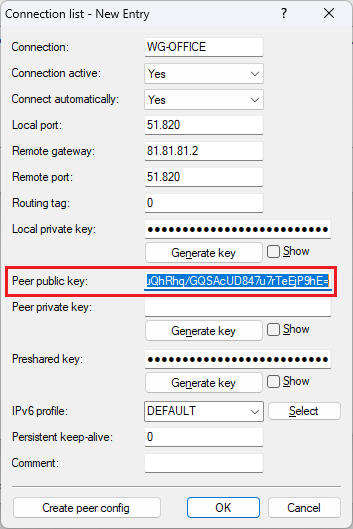
1.6 Tragen Sie in das Feld Peer Public Key den in Schritt 2.5 kopierten Public Key vom Router in der Filiale ein.
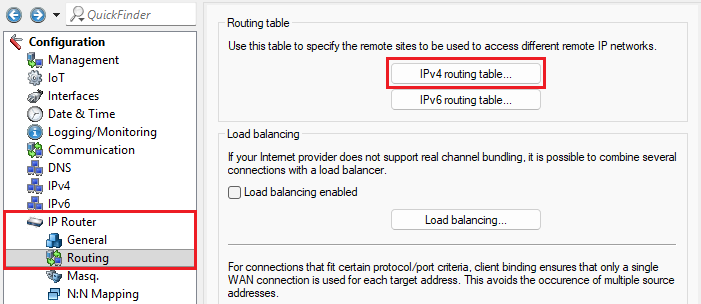
1.7) Go to the menu IP Router → Routing → IPv4 routing table.
1.8) Click Add to create a new routing entry.
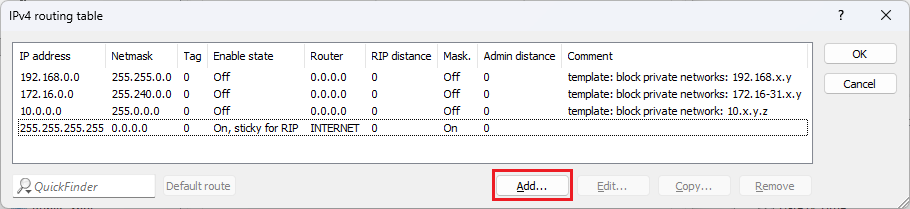
1.9) Modify the following parameters:
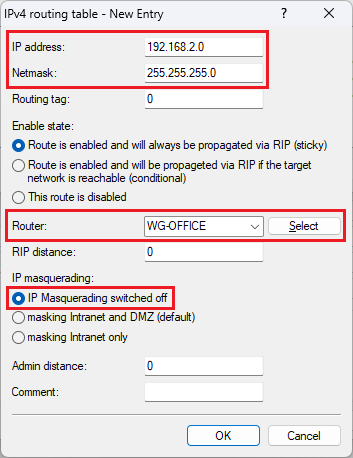
1.10) This concludes the configuration steps on the router in the headquarter. Write the configuration back to the device.
2) Configuration on the LANCOM router in the office:
2.1) Connect to the router in the headquarter via LANconfig and go to the menu VPN → WireGuard. Activate WireGuard and the Cookie challenge.
The WireGuard handshake is very computationally intensive. Attackers could therefore try to overload the router by making many simultaneous handshake requests and thereby slow down or crash the router (so-called "CPU-exhaustion attack"). A protective measure for such attacks is the Cookie challenge. As a result, an attacker must perform an additional network round trip for each handshake request and respond to the cookie. This significantly increases the cost of the attack and makes it less effective. LANCOM Systems therefore recommends to always activate the Cookie challenge. |
2.2) Switch to the menu Connection list.
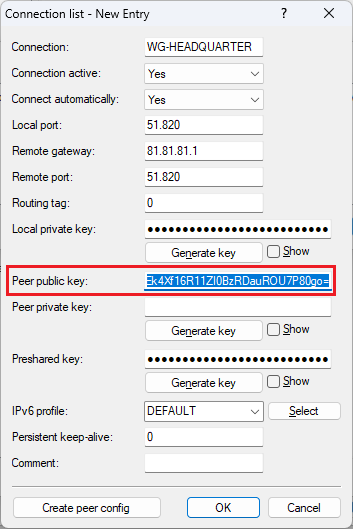
2.3 Erstellen Sie einen neuen Eintrag und passen die folgenden Parameter an:
The Peer private key only has to be created in the LANCOM router if the router should create a WireGuard profile for the peer and provide it as a configuration or as a QR code. It is not required for the function in LCOS and is only stored in the configuration so that the configuration for the other side can be displayed or generated again at a later time if necessary. A separate Local port must be used for each WireGuard connection, e.g. 51821 for the second connection, 51822 for the third and so on. |
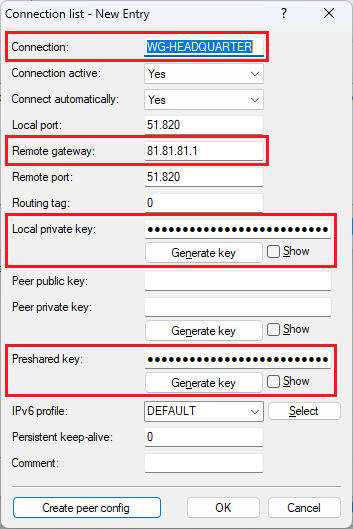
2.4 Klicken Sie auf Peer Konfig erzeugen, um den Public Key auszulesen.
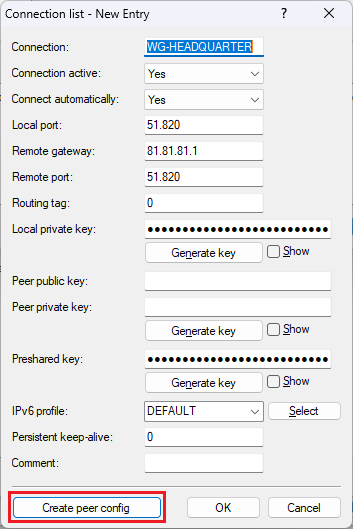
2.5 Kopieren Sie den Public Key (Local). Dieser muss auf dem Router in der Zentrale in Schritt 1.6 angegeben werden.
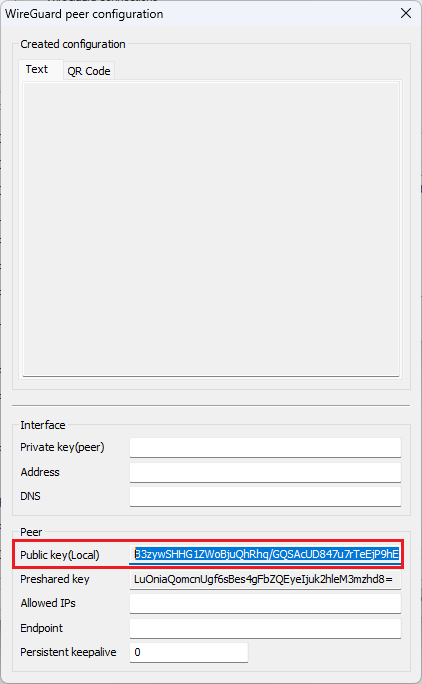
2.6 Tragen Sie in das Feld Peer Public Key den in Schritt 1.5 kopierten Public Key vom Router in der Zentrale ein.
2.7) Go to the menu IP Router → Routing → IPv4 routing table.
2.8) Click Add to create a new routing entry.
2.9) Modify the following parameters:
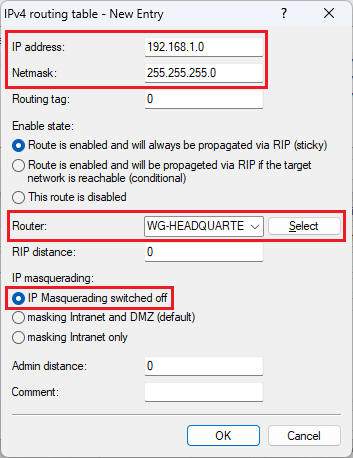
2.10) This concludes the configuration steps on the router in the office. Write the configuration back to the device.
|