The LMC allows external identity providers (IdP) to be connected for authentication. This makes it possible to implement central user management.
This article describes how to configure authentication of LMC users via the identity provider Microsoft Entra.
It is recommended to temporarily invite a user from outside the Entra domain to the organization for configuration in Entra. As a result, access to the organization is possible even if all users from the Entra domain have been locked out due to a misconfiguration. |
1) Configuration steps in Microsoft Entra:
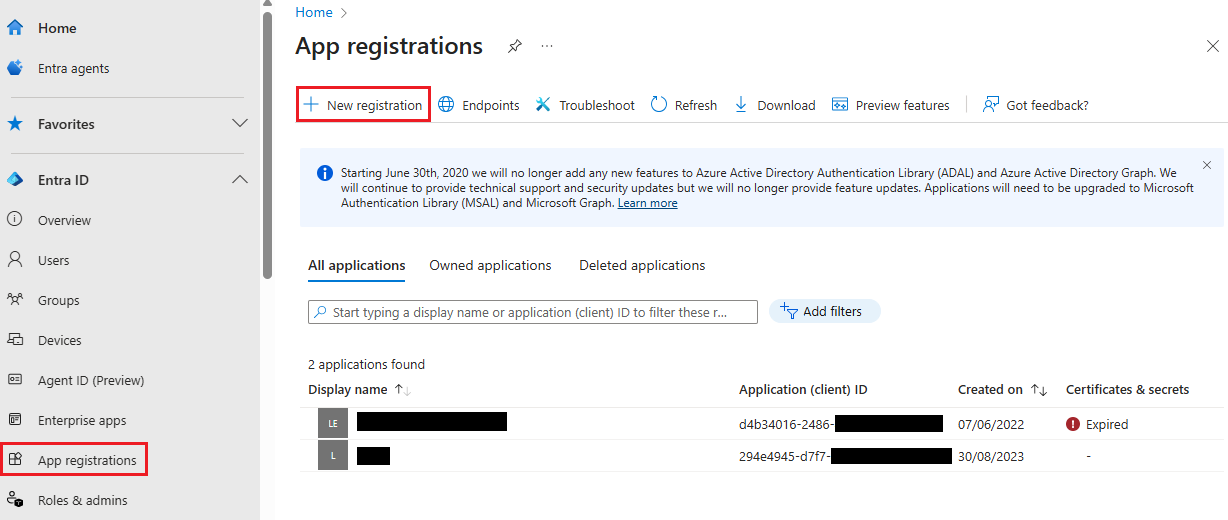
1.1) Connect to your Microsoft Entra instance and go to the menu App registrations. Click on New registration afterwards.
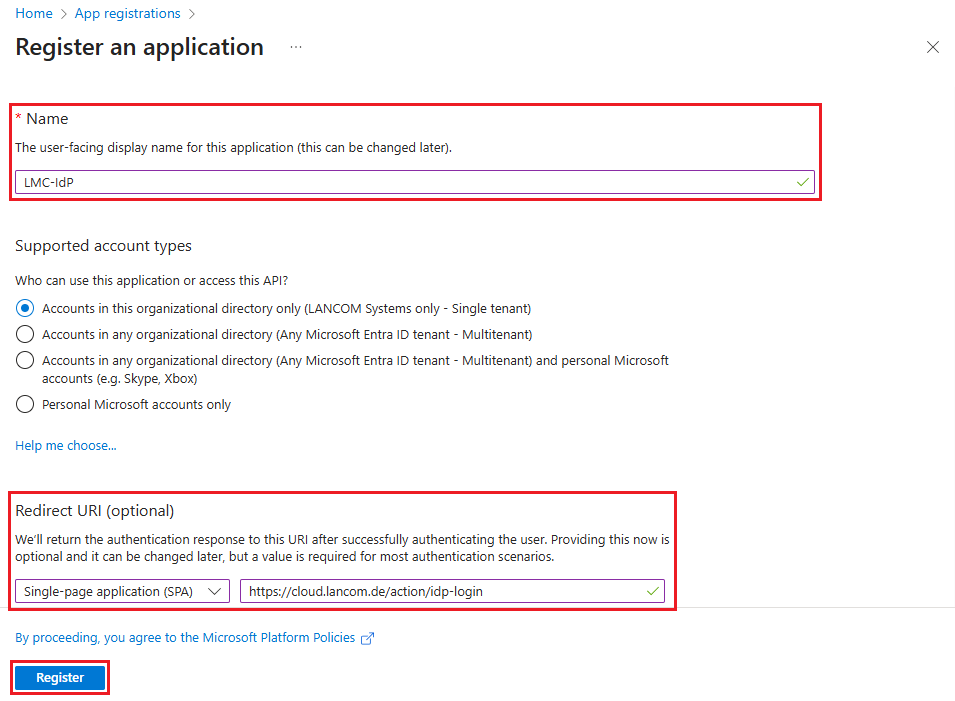
1.2) Modify the following parameters and click Register:
Make absolutely sure to use the option Single-page application for the Redirect-URI. If the option Web application is used instead, the user authentication won't work! |
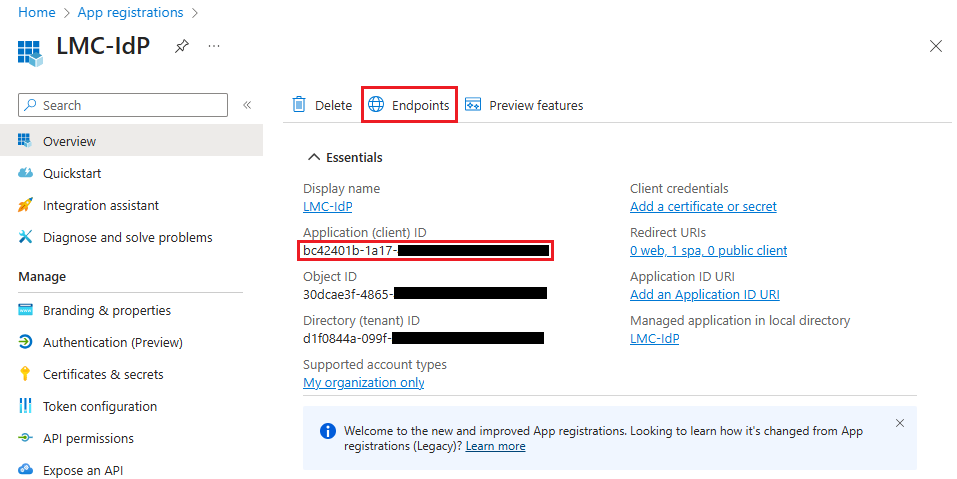
1.3) Copy the Application (client) ID and save it to a text file. It must be entered in the LMC in step 2.6 as the OIDC Client ID.
Click on Endpoints afterwards.
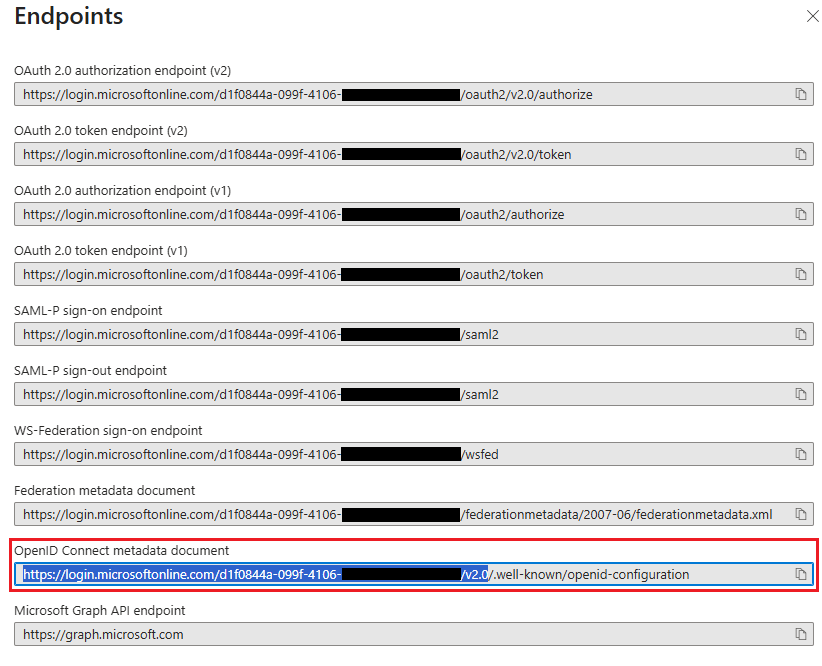
1.4) Copy the link in the field OpenID Connect metadata document before the string .well-known/openid-configuration and save it in a text file. The link must be entered in the LMC in step 2.5 as the OIDC Issuer URL.
The dot must not be copied. |
1.5) This concludes the configuration steps in Entra.
2) Configuration steps in the LMC:
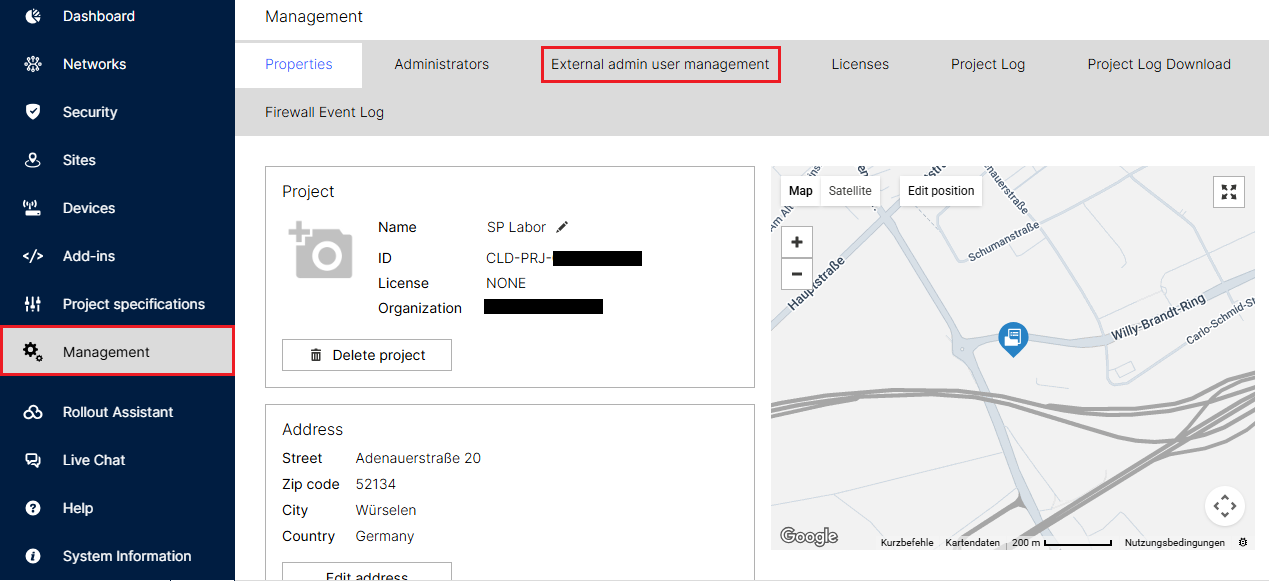
2.1) Connect to the LMC via a web browser and go to the menu Management → External admin user management.
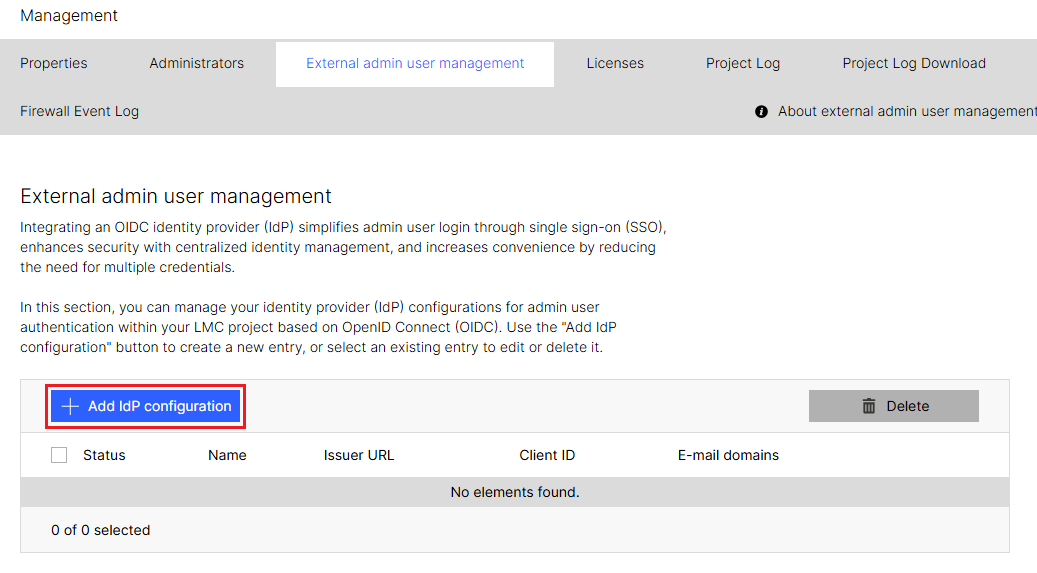
2.2) Click on Add IdP configuration.
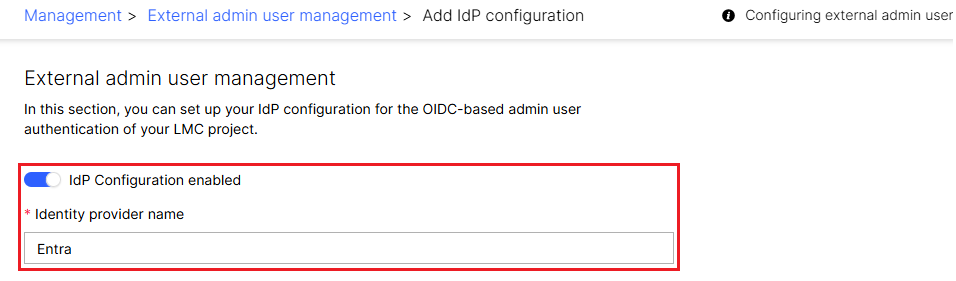
2.3) Activate the IdP configuration via the slider and enter a descriptive name in the field Identity provider name (in this example Entra).
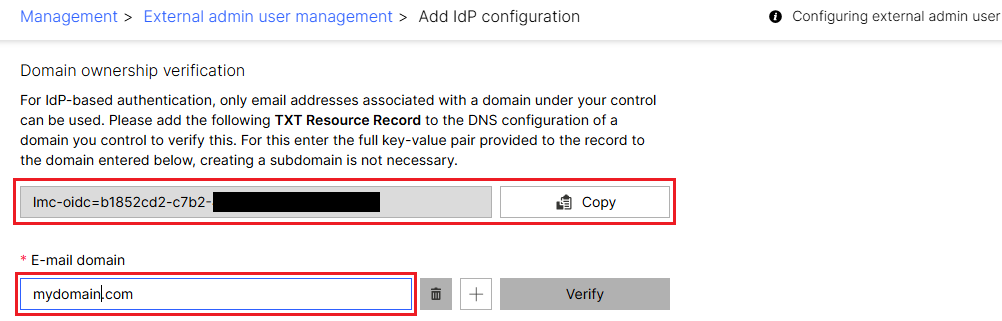
2.4) Modify the following parameters:
The E-mail domain is verified automatically when saving the IdP configuration. Therefore it does not have to be verified manually. |
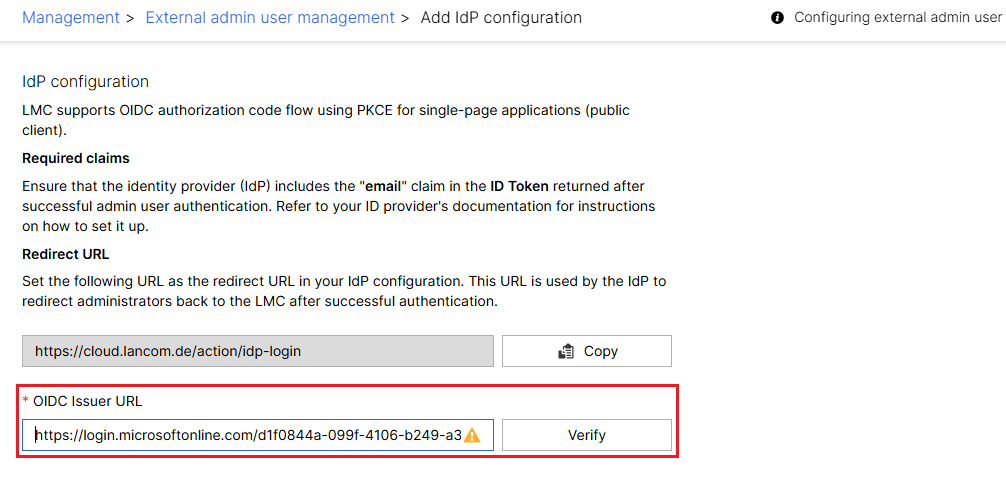
2.5) Enter the link of the OpenID Connect metadata document copied in step 1.4 in the field OIDC Issuer URL and click on Verify.
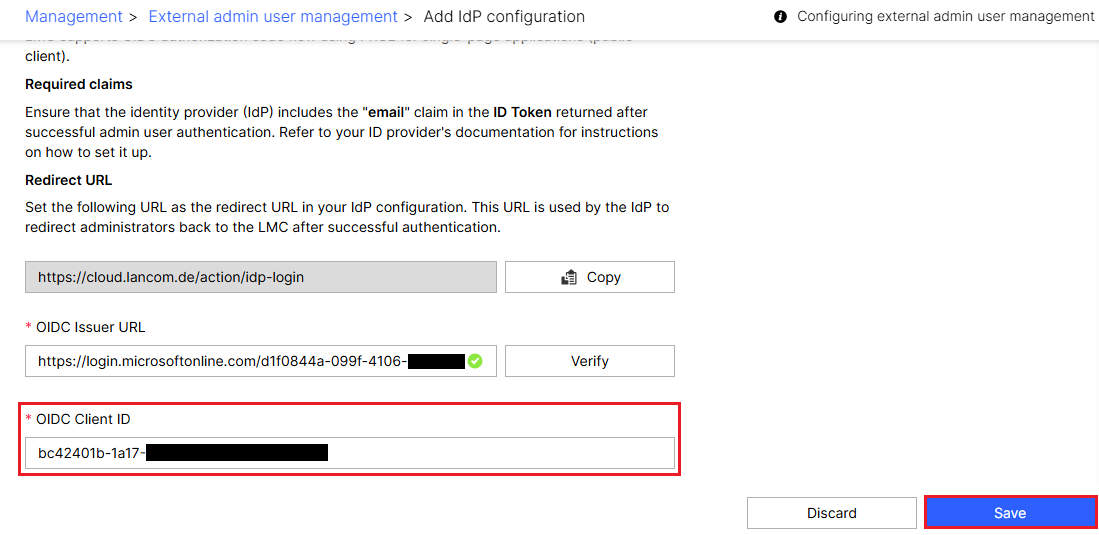
2.6) Enter the Application (client) ID copied in step 1.3 in the field OIDC Client ID and click Save.
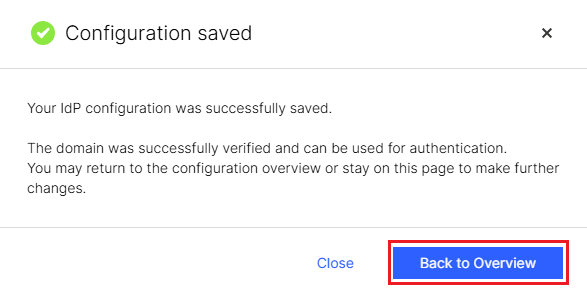
2.7) This concludes the configuration steps in the LMC. Clicking the Back to Overview button brings you back to External admin user management.
|