Description:
This document describes the configuration steps required on a LANCOM managed switch of the GS-23xx series in order to configure a Voice VLAN. If an LLDP-MED compatible VoIP telephone is connected to the switch, the switch recognizes the telephone and activates the Voice VLAN on the switch port. As the Voice VLAN is tagged on this port (tagging mode
Hybrid), tagging has to be also activated on the VoIP telephone. It is also possible to connect additional network devices to this port, which are to communicate in another VLAN. For this purpose there is a separate port on many VoIP telephones a PC can be connected to for example. This can save an additional switch.
LLDP-MED (Link Layer Discovery Protocol - Media Endpoint Devices) is an extension of the LLDP protocol that supports the interoperability of VoIP terminals and other devices on the network, such as a PC. |
Requirements:
- LANCOM switch of the GS-23xx series with LCOS SX as of 3.32 Rel (download latest version)
- IP telephone supporting LLDP-MED
- Any web browser for accessing the webinterface
- The VoIP telephone has to be configured to tag packets with the Voice VLAN ID (active tagging)
Scenario: - In this example, the Voice VLAN has the ID 200, and LLDP is to be used as the discovery protocol.
- The IP telephone should be assigned this VLAN ID automatically as soon as it is connected to the designated switch port.

Procedure:
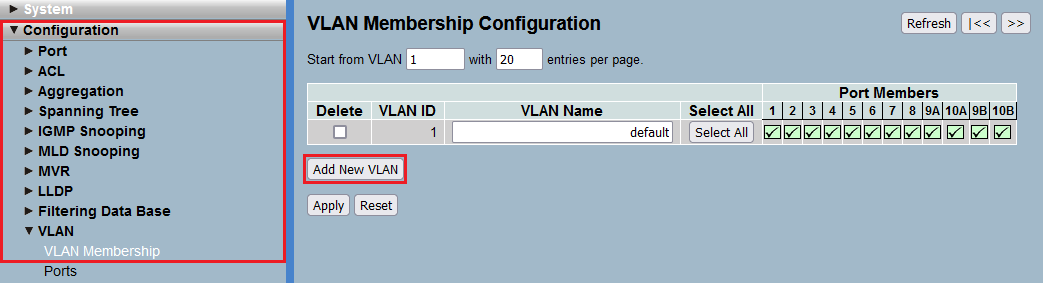
1) Connect to the switch via the webinterface, go to the menu Configuration → VLAN → VLAN Membership and click Add New VLAN.
2) Modify the following parameters and click Apply:
- VLAN ID: Enter the VLAN ID of the Voice VLAN (in this example the VLAN ID 200).
- VLAN Name: Enter a descriptive name for the Voice VLAN (in this example Voice).
- Port Members: Select the Port, the router is connected to (in this example Port 8).

3) Connect the IP telephone to the switch. For this example we use switch port 1.
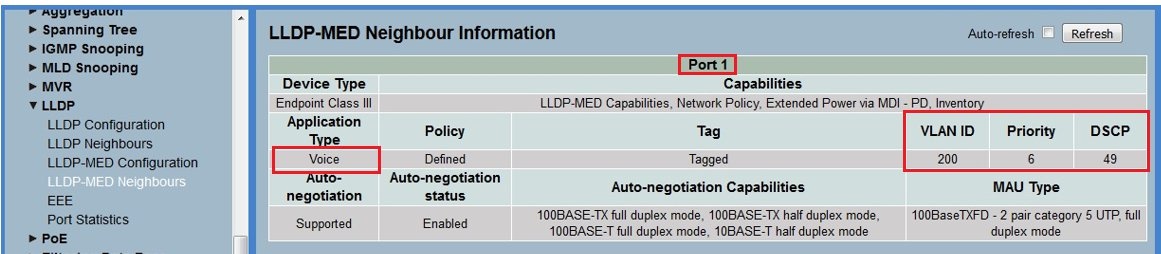
As soon as the LLDP-MED compatible IP telephone has been connected, you should see the information regarding the supported features in the menus LLDP Neighbors and LLDP-MED Neighbors under Configuration → LLDP. You can check in the menu LLDP-MED Neighbors to see whether the terminal supports the application type Voice . |
4) Go to the menu
Configuration → LLDP → LLDP Configuration and set the
Mode to
Enabled for the ports, where a VoIP telephone is connected, to activate LLDP (in this example
Port 1). Click
Apply afterwards.

5) Switch to the menu Configuration → LLDP → LLDP-MED-Configuration.

6) Under Policies click on the button Add new policy.

7) For the Policy modify the following parameters and click Apply:
- Application Type: In the dropdown menu select the option Voice.
- Tag: In the dropdown menu select the option Tagged.
- VLAN ID: Enter the VLAN ID of the Voice VLAN (in this example the VLAN ID 200).
- L2 Priority: Enter the value 6.
- DSCP: Enter the value 49.

8) In the Policy Port Configuration select the Policy created in step 7) for the Port, the VoIP telephone is connected to (in this example Port 1). Click Apply afterwards.

9) Recheck the LLDP-MED Neighbor information after the LLDP negotiation between the switch and the IP telephone.
10) Go to the menu Configuration → Voice VLAN → Configuration.
11) Under Voice VLAN Configuration mify the following parameters:
- Mode: In the dropdown menu select the option Enabled to activate the Voice VLAN.
- VLAN ID: Enter the VLAN ID of the Voice VLAN (in this example the VLAN ID 200).

12) Under Port Configuration modify the following parameters for the Port, the VoIP telephone is connected to. Click Apply afterwards.
- Mode: In the dropdown menu select the option Auto.
- Discovery Protocol: In the dropdown menu select the option LLDP.
With the mode "Auto" the MAC addresses of connected network devices are learned statically for a port. The mode "Auto" may therefore only be used for a port, a VoIP telephone is directly connected to. If an access point is connected to a port with this mode, this can cause roaming problems, among other things! If no VoIP telephone is connected to a port, the mode "Disabled" should be used. If a VoIP telephone is connected indirectly to a port (e.g. via an access point), the mode "Forced" has to be used. With the mode "Forced" the MAC addresses of network participants are learned dynamically. |

13) Go to the menu
Configuration → VLAN → Switch Status and make sure that
Port 1 is a member of the VLAN with the ID 200.

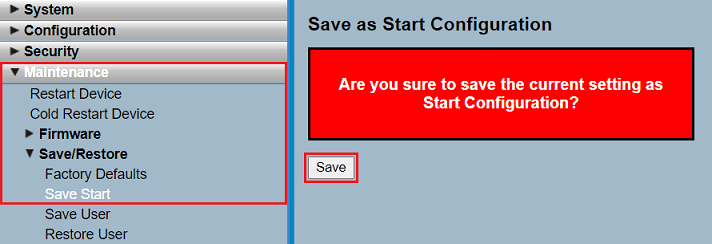
14) Navigate to the menu Maintenance → Save/Restore → Save Start und save the configuration as Start Configuration.
The Start Configuration is saved boot persistent in the device. Thus the configuration is also available after a reboot or a power outage. |
To check the functionality
please connect a PC to the switch, e.g. to port 3 and perform the following configuration on the switch:
- Port 3 must be a member of the VLAN with the ID 200.
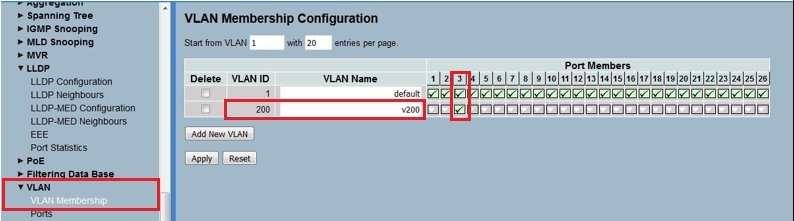
- In the VLAN port configuration, port 3 needs to be set with the PVID 200.
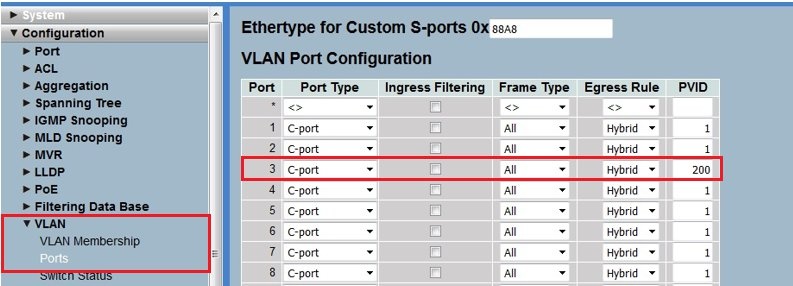
- Save the configuration to the switch. You should now be able to send a ping from the PC connected to port 3 to the IP telephone connected to port 1.