Description:
Some scenarios require the prioritization of certain data traffic (e.g. real-time data traffic) along with guaranteed bandwidths. This can be implemented on a Unified Firewall using the Traffic Shaping feature.
This article describes how to configure Traffic Shaping on a LANCOM R&S®Unified Firewall.
Traffic Shaping can only be used for communications between the LAN and WAN, but not for communication between different local networks.
Requirements:
- LANCOM R&S® Unified Firewallwith LCOS FX as of version 10.8 REL
- A configured and functional network with Internet connection on the Unified Firewall
- Web browser for configuring the Unified Firewall
The following browsers are supported:- Google Chrome
- Chromium
- Mozilla Firefox
Scenario:
In this example scenario, VoIP data traffic should be treated with priority.
Procedure:
How Traffic Shaping works:
The packets must be assigned to a Traffic Group to be processed by the Traffic Shaping module. There are two ways assign traffic to a Traffic Group:
- By selecting the Traffic Group in a desktop connection, an IPsec connection, or an Application Routing profile.
- By selecting a DSCP value in the field Incoming DSCP of the Traffic Group. This means that all data traffic transmitted via the Unified Firewall and with the matching DSCP value is assigned to the Traffic Group.
When assigning the Traffic Group or a DSCP value via Outgoing DSCP for a desktop connection, an IPsec connection, or an Application Routing profile, the following options are available:
- Neither the traffic group nor a DSCP value is selected for Outgoing DSCP.
→ No traffic shaping takes place. - The Traffic Group is selected but no DSCP value is set for Outgoing DSCP.
→ The data traffic is assigned to a Traffic Group and prioritized or limited according to the Shaping Configuration. - No Traffic Group is selected but a DSCP value is set for Outgoing DSCP.
→ The Unified Firewall sets the DSCP value for all outbound packets (can be recognized by downstream devices and prioritized accordingly). - A Traffic Group is selected and a DSCP value is set for Outgoing DSCP.
→ The data traffic is assigned to a Traffic Group and prioritized or limited according to the Shaping configuration.
→ The Unified Firewall sets the DSCP value for all outbound packets (can be recognized by downstream devices and prioritized accordingly).
Behavior of a Traffic Group with or without an assigned DSCP value:
- In a Traffic Group with an assigned DSCP value, the first packet received with this value is treated as an inbound packet. The source (LAN or WAN) is irrelevant.
- If a Traffic Group has no DSCP value assigned to it, the allocation of traffic to a Traffic Group can only be achieved by entering it into a desktop connection, an IPsec connection, or an Application Routing profile.
1) Creating a Traffic Group (required):
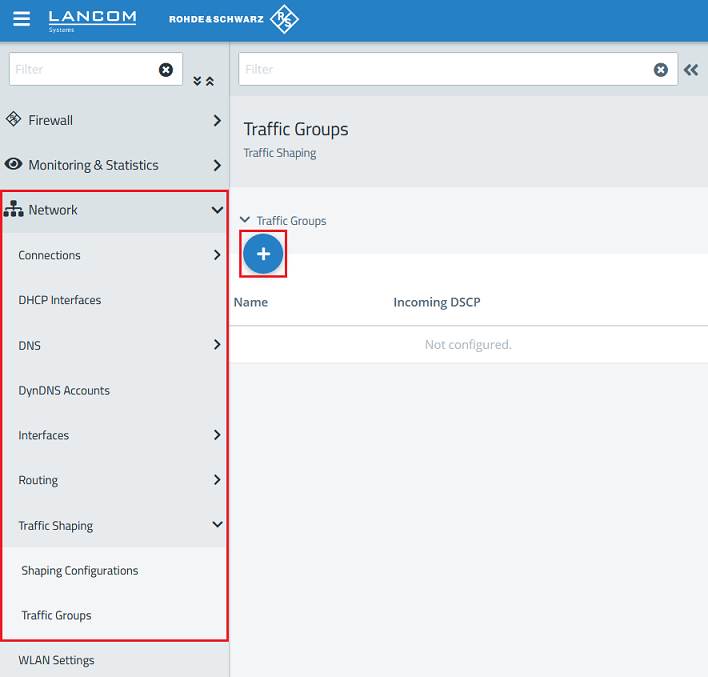
1.1) Connect to the Unified Firewall, go to the menu Network → Traffic Shaping → Traffic Groups and click on the "+” icon to create a new traffic group.
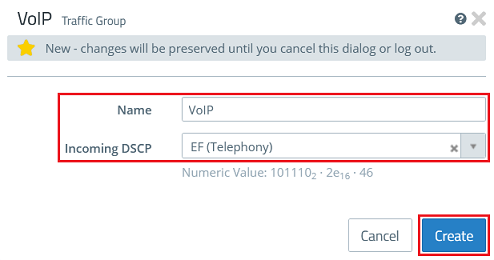
1.2) Adjust the following parameters to create a group for VoIP traffic and click Create:
- Name : Enter a descriptive name for the group (in this example VoIP).
- Incoming DSCP : Choose an appropriate DSCP value for the group (in this case for VoIP, the flag EF (Telephony) is used).
Specifying a DSCP value in the field Incoming DSCP is optional.
2) Creating a Shaping Configuration (optional):
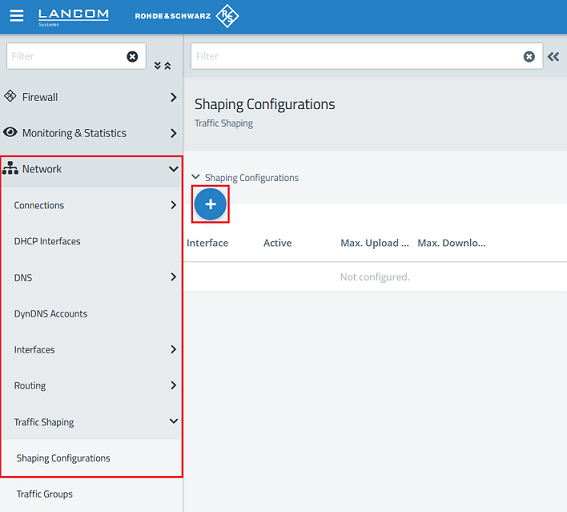
2.1) Go to the menu Network → Traffic Shaping → Shaping Configurations and click the “+” icon to create a new Shaping Configuration.
2.2) Change the following parameters:
- Interface : Select the Interface used for the Internet connection from the drop-down menu. Only one Shaping Configuration can be created per interface at any time.
- Maximum Download Bandwith : Enter the Maximum Download Bandwidth of the Internet connection (in this example 100 Mbps).
- Maximum Upload Bandwith : Enter the Maximum Upload Bandwidth of the Internet connection (in this example 40 Mbps).
A policy-based IPsec connection can also be used as an interface. In this case, Traffic Shaping takes effect before data traffic is sent into the tunnel.
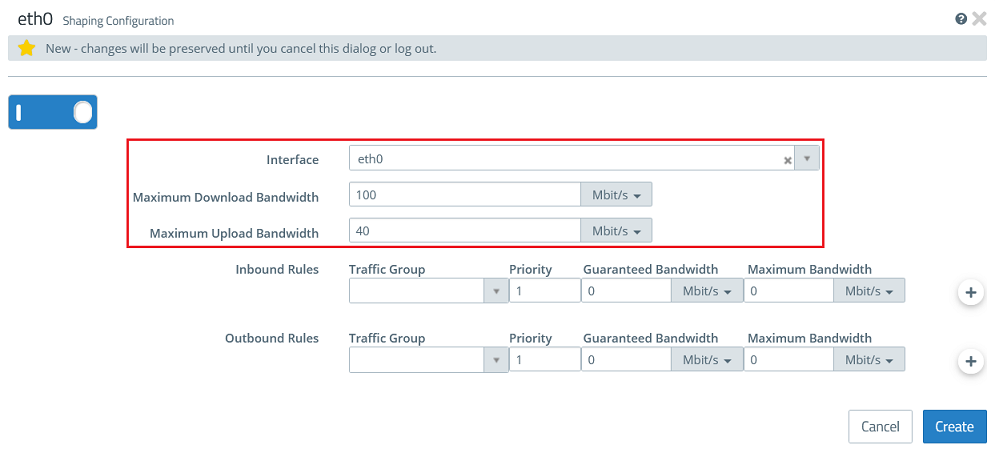
2.3 For the inbound traffic adjust the following parameters under Inbound Rules and click the “+” icon to accept them:
How "Inbound Rules" work
If an inbound packet is detected with the DSCP value assigned to the Traffic Group (the first inbound packet with this value), the rule applies and guarantees or limits the bandwidth for this packet.
The sum of the guaranteed bandwidths of all rules in any transmission direction must not exceed the maximum interface bandwidth for this transmission direction.
- Traffic Group : From the drop-down menu, select the Traffic Group created in step 1 (in this case VoIP).
- Priority : From the drop-down menu, set a priority between 1 and 7, where 1 is the highest and 7 the lowest priority. Data traffic that does not match any of the rules has the lowest priority, and bandwidth is not guaranteed. Multiple rules can have the same priority. In this case, the transmission medium is shared out “fairly”.
- Guaranteed Bandwith : Enter the guaranteed bandwidth for inbound traffic. This is then reserved for the selected connection and is not available elsewhere.
- Maximum Bandwith : Enter the maximum bandwidth for inbound traffic. If this bandwidth is exceeded, the Unified Firewall discards the relevant packets.

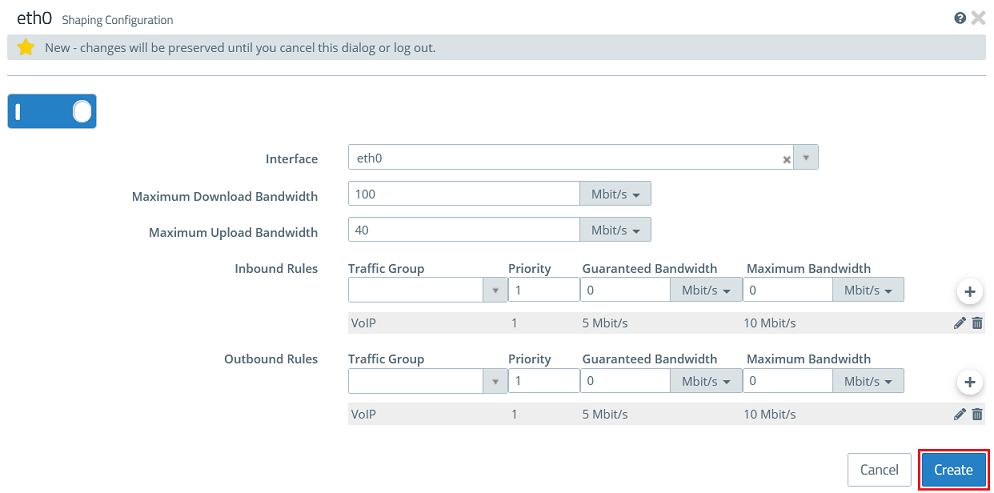
2.4) For the outbound traffic adjust the following parameters under Outbound Rules and click the “+” icon to accept them:
How "Outbound Rules" work
The sum of the guaranteed bandwidths of all rules in any transmission direction must not exceed the maximum interface bandwidth for this transmission direction.
- Traffic Group : From the drop-down menu, select the Traffic Group created in step 1 (in this case VoIP).
- Priority : From the drop-down menu, set a priority between 1 and 7, where 1 is the highest and 7 the lowest priority. Data traffic that does not match any of the rules has the lowest priority, and bandwidth is not guaranteed. Multiple rules can have the same priority. In this case, the transmission medium is shared out “fairly”.
- Guaranteed Bandwith : Enter the guaranteed bandwidth for outbound traffic. This is then reserved for the selected connection and is not available elsewhere.
- Maximum Bandwith : Enter the maximum bandwidth for outbound traffic. If this bandwidth is exceeded, the Unified Firewall discards the relevant packets.

2.5) Then click Create.
3) Working with the Shaping Configuration:
To apply the Shaping Configuration created in step 2, the Traffic Group created in it needs to be referenced from a desktop connection, an IPsec connection, or an Application Routing profile (or in several of these ways).
3.1) Using the Shaping Configuration in a desktop connection:
On the desktop, click the network object, select the connection tool, and click the Internet object to open the desktop connection.
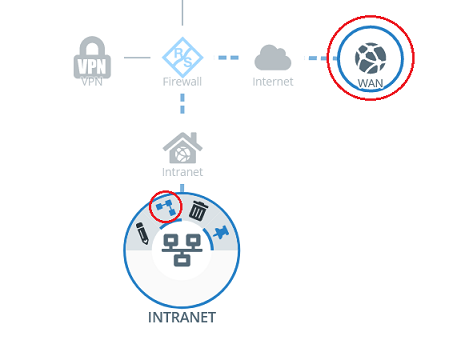
3.1.1) Using the Shaping Configuration for the whole desktop connection:
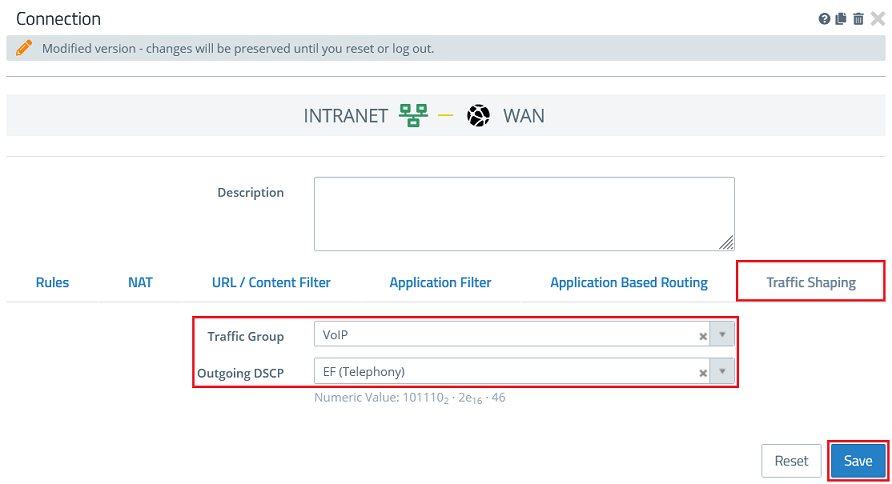
Go to the Traffic Shaping tab and, using the drop-down menu Traffic Group, select the Traffic Group created in step 1 (in this example VoIP) and click Save.
Optionally, the Outgoing DSCP can be set to a DSCP value that is assigned to outbound packets.
3.1.2) Using the Shaping Configuration for individual protocols of a desktop connection:
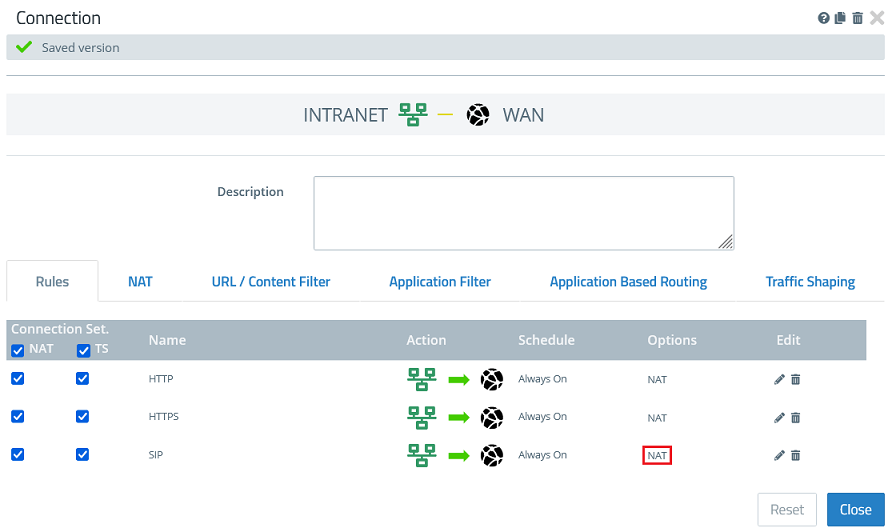
3.1.2.1) Under Options for the relevant protocol (in this example the user-defined service SIP), click NAT to reach the advanced settings.
3.1.2.2) Go to the Traffic Shaping tab, select the option Use Service Specific Settings and, using the drop-down menu Traffic Group, select the traffic group created in step 1 (in this example VoIP).
Then click OK.
Optionally, the Outgoing DSCP can be set to a DSCP value that is assigned to outbound packets.

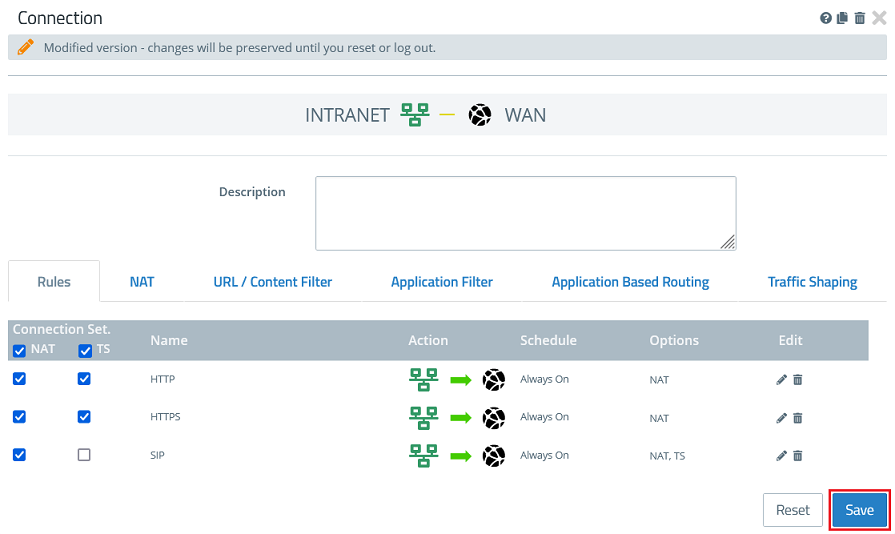
3.1.2.3) Then click Save.
3.1. 3) Activate the configuration changes:
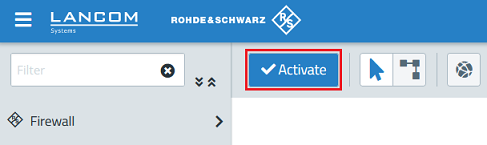
Finally, implement the changes by clicking Activate.
3.2) Using the Shaping Configuration on an IPsec connection:
Traffic Shaping is not available for VPN SSL connections.
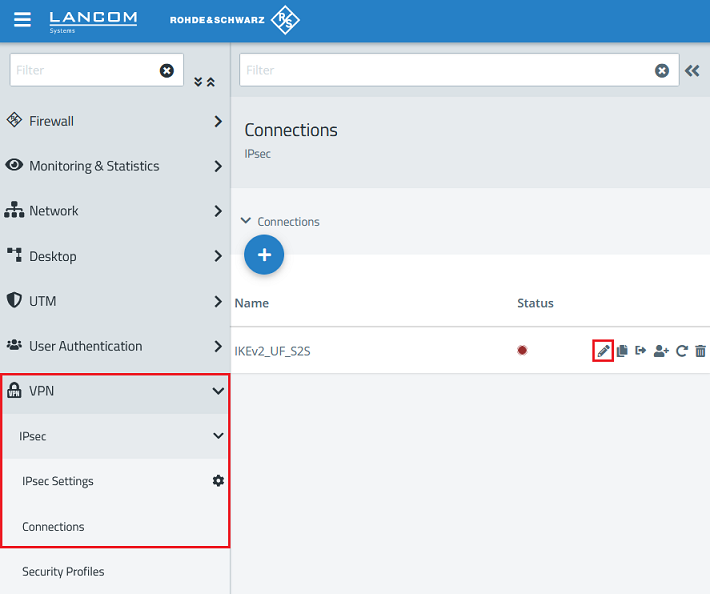
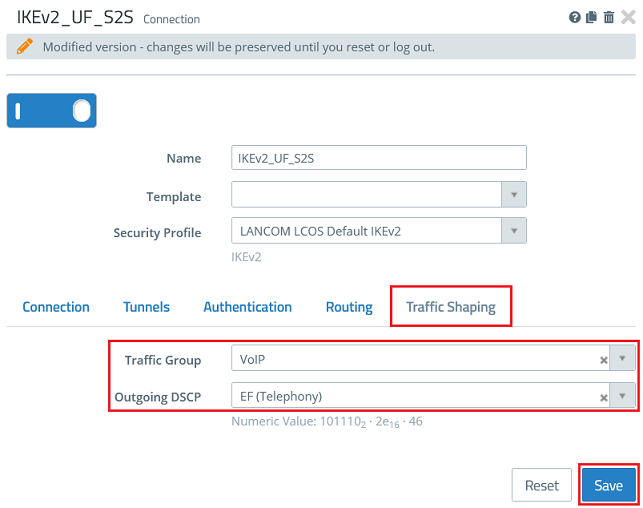
3.2.1) Switch to the menu VPN → IPsec → Connections and, for the connection to be adjusted, click the pencil icon to edit the connection.
3.2.2) Go to the Traffic Shaping tab, use the drop-down menu to select the Traffic Group created in step 1 (in this example VoIP) and click Save.
Optionally, the Outgoing DSCP can be set to a DSCP value that is assigned to outbound packets.
3.3) Using the Shaping Configuration in an Application Routing profile:
3.3.1) Switch to the menu UTM → Application Management → Routing Profiles and click the desired routing profile to edit it.
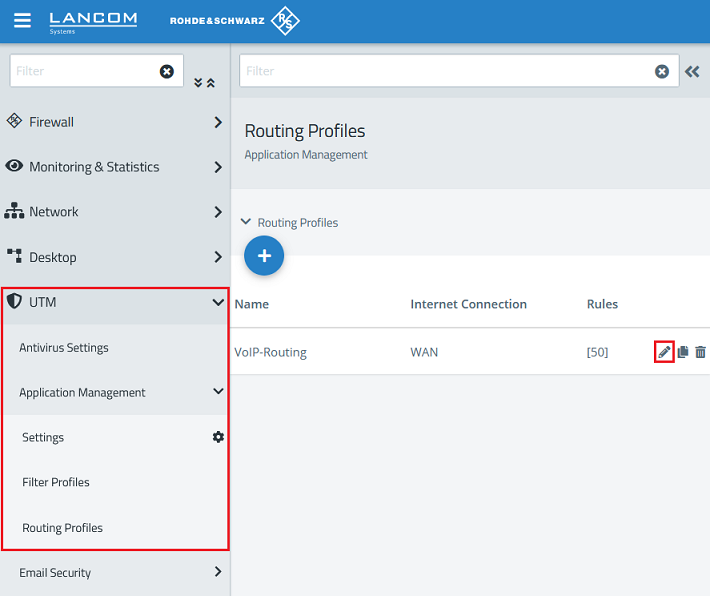
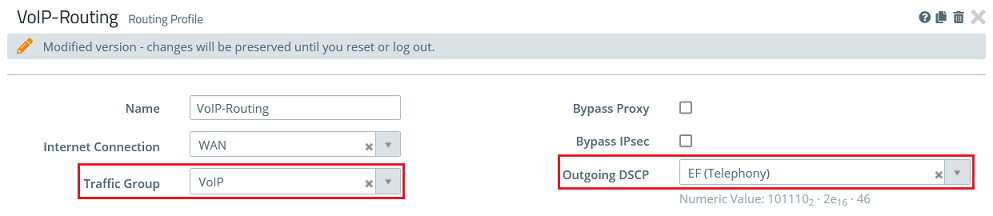
3.3.2) Use the drop-down menu to select the Traffic Group created in step 1 (in this example VoIP) and click Save.
Optionally, the Outgoing DSCP can be set to a DSCP value that is assigned to outbound packets.