
Description:
Certificates have a limited validity and therefore have to be renewed at the latest after the expiration. Albeit a certicate should be renewed before expiration if possible, to ensure that the service is not interupted.
This article describes how a certificate on a Unified Firewall can be renewed.
Requirements:
- LANCOM R&S® Unified Firewall with firmware as of version 10.2
- Web browser for configuring the Unified Firewall.
The following browsers are supported:- Google Chrome
- Chromium
- Mozilla Firefox
Procedure:
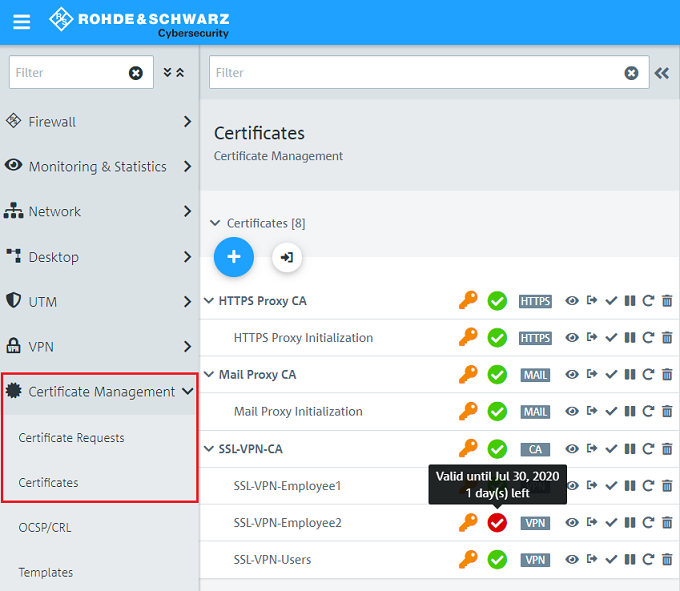
1) A certificate, which is about to expire shortly is signaled in the menu Certificate Management → Certificates by a red symbol. The expiry date is shown by moving the mouse cursor on the symbol.
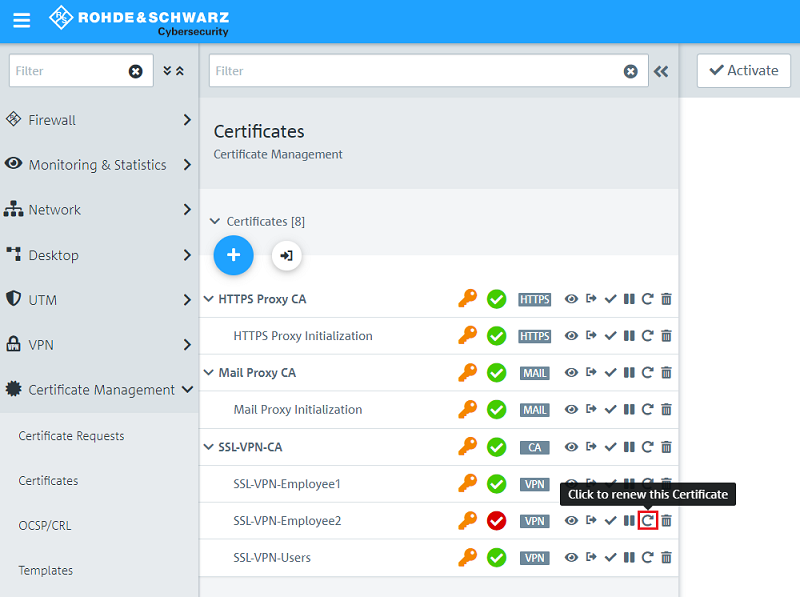
2) Click on the circular arrow to renew the certificate.
If necessary click on the "double arrow" symbol next to the Filter field to expand the menu. In this example the menu is already expanded.
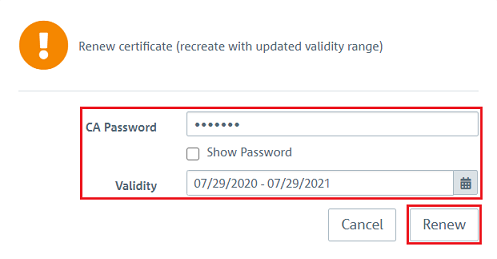
3) Change the following parameters and click Renew.
- CA Password: Enter the password you used for creating the CA.
- Validity: Enter the desired validity.
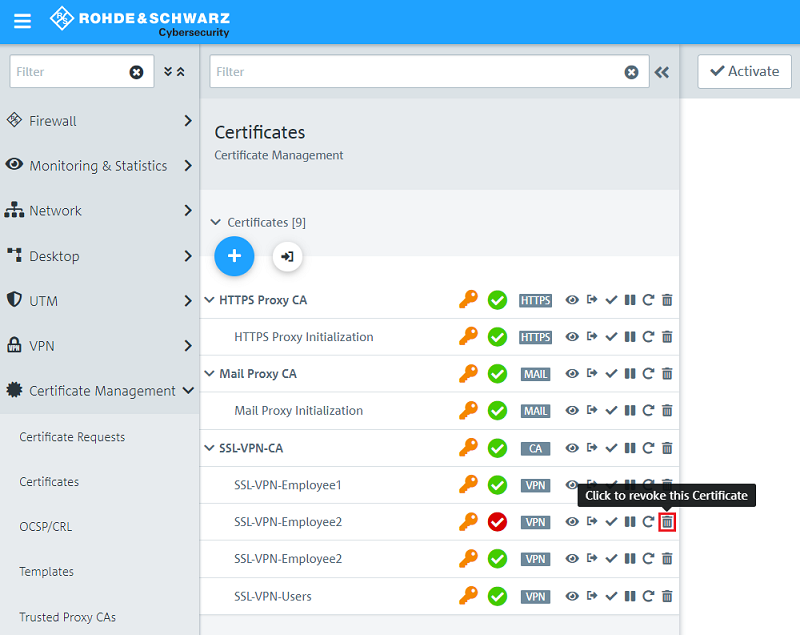
In the renewal process a certificate with the same Common Name but a new serial number is created. For this reason it is a new certicate and and is shown in the Certificate Management as an additional certificate.
4) Click on the "garbage can" symbol to revoke the old certificate. It is not needed anymore and therefore should be removed.
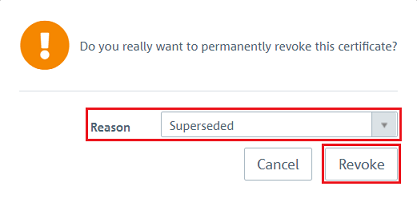
5) Select a Reason and click Revoke. In this example the certificate has been superseded by a new one.
6) Export the new certificate and and conduct a transfer to the other participants (e.g. an end device when exporting an SSL-VPN certificate).
When a host certificate for an SSL-VPN connection is renewed, the new certificate has to be selected in the configuration. Afterwards the SSL-VPN functionality has to be deactivated and activated again in order for the new certificate to be recognized.
