Description:
This article describes how to configure an SNMP user on a switch with LCOS SX 5.xx and monitor the switch with the LANmonitor via SNMPv3. Of course It is also possible to use any other monitoring tool which supports SNMPv3.
If a monitoring tool other than LANmonitor is used, it is possible, that some parameters have to be configured differently (e.g. the encryption). Please contact the respective manufacturer regarding the necessary settings.
Requirements:
- One of the following LANCOM switch models:
- XS-51xx / XS-6128QF
- GS-45xx / XS-45xx
- CS-8132F
- YS-7154CF
- LCOS SX as of version 5.10 for XS-51xx / XS-6128QF (download latest version)
- LCOS SX as of version 5.20 for GS-45xx / XS-45xx (download latest version)
- LCOS SX as of version 5.30 for CS-8132F and YS-7154CF (download latest version)
- LANmonitor as of version 10.50 Rel (download latest version)
- Any web browser for accessing the webinterface
Procedure:
1) Configuring the SNMP user on the Switch:
1.1) Connect to the webinterface of the device and go to the menu Menü System → Advanced Configuration → SNMP → User Security Model.
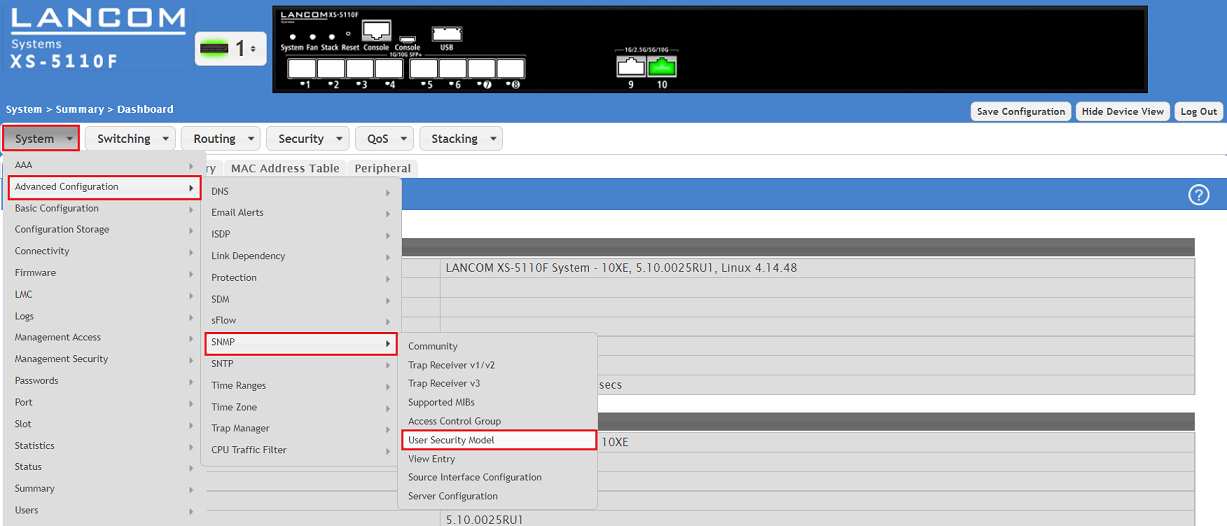
1.2) Click Add to create a new user.

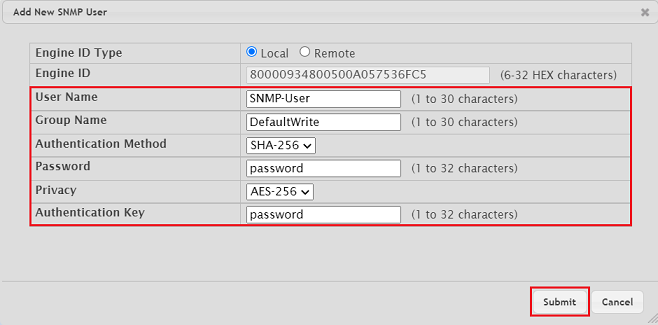
1.3) Modify the following parameters and click Submit:
- User Name: Enter a descriptive user name.
- Group Name: Enter one the prefabricated groups in the menu Access Control Group (in this example DefaultWrite). The permissions are referenced in the menu View Entry.
- The following groups are available:
- DefaultRead: Standard read permissions
- DefaultSuper: Extended read and write permissions
- DefaultWrite: Standard read and write permissions
- The following groups are available:
- Authentication Method: In the dropdown menu select the option SHA-256.
- Password: Enter a password for the authentication . In conjunction with the user name it is used for the login.
- Privacy: In the dropdown menu select the option AES-256 . This enables data encryption.
- Authentication Key: Enter a Password for data encryption.
You can also create an own SNMP group in the menu Access Control Group with the desired permissions. Be sure to enter the correct Group Name when you create the SNMP user.
When creating an own SNMP group the options Unsecure and All for the Group Access Rights must not be used as otherwise LANmonitor access won't be possible.
1.4) Click on Save Configuration in the upper right corner to save the configuration as the start configuration.
The start configuration is retained even if the device is restarted or there is a power failure.

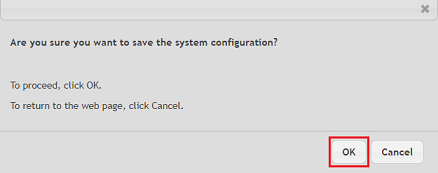
1.5) Acknowledge the save process by clicking OK .
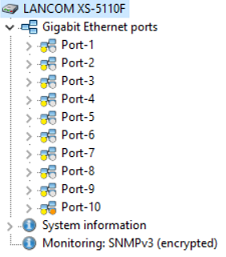
2.1) Connect to the switch via the LANmonitor, make sure, that the protocol SNMP3 is selected and enter the login credentials for the SNMP user entered in step 1.3) .
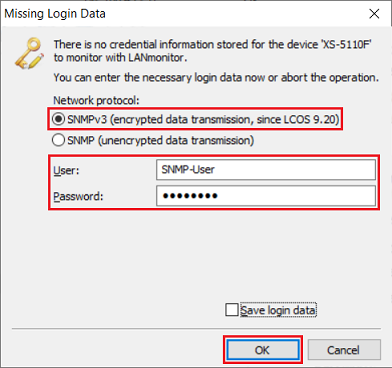
2.2) The switch can now be monitored via the LANmonitor and various status information can be read out. If write permissions are given, individual ports can be deactivated and reactivated, for example.