Description:
The feature Intruder Detection System / Intruder Prevention System (IDS/IPS) recognizes and blocks potentially malicious packets. Although it is possible that normal traffic is recognized as potentially malicious and is therefore blocked.
This article describes how an exception for the feature IDS/IPS can be created.
Requirements:
- LANCOM R&S®Unified Firewall with firmware version 10.3 or later
- A configured and functional local network and Internet connection on the Unified Firewall
- Web browser for configuring the Unified Firewall
The following browsers are supported:- Google Chrome
- Chromium
- Mozilla Firefox
Procedure:
1) Creating an exception for the feature IDS/IPS:
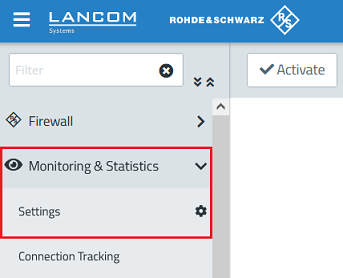
1.1) Open the configuration of the Unified Firewall in a browser and go to the menu Monitoring & Statistics → Settings.
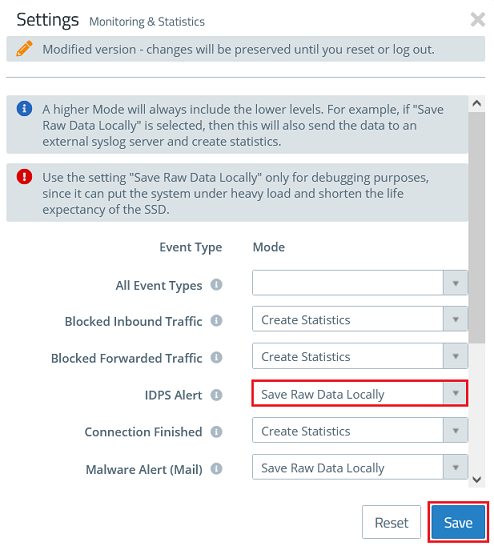
1.2) In the dropdown-menu IDPS Alert select the option Save Raw Data Locally in order for the Unified Firewall to log packets which are recognized and blocked by IDS/IPS.
Click Save afterwards.
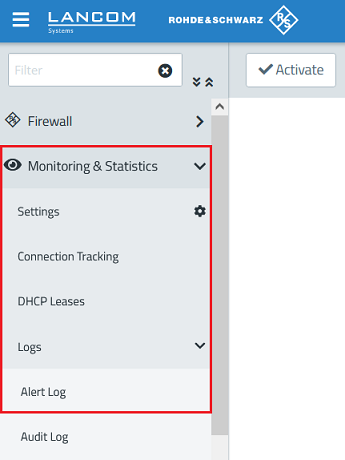
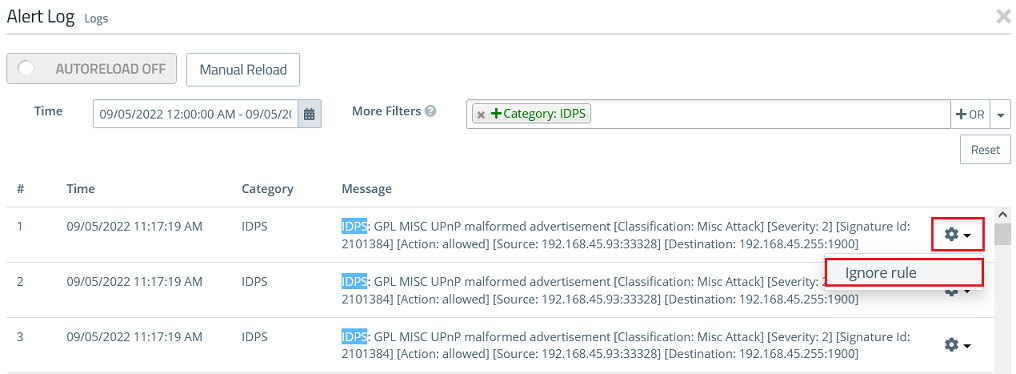
1.3) Go to the menu Monitoring & Statistics → Logs → Alert Log.
1.4) In the field More Filters select the parameter Category: IDPS to limit the Alert Log to IDS/IPS messages.

1.5) Select an event you want to allow, click on the "gear symbol" and on Ignore Rule afterwards (in this example a UPnP broadcast was recognized by IDS).
1.6) Repeat step 1.5) for additional events if necessary.
1.7) The creation of the exception for the feature IDS/IPS is now complete.
2) Editing and deleting the exception:
2.1) Go to the menu UTM → IDS/IPS.
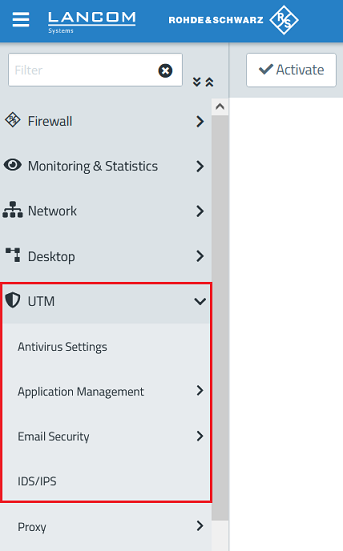
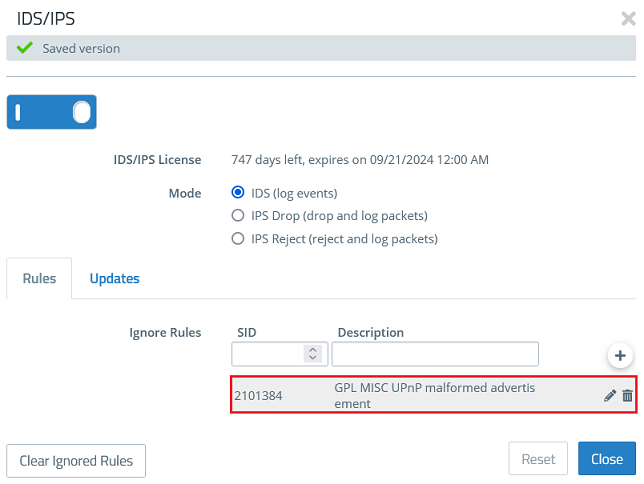
2.2) You can find the exception created in step 1.5) under Ignore Rules. If necessary you can edit the exception or delete it via the "dustbin symbol", if the exception isn't needed anymore.
The Mode controls how the feature IDS/IPS works:
- IDS: Events are logged only.
- IPS Drop: Events are logged and the corresponding packets are dropped.
- IPS Reject: Events are logged and the corresponding packets are rejected. If packets should be blocked, this mode should be used as the end device receives a corresponding message.