
Description:
Without making changes to an Advanced VPN Client profile all traffic will be routed via the VPN connection. This includes traffic destined for the local network as well as traffic destined for the internet. Thus access to local network resources isn't possible. When accessing web sites longer loading times can occur.
This article describes how Split Tunneling can be configured in a VPN profile of the Advanced VPN Client.
Requirements:
- Advanced VPN Client for Windows as of version 2.3 (download latest version)
- Advanced VPN Client for macOS as of version 2.05 RU1 (download latest version)
Procedure:
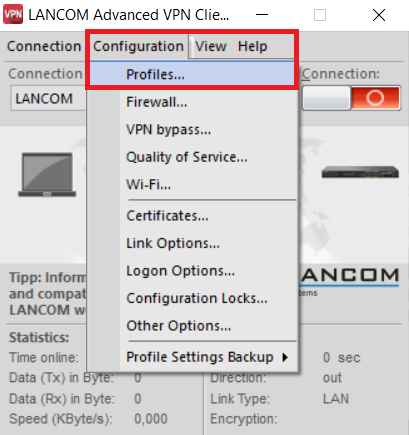
1. Open the Advanced VPN Client and click on Configuration → Profiles.
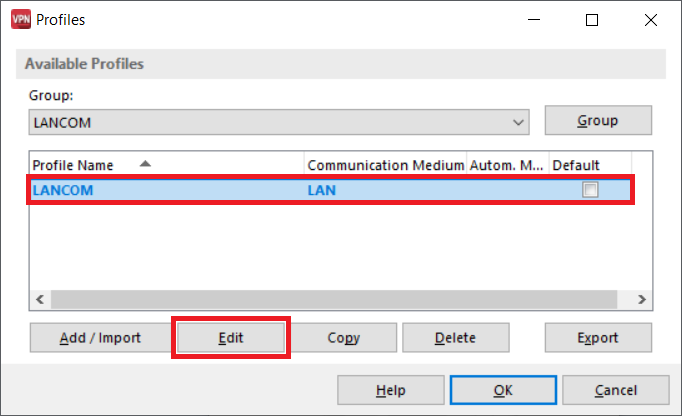
2. Select the utilized profile and click on Edit.
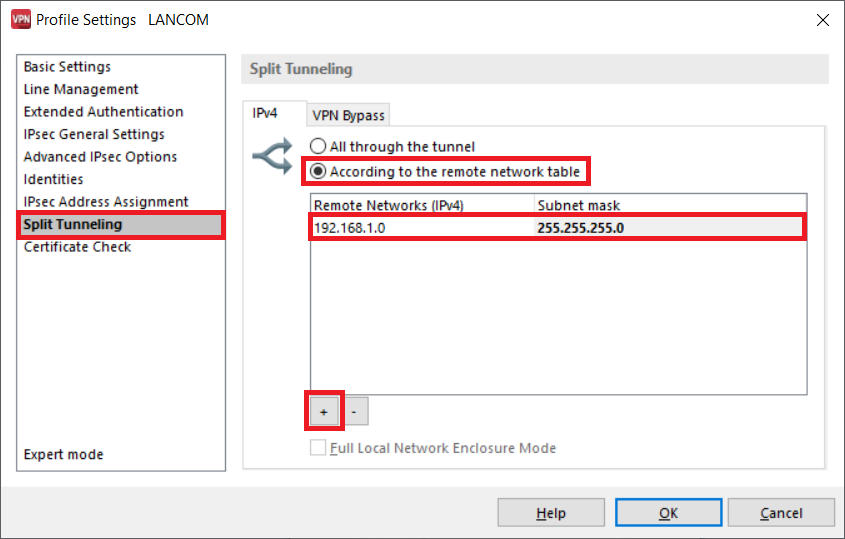
3. Go to the submenu Split Tunneling and select the option According to the remote network table.
Afterwards add a new entry via the "Plus" symbol and enter the network address as well as the associated subnet mask.
Note:
As of the Advanced VPN Client version 4.1 (Windows only), when using the mode All through the tunnel the traffic meant for the local network won't be routed via the VPN connection. In order for the local network traffic to be routed via the VPN connection, the checkbox Full Local Network Enclosure Mode has to be activated.
The Advanced VPN Client for macOS doesn't support this feature. Until the Split Tunneling is configured all traffic is routed via the VPN connection.
4. Click OK to save the profile.
