Description:
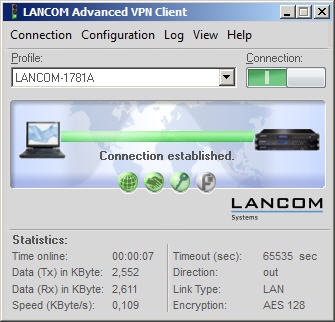
This document describes how to set up an IKEv2 VPN connection between a LANCOM router and the LANCOM Advanced VPN Client.
Requirements:
- LANCOM Advanced VPN Client as of Version 3.x (download latest version)
- LANCOM VPN router (e.g. LANCOM 1793VA)
- LCOS as of version 10 (download latest version)
- LANtools as of version 10 (download latest version)
Procedure:
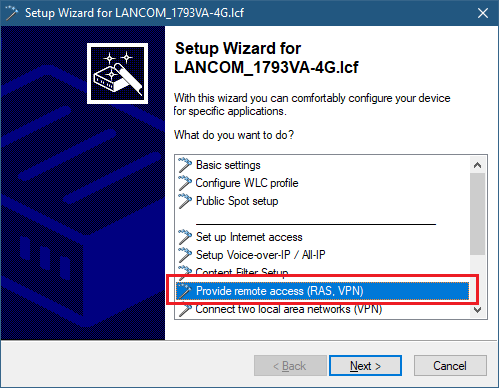
1) Start the Setup Wizard on the LANCOM router in LANconfig and select the option Provide remote access (RAS, VPN).
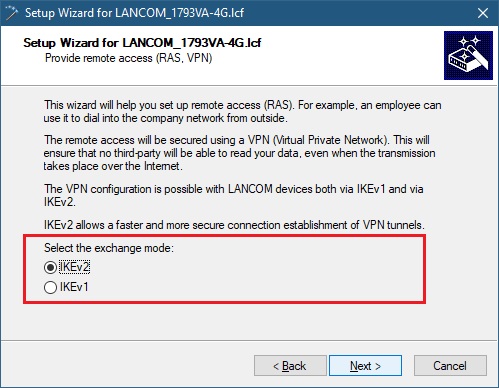
2) We configure an IKEv2 VPN connection.
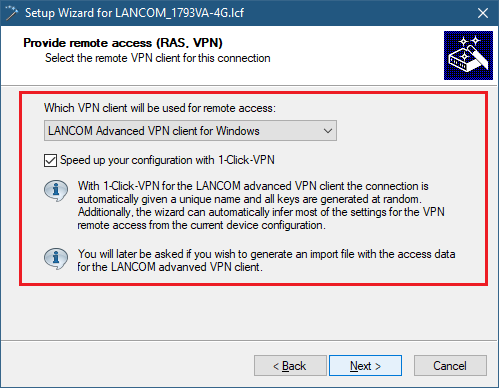
3) In the following dialog, select the client LANCOM Advanced VPN Client. A simplified setup procedure is available with the option 1-Click-VPN.
In the case of 1-Click-VPN, all required keys (e.g. the preshared key) are automatically created by random number generator. The wizard also will deduce most of the settings required for the VPN connection from the settings in the LANCOM router.
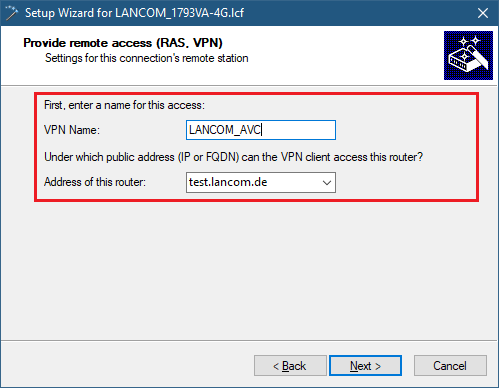
4) Enter a name for the VPN client connection. You must also set the the address of this router to its public IP address or a DynDNS address of the LANCOM router.
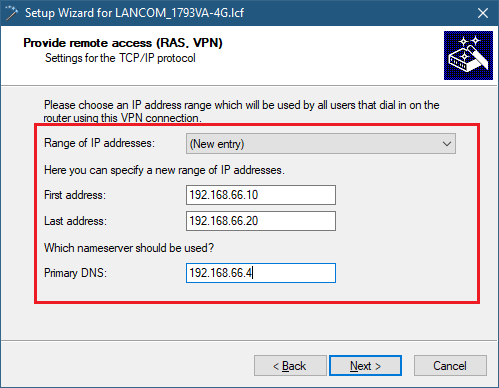
5) Choose an ip address range which will be used by all users that dial in on the LANCOM Router using this VPN connection.
The adress range only has to be defined once. When creating additional VPN connections you can choose the address range in the dropdown menu Range of IP addresses.
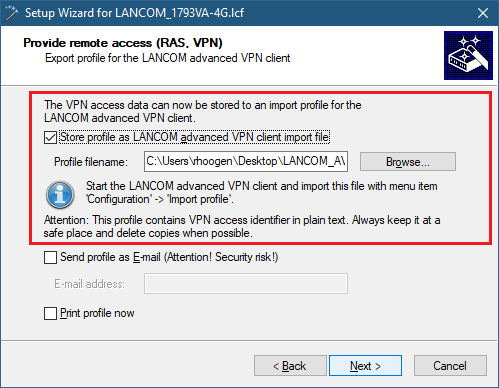
6) In the next dialog window, click on the Browse... button to set a location to save the profile file.
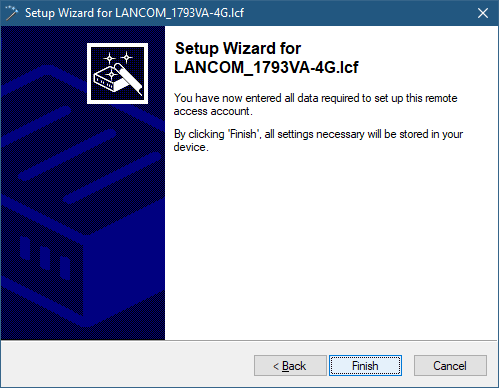
7) The Finish button exits the configuration wizard. The configuration is uploaded to the LANCOM router and the profile file is saved to your PC.
Import the VPN Client profile into the LANCOM Advanced VPN Client:
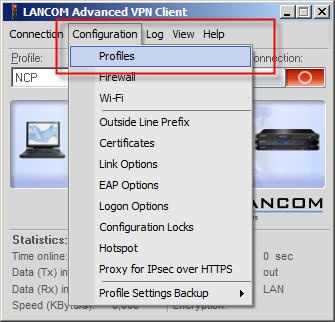
1) Start the LANCOM Advanced VPN Client and open the menu Configuration → Profiles.
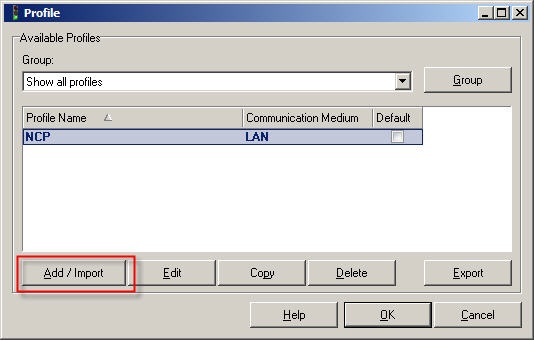
2) Click the button Add/Import.
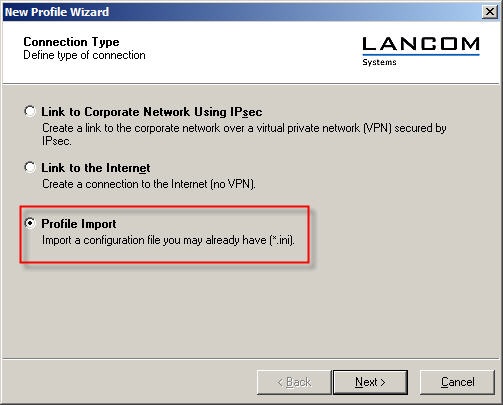
3) Select the option Profile import.
4) Enter the path to the import file (*.ini).
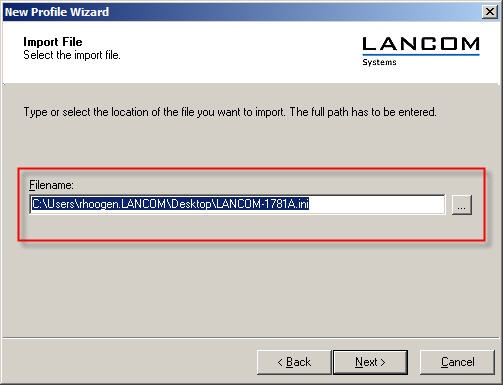
5) In the next dialog window, click on Next.
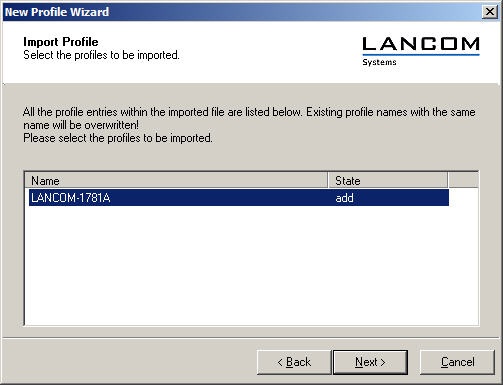
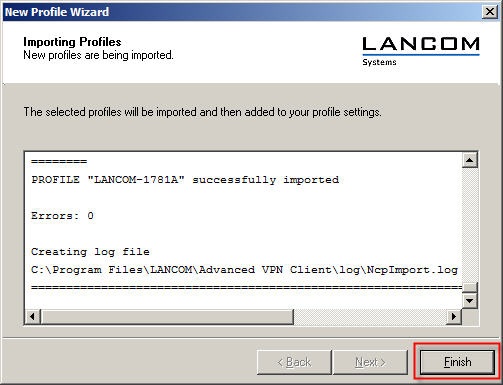
6) A message is displayed after a successful profile import. Click on Finish to complete the import.
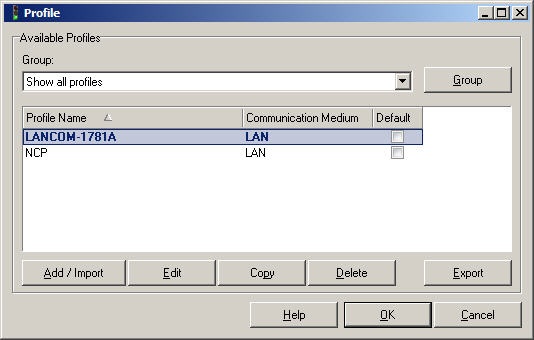
7) Click on the OK button to save your settings.
8) The VPN Client connection can now be established with a click on the Connection switch.