
Description:
During the setup of a WLC cluster the extensions critical, Digital Signature, Non Repudiation, Certificate Sign, and CRL Sign are not set for the Sub-CA on the Slave. As these extensions are required by LCOS LX, this means, that access points with LCOS LX cannot establish a connection with the Slave. Thus, when the Master fails a fallback to the Slave is not possible.
This article describes how the certificate files can be deleted on the Slave and created anew, so that access points with LCOS LX can establish a connection to the Slave.
Requirements:
- Configured and functional WLC cluster
- SSH client for accessing the CLI (z.B. PuTTY)
Procedure:
As an alternative the actions can also be performed via WEBconfig (LCOS menu tree) or partly via LANconfig. In this case the modifications are carried out via the CLI for a better overview.
The following steps must only be carried out on the Slave. The configuration of the Master must not be modified!
1) Deactivating the WLAN-Controller and the certificate features:
1.1) Enter the command set /Setup/WLAN-Management/CAPWAP-Operating no to deactivate CAPWAP.

1.2) Enter the command set /Setup/Certificates/SCEP-CA/Operating no to deactivate the CA.

1.3) Enter the command set /Setup/Certificates/SCEP-Client/Scep-Operating no to deactivate the SCEP-Client.

2) Deleting the certificate files
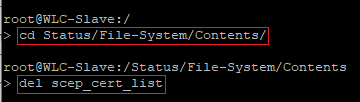
Enter the command cd Status/File-System/Contents to change to the filesystem and successively delete the following certificate files with the command del <certificate file> (e.g. del scep_cert_list).
- scep_cert_list
- scep_crl
- scep_cert_serial
- scep_ca_pkcs12_int
- scep_ra_pkcs12_int
- controller_pkcs12_int
3) Setting the extensions for the CA:
Enter the following command, to set the necessary extensions critical, Digital Signature, Non Repudiation, Certificate Sign, and CRL Sign for new certificates:
set /Setup/Certificates/SCEP-CA/Sub-CA/Cert-Key-Usage "critical, Digital Signature, Non Repudiation, Certificate Sign, CRL Sign"
The command must include the quotation marks.

4) Activating the WLAN-Controllers and the certificate features:
4.1) Enter the command set /Setup/WLAN-Management/CAPWAP-Operating yes to activate CAPWAP.

4.2) Enter the command set /Setup/Certificates/SCEP-CA/Operating yes to activate the CA.

4.3) Enter the command set /Setup/Certificates/SCEP-Client/Scep-Operating yes to activate the SCEP-Client.

4.4) The certificates will then be created anew.
5) Checking the new certificates (optional):
You can read out the CA with the command show scep capwap ca. In the section X509v3 extensions the extensions set in step 3 have to be present under X509v3 Key Usage.

