Description:
This document describes how to add a (further) domain as a trusted domain in the HTTP proxy settings of a LANCOM R&S®Unified Firewall.
Requirements:
- LANCOM R&S®Unified Firewall with firmware as of version 10
- Web browser for configuring the Unified Firewall.
The following browsers are supported:- Google Chrome
- Chromium
- Mozilla Firefox
Procedure:
1. Open the configuration of the Unified Firewall and switch to the menu UTM → Proxy → HTTP Proxy Settings.
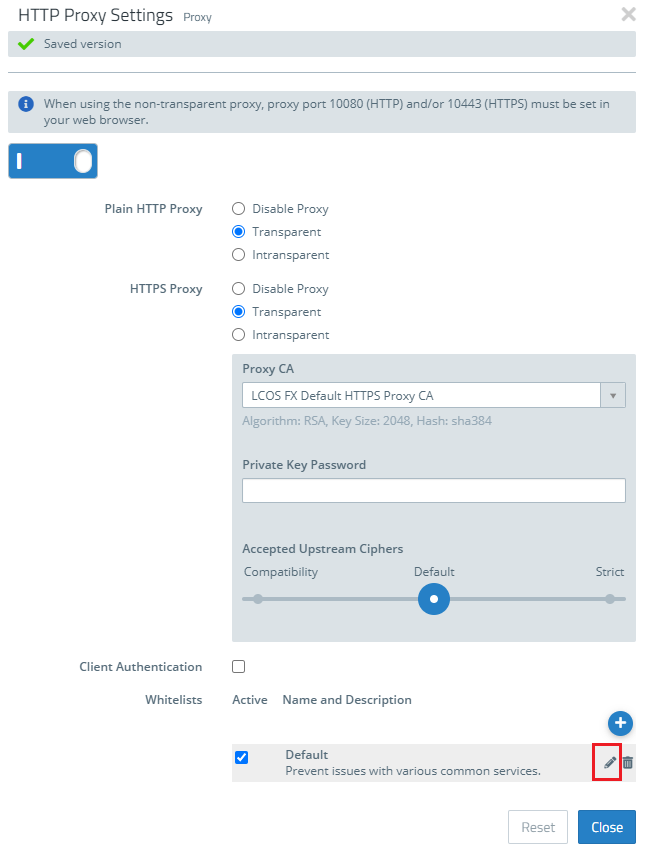
2. Click on the "Edit" icon next to the default whitelist.
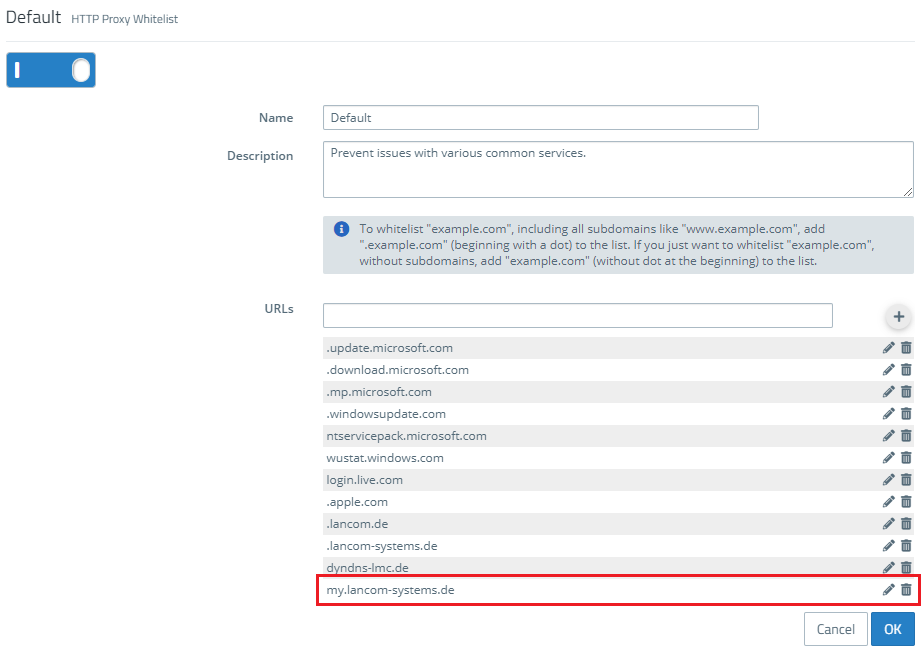
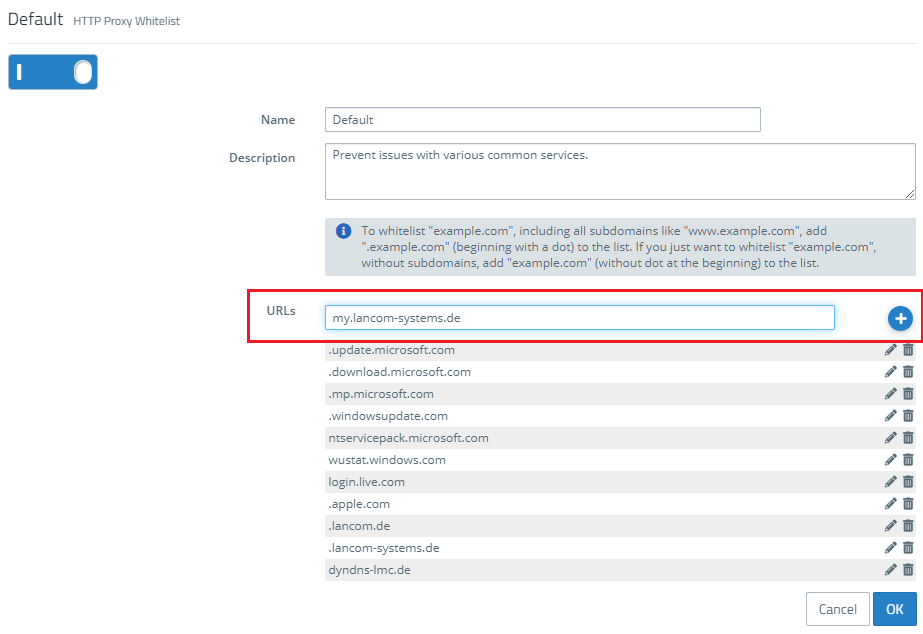
3. In this example, the domain "my.lancom-systems.de" is to be added as an additional trusted domain.
Enter the domain in the text field and click on the "Add" icon.
4. The domain is added to the list. Exit the dialogues and save the changed configuration.