
Description:
The LANCOM Management Cloud (LMC) offers an easy way to replace individual or multiple devices of the same type and automatically assign the configuration and license from a former device to its replacement. This procedure is particularly useful if a device is defective.
Requirements:
- Access to the LMC including your own project (subject to charge)
- Configured and functional local network including Internet connection
- Any web browser for accessing the LMC
Procedure:
1) First make sure that a new device of the same type is connected to the LMC and is displayed in the device overview of your project. A simple pairing process is sufficient.
2) The device to be replaced must no longer be connected to your network and must be displayed in the device overview as “Offline”.
3) In the list, mark the device you want to replace.
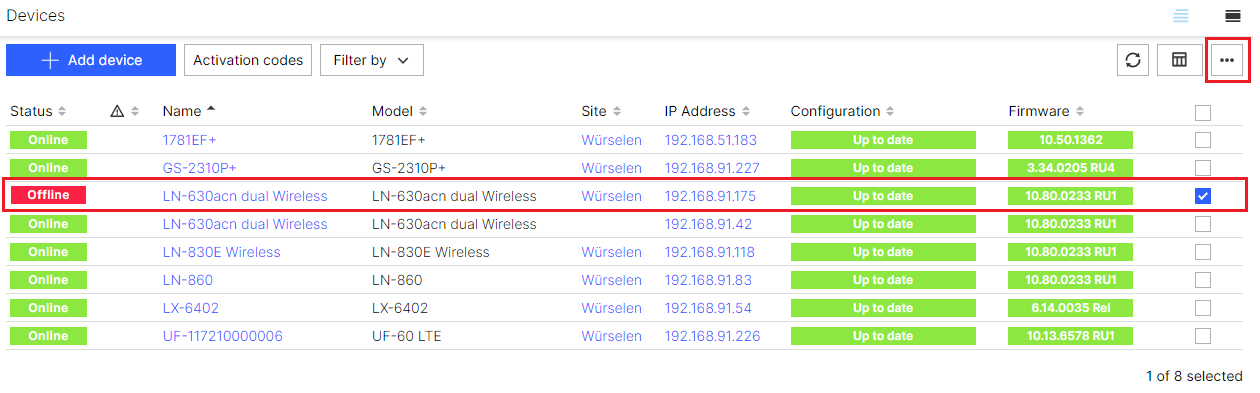
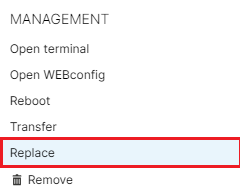
4) Use the 3-dots menu to select the option Replace.
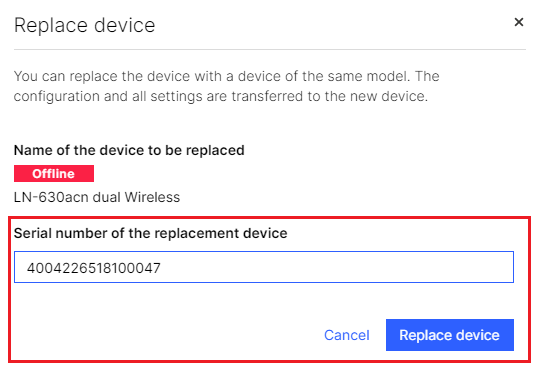
5) In the following dialog, enter the serial number of the new device, which must already be in your LMC project.
6) Then click Replace device.
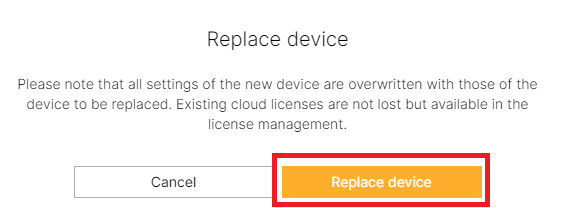
7) Read the notes in the following dialog carefully and then click Replace device.
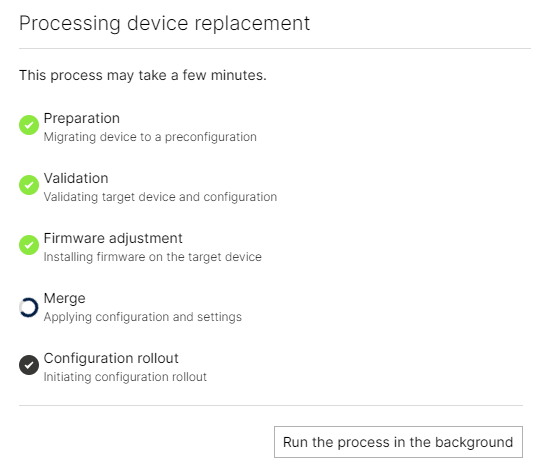
8) The replacement process is displayed in the dialog. You can optionally close this window by clicking Run the process in the background.
 l
l
9) After a successful replacement the new device has the same configuration settings as the old device.
- The license from the old device is now used for the new device.
- The old device is no longer in the device overview of your LMC project and has been removed from the project.
What should I do if the replacement process fails?
If the replacement process fails, e.g. because the target device is currently unavailable, you cannot call up the "Replace" function for the device to be replaced again.
- In this case, you must delete the device to be replaced and add the serial number of the new device to the pre-configuration created during the deletion process.
- Alternatively, the pre-configuration can also be assigned manually.
