
Description:
Despite careful planning and technical support, configuration errors can never be completely ruled out. In complex networks, unexpected dependencies or unintentional changes can lead to functions not working as intended.
To be prepared for such situations, the LANCOM Management Cloud (LMC) offers a backup and restore function for device configurations. This enables administrators to quickly restore a stable device configuration and thus gain time for root cause analysis. By making targeted comparisons between configuration statuses, errors can be efficiently identified and rectified before the revised configuration is rolled out again.
This document describes how to activate the function in the LMC and how to create automatic and manual backups. You will also learn how to restore a backup manually.
For more information on this topic, please refer to our tech paper.
Requirements:
- LCOS as of version 10.92 REL (download)
- LCOS FX as of version 11.1 (download)
- Support for LCOS LX & LCOS SX is planned
- Access to LMC including your own project
Procedure:
Activating the backup function:
1. Open the menu Project settings → Basic.
2. Activate the backup function in the Configuration section.
When the backup function is enabled, automatic configuration backups of all devices in the project are performed. For more information, see the section How device configuration backup works.

Functionality of the device configuration backup:
Each device in the LMC has five automatic backup slots as standard. After each rollout, a new backup is created to replace the oldest one. In addition to the automatic backups, a further configuration status can be saved manually.
These backup statuses are available for every LMC-managed device (see Requirements) and can be rolled out as required. The SDN configuration and the detailed configuration for the respective device are retained in the LMC so that troubleshooting can be carried out on this basis before the new rollout.
As soon as a backup configuration is restored on a device, the device switches to recovery mode. In this mode, the device is decoupled from the LMC on the configuration side and does not send any local changes to the LMC.
To return the device to normal configuration mode, the configuration corrected in the LMC must be rolled out to the device again. After receiving this configuration, the device automatically exits recovery mode and is fully managed by the LMC again.
Manual backup and restore:
In addition to automatic backups, an additional manual backup of the current configuration status can be saved directly in the LMC. This is then available for restoration.
Creating a manual backup in the LMC:
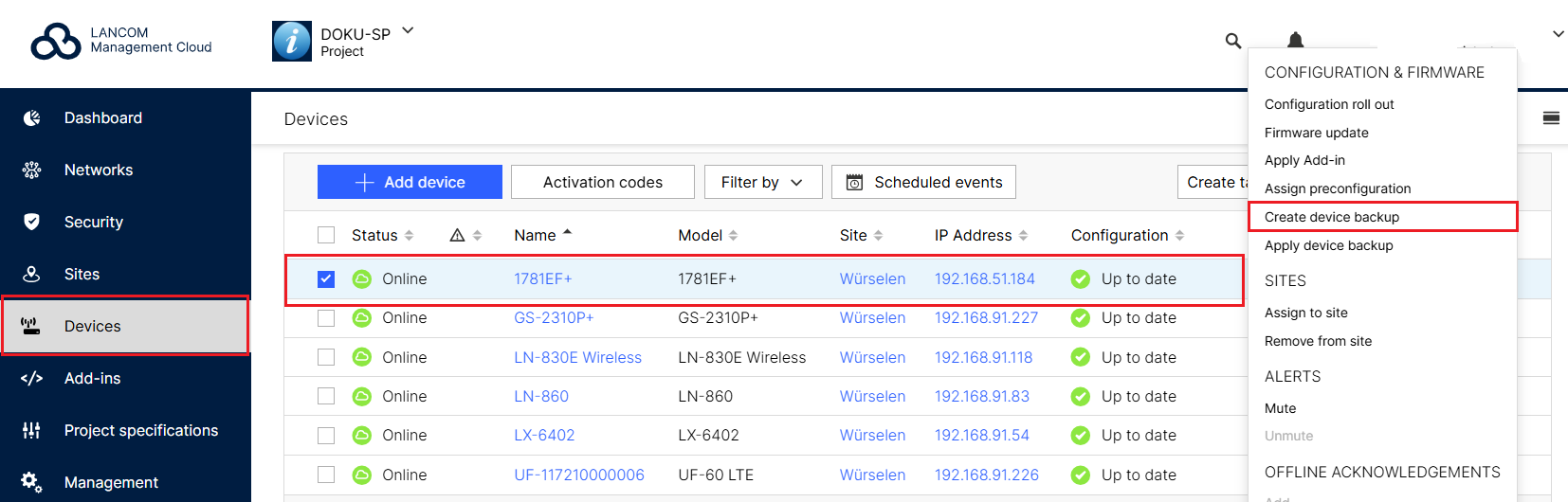
1. Navigate to Devices → Select device(s) → Three-dot menu.
2. Select the Create device backup option.
Restoring a backup in the LMC:
1. Navigate to Devices → Select device(s) → Three-dot menu.
2. Select the Apply device backup option.
3. Select the desired backup configuration:
- The current backup or
- a backup from a specific point in time.
4. Click on Apply device backup(s).

