Description:
This article describes how the configuration of a LANCOM managed switch can be imported and exported via SCP (Secure Copy). This can be used as a foundation for an automated switch configuration backup.
The procedure for the configuration import / export for a switch with LCOS SX 5.xx via the webinterface is described in this Knowledge Base article.
The procedure for the configuration import / export for a switch with LCOS SX 5.xx via LANconfig is described in this Knowledge Base article.
Requirements:
- LANCOM managed switch of the following series:
- GS-23xx
- GS-24xx / GS-3xxx / XS-3xxx
- XS-51xx / XS-6128QF
- GS-45xx / XS-45xx
- XS-51xx / XS-6128QF
- CS-8132F
- YS-7154CF
- LCOS SX as of version 3.34 for GS-23xx (download latest version)
- LCOS SX as of version 4.00 for GS-3xxx (download latest version)
- LCOS SX as of version 4.30 for GS-24xx / XS-3xxx (download latest version)
- LCOS SX as of version 5.00 for XS-51xx / XS-6128QF (download latest version)
- LCOS SX as of version 5.20 for GS-45xx / XS-45xx (download latest version)
- LCOS SX as of version 5.30 for CS-8132F and YS-7154CF (download latest version)
- SSH must be active on the switch
- SCP client (e.g. PSCP)
- Any web browser for accessing the webinterface to save configuration as the start configuration (GS-23xx and GS-3xxx) or to activate the start configuration (XS-51xx / XS-6128QF, GS-45xx / XS-45xx, CS-8132F and YS-7154CF)
PSCP can be downloaded separately, but it is also included in the "Windows Installer" package.
Procedure:
The procedure is basically the same for all switch types. As the different switch series use different file formats for the configuration files, this has to be taken into consideration for the file extension.
GS-23xx series:
1) Saving the switch configuration:
1.1) Start an instance of the Windows command line and go the menu where the tool PSCP is saved. If you installed the PuTTY utilities via the "Windows Installer" package, PSCP can also be run directly.
1.2) Enter the command in the format pscp -P 22 -pw <password> -scp <user name>@<IP address>:config C:\Temp\<file name>.xml to save the configuration file in the folder C:\Temp.
In this example the command pscp -P 22 -pw password -scp admin@192.168.45.250:config C:\Temp\configuration.xml was used.

The parameter -P 22 makes sure, that the port 22 is used for the SSH connection. If you are using another port it has to be modified accordingly. The parameter -P has to be capitalized.
If you omit the destination folder and only specify the file name (e.g. configuration.xml), the file is saved in the folder, from where PSCP is invoked.
The configuration file of a GS-23xx series switch has to be saved as XML file.
2) Uploading the switch configuration:
After uploading the switch configuration it has to be saved as start configuration.
2.1) Start an instance of the Windows command line and go the menu where the tool PSCP is saved. If you installed the PuTTY utilities via the "Windows Installer" package, PSCP can also be run directly.
2.2) Enter the command in the format pscp -P 22 -pw <password> -scp C:\Temp\<file name>.xml <user name>@<IP address>:config to upload a configuration file from the folder C:\Temp into the switch.
In this example the command pscp -P 22 -pw password -scp C:\Temp\configuration.xml admin@192.168.45.250:config was used.

The parameter -P 22 makes sure, that the port 22 is used for the SSH connection. If you are using another port it has to be modified accordingly. The parameter -P has to be capitalized.
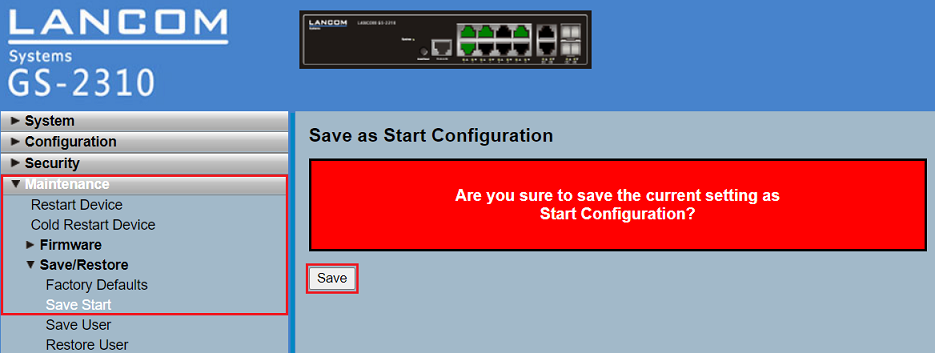
2.3) Connect to the webinterface, change to the menu item Maintenance → Save/Restore → Save Start and click Save to save the configuration as start configuration.
The start configuration is retained even if the device is restarted or there is a power failure.
GS-24xx / GS-3xx / XS-3xxx series:
1) Saving the switch configuration:
1.1) Start an instance of the Windows command line and go the menu where the tool PSCP is saved. If you installed the PuTTY utilities via the "Windows Installer" package, PSCP can also be run directly.
1.2) Enter the command in the format pscp -P 22 -pw <password> -scp <user name>@<IP address>:config C:\Temp\<file name>.lcfsx to save the configuration file in the folder C:\Temp.
In this example the command pscp -P 22 -pw Password123 -scp admin@192.168.45.47:config C:\Temp\configuration.lcfsx was used.

The parameter -P 22 makes sure, that the port 22 is used for the SSH connection. If you are using another port it has to be modified accordingly. The parameter -P has to be capitalized.
If you omit the destination folder and only specify the file name (e.g. configuration.lcfsx), the file is saved in the folder, from where PSCP is invoked.
The configuration file of a GS-24xx / GS-3xxx / XS-3xxx series switch has to be saved as lcfsx file.
2) Uploading the switch configuration:
After uploading the switch configuration it has to be saved as the start configuration.
2.1) Start an instance of the Windows command line and go the menu where the tool PSCP is saved. If you installed the PuTTY utilities via the "Windows Installer" package, PSCP can also be run directly.
2.2) Enter the command in the format pscp -P 22 -pw <password> -scp C:\Temp\<file name>.lcfsx <user name>@<IP address>:config to upload a configuration file from the folder C:\Temp into the switch.
In this example the command pscp -P 22 -pw Test12345 -scp C:\Temp\configuration.lcfsx admin@192.168.45.180:config was used.

The parameter -P 22 makes sure, that the port 22 is used for the SSH connection. If you are using another port it has to be modified accordingly. The parameter -P has to be capitalized.
2.3) Connect to the webinterface of the switch and click on the disk symbol on the upper right corner to save the configuration as start configuration.
The start configuration is retained even if the device is restarted or there is a power failure.

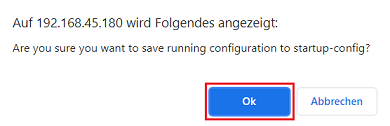
2.4) Acknowledge the save process by clicking Ok.
Switch with LCOS SX 5.xx (XS-51xx / XS-6128QF, GS-45xx / XS-45xx, CS-8132F und YS-7154CF):
1) Saving the switch configuration:
1.1) Start an instance of the Windows command line and go the menu where the tool PSCP is saved. If you installed the PuTTY utilities via the "Windows Installer" package, PSCP can also be run directly.
1.2) Enter the command in the format pscp -P 22 -pw <password> -scp <user name>@<IP address>:config C:\Temp\<file name>.cfg to save the configuration file in the folder C:\Users\...\Documents.
In this example the command pscp -P 22 -pw Test12345 -scp admin@172.23.56.224:config C:\Users\...\Documents\configuration.cfg was used.

The parameter -P 22 makes sure, that the port 22 is used for the SSH connection. If you are using another port it has to be modified accordingly. The parameter -P has to be capitalized.
If you omit the destination folder and only specify the file name (e.g. configuration.cfg), the file is saved in the folder, from where PSCP is invoked.
The configuration file of an XS series switch has to be saved as cfg file.
2) Uploading the switch configuration:
Af ter importing a switch configuration as start configuration it has to be activated. To do this the configuration has to be activated or as an alternative the switch can also be rebooted.
When a configuration backup with stacking parameters is imported, a reboot of the device is mandatory in order to apply the settings.
You can perform a reboot in the webinterface in the menu System → Utilities → System Reboot.
2.1) Start an instance of the Windows command line and go the menu where the tool PSCP is saved. If you installed the PuTTY utilities via the "Windows Installer" package, PSCP can also be run directly.
2.2) Enter the command in the format pscp -P 22 -pw <password> -scp C:\Users\...\Downloads\Backup\<file name>.cfg <user name>@<IP address>:startup-config to upload a configuration file from the folder C:\Users\...\Downloads\Backup as the start configuration into the switch.
In this example the command pscp -P 22 -pw Test12345 -scp C:\Users\...\Downloads\Backup\XS-5110-configuration.cfg admin@192.168.45.148:startup-config was used.

The parameter -P 22 makes sure, that the port 22 is used for the SSH connection. If you are using another port it has to be modified accordingly. The parameter -P has to be capitalized.
As an alternative the configuration can be uploaded as the current configuration with the parameter :config instead of using :startup-config. In this case the configuration has to be saved as start configuration by clicking on Save Configuration in the upper right corner.
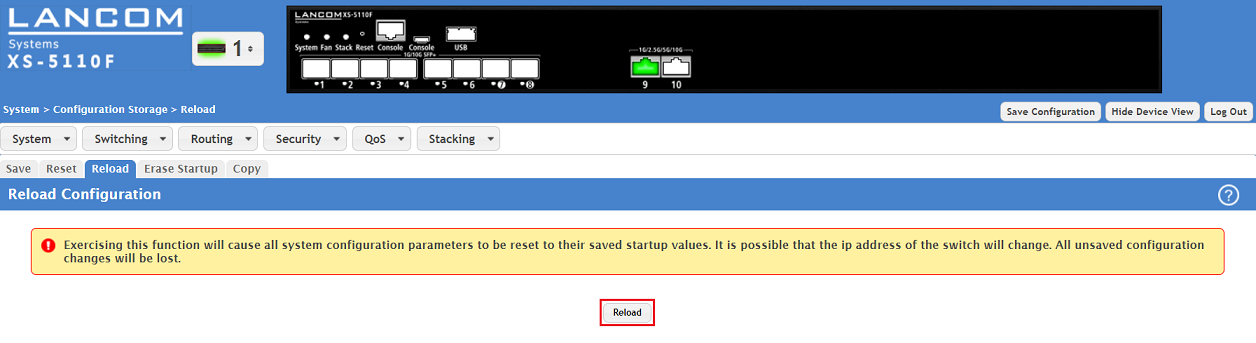
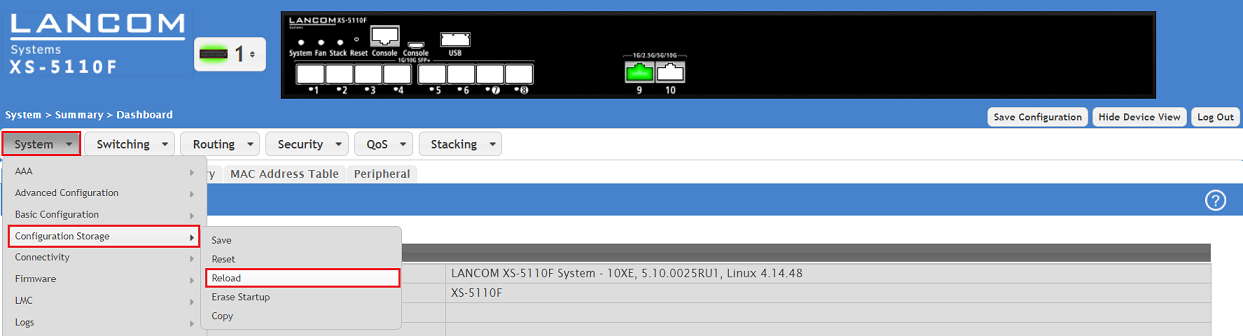
2.3) Connect to the webinterface of the switch and go to the menu item System → Configuration Storage → Reload.
2.4) Click Reload to activate the start configuration.
As an alternative you can also activate the start configuration via the CLI with the command reload configuration.