
Description:
The content filter in LCOS routers (LANCOM Security Essentials) is able to detect TCP-based HTTP traffic and allow or block it accordingly.
However, traffic based on the new HTTP/3 or HTTP/3/QUIC (Quick UDP Internet Connections) developed by Google is UDP-based, and blocking this traffic must be done separately by the firewall. This protocol is mainly used in Google's own applications (e.g.: YouTube, Chrome bzw. Edge Browser).
This article describes how to create a corresponding IPv4 or IPv6 firewall rule.
Requirements:
- LCOS as of version 10.92 REL (download)
- LANCOM Security Essentials
Procedure:
Creating an IPv4 firewall rule:
1) Go to the menu Firewall/QoS → IPv4 Rules → Service objects and click Add to create new service object.
2) Give the new network object a descriptive name.

3) Go to the Services tab and select Custom protocols.
4) Click Edit custom protocols.
5) Select the IP protocol UDP.
6) Enable the Ports option and enter 443.
7) Click OK to accept your settings.

8) Open the menu Firewall/QoS → IPv4 rules → Rules and add a new firewall rule.
9) Enter a descriptive name for the new rule.
10) Go to the Actions tab and set up the action object REJECT.

11) On the Stations tab, make sure that all stations are selected as Connection source and Connection destination.
12) Go to the Services tab and, under Protocols/source services, select all protocols/source services.
13) Under Protocols/target services you select the option the following protocols/target services, click Add and select the "UDP-443" service object created in step 7.

14) Confirm your entries with OK and write the configuration back to the LANCOM router.
Creating an IPv6 firewall rule:
1) Go to the menu Firewall/QoS → IPv6 Rules → TCP/UDP service objects and add a new service object.
2) Give the new service object a descriptive name.
3) Select the IP protocol UDP.
4) Enter 443 into the Ports field.
5) Click OK to accept your settings.
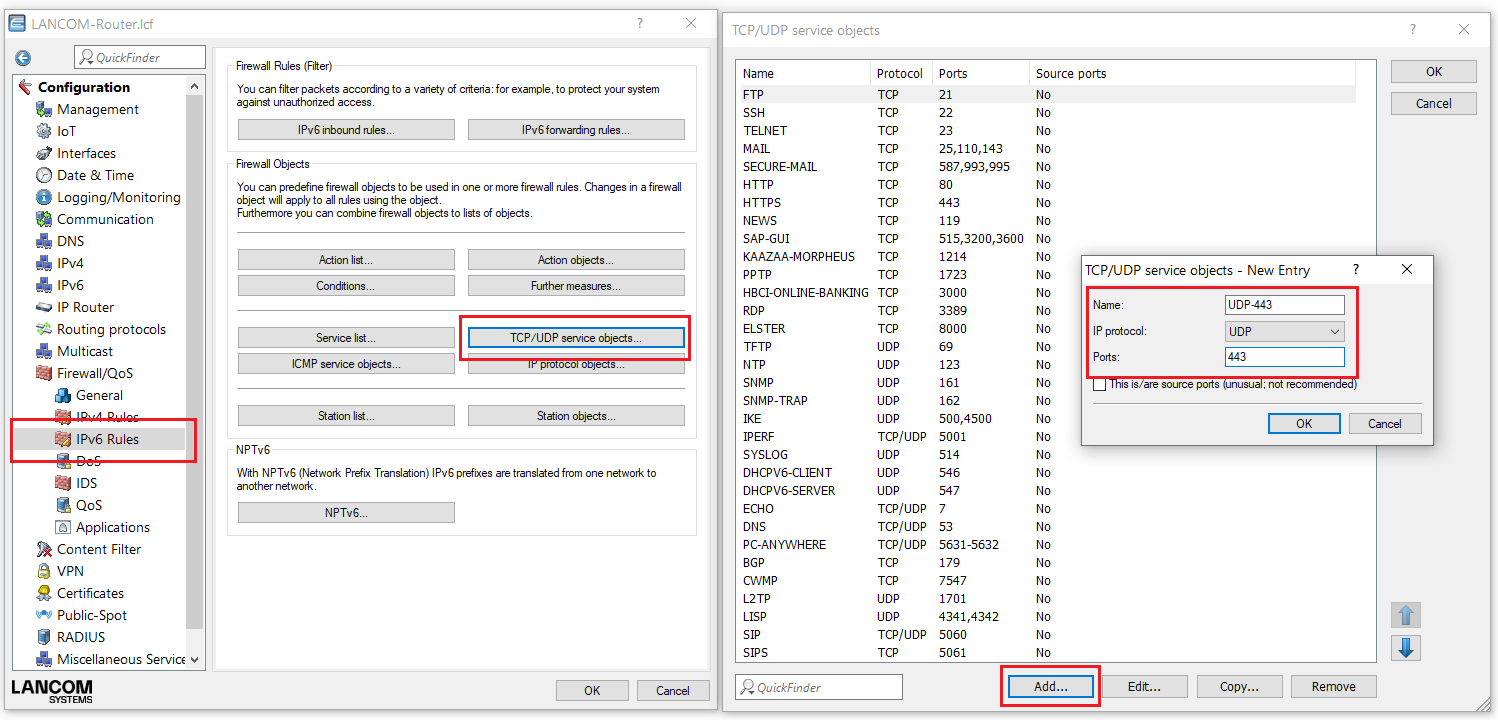
6) Go to the menu Firewall/QoS → IPv6 rules → IPv6 forwarding rules and add a new firewall rule.
7) Enter a descriptive name for the new rule.
8) In the Actions field, select the REJECT action.
9) In the Services field, select the "UDP-443" service object created in step 2.
10) In the fields Source stations and Target stations, set each one to the value ANYHOST.

11) Confirm your entries with OK and write the configuration back to the LANCOM router.
