
Description:
This document describes how to use a prefabricated trace configuration to record a trace using LANtracer.
Requirements:
- LCOS as of version 8 (download latest version)
- LANtools as of version 8 (download latest version)
Procedure:
1) Start LANtracer by right-clicking with the mouse on the device in LANconfig and selecting the option Create trace output.
The LANtracer uses the protocols TELNET and TELNET over SSL for the communication with the device. If necessary one of these protocols has to be allowed in the menu Management → Admin → Access settings → Configuration access ways → Access right for the used interface.
2) In the File menu, select the menu item Load trace config.
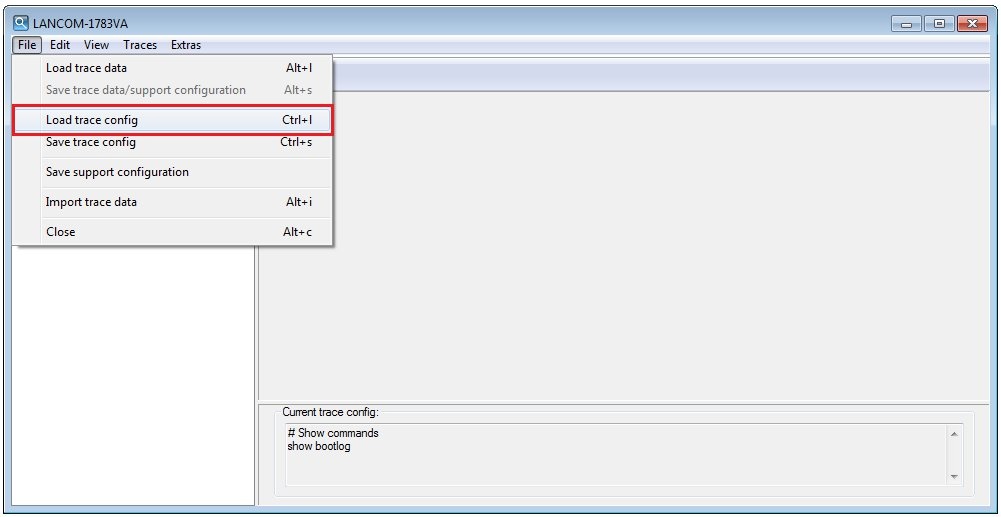
3) Select the file with the trace configuration and click on Open.
4) In the button bar, click the button with the green arrow to start tracing.
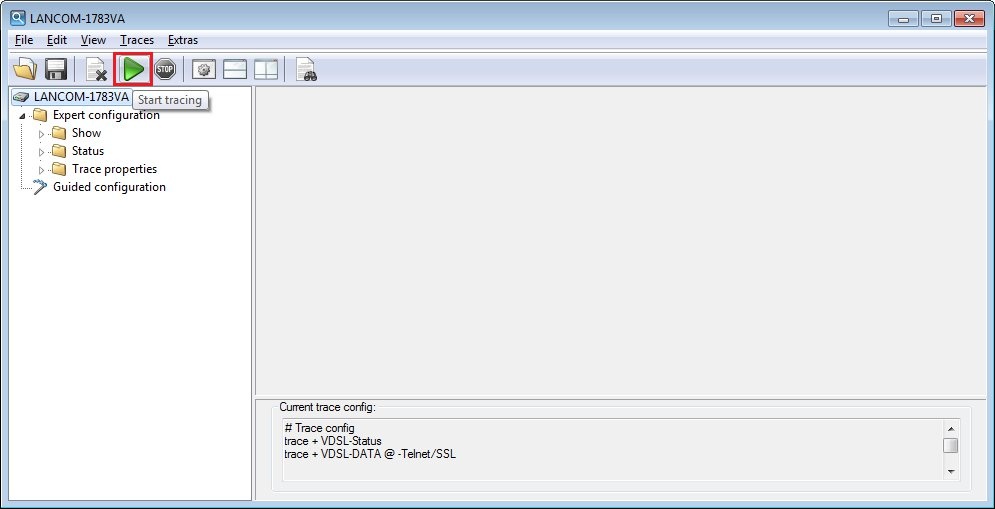
5) To stop the tracing, click the stop button.

6) Save the recorded trace data via the menu item File → Save trace data/support configuration or via the disk icon. In doing so, the trace and the support configuration are saved.
The trace data is stored in the file with the extension *.lct, and the support configuration in the file with the extension *.spf. The LANCOM Support department requires both files for analysis.
With the key combination STRG + S only the trace configuration (file extension *.lcg) is saved, but not the trace. The trace configuration is not needed by LANCOM support.

