Description:
This article describes, how the Tech-Support Log can be read out on switches with LCOS SX 4.xx or 5.xx via the LMC.
Additional information to read out the Technical Support Log on switches with LCOS SX 4.xx or 5.xx can be found in the following Knowledge Base articles:
Reading out the “Tech-Support Log” on GS-24xx / GS-3xxx / XS-3xxx series switches
Requirements:
- LCOS SX as of version 4.30 or 5.20 (download latest version)
- Access to the LMC including your own project
- Any web browser for accessing the LMC
Procedure:
It is also possible to download the Tech-Support Log via a WEBconfig Session in the LMC. However, the output is cut off in the middle and therefore incomplete. This log can therefore not be used for an analysis!
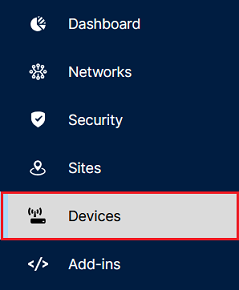
1) Connect to the LMC and open the menu Devices.
2) Click on the Name of the switch to gain access to the extended settings.

3) Click on Device actions → Open terminal.

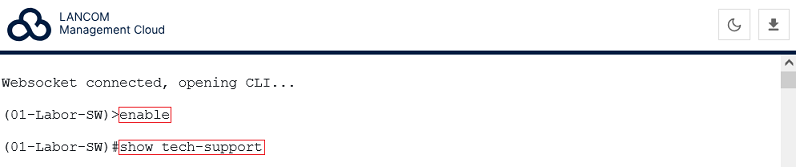
4) Enter the command enable to gain extended rights (only necessary for switches with LCOS SX 5.xx).
5) Enter the command show tech-support.
The command terminal length 0 is not necessary in this case, as the Terminal session in the LMC always shows output without any breaks.
The procedure to gather the information takes some time. During this process, the switch does not react to additional input in the Terminal session.
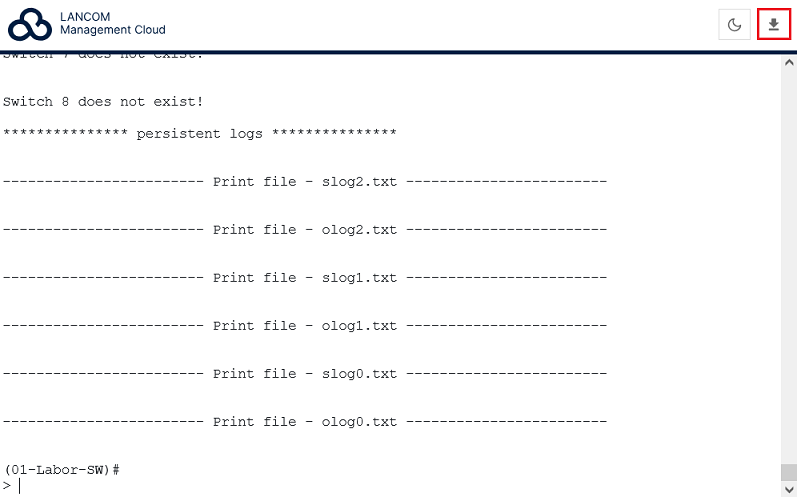
6) Click on the "Download icon" in the upper right corner to save the content of the Terminal session as a text file.