
Description:
This document describes how to configure load balancing for multiple WAN connections on a LANCOM R&S®Unified Firewall.
Requirements:
- LANCOM R&S®Unified Firewall with LCOS FX as of version 10 with activated Full- or Basic-License
- Two or more already established and functional WAN connections on the Unified Firewall
- Web browser for configuring the Unified Firewall.
The following browsers are supported:- Google Chrome
- Chromium
- Mozilla Firefox
Scenario:
In this example configuration, a company has two WAN connections that are functionally configured on a LANCOM R&S®Unified Firewall.
All services that are allowed to be used in the direction of the WAN according to the firewall rules are to be used equally on both WAN connections.
Optionally, it should be possible to use one WAN connection with priority, since this connection has more bandwidth available.
1. Procedure:
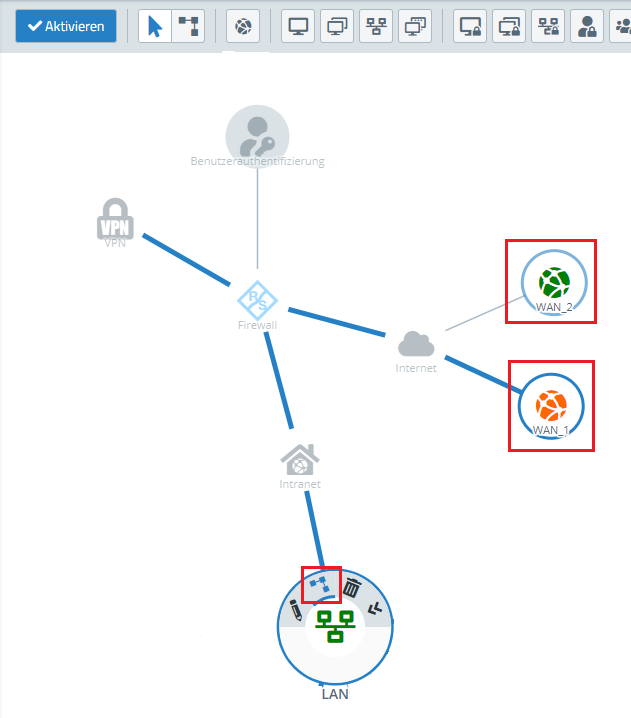
1.1 Make sure that identical rules for access from the LAN to the WAN are configured for both WAN connections. 1.2 Click on the connection tool in the host/network group desktop object for the LAN and then click on the respective WAN network object.
1.2 To do this, click the connection tool in the host/network group desktop object for the LAN and then click the respective WAN network object.
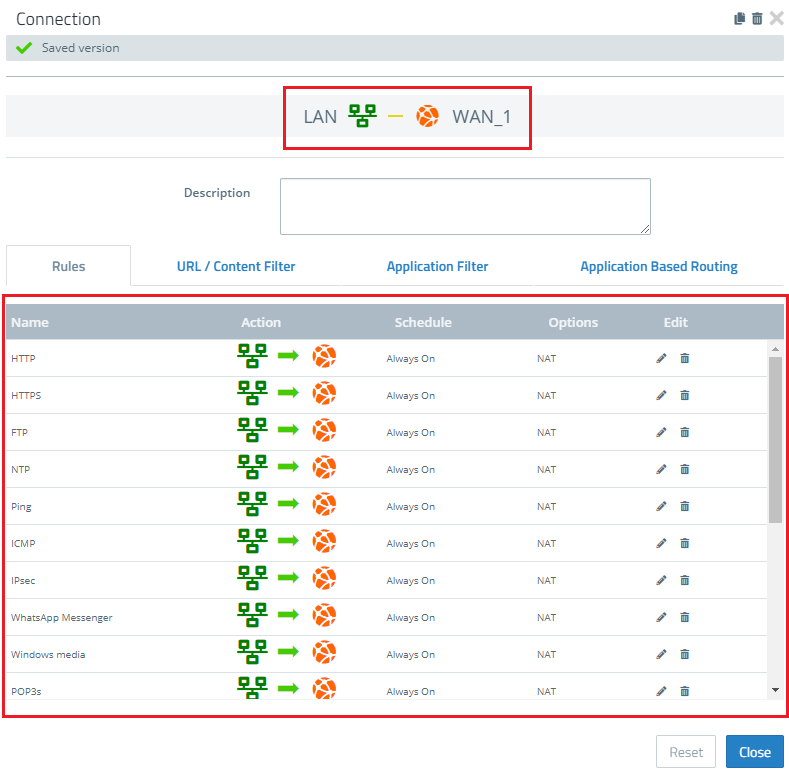
1.3 Create or extend the set of rules for the first WAN connection.
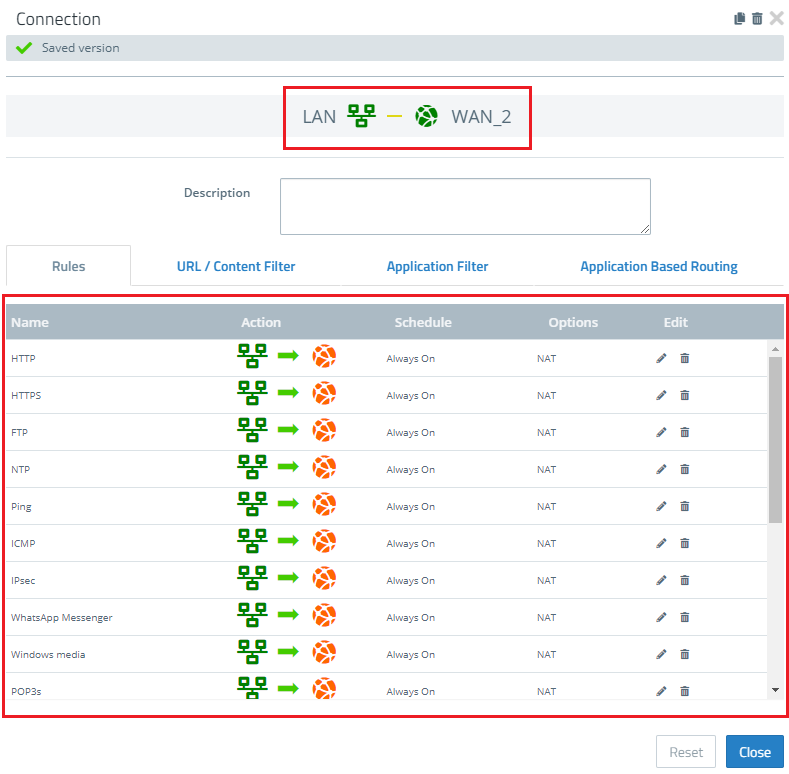
1.4. Create an identical set of rules for the second WAN connection.
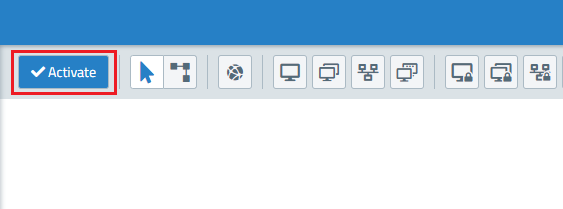
1.5. Finally, click Activate in the firewall so that the configuration changes are implemented.
2. specify the use of the WAN connection according to the weighting criterion (optional):
In the configuration of the network and/or PPP connections, you have the option of specifying the use of the connections in each case according to a weighting criterion.
2.1 To do this, go to the menu Network → Connections → Network Connections or Network → Connections → PPP Connections and click on the "Edit" icon of the network connection whose settings you want to modify.
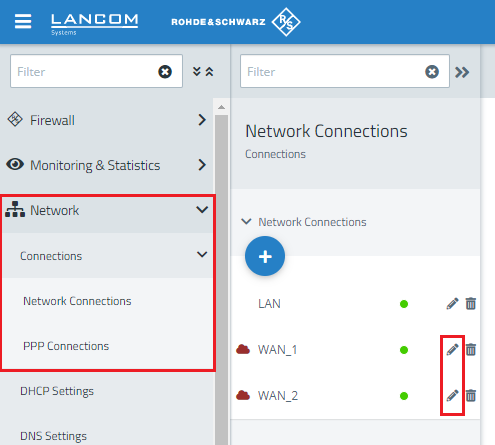
2.2 Open the WAN tab.
2.3 The Multi-WAN Weighting parameter allows you to specify what percentage of Internet traffic is routed over this connection by entering a value from 1 to 256.
The higher the value entered, the higher the percentage of traffic routed over this connection. If the same value is set for all connections, the traffic is distributed evenly among all connections.
Beispiel:
For example, if you want to use one WAN connection for 70% and another WAN connection for 30%, you must enter the value 7 for one WAN connection (70%) and the value 3 for the other WAN connection (30%).
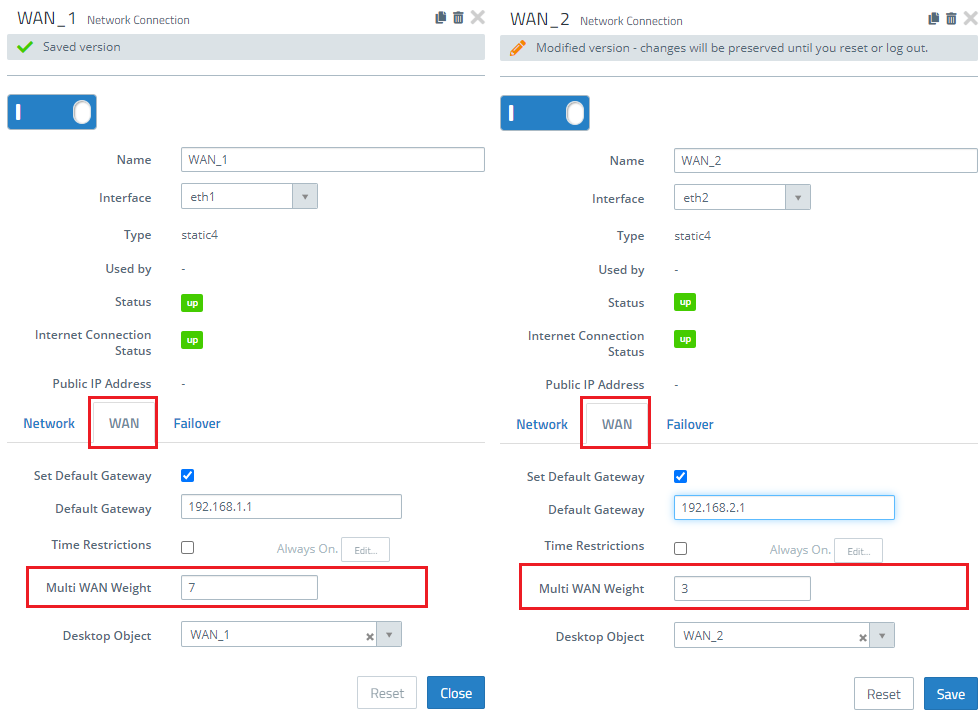
2.4 Proceed in the same way for all other WAN connections.
2.5 Finally, click Activate in the firewall so that the configuration changes are implemented.
