
Description:
Multi-Link Operation (MLO) is a Wi-Fi 7 feature (802.11be) and enables compatible end devices to establish multiple connections to an access point. End devices with one radio module can switch very quickly between the radio modules of the access point, which ensures a more stable operation in environments with high signal density. End devices with multiple radio modules can use multiple frequency bands at the same time to maximize data throughput.
Wi-Fi 7 requires specific encryption settings. LANCOM Systems therefore recommends to create a separate encryption profile for Wi-Fi 7 operation (and therefore also for MLO) and to only use this for compatible end devices. Please also refer to the following Knowledge Base article:
Enable standard-compliant Wi-Fi 7 operation with a separate encryption profile (LCOS LX)
Currently, MLO can only be configured in the access point via LANconfig, but not rolled out to the access point via a WLAN-Controller or the LMC!
Requirements:
- LCOS LX 7.10 Rel (download latest version)
- LANtools 10.92 RU1 (download latest version)
Procedure:
Configuring MLO for a WLAN network:
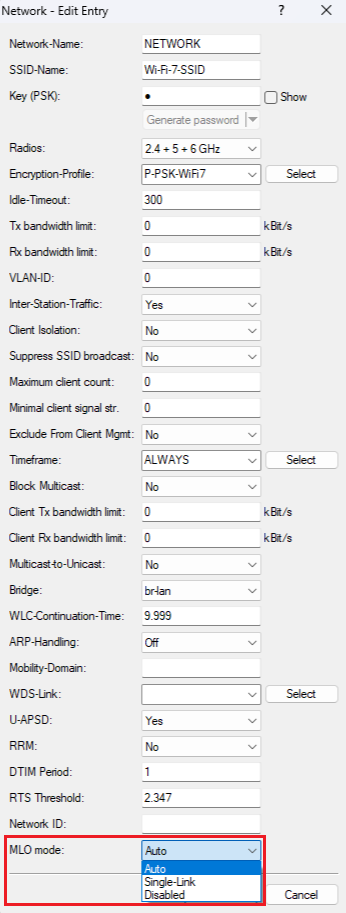
MLO can be configured on the access point in the menu Wireless LAN → WLAN networks → Network. Select the desired option for the MLO mode:
- Auto:
All BSSIDs of a WLAN network, which support Wi-Fi 7, are bundled to a Multi-Link Device (MLD). MLO is activated on all these BSSIDs. - Single-Link:
Every BSSID of a WLAN network, which supports Wi-Fi 7, becomes an independent Multi-Link Device (MLD), so that end devices can only use one link. This can be useful, when compatibility problems arise. - Disabled (default setting):
MLO is not used.
Reading out the MLO status of the WLAN devices:
The MLO status can be read out on the access point via the CLI command ls /Status/WLAN/Station-Table.
- The first device in the table only supports Wi-Fi 6, thus the MLO-Mode stays on None.
- The second device in the table supports Wi-Fi 7 and as MLO-Mode uses the option STR (Simultaneous Transmit and Receive).
The screenshot had to be truncated due to the table size, so that not all table output is shown.

