
Description:
The failure of an Internet connection can be detected by monitoring the connection by means of polling. This is especially important where a backup connection is available. Only by detecting the failure of the main connection can a change to the backup connection take place. To perform polling, the Unified Firewall sends ICMP requests (ping) to a target at regular intervals, and monitors them. The loss of an individual polling target could be mistaken for a failure of the Internet connection, so it makes sense to poll multiple targets.
This article describes how to set up the monitoring of an Internet connection using ICMP packets (ping) on a Unified Firewall.
With LCOS FX 10.6 and later, a newly configured Internet connection and also the default WAN connection use the following three DNS servers (except in the case of a previously existing Internet connection following an update to LCOS FX 10.6):
- 1.1.1.1
- 8.8.8.8
- 9.9.9.9
Requirements:
- LANCOM R&S®Unified Firewall with LCOS FX as of version 10.11
- Functional Internet connection
- Web browser for configuring the Unified Firewall.
The following browsers are supported:- Google Chrome
- Chromium
- Mozilla Firefox
Procedure:
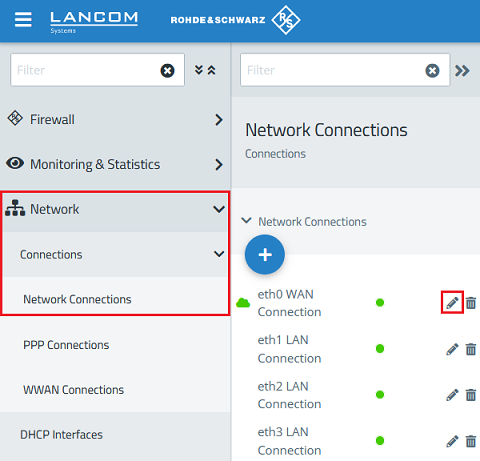
1) Using a web browser, connect to the Unified Firewall and go to the menu Network → Connections → Network Connections. For the Internet connection (in this example eth0 WAN Connection), click the pencil icon to access the settings.
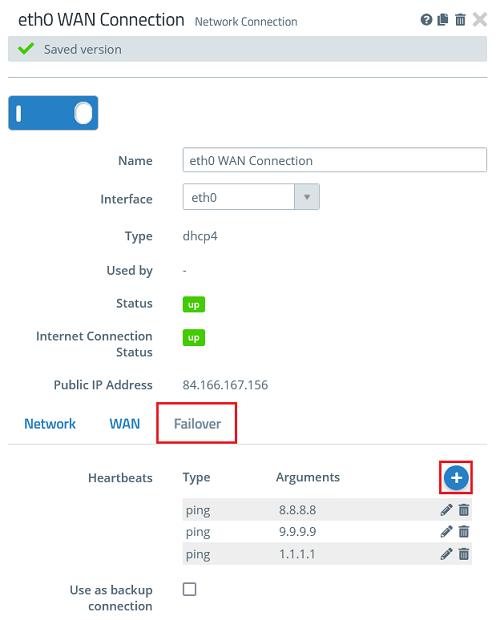
2) Go to the Failover tab and add a new entry under Heartbeats using the “+” icon.
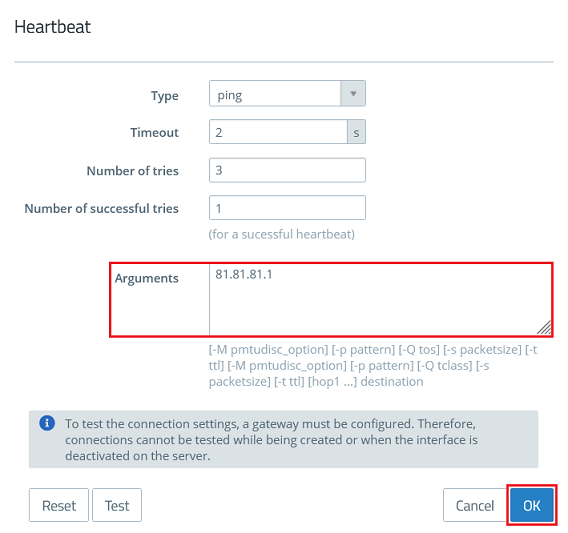
3) Under Arguments, enter an IP address to be used for polling (in this example 81.81.81.1).
You can optionally adjust the following parameters if necessary:
- Timeout: Sets the timeout for the test in seconds.
- Number of tries: Sets the total number of ping packets sent . This value must be set higher than the number of successful tries.
- Number of successful tries: Sets the number of answered pings required for a successful heartbeat: Leave this at the default value of 1.
4) Then click Save.
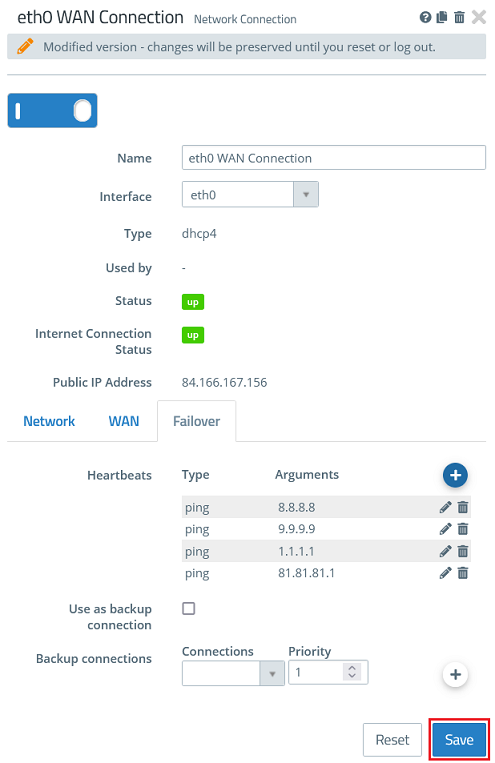
5) Finally, accept the changes by clicking Activate.

