Description:
WiFi4EU is only supported by LCOS access Points. Access points with LCOS LX unfortunately don't support this feature!
- LANtools as of version 9 (download latest version)
- LCOS as of version 9 (download latest version)
- LANCOM WLAN router or access point with an activated Public Spot option
- Web browser with enabled developer tools and JavaScript support
- Adapted HTML template for the LANCOM Public Spot login page. The template integrates various external resources of the WiFi4EU project such as images, but also scripts for counting users and for monitoring availability (known as “WiFI4EU Policy Enforcement Components”).
- This HTML template is provided by LANCOM Systems, and it can be further adapted by you or it can be used as a template for a self-designed HTML template.
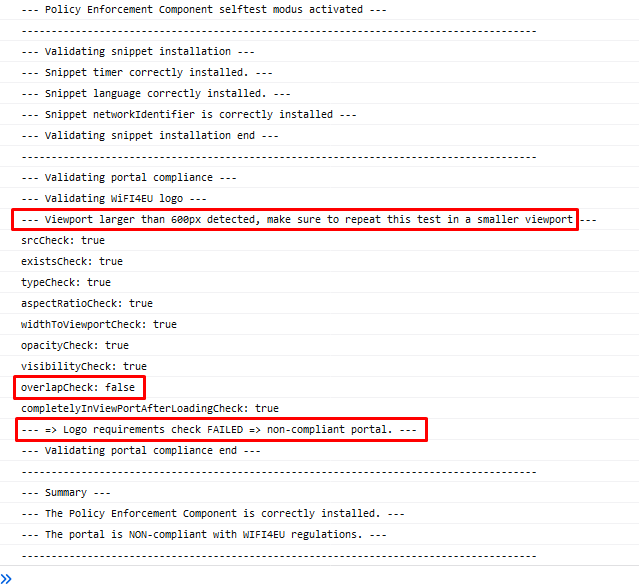
- The template provided is shipped with an active test mode. This mode allows you use the Javascript console of your browser to check whether the external WiFi4EU resources and scripts have been integrated correctly. To disable the test mode and use the template for productive use, remove the line var selftestModus = true; in the HTML template.
- For WiFi4EU it is mandatory to use an adapted template of this type. Further important information about using this template is available at the end of this article.
The configuration example below assumes that the LANCOM Public Spot operates on a single LANCOM access point.
The Public Spot network is separate from the main or management network and provides access solely to the Internet.
1.) Preparatory steps in the HTML template:
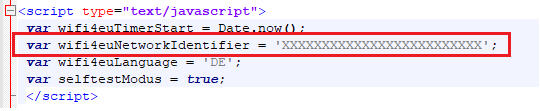
1.1) In the <head> of the HTML template for the portal page, a network identifier must be used as a variable instead of the placeholder.
The transmitted wifi4euNetworkIdentifier should be a string that corresponds to the unique identifier (UUID) of the WiFi4EU network specified in the installation report.
Example: var wifi4euNetworkIdentifier='123e4567-e89b-12d3-a456-426655440000';
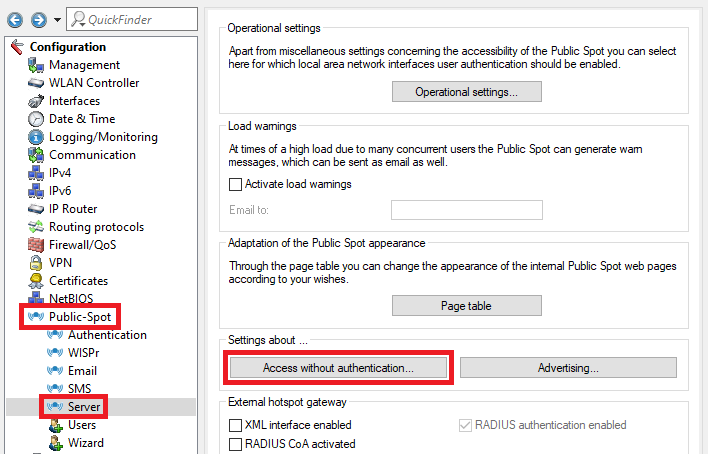
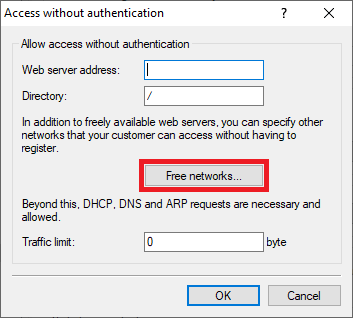
2.2) You can configure every possible login variant for logging into the Public Spot. In this example the login with username and password is to be used.
2.3) In LANconfig, open the configuration dialog of the LANCOM access point and change to Public Spot dialog.



3.) Carrying out a function test:
3.1) Activate the developer tools in your browser.
3.1) Connect to the SSID of the LANCOM Public Spot. The Wifi4EU login page will then be displayed.
3.2) Check whether the output contains error messages and correct them.
Information on implementation and troubleshooting can be found in the implementation guide of the European Commission - Directorate-General for IT at:
https://hadea.ec.europa.eu/system/files/2021-09/cnect-2017-00250-00-11-en-ori-00_0.pdf