Description:

This document describes the steps you need to take to configure the URL/Content Filter in a LANCOM R&S®Unified Firewall.

If a website is assigned to a wrong category and is therefore falsely blocked or allowed, please send the following information to  LANCOM Support . For the purpose of correction, LANCOM Systems will then forward the affected URL to the OEM partner, who operates the Content Filter servers. 

  • Full URL.
  • Copy of the affected webite in the format *.htm (Save page as in your web browser).
  • Description of the problem.


Requirements:
    • Google Chrome
    • Chromium
    • Mozilla Firefox


Procedure:
1) General settings:
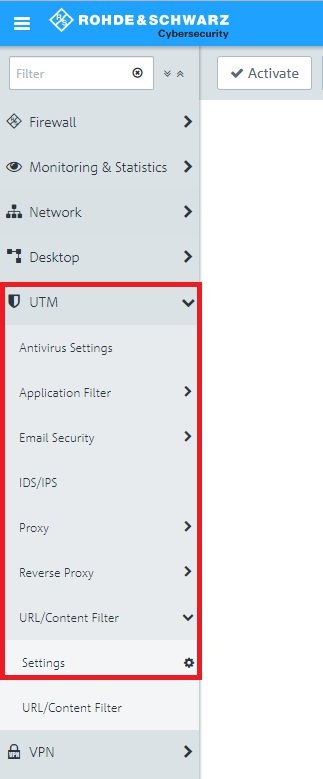
1.1) Open the configuration interface of the LANCOM R&S®Unified Firewall in your browser and go to the menu UTM → URL/Content Filter → Settings.
Screenshot of a user interface displaying various cybersecurity settings including Firewall, Antivirus, Email Security, Network Monitoring, and URL Content Filtering options.
1.2) Enable or customize the features as required:
  • Sanitize URLs: Set a checkmark here in order for sections following a ? (used to communicate variables in PHP) to be excluded from black and white lists.
  • Force Safesearch: Set this checkmark to configure the setting SafeSearch=strict to automatically configure the search engines Google, Bing, and Yahoo to keep adult content out of search results. Users cannot change this setting.
  • Override mode for categories (as of LCOS FX 10.5.0): If a website has been blocked, you can control the behavior of your firewall here:
    • Deactivated: No exceptions are allowed (default setting).
    • Allow override: If a website has been blocked, you can override the content filter locking mechanisms for a selected period of time. Enter the period for the content filter category in minutes to deactivate the corresponding profile. Only the current category of a URL/content filter profile is overwritten as not blocked for a certain period of time.
    • Allow override by code: If a website has been blocked, your users can override the locking mechanisms of the content filter by entering a short numerical sequence (code) ( see also the following document ).

      Enter the users who are allowed to manage the corresponding codes here. From the perspective of your LANCOM R&S®Unified firewall, these can be local users, LDAP users or LDAP groups.
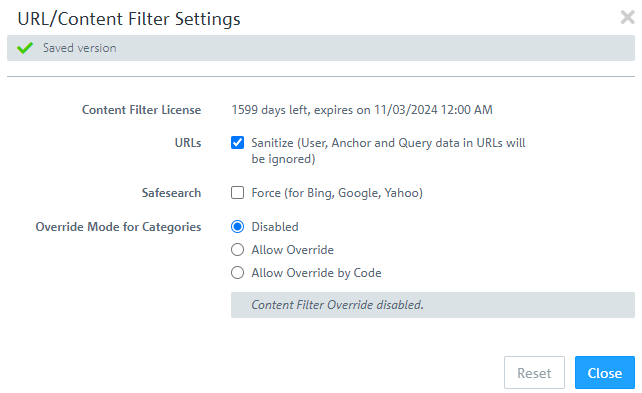
Only the current category of a URL/Content Filter profile is unblocked for the given duration. This option is only available for custom profiles, but not with default profiles.

Image of the URL Content Filter Settings interface showing options such as saved version, license expiry, sanitize URL user data, SafeSearch settings for multiple search engines, and override settings for content filtering.


2) Creating and editing URL/Content Filter profiles:
2.1) Using the default profiles (only for existing installations with a source version up to and including LCOS FX 10.10):

In LCOS FX 10.11 a change was made to another OEM partner for the URL and Content Filter. Associated with this the default profiles were removed and are only available in existing installations with a source version up to and including LCOS FX 10.10. With a new installation with LCOS FX as of version 10.11 it is always necessary to create your own URL/Content Filter profile (see step 2.2). 
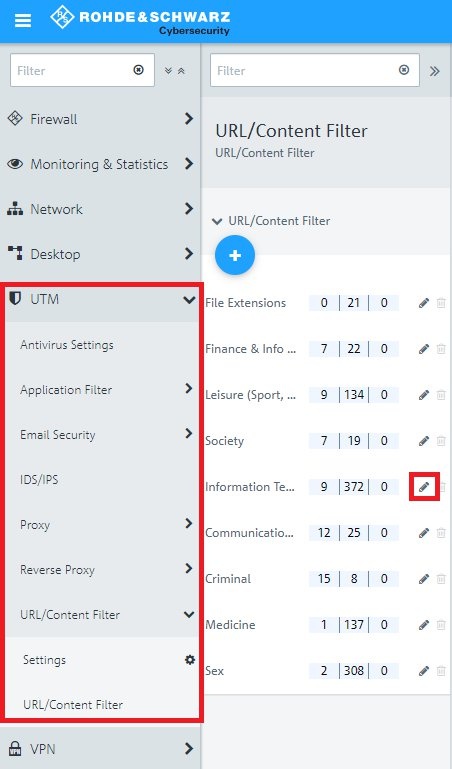
2.1.1) Go to the menu UTM → URL/Content Filter → URL/Content Filter and click on the “pen” icon to edit the respective profile.
An image of a complex technical configuration interface displaying various settings such as Firewall, URL Content Filters, Monitoring Statistics, Antivirus Settings, Application Filter, Email Security, and VPN options.
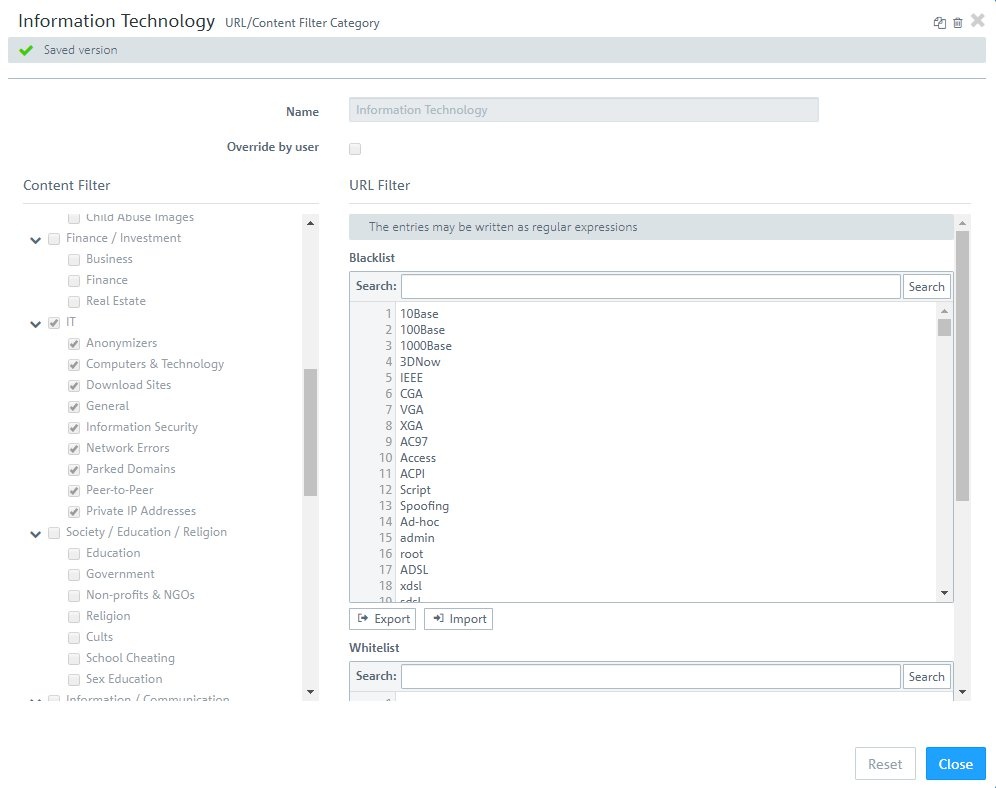
2.1.2) The profile gives you a view of the categories stored in the Content Filter as well as the keywords in the Content Filter black list and white list.

The user overwrite function is deactivated by default. Activate this function if you want to allow (certain) users to be able to view pages blocked by the content filter.

You cannot adjust the default Content Filter profiles. You can, however, add entries to the black list and white list.

As of LCOS FX 10.5.0, the management of the content filter has been expanded to include codes with which users can view blocked pages within certain times by entering the respective code despite the filter. For more information, see the following Knowledge Base article.
Screenshot of a technical configuration interface displaying various categories such as Content Filter, URL Filter, Finance Investment, Private IP Addresses, and Government Settings.

2.1.3) You can add your own entries to the black list and white list. Use a separate line for each entry.

If the blacklist and the whitelist are used in parallel, the whitelist is treated with higher priority.

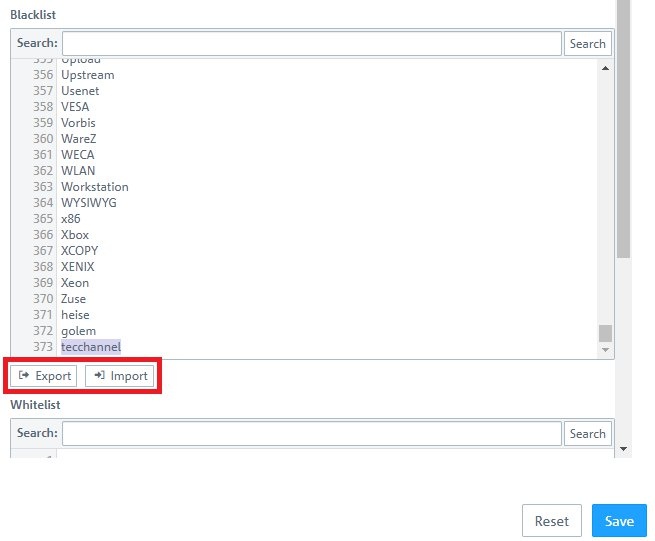
With the function Export the blacklist or whitelist can be exported as a text file and with the function Import it can be imported.

The maximum size of the text file is 1 MB.
An image of a technical user interface displaying the words 'golem r tecchannel Esl', possibly part of a configuration menu or system diagram.


2.2) Creating your own URL/Content Filter profile:
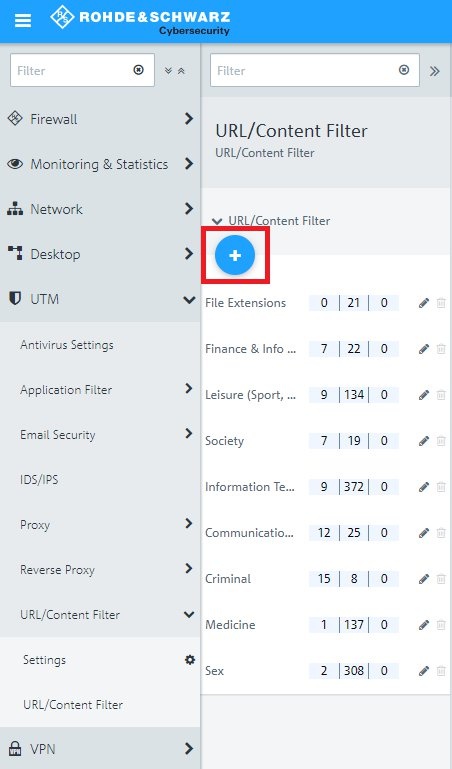
2.2.1) Click on the “plus” icon to create your own URL/Content Filter profile.
Screenshot of a complex technical configuration menu featuring various computer security settings such as Firewall, URL Content Filters, Monitoring Statistics, and Antivirus Settings.
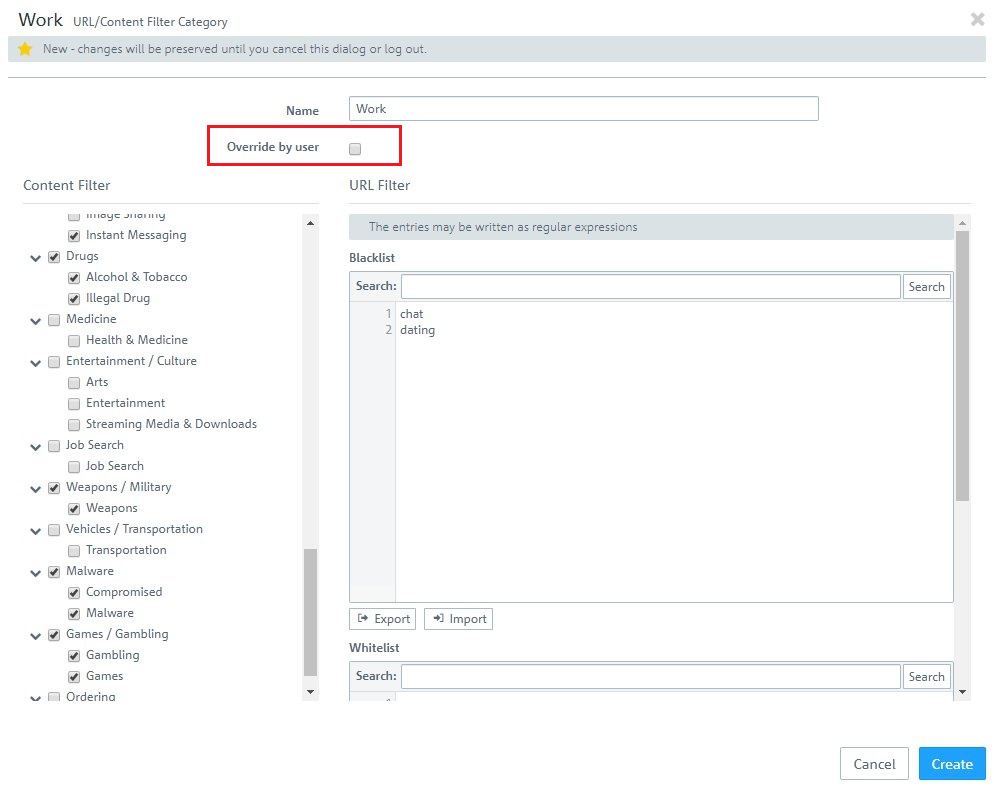
2.2.2) Modify the following parameters:
  • Name: Enter a descriptive name for the profile.
  • Override by user: With this option enabled, users can temporarily unblock the category if a website is blocked (also see step 1.2).
  • Content Filter: Select the categories to block.
  • URL Filter - Blacklist: Enter terms that are contained in undesirable URLs.
  • URL Filter - Whitelist: Enter terms that are contained in desired URLs.
An image of a computer interface showing various content filter categories including URL and drug filters, with options for illegal activities, health, entertainment, transportation, and security settings.


3) Assigning the URL/Content Filter profiles to the connection from the internal network to the Internet:
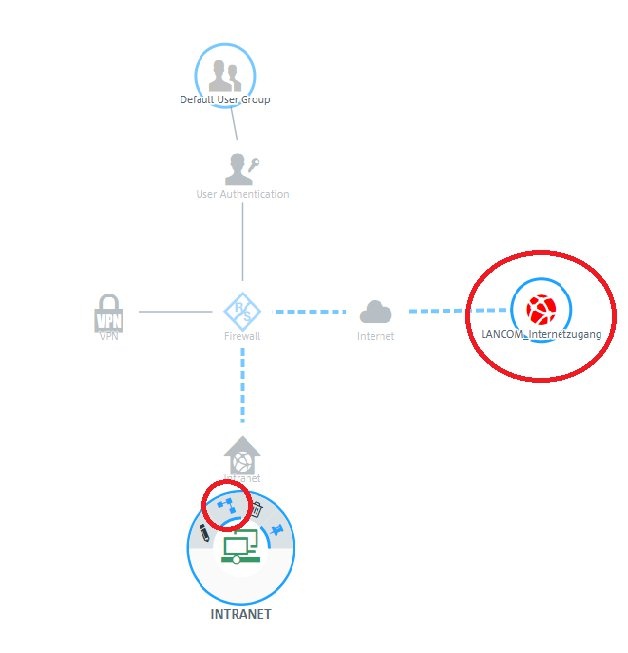
3.1) On the desktop, click the network object and select the Connection Tool. Link the network object to the Internet object.
The image displays a partial view of a user interface or configuration menu with the fragmentary text 'rn e.'
3.2) Go to the tab URL/Content Filter and select the desired profiles for the URL Filter and the Content Filter.

If the function Block all by default is activated, all URL and content filter profiles created in the system are activated. Exceptions can then only be permitted via the whitelist.
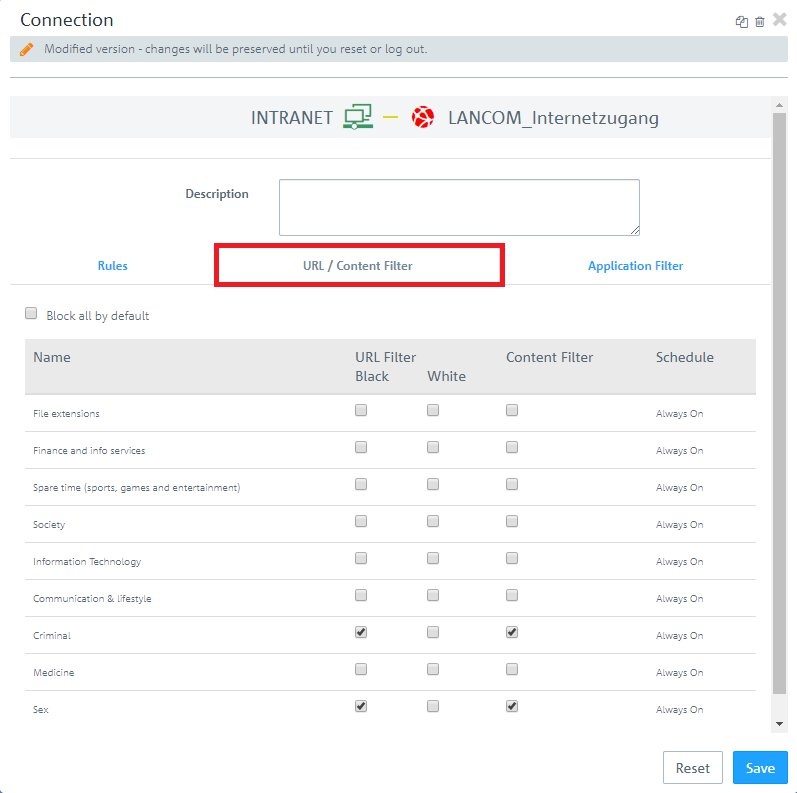
Screenshot of a network configuration interface showing modified version changes with options for URL and content filtering, including names and schedules, with settings marked as AlwaysOn for various categories such as finance, sports, and society.

3.3) Click on the Activate button to accept the changes and enable filtering.
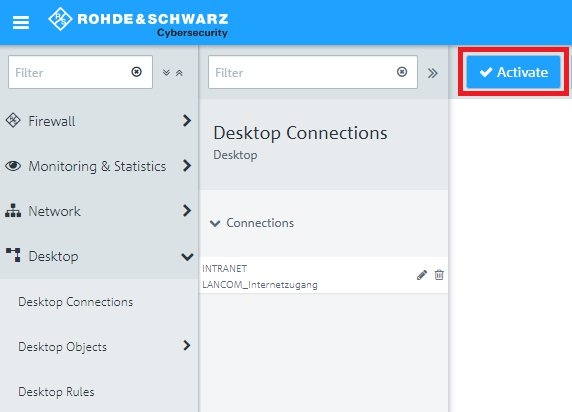
An image depicting a technical user interface with various settings such as Firewall, Desktop Connections, Monitoring Statistics, Network Connections, and Desktop Rules for managing network and internet access.


4) Additional steps when a desired URL is blocked by the Blacklist:
If a desired URL is blocked by the URL / Content Filter of the Unified Firewall, it must be checked why it is blocked.

4.1) In the Unified Firewall go to the menu Monitoring & Statistics → Settings and for the parameters Web Content Allowed und  Web Content Blocked select the option Save Raw Data Locally , so that messages regarding the URL / Content Filter are logged to the Alert Log . Click Save afterwards.
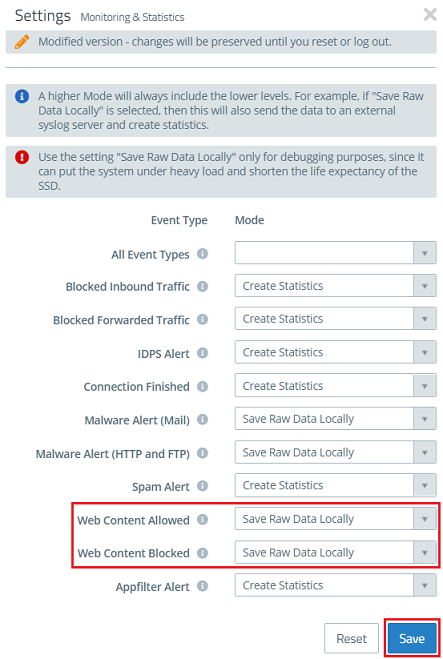
Screenshot of a technical configuration interface showing settings for monitoring statistics and modifying event types, highlighting options for saving data locally and creating statistics for various network events.

4.2) Change to the menu Monitoring & Statistics → Logs → Alert Log and check, if there is a message matching the blocked URL in the following format: 
Web Filter: blocked domain '<URL>' from IP address <IP address> as category 'Blacklist' from profile '<Blacklist>'
In this case the URL was blocked due to an entry in the corresponding Blacklist.
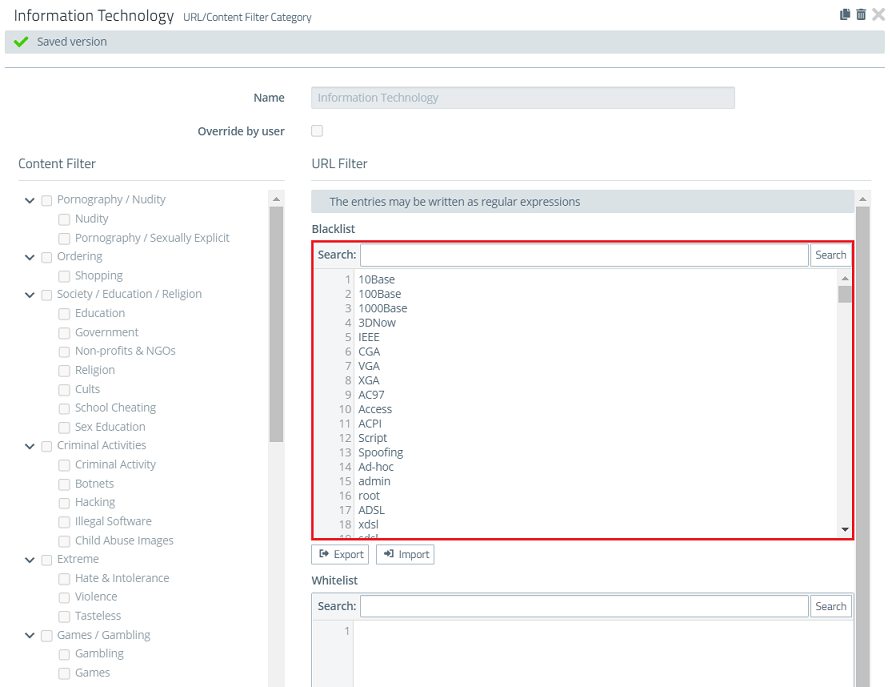
4.3) Go to the menu UTM → URL/Content Filter    URL/Content Filter  (also see step 2.1) and edit the corresponding profile by clicking on its "pencil icon".
Search the Blacklist for the desired URL or parts of the URL and delete it so that the URL is not blocked anymore. As an alternative you can also enter the URL in the Whitelist. It has a higher priority than the Blacklist and therefore matches before it.
A screenshot of a content filtering configuration interface for information technology settings, displaying options for various categories such as pornography, shopping, education, and criminal activities.