Description:
This article describes how the configuration of a switch with LCOS SX 5.xx can be exported and imported via the webinterface.
The procedure for the configuration import / export for LANCOM switch via SCP is described in this Knowledge Base article.
The procedure for the configuration import / export for a switch with LCOS SX 5.xx via LANconfig is described in this Knowledge Base article.
Requirements:
- One of the following LANCOM switch models:
- XS-51xx / XS-6128QF
- GS-45xx / XS-45xx
- CS-8132F
- YS-7154CF
- LCOS SX as of version 5.10 for XS-51xx / XS-6128QF (download latest version)
- LCOS SX as of version 5.20 for GS-45xx / XS-45xx (download latest version)
- LCOS SX as of version 5.30 for CS-8132F and YS-7154CF (download latest version)
- Any web browser for accessing the webinterface
Procedure:
1) Saving the switch configuration:
1.1) Connect to the switch via the webinterface and switch to the menu System → Utilities → Transfer.
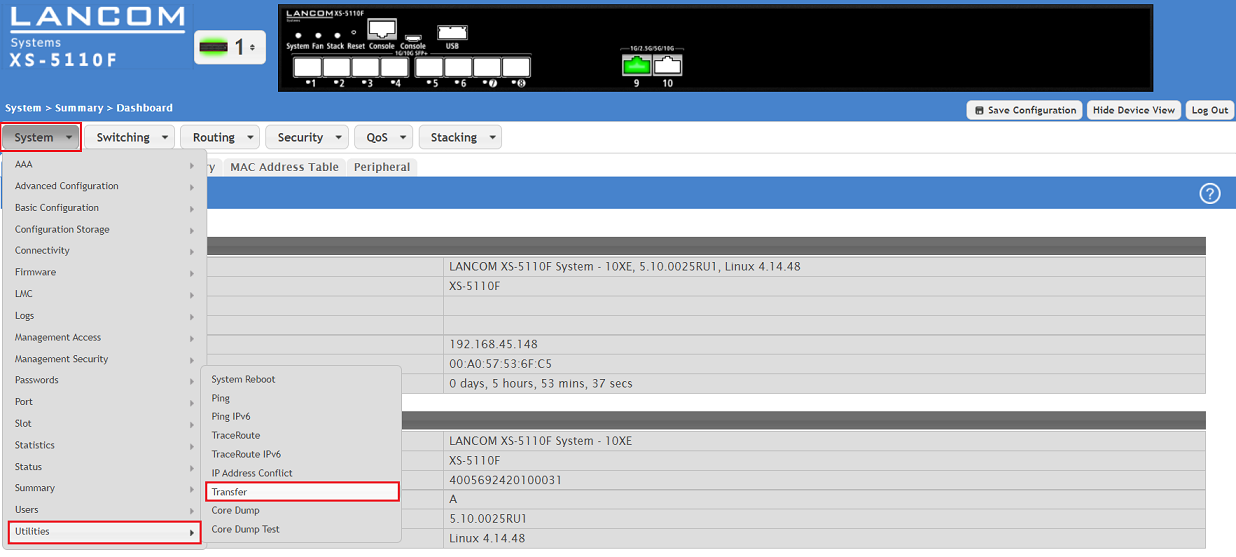
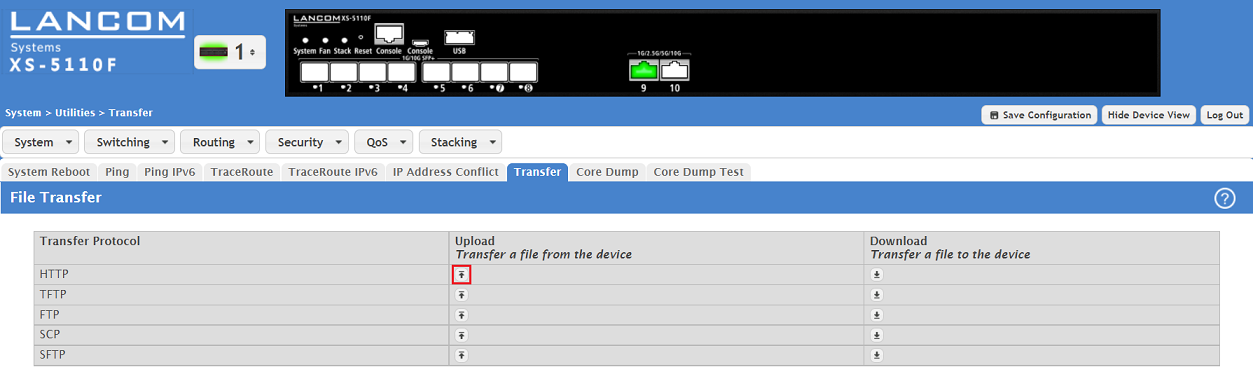
1.2) Click the Upload button for HTTP.
The Up- and Download is to be understood from the point of view of the device. Therefore the Upload stands for the download of a configuration or log files to a computer drive. The Download stands for the upload of a configuration file or a script file to the switch.
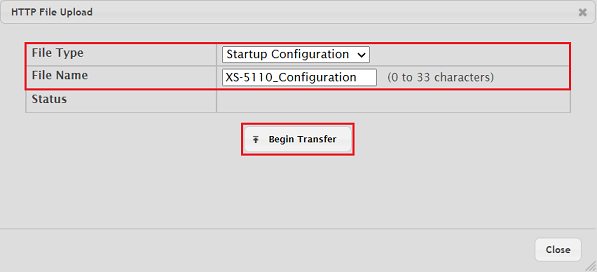
1.3) Select the following parameters, click Begin Transfer and select the save location afterwards:
- File Type: In the dropdown menu select the option Startup Configuration.
- File Name: In the dropdown menu enter a descriptive name (in this example XS-5110_Configuration).
2) Uploading the switch configuration:
2.1) Connect to the switch via the webinterface and switch to the menu System → Utilities → Transfer.
2.2) Click the Download button for HTTP.
The Up- and Download is to be understood from the point of view of the device. Therefore the Upload stands for the download of a configuration or log files to a computer drive. The Download stands for the upload of a configuration file or a script file to the switch.
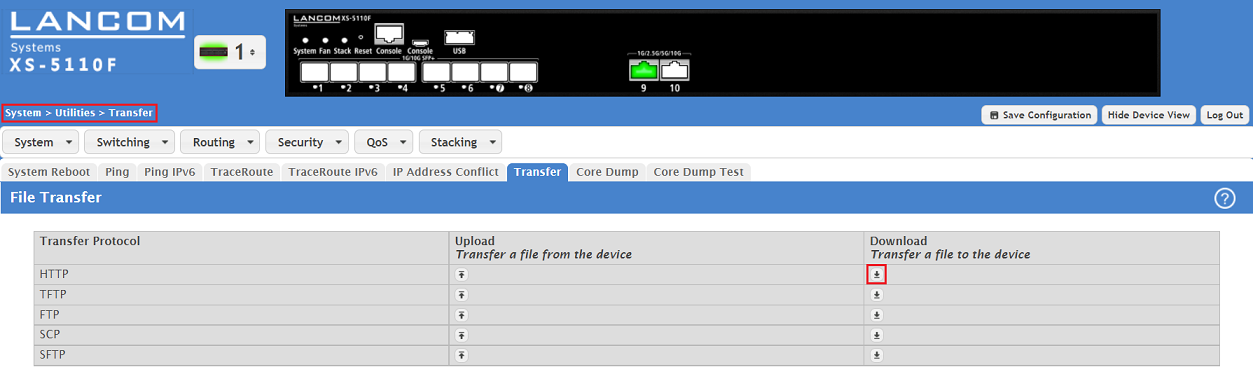
2.3) Select the following parameters and click Begin Transfe r:
- File Type: In the dropdown menu select the option Startup Configuration.
- Select File: Select a saved configuration file (in this example XS-5110_Configuration).
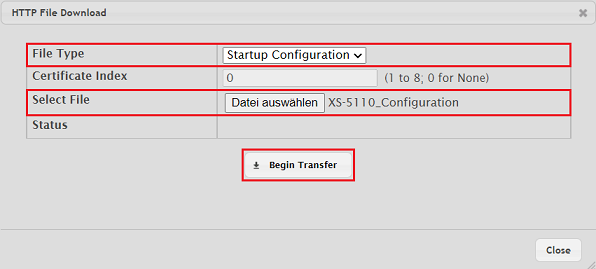
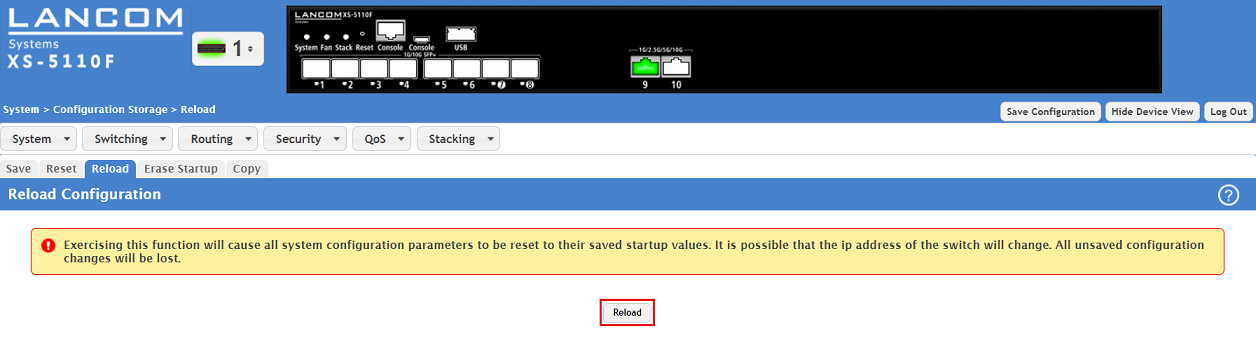
2.4) Switch to the menu System → Configuration Storage → Reload.
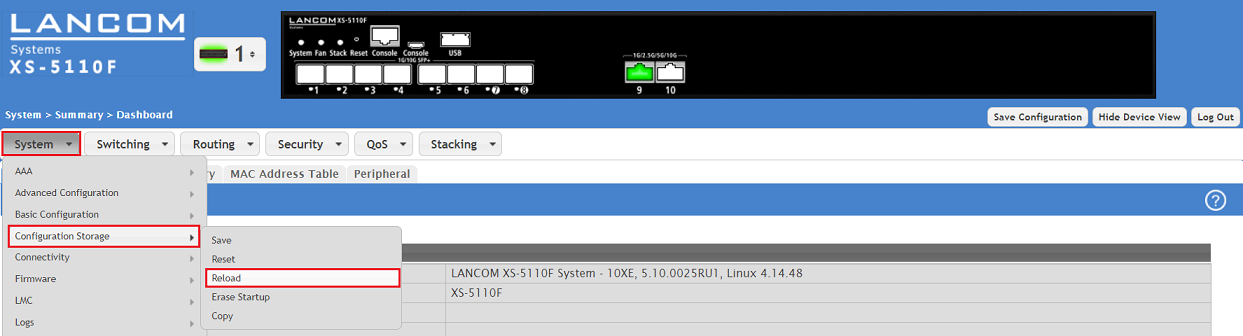
2.5) Click Reload in order for the start configuration to be set active.
As an alternative you can also activate the start configuration via the CLI with the command reload configuration.