Description:
This article describes how to configure NIC Teaming between a LANCOM Managed Switch and a Microsoft Windows Server.
In contrast to a Static Trunk the feature LACP supports a dynamic negotiation, thus enabling the Trunk to remain active when a line fails. LANCOM Systems therefore recommends to always use LACP when combining switch ports to a trunk.
Requirements:
- LANCOM Managed Switch of the following series:
- GS-23xx series
- GS-24xx / GS-3xxx / XS-3xxx series
- XS-51xx / XS-6128QF and GS-45xx / XS-45xx series as well as CS-8132F and YS-7154CF
- Server with Microsoft Windows Server operating system and at least two network cards
Procedure:
1) Configuring LACP on a LANCOM Managed Switch:
- Configuring an LACP trunk between a LANCOM GS-23xx series switch and a LANCOM router or access point
- Configuring an LACP Trunk on a GS-3xxx series switch (LCOS SX 4.00)
- Configuring an LACP Trunk on a GS-24xx / GS-3xxx / XS-3xxx series switch (LCOS SX 4.20 / 4.30)
- Configuring an LACP Trunk on a switch with LCOS SX 5.xx
When an LACP Trunk is used in a Stack of XS series switches it is recommended to assign the LACP ports to different Stack members. This leads to an increased redundancy as at least one connection remains operable when one Stack member fails.
2) Configuring NIC Teaming on a Windows Server:
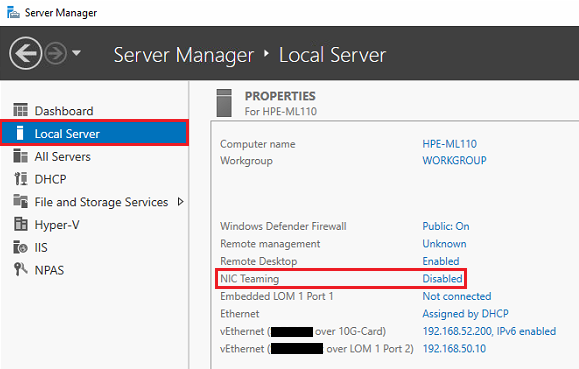
2.1) In the Server Manager go to the menu Local Server and for NIC Teaming click on the button Disabled to change to the menu NIC Teaming.
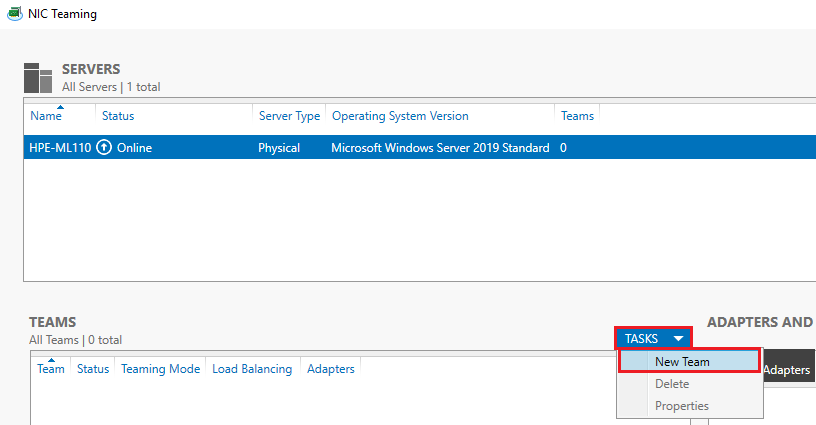
2.2) For TEAMS click on TASKS and in the dropdown menu select the option New Team.
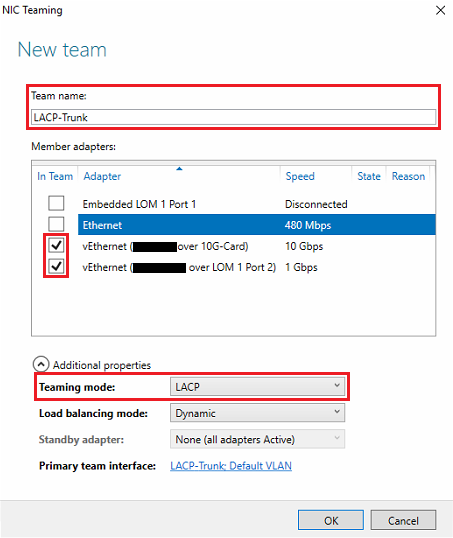
2.3) Enter a descriptive Team name and select two or more Ethernet interfaces to be used for Teaming.
Afterwards open the Additional properties and for the Teaming mode select the option LACP.
The mode Switch Independent should only be used with an unmanaged Switch.