
Description:
In some scenarios the LANCOM access points should not broadcast all of the available Wi-Fi networks (SSIDs). This document describes how to assign different Wi-Fi networks to access points managed by the LANCOM Management Cloud (LMC).
Requirements:
- Access to the LANCOM Management Cloud (subject to charge) with a configured and functioning project
- Web browser
Scenario:
At a medical practice, the IT infrastructure is completely managed by the LMC. There are two different networks configured:
- A management network called INTRANET, which is used exclusively by the employees, and a
- GUEST network, which patients and visitors can use exclusively to access the Internet with their mobile devices.
Each network is configured with its own SSID (SSID "PRACTICE" for employees, SSID "GUEST" for patients).
- The access point in the waiting room should only broadcast the guest network with SSID “GUEST”.
The access point in the office should only broadcast the SSID "PRACTICE", which is operated in the management network.
Procedure:
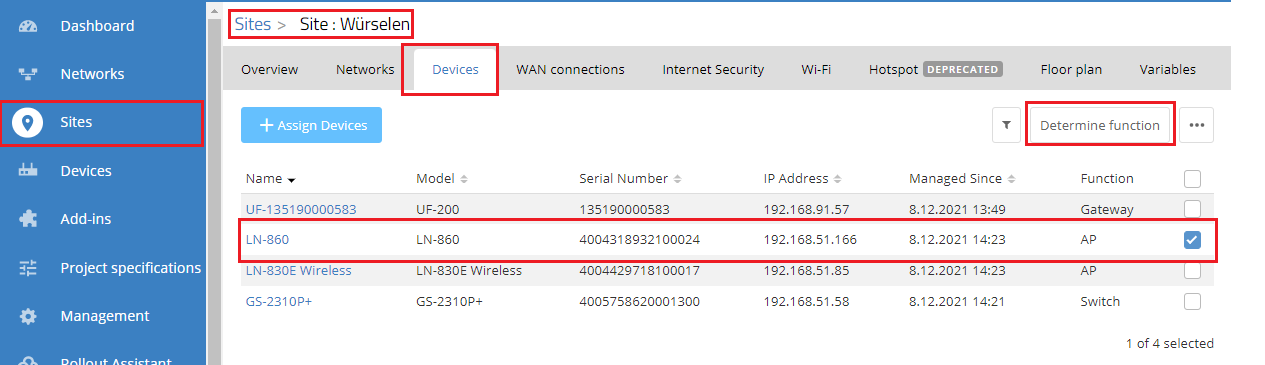
1) In your LMC project, go to the menu Sites →<site name> → Devices and mark that access point for which the Wi-Fi network assignments are to be changed.
In this example, the LANCOM LN-860 in the waiting room should only broadcast the SSID of the GUEST network.
2) Click the button Determine function.
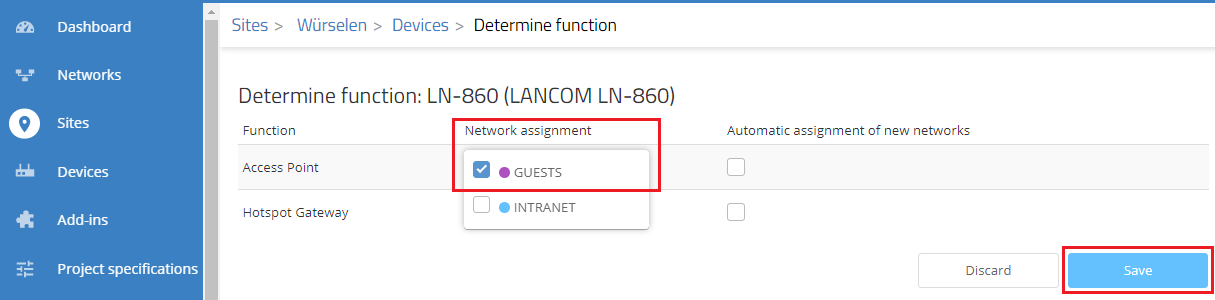
3) Next to the function Access Point, click the drop-down menu for Network assignment and disable the network INTRANET (in our example, the network at the PRACTICE).
4) Then click on Save.
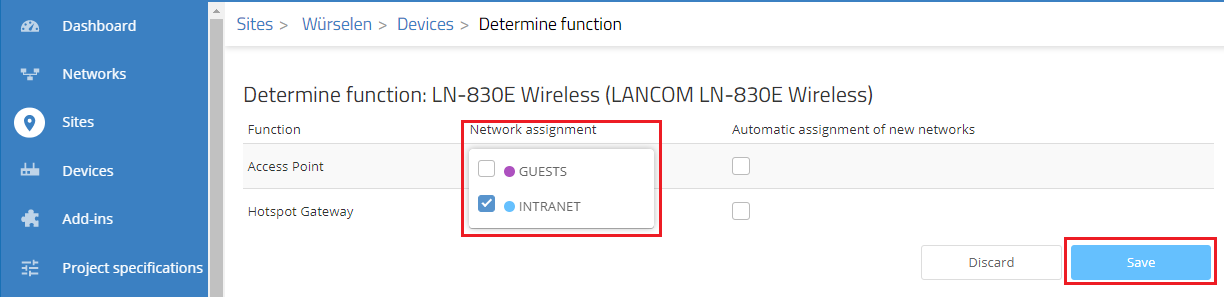
4) Repeat the process for the access point in the office.
5) In this case you disable the GUEST network and click Save.
6) Finally you go to the Devices menu to roll out the configuration to all devices with a configuration status shown as “Outdated”.
