Description:
Router with a USB-C port as the serial configuration interface simplify access via "Outband", as no serial port on the computer or a USB2Serial adapter is needed. Instead a USB-C cable is sufficient for serial access. When accessing the USB-C interface under Windows a driver is needed. If it isn't installed automatically (e.g. due to missing access rights), the driver has to be downloaded and installed via Windows Update.
This article describes how the driver for the USB-C interface can be downloaded and installed via Windows Update.
Screenshots are only available in german.
The necessary parameters for the serial interface can be found in the following Knowledge Base article:
Parameters for configuration / CLI connections via the serial interface of a LANCOM device
If the driver download via Windows Update is not possible in your case, you can also download it directly from the manufacturer Silicon Labs:
https://www.silabs.com/developers/usb-to-uart-bridge-vcp-drivers?tab=downloads
Procedure:
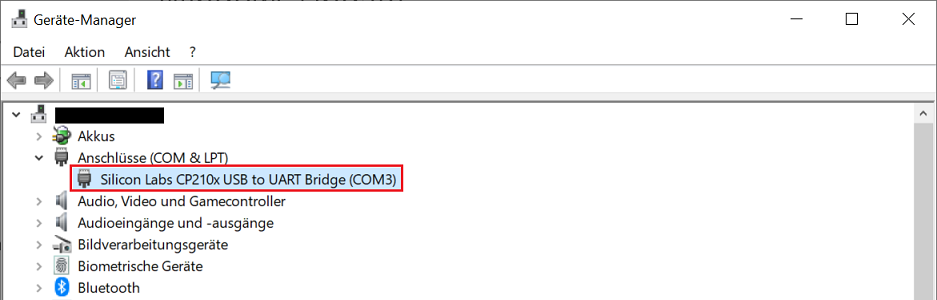
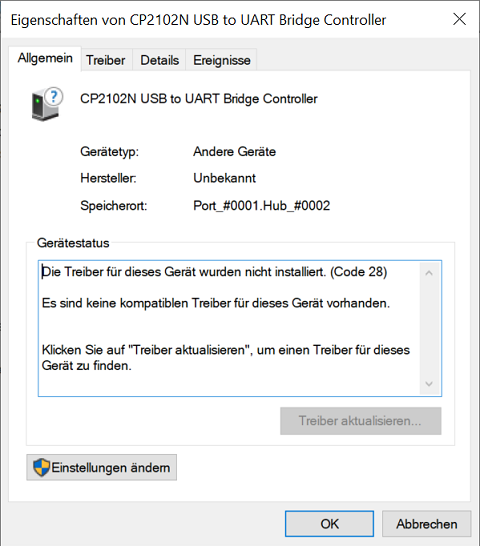
1) Connect the router via a USB-C cable to the Windows computer and check the status of the driver installation in the Device Manager. In this case the driver couldn't be installed automatically.

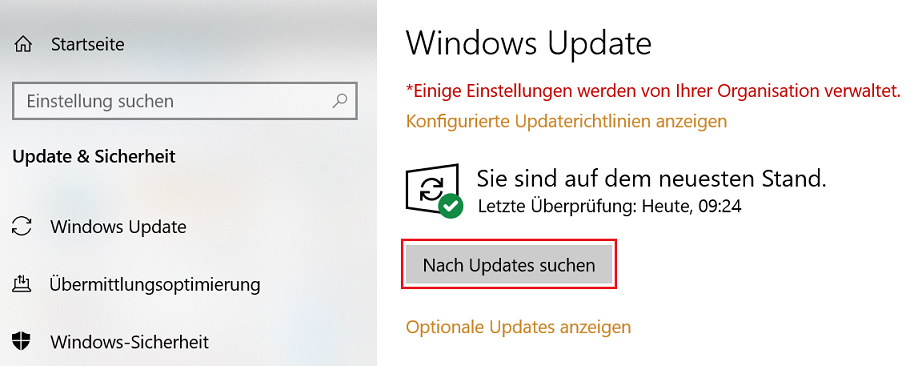
2) Open the menu Windows Update and click Check for updates.
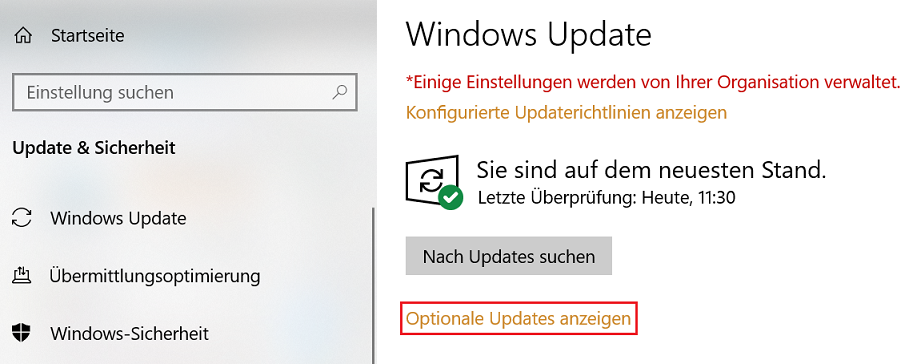
3) After the successful search click on View optional updates.
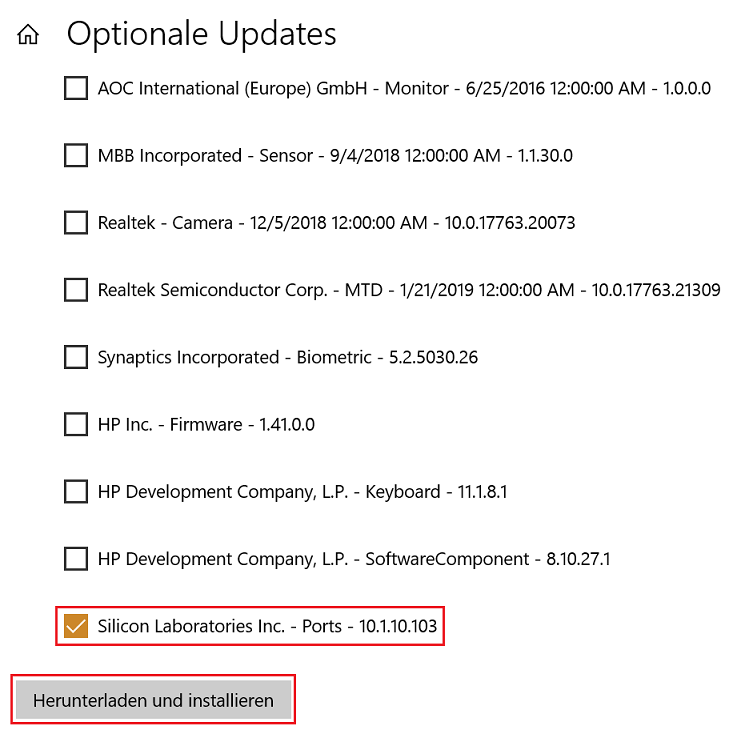
4) Select the driver Silicon Laboratories Inc. - Ports - 10.1.10.103 and click Download and install.
5) This concludes the driver installation. In the Device Manager the correctly installed device is shown including the COM port.