
Description:
Requirements:
- LANCOM managed switch of type LANCOM GS-23XX(P)
- Switch firmware version 2.83 or later (download)
- SCP-capable software such as Cygwin or PCSP (from the PuTTY family) for uploading/downloading using SCP.
Procedure:
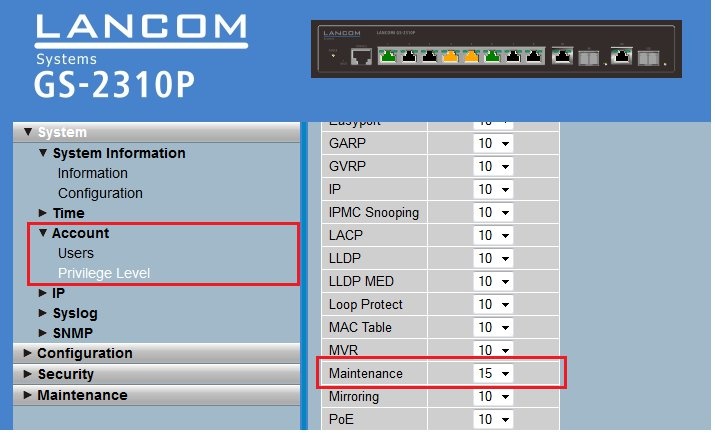
Make sure that the user account on the switch that you wish to use to perform the upload/download has the necessary user rights.
You can set user rights in the configuration under System → Account → Privilege LEVEL → Maintenance. The value 15 must be entered here.
1) Upload/download using TFTP (unencrypted):
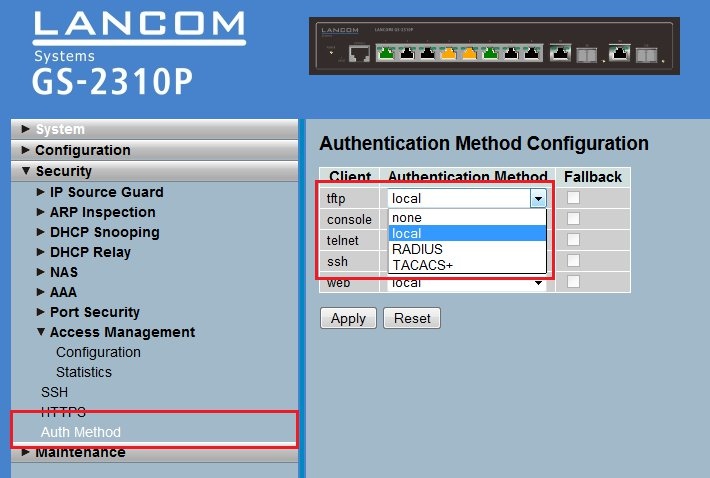
1.1) Open the switch configuration and navigate to the menu Security -> Access Management -> Auth Method.
1.2) Set Authentication Method for TFTP to the value local if you wish to perform TFTP access using a user account that exists on the switch. As an alternative, you can use RADIUS or TACACS+ authentication.
The setting none deactivates the possibility of access via TFTP.
- Downloading the switch configuration via TFTP, unencrypted:
- tftp <IP address of the switch> GET <username>:<password>@readconfbinuser <path to storage location>
- Example: tftp 172.23.56.175 GET admin:admin@readconfbinuser C:\directory\configname.xml
- Uploading the switch configuration via TFTP, unencrypted:
- tftp <IP address of the switch> PUT <path to configuration file> <username>:<password>@writeconfbinus
- Example: tftp 172.23.56.175 PUT C:\directory\configname.xml admin:admin@writeconfbinus
- Firmware upload via TFTP, unencrypted:
- tftp -i <IP address of the switch> PUT <path to firmware file> <username>:<password>@WriteFlash
- Example: tftp -i 172.23.56.175 PUT C:\directory\GS-2310P_v2.83.dat admin:admin@WriteFlash
The setting none deactivates the possibility of access via SSH.

- Uploading the switch configuration via SCP:
- scp <name of the configuration file> <username>@<IP address of the switch>:config
- Downloading the switch configuration via SCP:
- scp <username>@<IP address of the switch>:config <name of the configuration file>
- Firmware upload via SCP:
- scp <name of the firmware file> <username>@<IP address of the switch>:firmware
- Downloading the switch configuration via SCP, encrypted:
- $ scp <username>@<IP address of the switch>:config 001-<name of the configuration file>
- Example: $ scp admin@172.23.56.138:config 001-config.xml
- After entering the above command you will be prompted to input a password as follows: admin@172.23.56.138's password:
- Uploading the switch configuration via SCP, encrypted:
- $ scp 001-<name of the configuration file> <username>@<IP address of the switch>:config
- Example: $ scp 001-config.xml admin@172.23.56.138:config admin@admin:
- After entering the above command you will be prompted to input a password as follows: admin@172.23.56.138's password:
- Firmware upload via SCP, encrypted:
- $ scp <name of the firmware file> <username>@<IP address of the switch>:firmware
- Example: $ scp GS-2310P_v2.83.dat admin@172.23.56.138:firmware
- After entering the above command you will be prompted to input a password as follows: admin@172.23.56.138's password:
- Downloading the switch configuration via SCP, encrypted:
- pscp -scp <username>@<IP address of the switch>:config <path to storage location>
- Example: pscp -scp admin@172.23.56.138:config C:/directory/config.xml
- After entering the above command you will be prompted to input a password as follows: admin@172.23.56.138's password:
- Uploading the switch configuration via SCP, encrypted:
- pscp -scp <name of the configuration file> <username>@<IP address of the switch>:config
- Example: pscp -scp GS-23xx-config.xml admin@172.23.56.138:config
- After entering the above command you will be prompted to input a password as follows: admin@172.23.56.138's password:
- Firmware upload via SCP, encrypted:
- pscp -scp <name of the firmware file> <username>@<IP address of the switch>:firmware
- Example: pscp -scp GS-2310P_v2.83.dat admin@172.23.56.138:firmware
- After entering the above command you will be prompted to input a password as follows: admin@172.23.56.138's password:
