Description:
Requirements:
- LCOS as of version 8.60 (download latest version)
- LANtools as of version 8.60 (download latest version)
- Installed Public Spot
- SSH or Telnet client for accessing the console (e.g. PuTTY)
Check and modify the configuration:
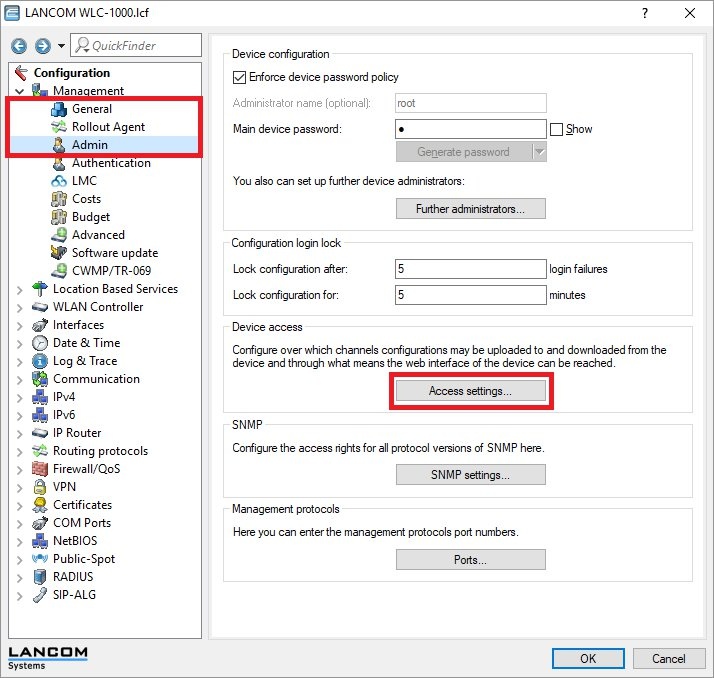
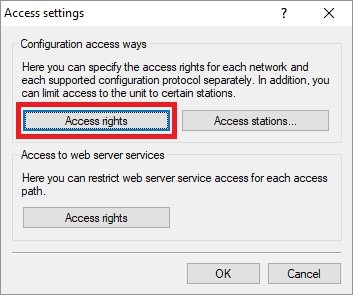
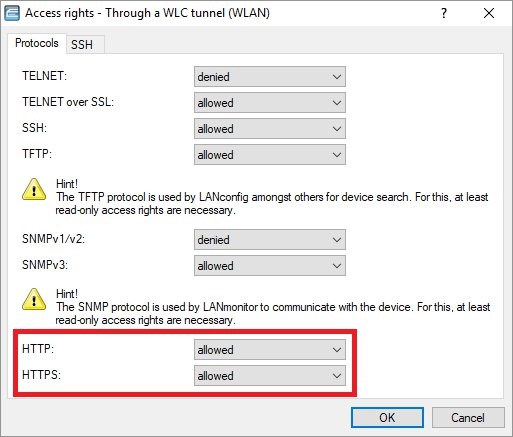
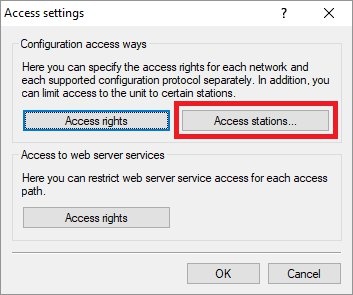
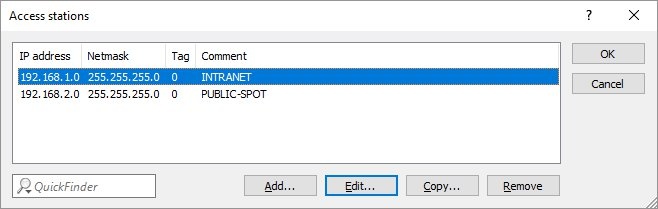
D o not create the Public Spot network if there are no access stations stored yet. Otherwise, access to the device will be impossible from all other networks!
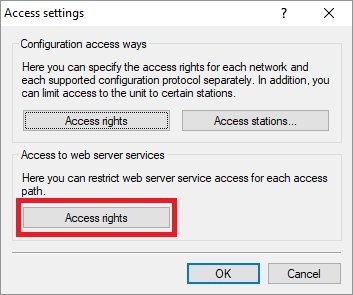
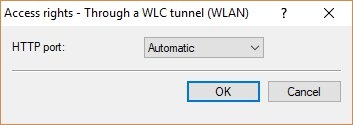
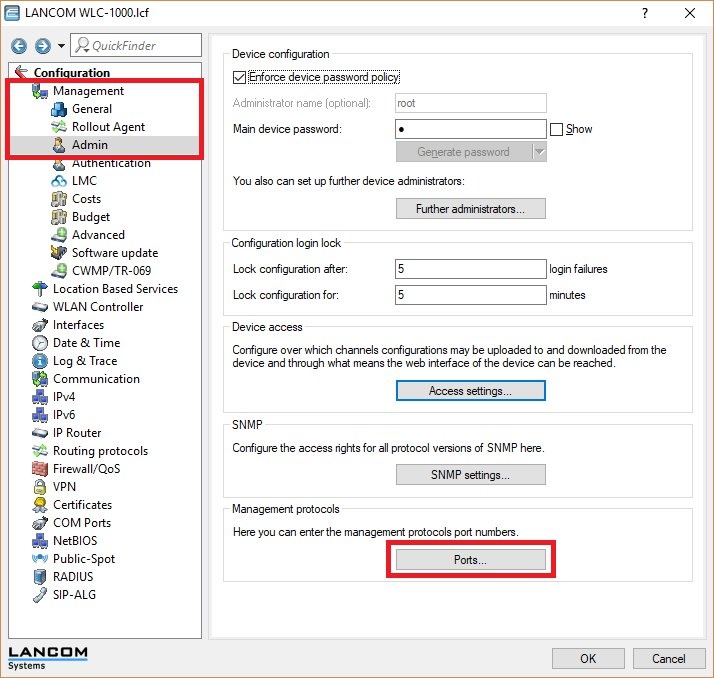
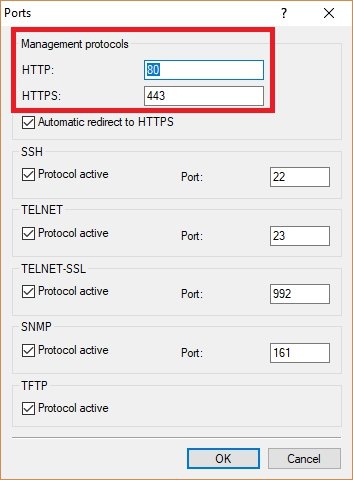
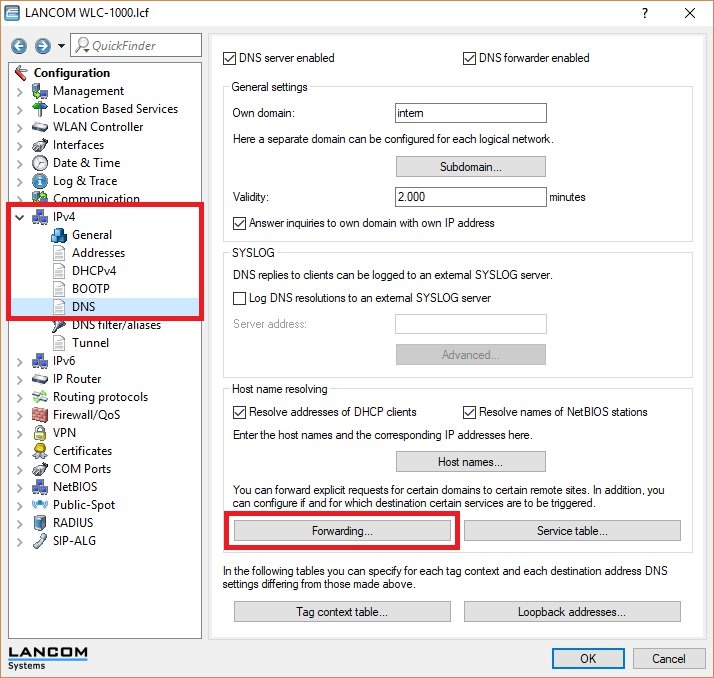
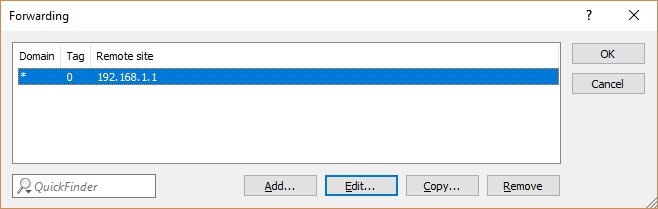
- Domain: Enter the wildcard *. This represents any number of characters.
- Remote site: Enter the IP address of any DNS server (e.g. the upstream router or a public DNS server on the Internet).
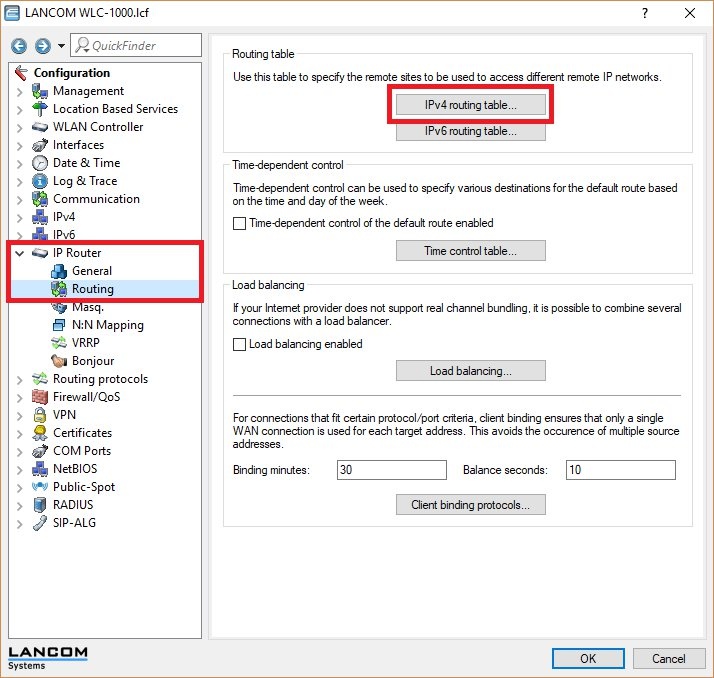
The default route is important not only for the DNS resolution, but also for any communication from the Public Spot network to the Internet.
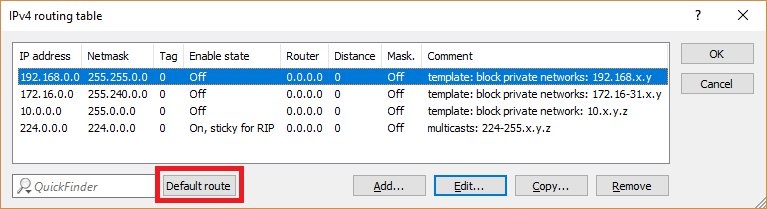
- Router: Enter the IP address of the upstream router.
- IP masquerading: Set the radio button to IP masquerading switched off.
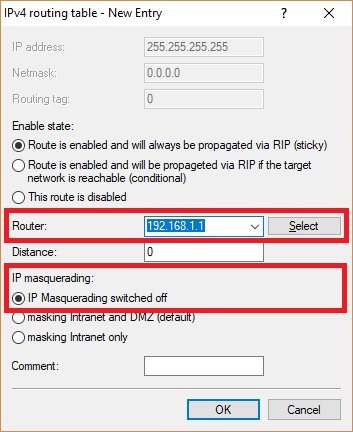
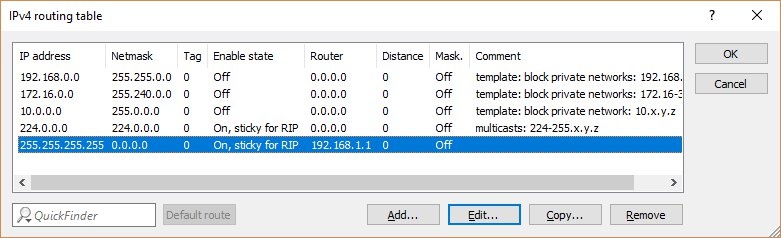
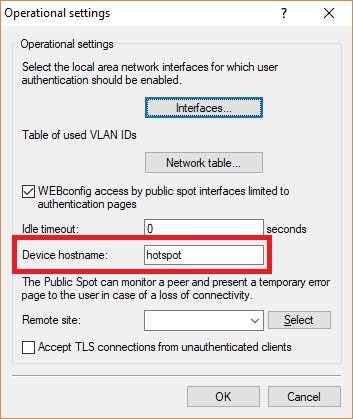
4.2) If there is a device hostname in place, navigate to IPv4 → DNS → Host names and check that there is an entry containing the IP address of the Public Spot network.
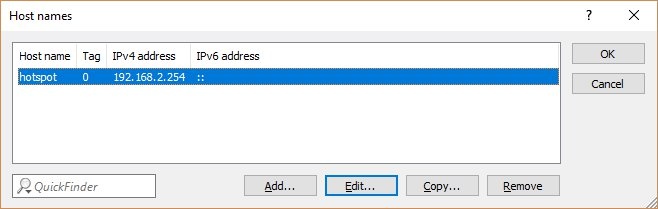
In some cases, network clients may not be able to handle a device hostname . In this case, the device hostname in the Public Spot has to be deleted.
Generating ping tests and traces:
Often, the Public Spot login page cannot be invoked because DNS resolution is not working.
- Connect a network client (such as a notebook) to the SSID of the Public Spot and enter the IP address of the Public Spot network or the device hostname into the browser. If the login page can be accessed, there are problems with the DNS resolution.
- Check to see if DNS resolution works with another DNS server (see step 2.2).
- Use the command-line interface (with administrator rights) of the Public Spot Gateway and start a DNS trace by means of the command tr # dns (the same command is also used to stop the trace).
- Then use the command ping <URL> to ping on any website (e.g. ping www.google.com).
Not all websites respond to ping requests. If necessary, you should test a number of websites.
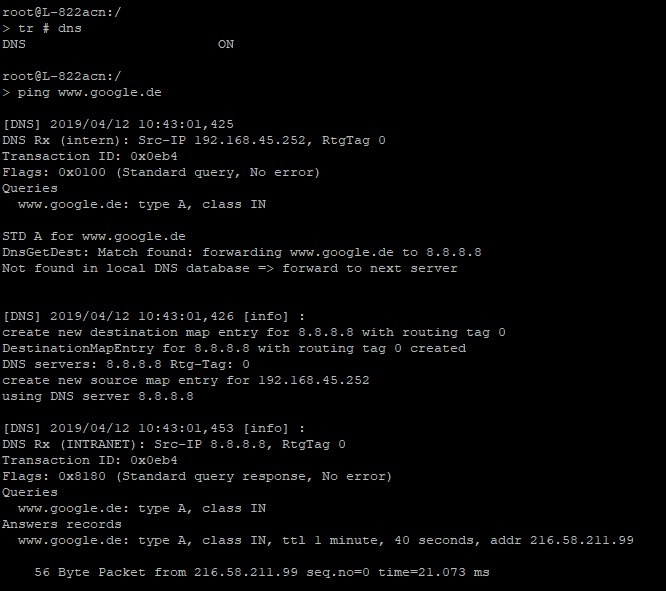
If DNS resolution using multiple DNS servers does not work, you should check to see whether the DNS servers themselves are reachable.
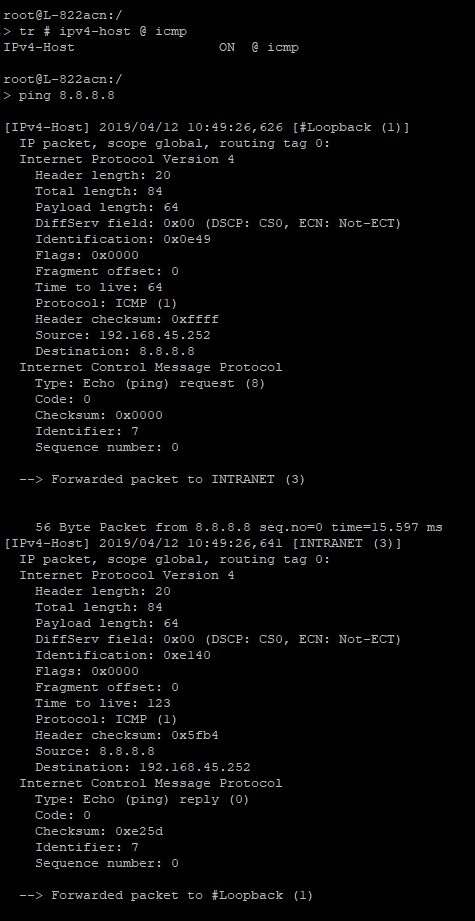
To do this, start an IPv4 host trace ( tr # ipv4-host @ icmp ) and then ping the IP address of the DNS server. Repeating the command stops the trace again.
Not all DNS servers respond to ping requests.
The IPv4 host trace is only available as of LCOS 10.20. For older versions of LCOS up to and including 10.12, the command to be used is tr # ip-router @ icmp .
Please also refer to the Knowledge Base article Troubleshooting Guide: Changes in the IP router trace as of LCOS 10.20.