
Description:
SPLA is available for vFirewalls running at least LCOS FX 11.1RU2 or LCOS FX-I 1.2Rel. This article provides guidance for picking the correct license and explains a few special scenarios that do not apply to hardware appliances.
Requirements:
- LANCOM R&S®Unified vFirewall
- LCOS FX as of version 11.1RU2
- LCOS FX-I as of version 1.2 REL
- Aktive SPLA for your Project
To use SPLA you first need to enable SPLA on your project. If that has not happened yet, please get in touch with your sales representative.
How vFirewall licenses work:
LANCOM vFirewalls are different from hardware appliances in that the user is able to assign as much or as little hardware resources to the appliance as he needs.
The license for a vFirewall needs to be chosen to fit the resources available to the underlying VM.
The following table shows how much resources a VM may offer for a given vFirewall size. The shown values are for clarification. Refer to current price list or LMC user interface for binding values).
Ressource | vFirewall- S | vFirewall- M | vFirewall- L | vFirewall- XL |
max CPU Cores | 1 | 2 | 4 | 16 |
max RAM [GB] | 4 | 8 | 16 | 64 |
max Users | 20 | 100 | 200 | 500 |
max VLANs | 16 | 32 | 64 | 256 |
- You can always select a license that allows for more resources that your VM offers.
- If your VM exceeds even one of the limits, you need to choose a bigger license or restrict your VM.
Choose license:
1. Open the Device Details page and click the Overview tab.
2. In the Licence Info tab, click the Select licence button.
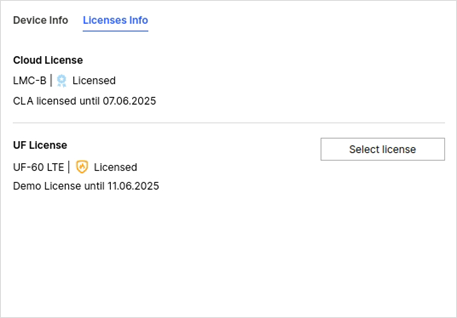
3. You will now be prompted to select the desired vFirewall licence size.
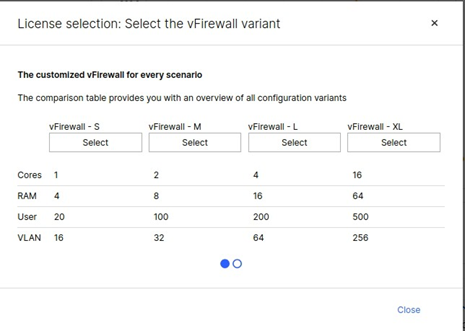
4. To select a licence size, click the Select button in the corresponding column.
Choosing the right license - A positive example:
In this positive example, the specifications of the VM are as follows:
- 4 CPU Cores
- 8GB RAM
Refer to the table above to find the right licence.
We start on the left with a vFirewall-S, the most affordable licence.
- vFirewall-S
- does not allow for more than one CPU core

- does not allow for more than 4 GB of RAM
- Result: You need a larger license.
- does not allow for more than one CPU core
- vFirewall-M
- does not allow for more than 2 CPU cores
- would allow for 8 GB of RAM

- Result: You still need a larger license, because of the CPU restrictions.
- does not allow for more than 2 CPU cores
- vFirewall-L
- allows for our 4 CPU cores
- allows for our 8 GB of RAM and would even allow to go as high as 16 GB
- Result: This is the most economical choice.
- allows for our 4 CPU cores
- vFirewall-XL
- Result: Would also be applicable, because it allows for even more resources.
Choosing the right license - A negative example:
In this negative example, the specifications of the VM are as follows:
- 4 CPU Cores
- 8 GB RAM
If you select the vFirewall-S licence, the licence will only allow the firewall to run on VMs that have no more than one CPU core and no more than 4 GB of RAM.
However, the VM offers more resources and vFirewall will reject the licence (see the following figure). To use the additional VM performance, you must purchase a larger licence.
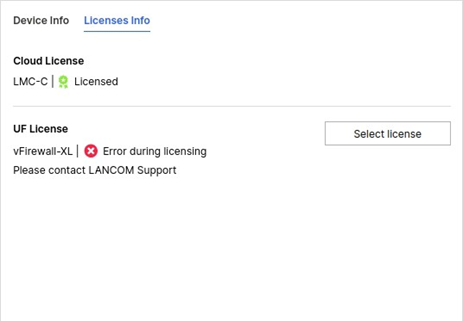
If your request is denied, you can also check the system log of the vFirewall. You should find a log entry describing the problem, such as

or

Wenn Sie eine Lizenz ausgewählt haben, die nicht groß genug ist, können Sie jederzeit zum Lizenzauswahlfenster in der LMC zurückkehren, um eine geeignete Lizenz auszuwählen.
Changing the Size of Your vFirewall
An advantage of using a VM as a host to your firewall is the option to adapt its configuration, depending on how much resources are actually required. SPLA makes this even easier by offering flexible billing and quick and simple license file deployment.
However, when changing the hardware of your VM you need to take special care in order to prevent interruptions from the restrictions mentioned above.
The necessary procedure depends on whether you want to upgrade (allocate more resources) or downgrade (allocate fewer resources) your VM.
Upgrade: Add More Resources
Just adding resources to your VM would void the license because of the license size restrictions mentioned in the beginning section of this article. After booting the firewall with the extra CPU cores or RAM the existing license would be rejected. Follow these steps to avoid such problems:
- Go to the license selection screen in the LMC and pick a license matching the resource layout you wish to upgrade the VM to. The beginning section of this article will help you identifying the minimum license size.
- After the license is applied, shut down the vFirewall and adjust the VM's settings.
Boot the firewall again. Everything should be running as it used to, only faster.
Downgrade: Remove Extra Resources
Removing extra resources is less of an issue, because your current license will always keep working with fewer resources than you used before. Still, you don't want to pay more than necessary. Follow these steps to avoid problems.
- Shut down the vFirewall and reduce the resources as desired.
- Boot up the firewall.
Go to the license selection screen in the LMC and pick a smaller license that is still large enough to meet the requirements determined by the VM configuration.
Examples
Schauen wir uns einige Beispiele an.
Aufrüsten: Zusätzlichen Arbeitsspeicher hinzufügen
Unsere vFirewall ist derzeit wie folgt konfiguriert
- vFirewall-M
- 2 CPU-Kerne
- 8GB RAM
wollen weitere 8 GB RAM hinzufügen, so dass wir insgesamt 16 GB haben. Wir werden wie folgt vorgehen:
- Auf dem Lizenzauswahlbildschirm in der LMC finden wir die kleinste vFirewall-Variante, die die Anforderungen des neuen Ressourcenlayouts erfüllt. vFirewall-L erlaubt 4 CPU-Kerne und 16 GB RAM. Da wir immer noch nur 2 CPU-Kerne verwenden und immer noch innerhalb der 16-GB- RAM-Grenze für eine vFirewall-L liegen, wählen wir diese Größe. Dies ist die Größe, die wir wählen werden.
- Wir warten darauf, dass die Lizenz angewendet Danach fahren wir unsere VM herunter und können nun den RAM auf 16 GB erhöhen.
- Jetzt booten wir die Firewall Das ist alles, was wir tun müssen.
Herunterstufen: Entfernen von zusätzlichem Hauptspeicher
Unsere vFirewall ist derzeit wie folgt konfiguriert
- vFirewall-L
- 2 CPU-Kerne
- 16GB RAM
Es ist Sommerzeit und die Leute sind im Urlaub. Die vFirewall braucht im Moment keine 16 GB RAM, 8 GB reichen für ein paar Wochen aus. Wir wollen den Hauptspeicher auf 8GB reduzieren. Wir werden wie folgt vorgehen:
- Schalten Sie die vFirewall aus und reduzieren Sie den RAM auf 8 GB.
- Starten Sie die
- Wir gehen zum Lizenzauswahlbildschirm in der LMC und suchen die kleinste vFirewall-Variante, die die Anforderungen des neuen Ressourcenlayouts erfüllt. vFirewall-M erlaubt 2 CPU-Kerne und 8 RAM. Da wir nur 2 CPU-Kerne verwenden und unseren RAM-Speicher reduziert haben, liegen wir innerhalb der Grenzen für eine vFirewall-M. Diese Größe wählen wir aus. Das war's.
Tipps und Tricks
Es kann vorkommen, dass der Lizenzauswahlbildschirm in der LMC bereits die Werte anzeigt, die Sie anwenden möchten (d. h. vFirewall-Größe und Lizenzvariante), und ein erneutes Anklicken dieser Werte keinen Lizenz-Rollout auf Ihr Gerät auslöst.
Aus welchen Gründen auch immer, möchten Sie jedoch einen sofortigen Lizenz-Rollout auf Ihr Gerät durchführen. In diesem Fall wählen Sie einfach kurz eine andere Lizenzvariante (z. B. "Basic" statt "Full"). Anschließend wechseln Sie wieder zur gewünschten Variante.
