Description:
Some scenarios require users on a terminal server to have access to the Internet only if they authenticate themselves first. This can be implemented using the LANCOM R&S®Unified Firewall with local user authentication in combination with the non-transparent HTTP proxy.
This article describes how to use the non-transparent HTTP proxy on a LANCOM R&S®Unified Firewall with local user authentication in terminal-server environments.
Requirements:
- LANCOM R&S® Unified Firewall with LCOS FX as of version 10.4
- A configured and functional Internet connection with local network on the Unified Firewall
- The local network cannot have any firewall rules that allow HTTP and HTTPS!
- Web browser for configuring the Unified Firewall.
The following browsers are supported:- Google Chrome
- Chromium
- Mozilla Firefox
Procedure:
1) Configuration steps on the Unified Firewall:
1.1) Configuration of the HTTP proxy and user authentication:
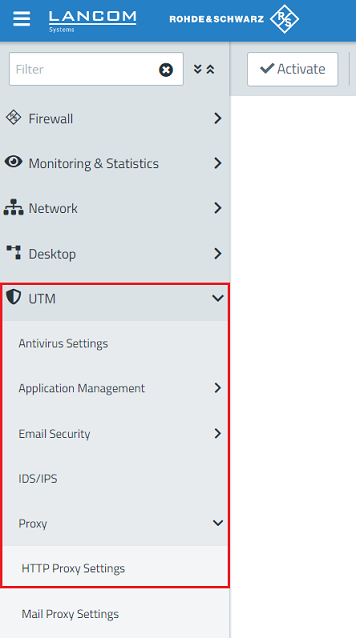
1.1.1) Open the configuration interface of the Unified Firewall in your browser and go to the menu UTM → Proxy → HTTP Proxy Settings.
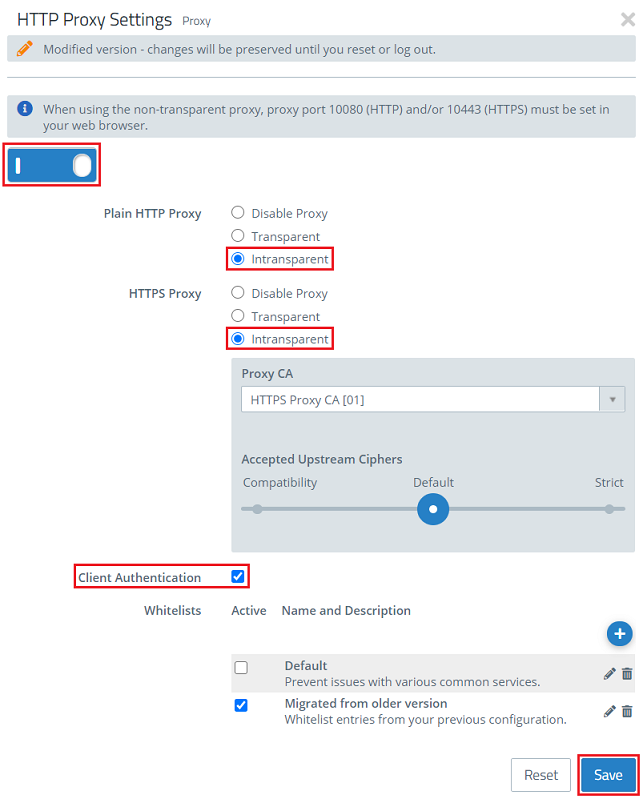
1.1.2) Under Plain HTTP proxy and HTTPS proxy, select the option Intransparent for each entry, and activate client authentication.
Then click on Save.
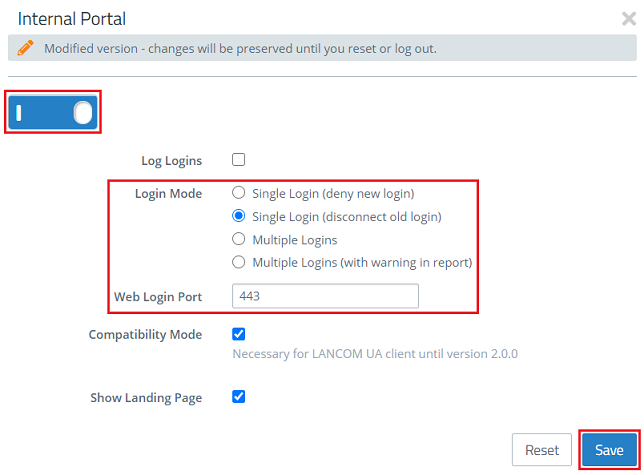
1.1.3) Navigate to the menu User Authentication → Internal Portal → Settings.

1.1.4) Modify the following parameters and then click Save:
- Use the slider to activate the Internal Portal.
- Login Mode: Choose a mode suitable for your scenario. In this example, only Single Login is allowed.
- Web Login Port: This port is used to access the authentication page of the Unified Firewall. If the port specified here is already being used elsewhere (e.g. by the reverse proxy), the port must be changed here (e.g. to 8443).
1.2) Activating user authentication for the network and/or host object used:
In order for network users to log in to the network, login must be allowed in the network and/or host object being used.
1.2.1) Network object:
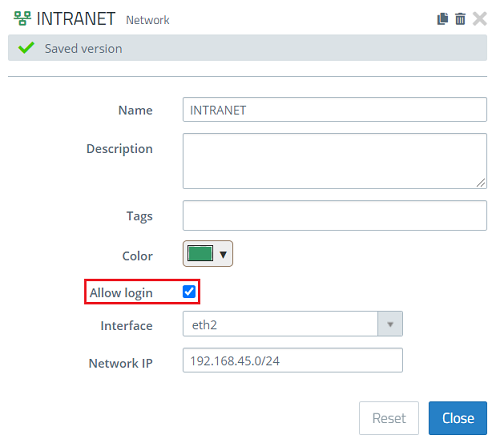
On the desktop, click on the Network object and select the pencil icon to get to the settings.

Make sure that Allow login is activated.
1.2.2) Host object:
If necessary, repeat this step for additional host objects.
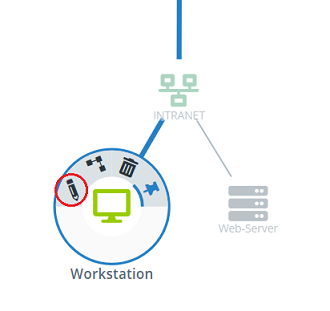
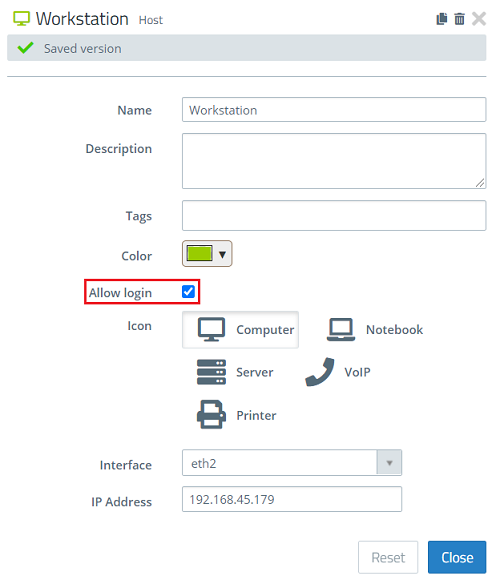
Click on the Host object and select the pencil icon to get to the settings.
Make sure that Allow login is activated.
1.3) Create a local user with firewall rules on the Unified Firewall:
If necessary, repeat this step for further local users.
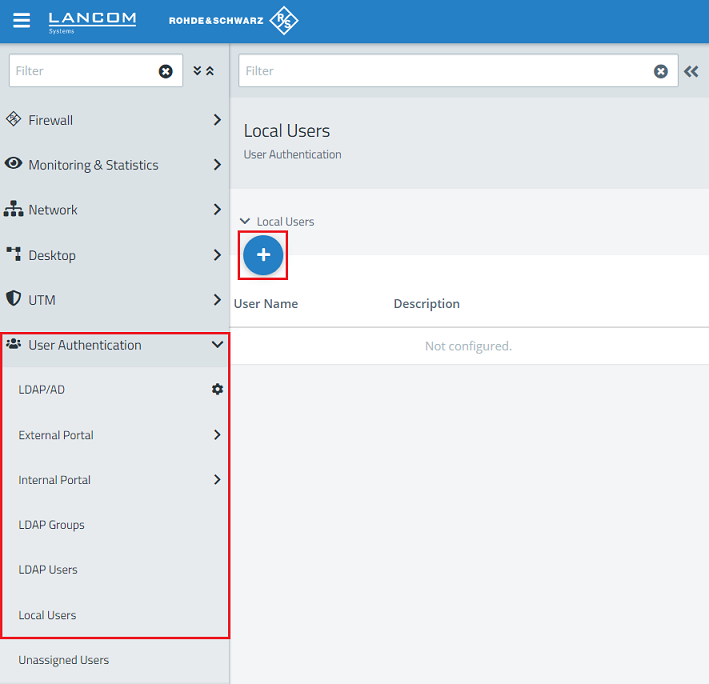
1.3.1) Change to the menu User Authentication → Local Users and click on the “+” icon to create a new local user.
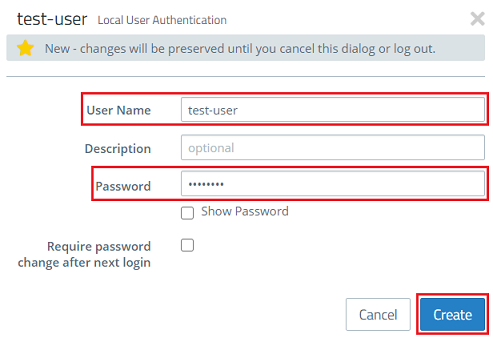
1.3.2) Set the User name as a meaningful name and enter a password. Then click on Create.
1.3.3) Click the icon on the desktop to create a new user.

1.3.4) Modify the following parameters and then click Create:
- Object Name: Enter a descriptive name.
- User Name : Select the user created in step 1.3.2 .

1.3.5) On the desktop, click the user object created in step 1.3.4, select the connection tool and click the Internet object to invoke the rules.
There must be no rules for the HTTP and HTTPS protocols in the local network: Otherwise the data traffic will bypass the HTTP proxy!
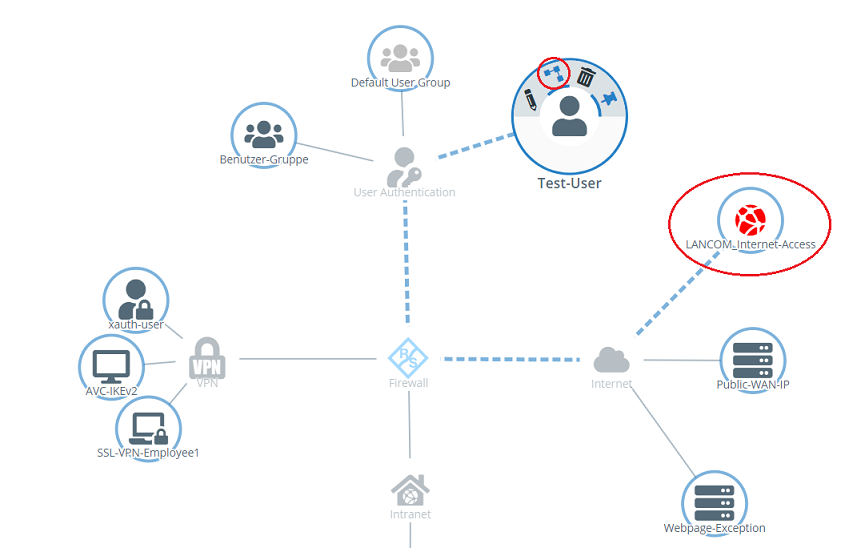
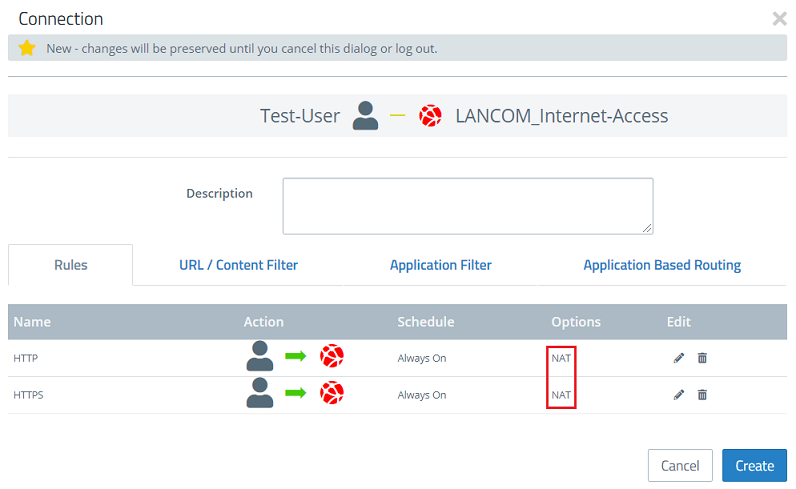
1.3.6) Add the protocols HTTP and HTTPS from the list on the right.

1.3.7) For HTTP and HTTPS under Options, click NAT to open the advanced settings for each entry.
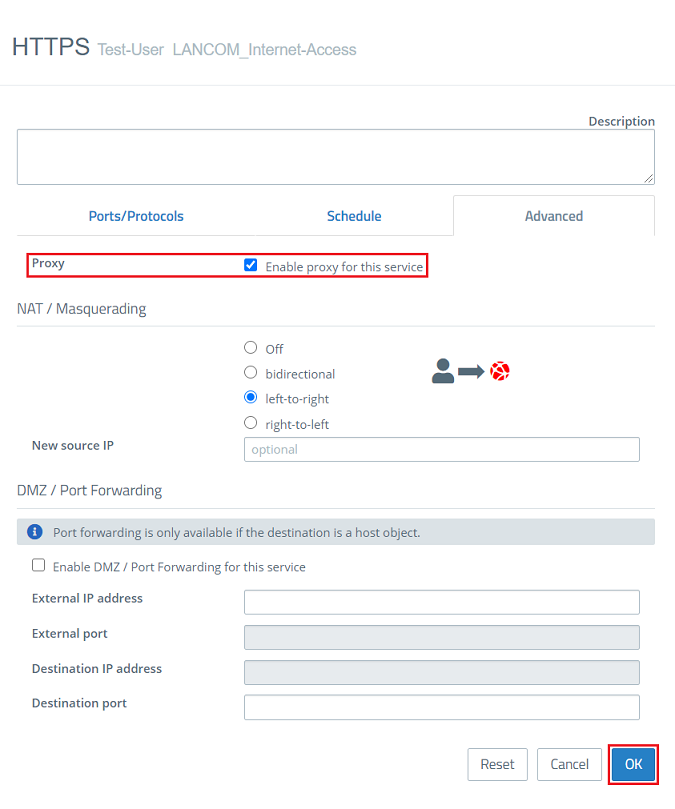
1.3.8) For each one, check the box next to Enable proxy for this service and click on OK.

1.3.9) Click Create to generate the firewall rule.

1.3.10) Finally, implement the changes by clicking Activate.
2) Entering the HTTP proxy in the web browser of a network user:
Enter the HTTP proxy into the web browser of a network user as described in the Knowledge Base article Use the HTTP(S) proxy of a LANCOM R&S®Unified Firewall only in the browser under step 4.
If necessary, the proxy settings of your web browser will need an exception for the IP address of the Unified Firewall in order to access the login page.
3) Export of the HTTP proxy certificate and import it for network users:
Export the HTTP proxy certificate and import it for each network user. The procedure is described for a Windows PC in the Knowledge Base article LANCOM R&S®Unified Firewall: Configuring the HTTP(S) proxy to use UTM functions in step 3.
4) Authenticating a network user with the local user via web browser:
4.1) If a web browser tries to access a website, it automatically redirects to the login page. Enter the login data there (see step 1.3.2).
Alternatively, you can use the web browser of a network user who requires authentication and enter the IP address of the Unified Firewall followed by the authentication port in the format <IP address of the Unified Firewall>:<Authentication port> (e.g. 192.168.1.254:443).
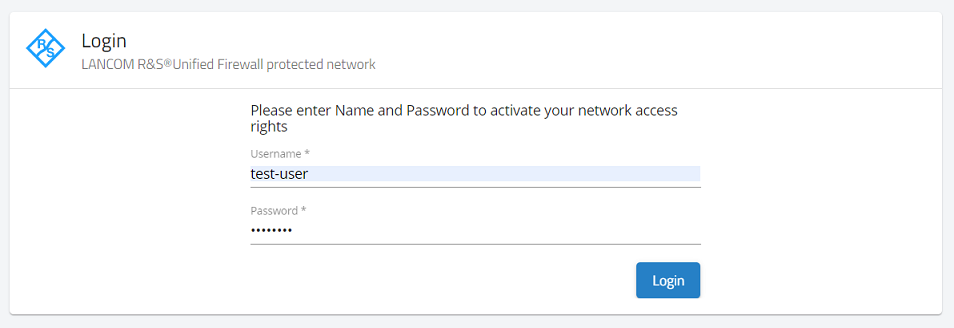
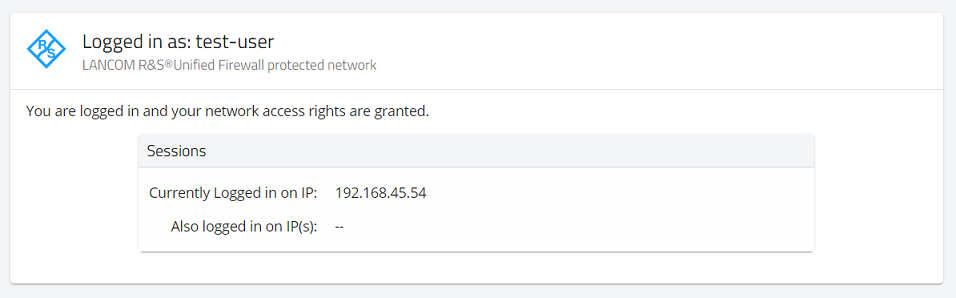
4.2) After successfully authenticating, the network user can communicate with the Internet.