Description:
The LMC allows external identity providers (IdP) to be connected for authentication. This makes it possible to implement central user management.
This article describes how to configure authentication of LMC users via the identity provider Microsoft Entra.
It is recommended to temporarily invite a user from outside the Entra domain to the organization for configuration in Entra. As a result, access to the organization is possible even if all users from the Entra domain have been locked out due to a misconfiguration.
Requirements:
- Access to the LMC as well as your own project
- Configured and functional Entra organization with configured users
- The configuration in the LMC must be made as a Project administrator
- Any web browser for accessing the LMC and Microsoft Entra
Procedure:
1) Configuration steps in Microsoft Entra:
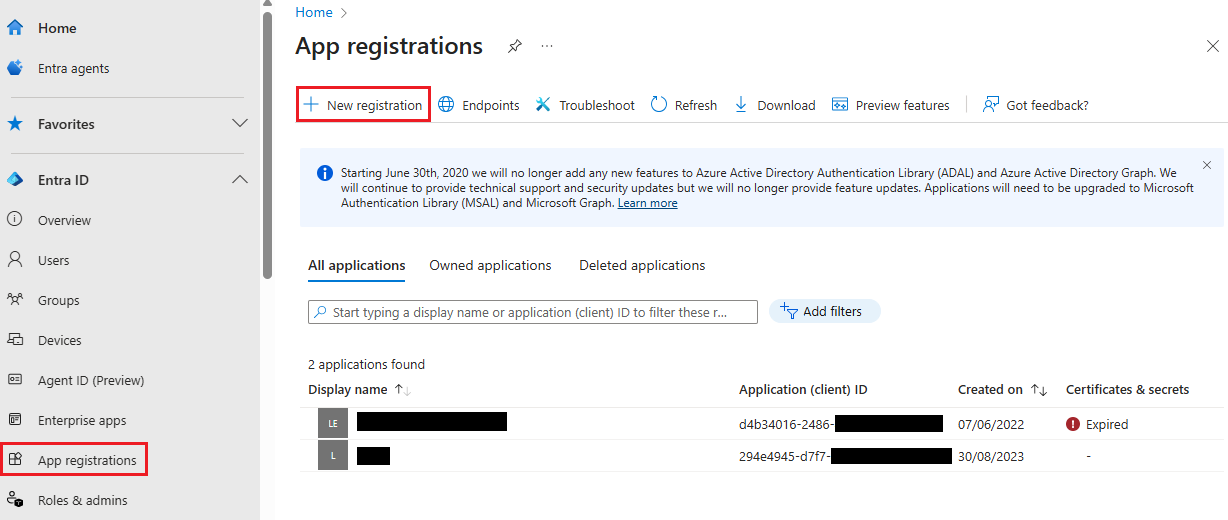
1.1) Connect to your Microsoft Entra instance and go to the menu App registrations. Click on New registration afterwards.
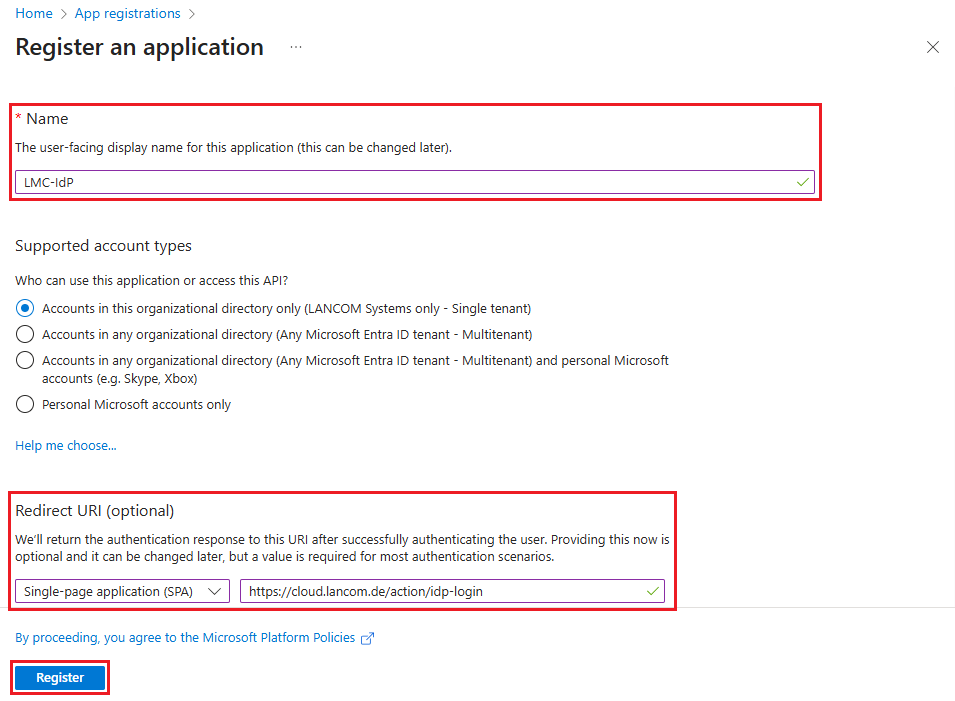
1.2) Modify the following parameters and click Register:
- Name: Enter a descriptive name for the app registration (in this example LMC-IdP).
- Redirect-URI: Select the option Single-page application in the dropdown menu and enter the link https://cloud.lancom.de/action/idp-login.
Make absolutely sure to use the option Single-page application for the Redirect-URI. If the option Web application is used instead, the user authentication won't work!
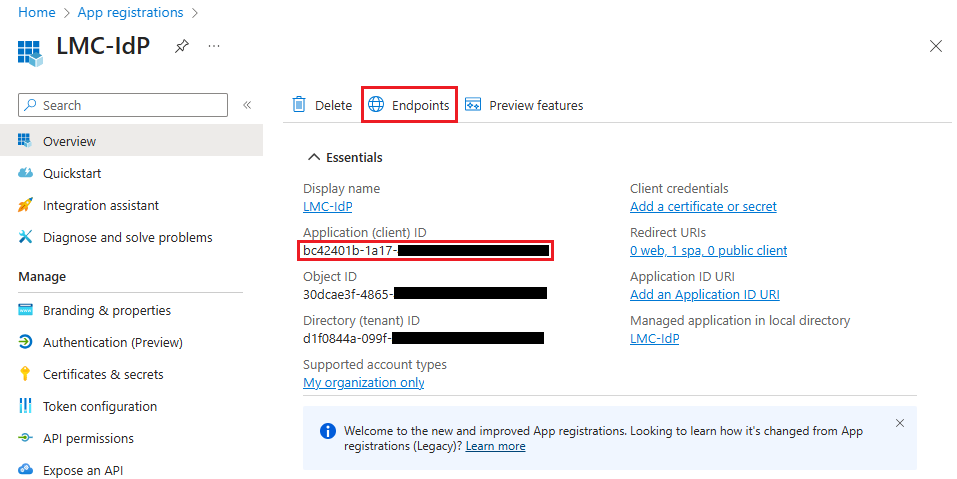
1.3) Copy the Application (client) ID and save it to a text file. It must be entered in the LMC in step 2.6 as the OIDC Client ID.
Click on Endpoints afterwards.
1.4) Kopieren Sie den Link bei OpenID Connect-Metadatendokument vor dem String .well-known/openid-configuration und speichern diesen in einer Text-Datei. Der Link muss in der LMC in Schritt 2.5 als OIDC-Issuer-URL hinterlegt werden.
The dot must not be copied.
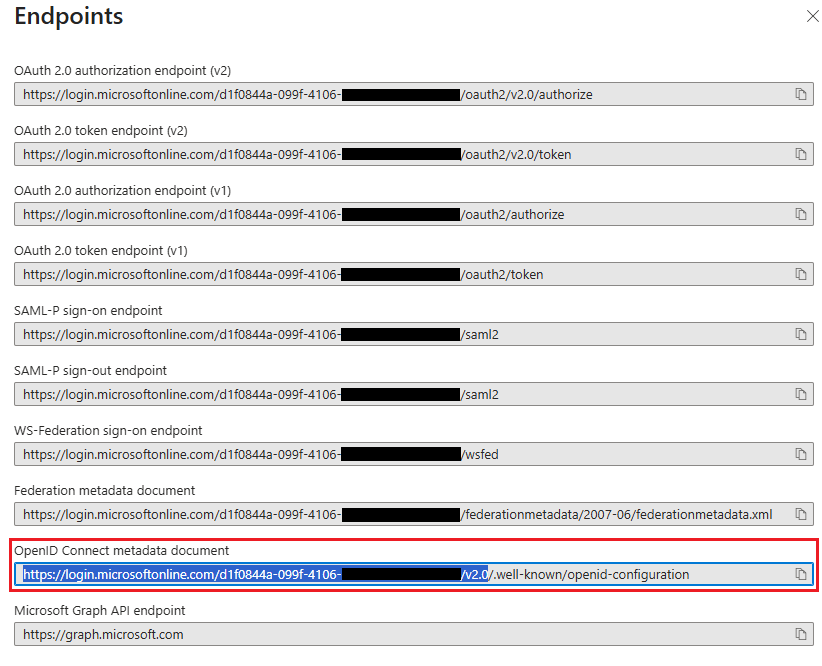
1.5 Die Konfigurationsschritte in Entra sind damit abgeschlossen.
2. Konfigurationsschritte in der LMC:
2.1 Verbinden Sie sich per Web-Browser mit der LMC und wechseln in das Menü Verwaltung → Externe Administratoren-Verwaltung.
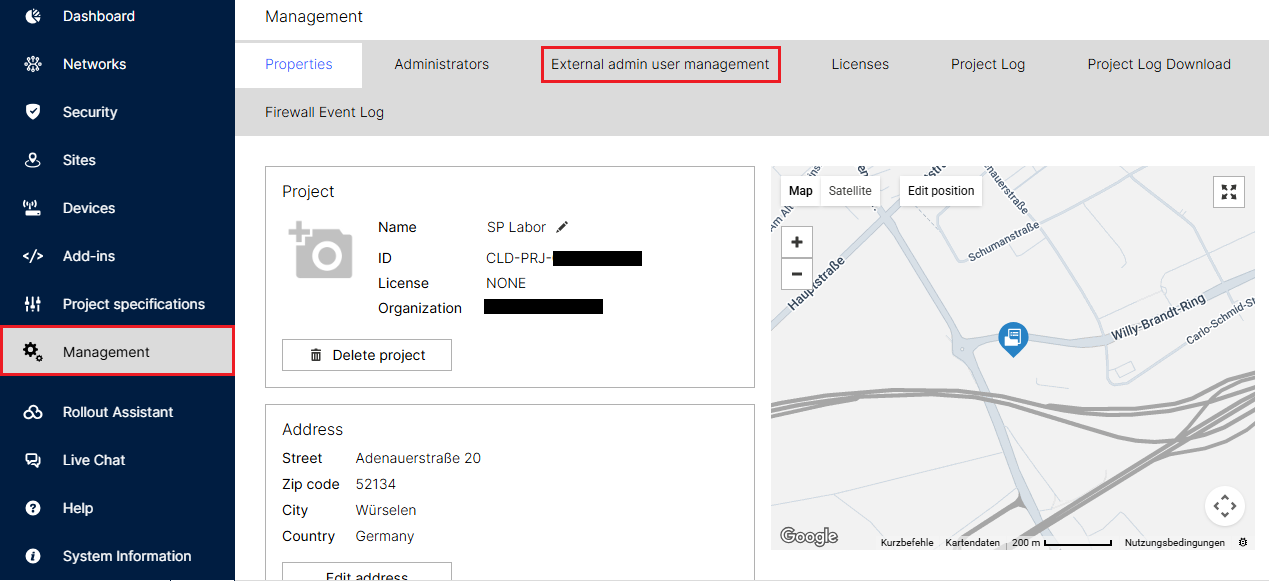
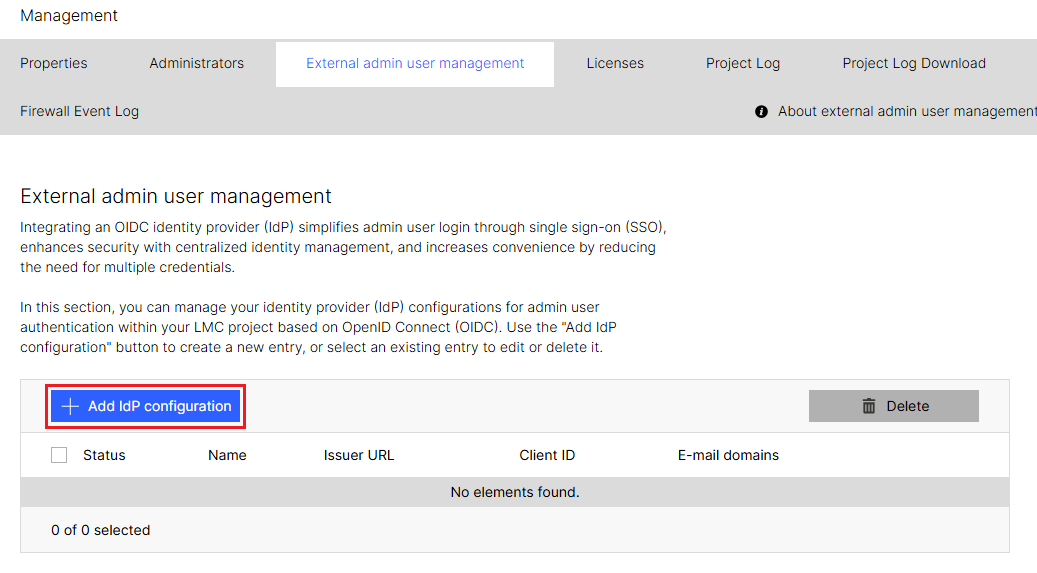
2.2 Klicken Sie auf IdP-Konfiguration hinzufügen.
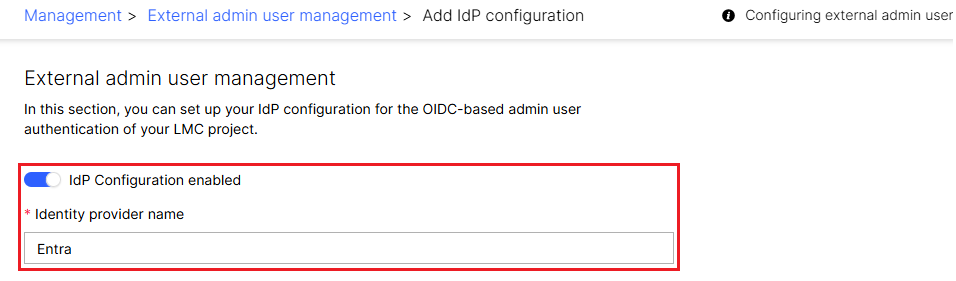
2.3 Aktivieren Sie die IdP-Konfiguration über den Schieberegler und vergeben bei Name des Idenitiy Providers einen aussagekräftigen Namen (in diesem Beispiel Entra).
2.4 Passen Sie die folgenden Parameter an:
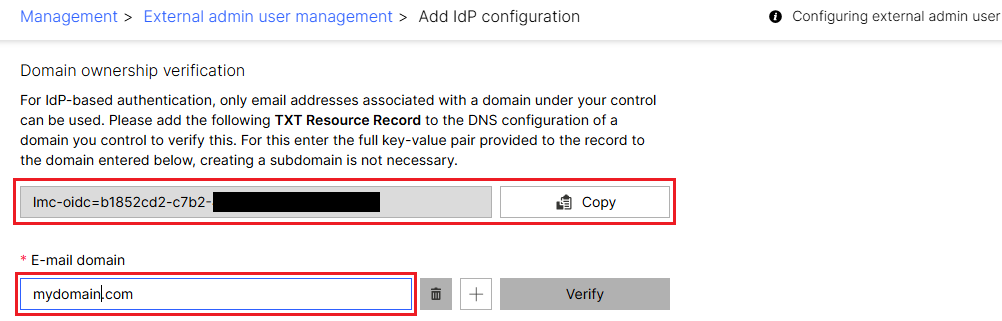
- Domainverifizierung: Kopieren Sie den TXT Resource Record und tragen diesen bei Ihrem Domain-Anbieter ein.
- E-Mail-Domain: Tragen Sie Ihre E-Mail-Domain ein (in diesem Beispiel mydomain.com).
Die E-Mail-Domain wird beim Speichern der IdP-Konfiguration automatisch verifiziert, sodass dies nicht manuell vorgenommen werden muss.
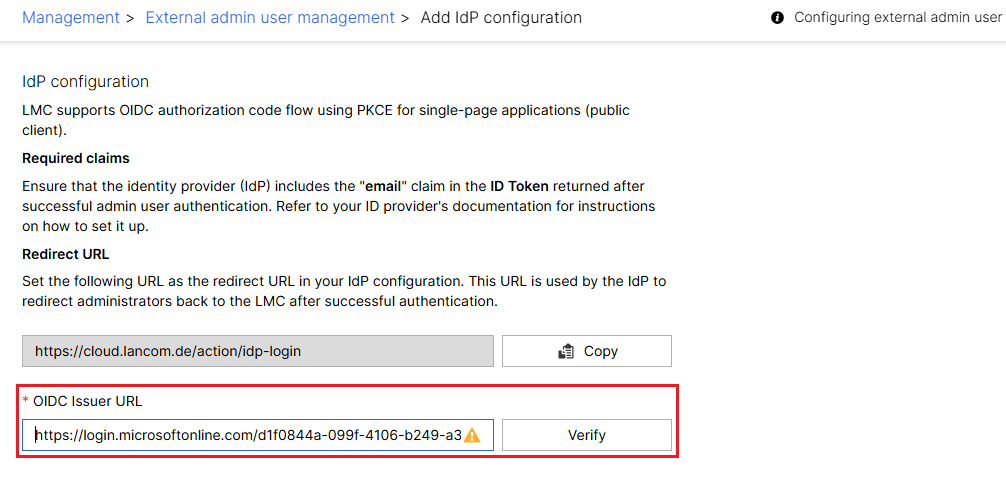
2.5 Fügen Sie in dem Feld OIDC-Issuer-URL den in Schritt 1.4 kopierten Link des OpenID Connect-Metadatendokuments ein und klicken auf Verifizieren.
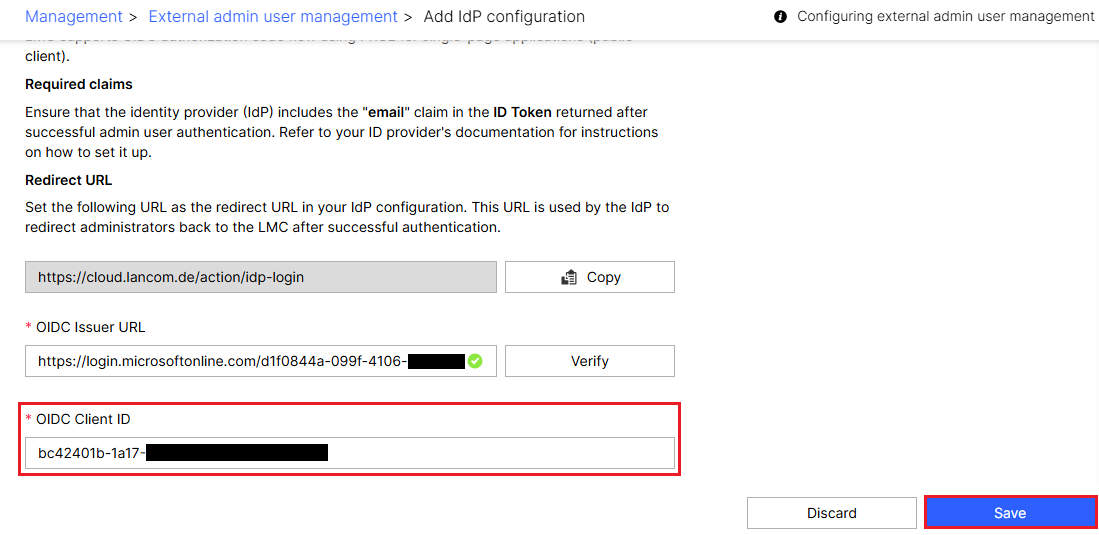
2.6 Fügen Sie in dem Feld OIDC-Client-ID die in Schritt 1.3 kopierte Anwendungs-ID (Client) ein und klicken auf Speichern.
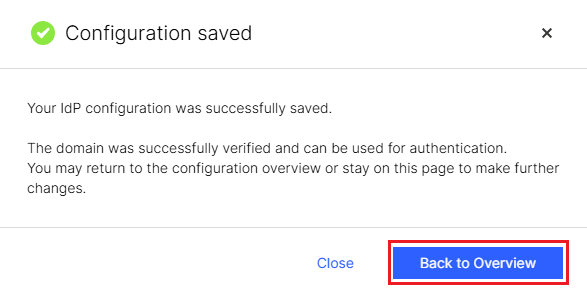
2.7 Die Konfigurationsschritte in der LMC sind damit abgeschlossen. Mit einem Klick auf Zur Übersicht gelangen Sie wieder in die Externe Administratoren-Verwaltung.