
Description:
If the LMC is not used, you can deactivate the LMC client on the devices. This article describes the procedure for the different operating systems.
Procedure:
LCOS:
1) LANconfig:
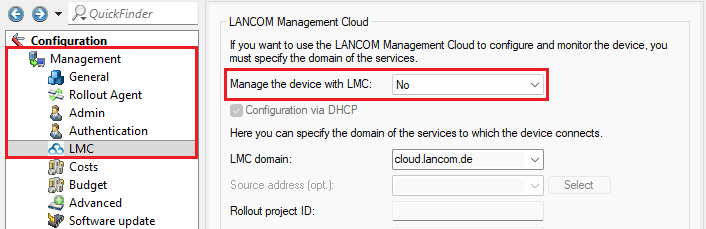
Open the configuration of the device in LANconfig and go to the menu Management → LMC.
Afterwards, select the option No for Manage the device with LMC and write the configuration back to the device.
2) WEBconfig:
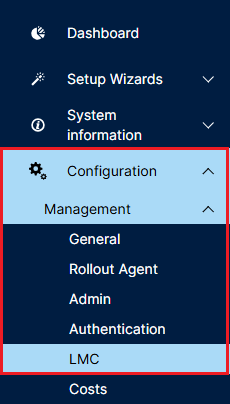
2.1) Connect to the device via WEBconfig and go to the menu Configuration → Management → LMC.
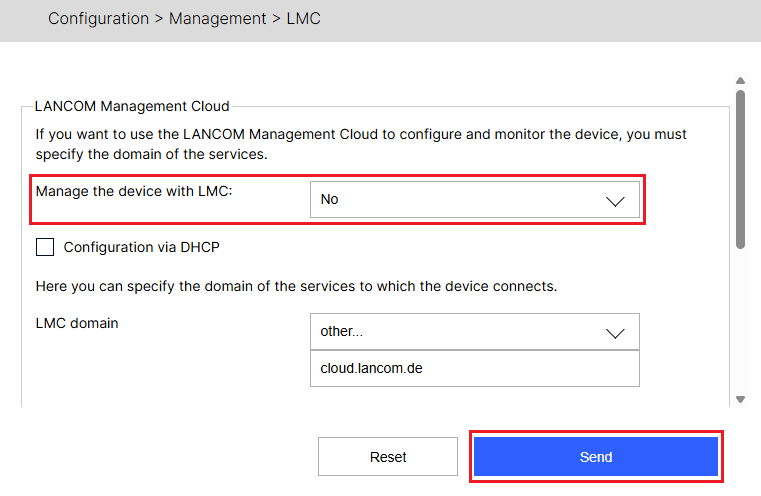
2.2) Afterwards, select the option No for Manage the device with LMC and click Send.
LCOS FX:
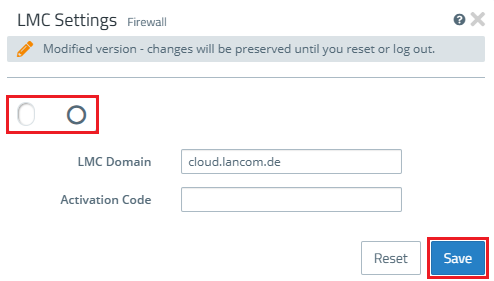
1. Connect to the Unified Firewall via the webinterface and go to the menu Firewall → LMC Settings.
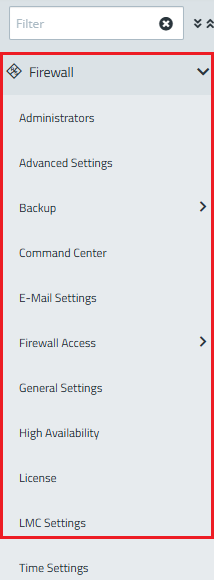
2. Deactivate the LMC client via the slider and click Save afterwards,
LCOS LX:
The LMC client cannot be configured via WEBconfig but only via LANconfig and via the CLI.
1) LANconfig:
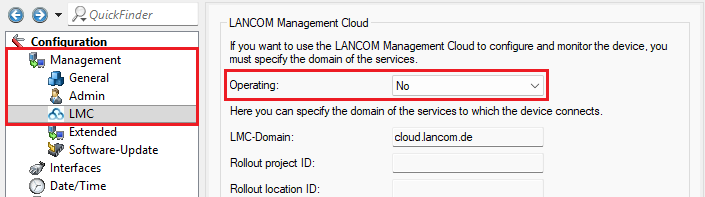
Open the configuration of the device in LANconfig and go to the menu Management → LMC.
Afterwards, select the option No for Operating and write the configuration back to the device.
2) CLI:
Connect to the access point via the CLI and enter the command set /Setup/LMC/Operating No.
LCOS SX:
1) LCOS SX 3.xx:
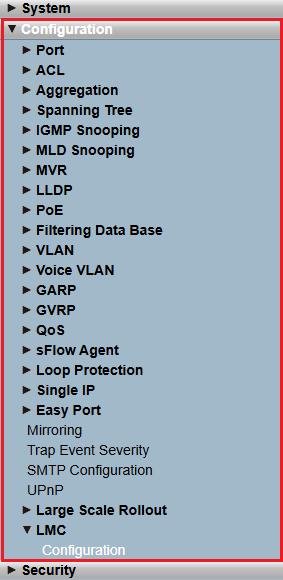
1.1) Connect to the switch via the webinterface and go to the menu Configuration → LMC → Configuration.
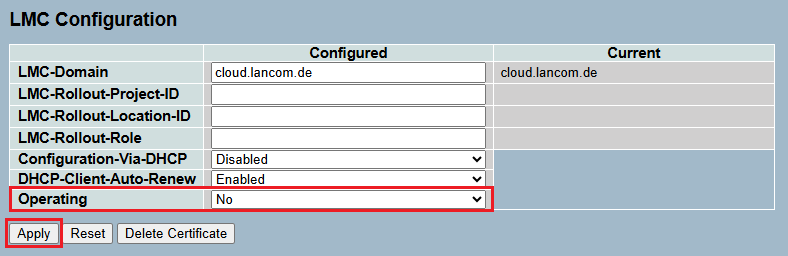
1.2) For the parameter Operating select the option No in the dropdown menu and click Apply.
1.3) Finally, save the configuration as the start configuration in the menu Maintenance → Save/Restore → Save Start.
2) LCOS SX 4.xx:
2.1) Connect to the switch via the webinterface and go to the menu LMC → Configuration.
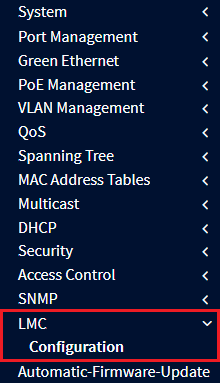
2.2) For the parameter Operating select the option No in the dropdown menu and click Apply.
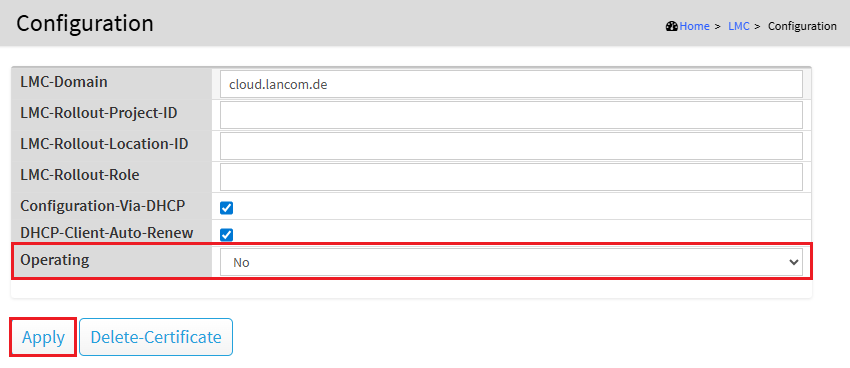
2.3) Finally, save the configuration as the start configuration by clicking on the red disk symbol in the upper right corner.
3) LCOS SX 5.xx:
3.1) Connect to the switch via the webinterface and go to the menu System → LMC → Configuration.
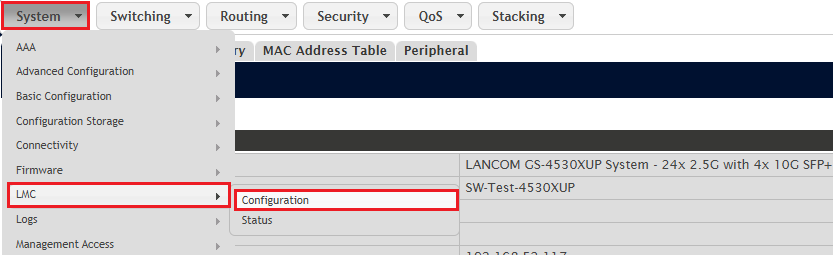
3.2) For the parameter Operating select the option No in the dropdown menu and click Submit.
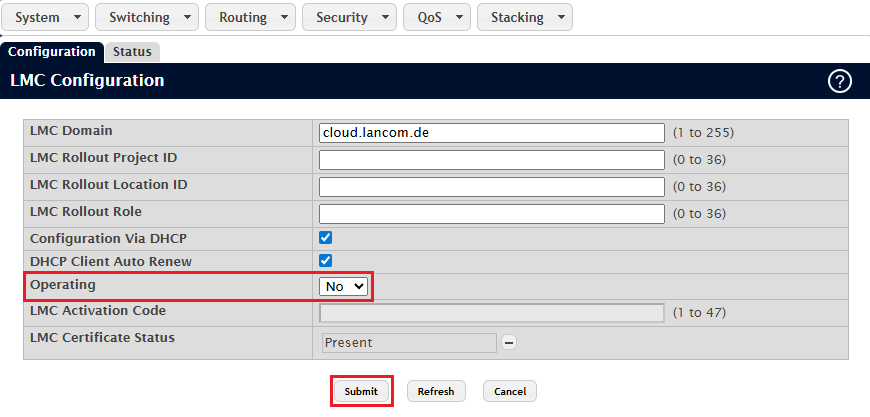
3.3) Finally, save the configuration as the start configuration by clicking on the button Save Configuration in the upper right corner.
